
Features
Mac storage cleaner features
MacZentra shows what is filling your Mac and helps you free up disk space safely. It finds big files, duplicate files and photos, junk, and files left behind by deleted apps. The app is 15.4 MB.
What makes it different
Features most Mac cleaners charge extra for
We built these because we wanted them ourselves and couldn’t find them in other Mac cleaners without a yearly fee.
Protected Folders
ProChoose folders MacZentra must never touch. They are skipped in every scan and cleanup.
Developer Mode
ProPreview exactly what will be deleted and what stays, before you click Execute.
msc command line
ProRun the same scans from Terminal, like msc large-files --threshold 100. Dry-run supported.
Pay once, works offline
One-timePay $49.99 once. Works offline, no account, never expires.
Menu bar alerts & Mac Health panel
Menu barLive CPU and memory in your menu bar, plus one alert when free space runs low.
Scheduled cleanups
AutomaticPick daily, weekly or monthly. Runs even when the app is closed.
Speaks your language
- English
- 中文
- हिन्दी
- Español
- Français
- العربية
- Deutsch
- Italiano
- 日本語
- 한국어
- Português
- Русский
Command line
Try the msc command line in your browser
A sample session with made-up data. Nothing is scanned or deleted.
Menu bar
Try the Mac Health panel
Click the menu-bar icon and this opens. Hover or tap a card for details, quit a busy app, or switch on Auto-clean. Sample data only.
Memory
Top apps
Mac Health: Fair
Apple M4
You are low on disk space
A working mock of the Mac Health popover — hover the cards, quit an app, flip Auto-clean. Sample data only.
01 · Visualize
See what is taking up space on your Mac
Four ways to look at the same scan. Use whichever is easiest for you.
- Treemap
- Sunburst View
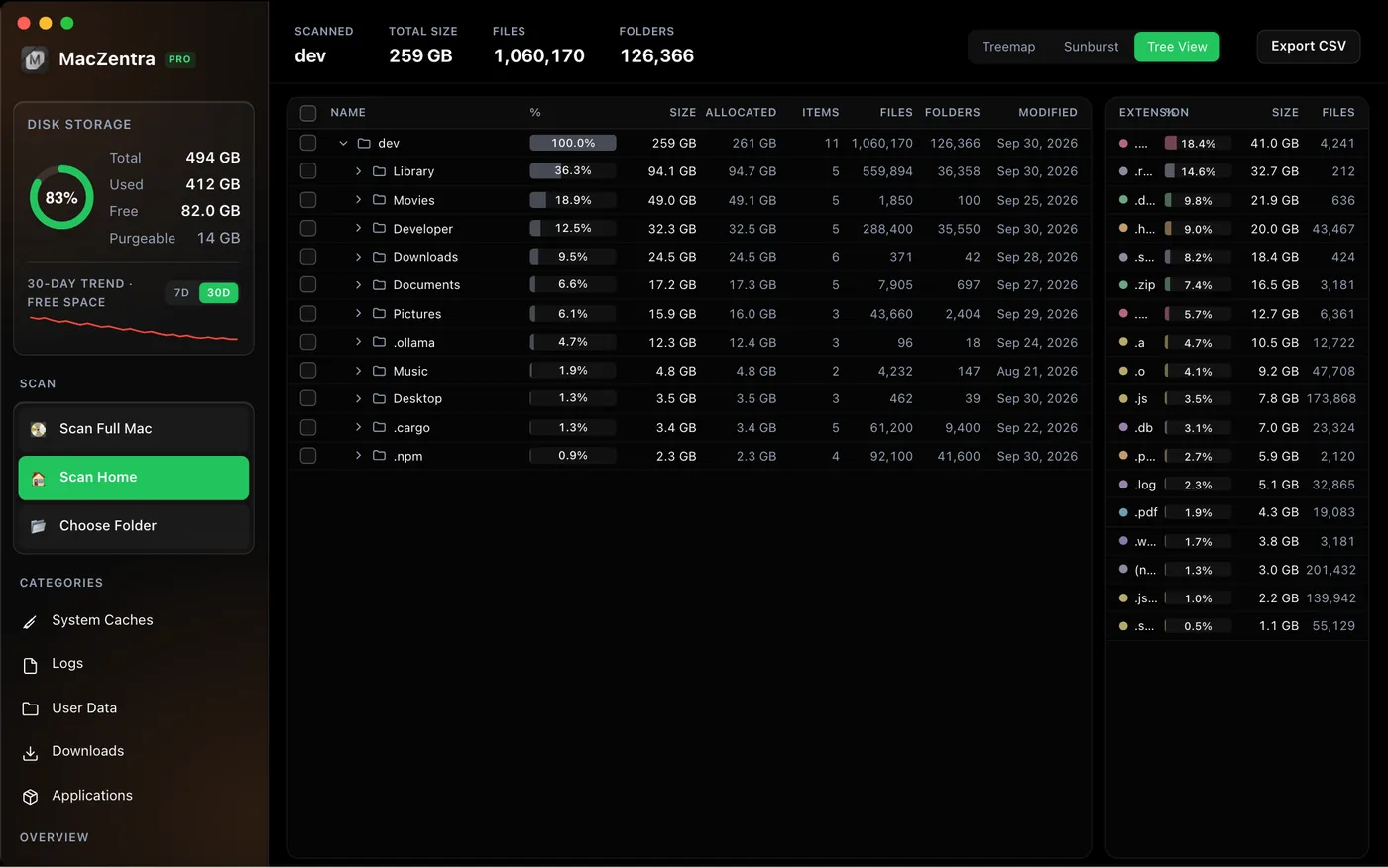
- Tree View
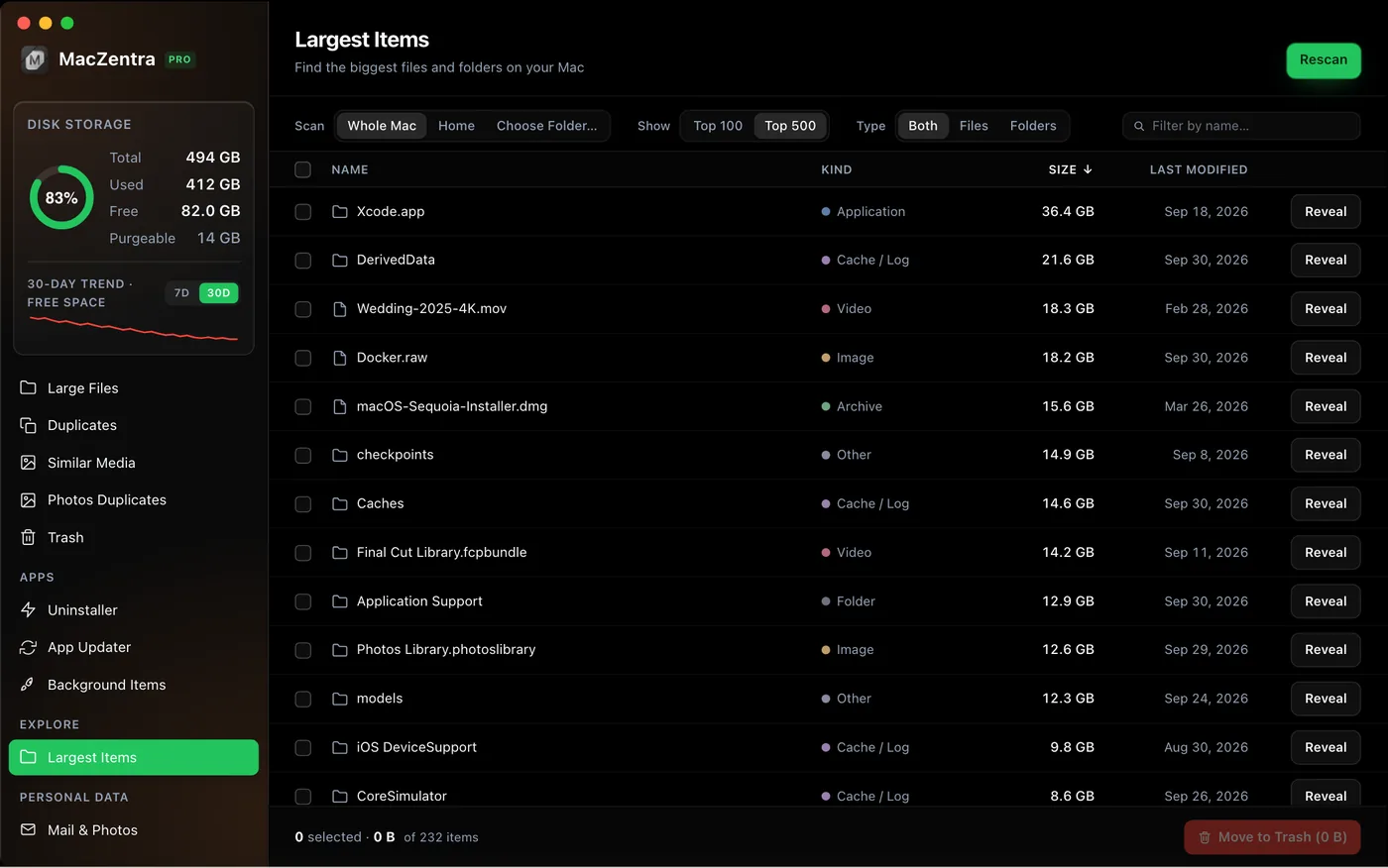
- Largest Items
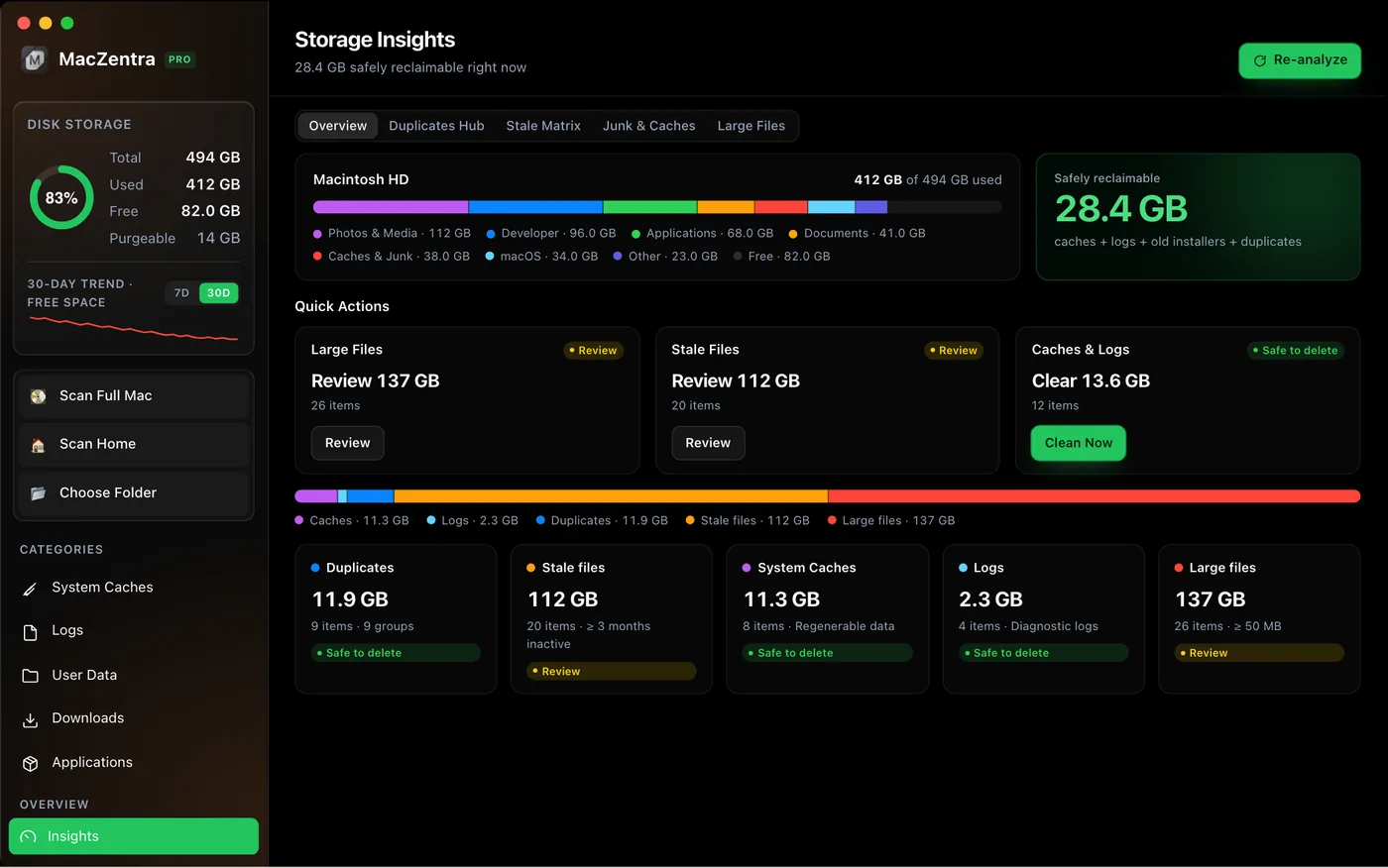
- Storage Insights
- Disk Storage summary
Treemap
Folders as boxes, sized by space used. Click to dive in, right-click to clean.
Sunburst View
Your folders as rings. Bigger slices use more space. Click a slice to zoom in.
Tree View
A folder list with sizes and dates. Tick items and trash them together.
Largest Items
The 100 or 500 biggest files and folders, listed once each, with filters.
Storage Insights
Your whole disk by type, and how much is safe to free up, in one view.
Disk Storage summary
A sidebar ring showing total, used, free and purgeable space. Turns red over 90%.
02 · Clean
Clean it up
Anything you remove goes to the Trash, so you can put it back.
- Junk Cleaner
- Developer Junk
- App Uninstaller
- App Drop Zone
- Duplicate Finder
- Name Duplicates
- Similar Media
- Photos Duplicates
- Browser Sweep
- Browser Extensions
- iCloud Eviction
- Other Clouds
- Mail & Photos
- Chat Attachments
- APFS Snapshots
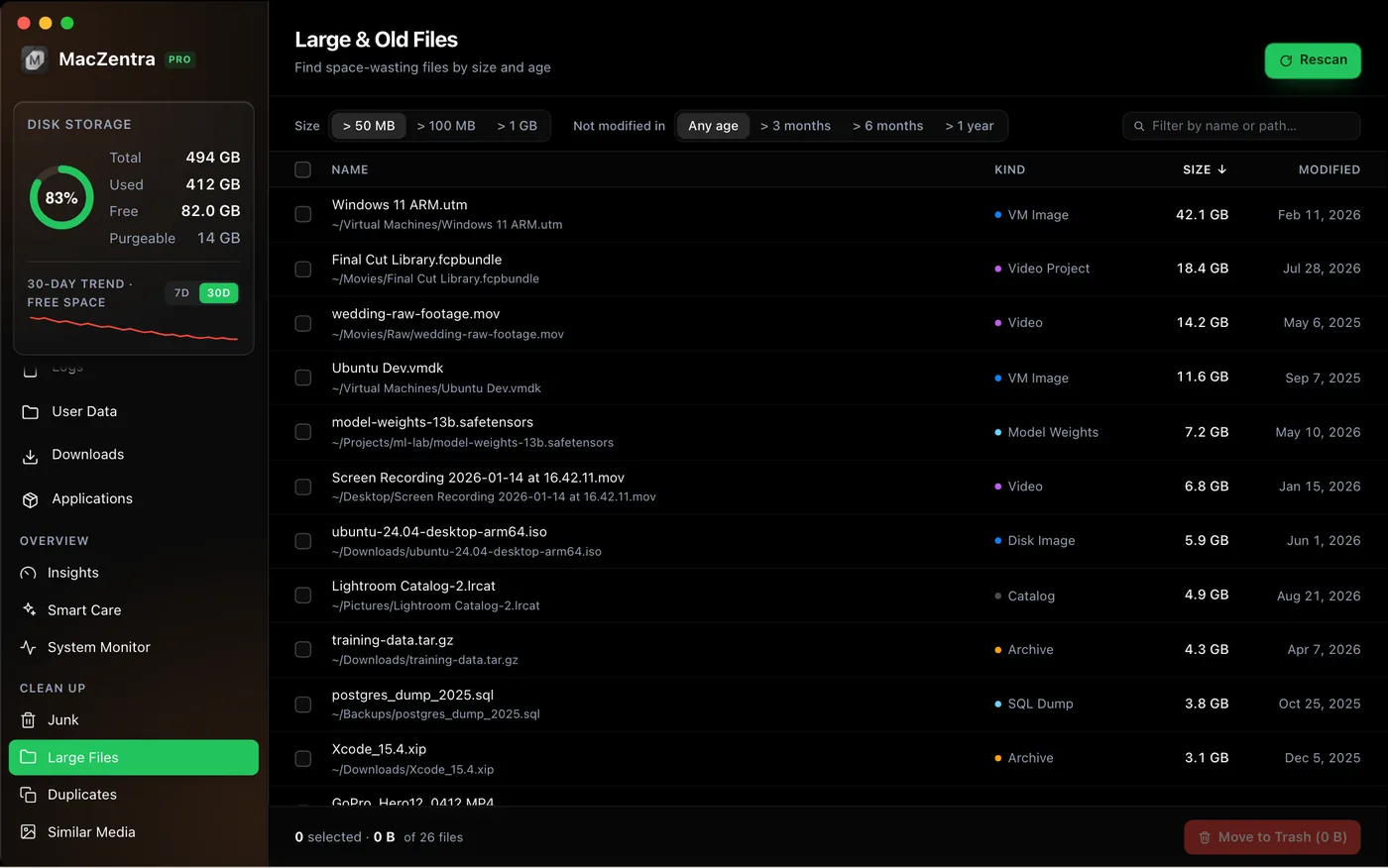
- Large Files
- Trash Manager
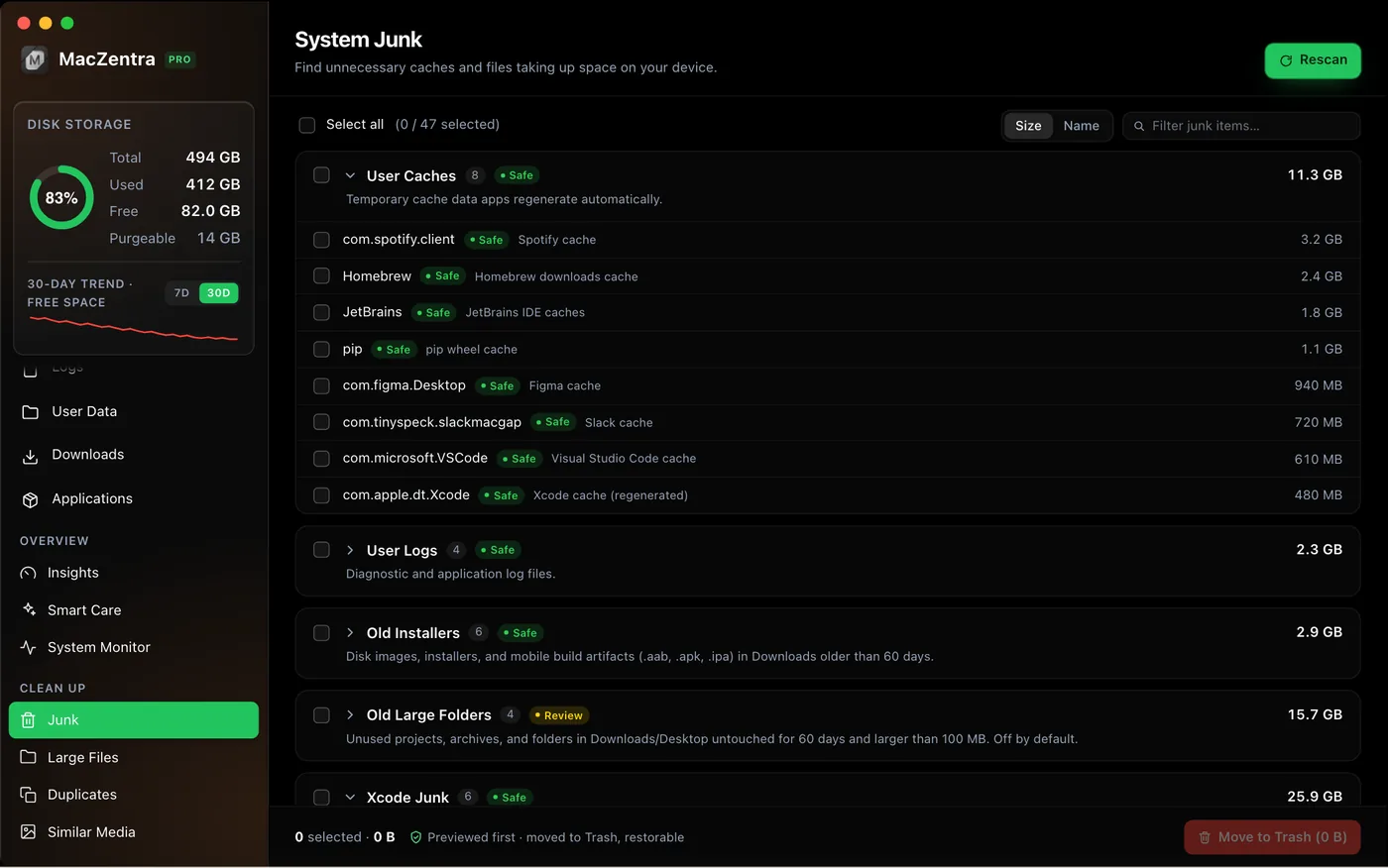
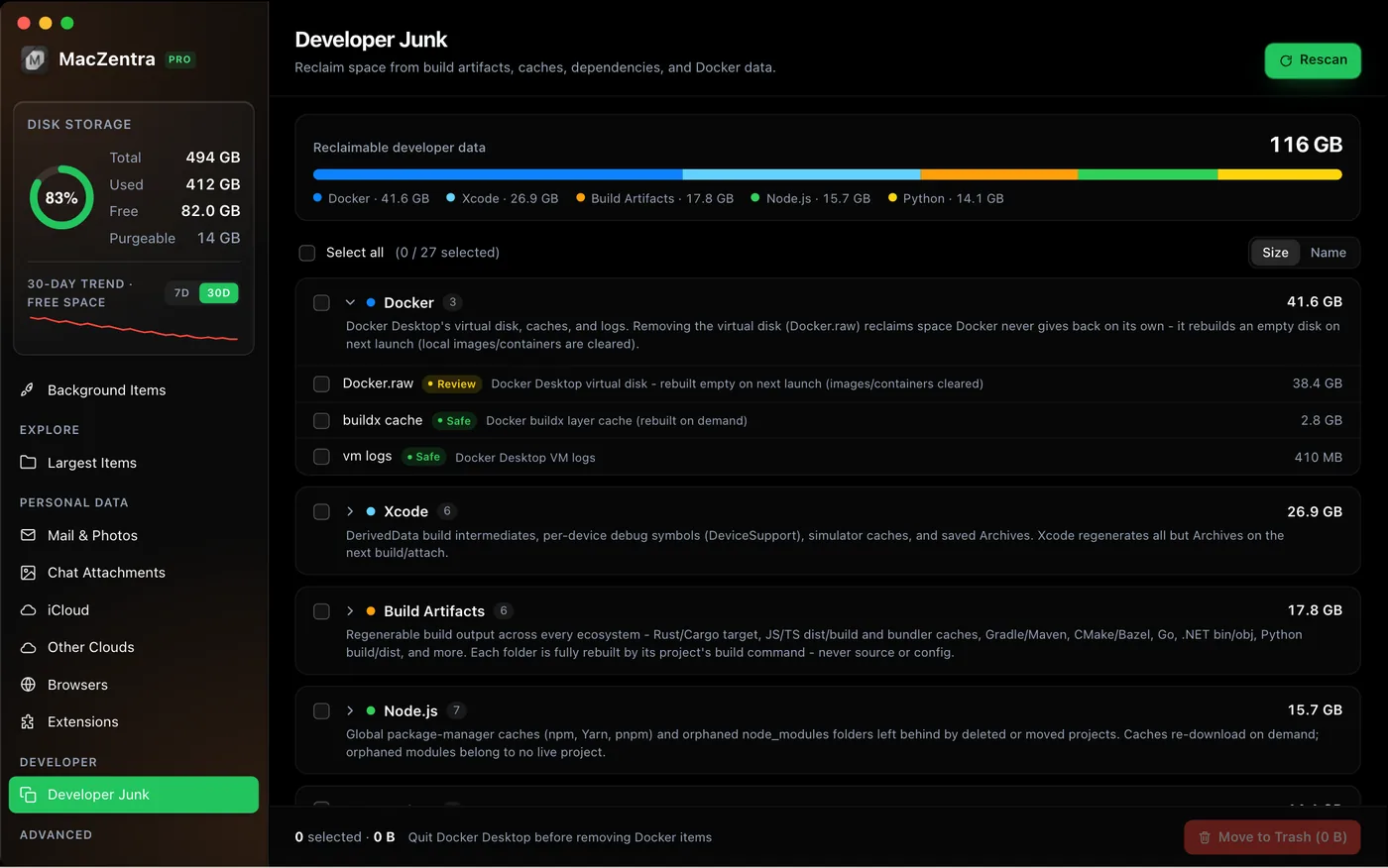
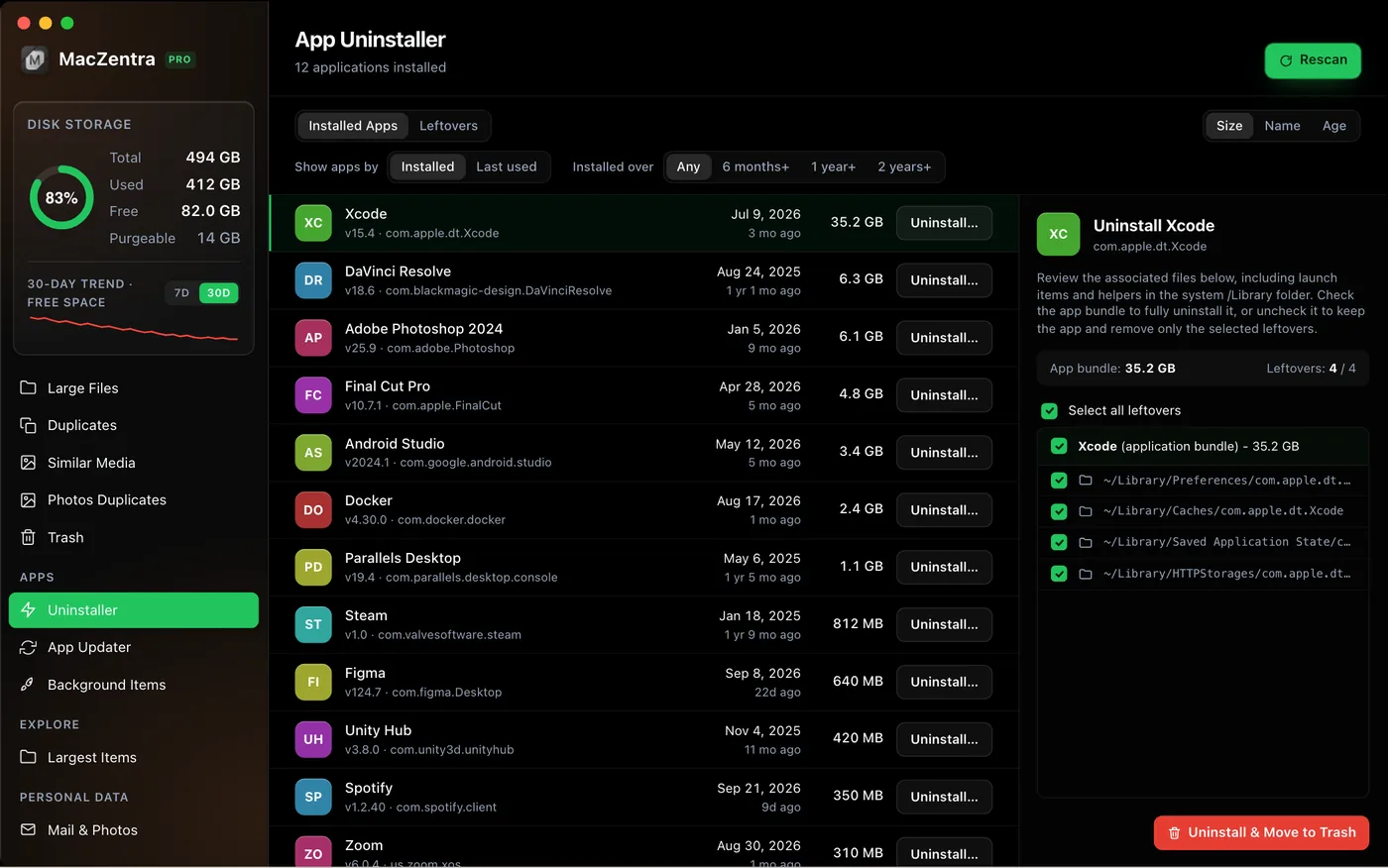
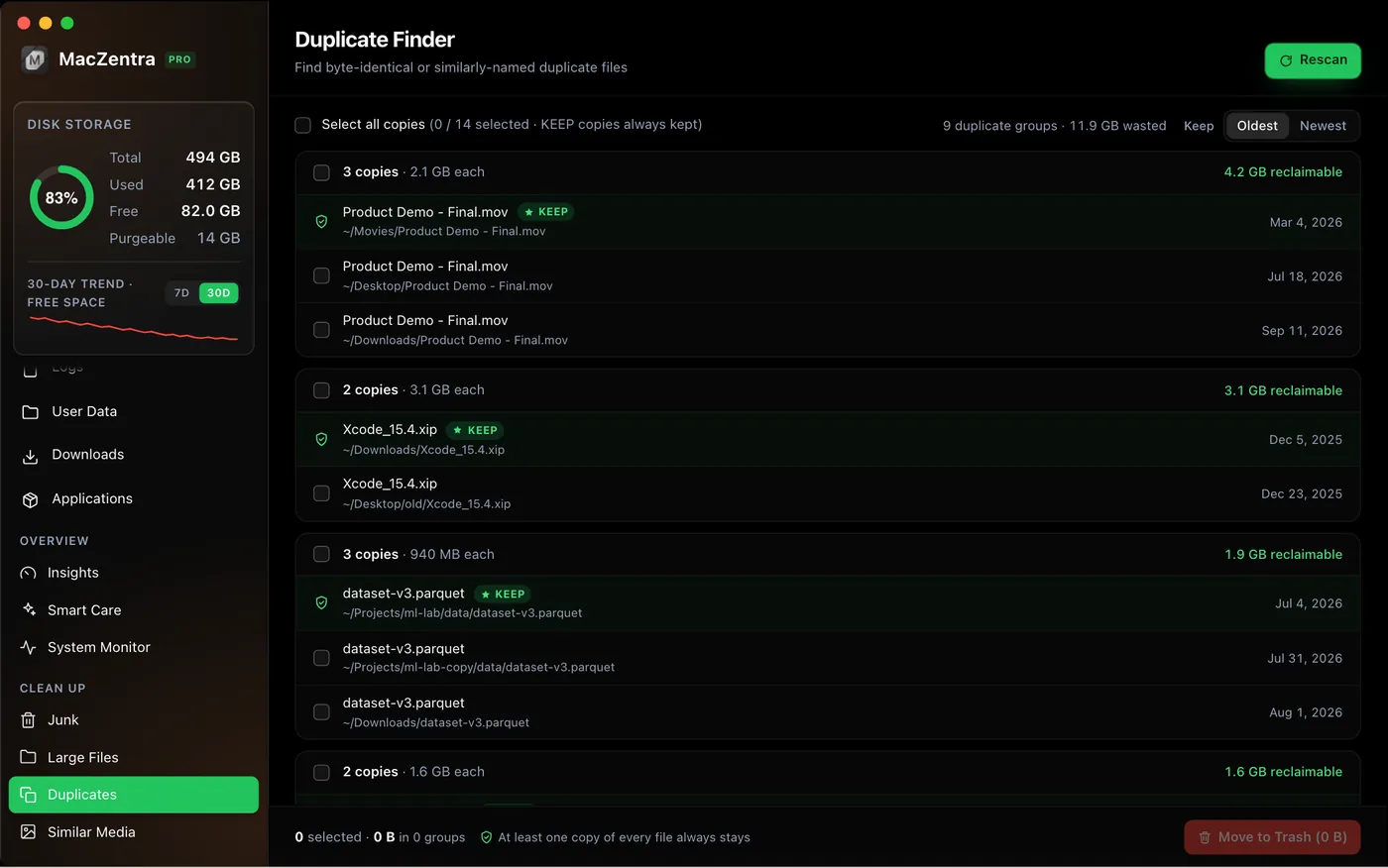
Junk Cleaner
Finds caches, logs, old installers and large downloads, grouped and easy to review.
Developer Junk
Clears Docker, Xcode, node_modules and Python leftovers. Risky items are never pre-selected.
App Uninstaller
Removes an app along with its caches, settings and leftover files.
App Drop Zone
Drag an app in to see its size and leftovers, then uninstall it fully.
Duplicate Finder
Finds identical files even with different names. Sorted by wasted space.
Name Duplicates
Catches copies like report copy.pdf and report (1).pdf. Never pre-selected.
Similar Media
Finds resized or re-saved copies of photos and near-identical videos.
Photos Duplicates
Finds duplicate pictures in Photos and collects them in an album for you to review.
Browser Sweep
Clear history, cookies and cache in Safari, Chrome, Firefox, Brave, Edge and more.
Browser Extensions
Review and remove browser extensions, Quick Look and Spotlight plugins.
iCloud Eviction
Free local space but keep files in iCloud. They download again when opened.
Other Clouds
See the space Dropbox, Google Drive, OneDrive and others use. View only.
Mail & Photos
Get back space from Mail attachment downloads and Photos caches.
Chat Attachments
Review media from Messages, WhatsApp and Telegram, plus Desktop screenshots.
APFS Snapshots
Shows local snapshots hiding “purgeable” space. Delete Time Machine ones safely.
Large Files
Find big or old files by size and age, check each one, and trash what you don’t need.
Trash Manager
See what the Trash holds, empty it, or restore something, all in the app.
03 · Maintain
Maintain and monitor
Tools to keep your Mac healthy after the first cleanup.
- Smart Care
- System Monitor
- Drive Health (S.M.A.R.T.)
- App Updater
- System Data
- Background Items
- Adware Check
- Privacy Audit
- Mac Health Popover
- CPU & Memory Alerts
- Cleanup History
- Search
- Quick Look Preview
- Cleanup Queue
- Themes
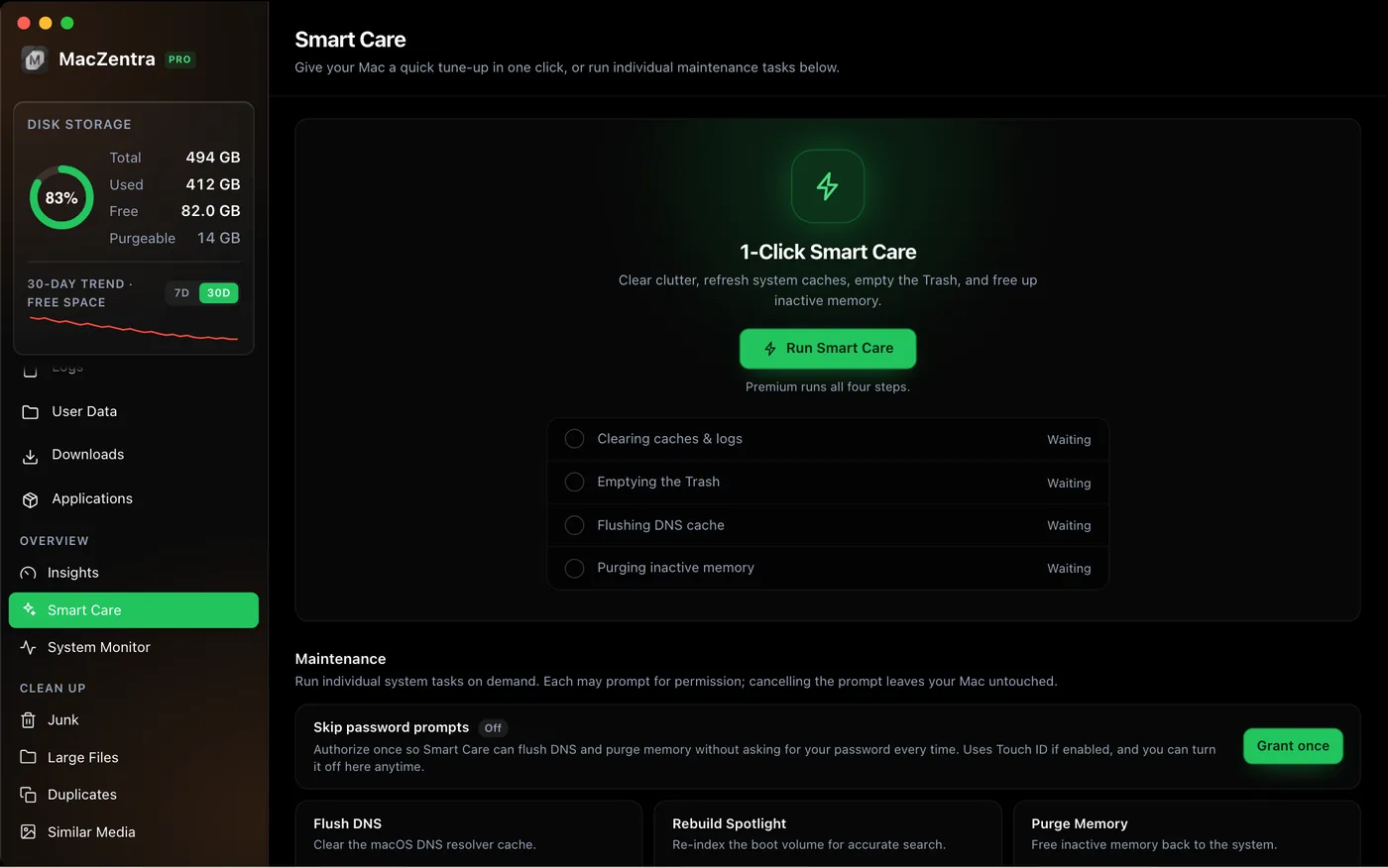
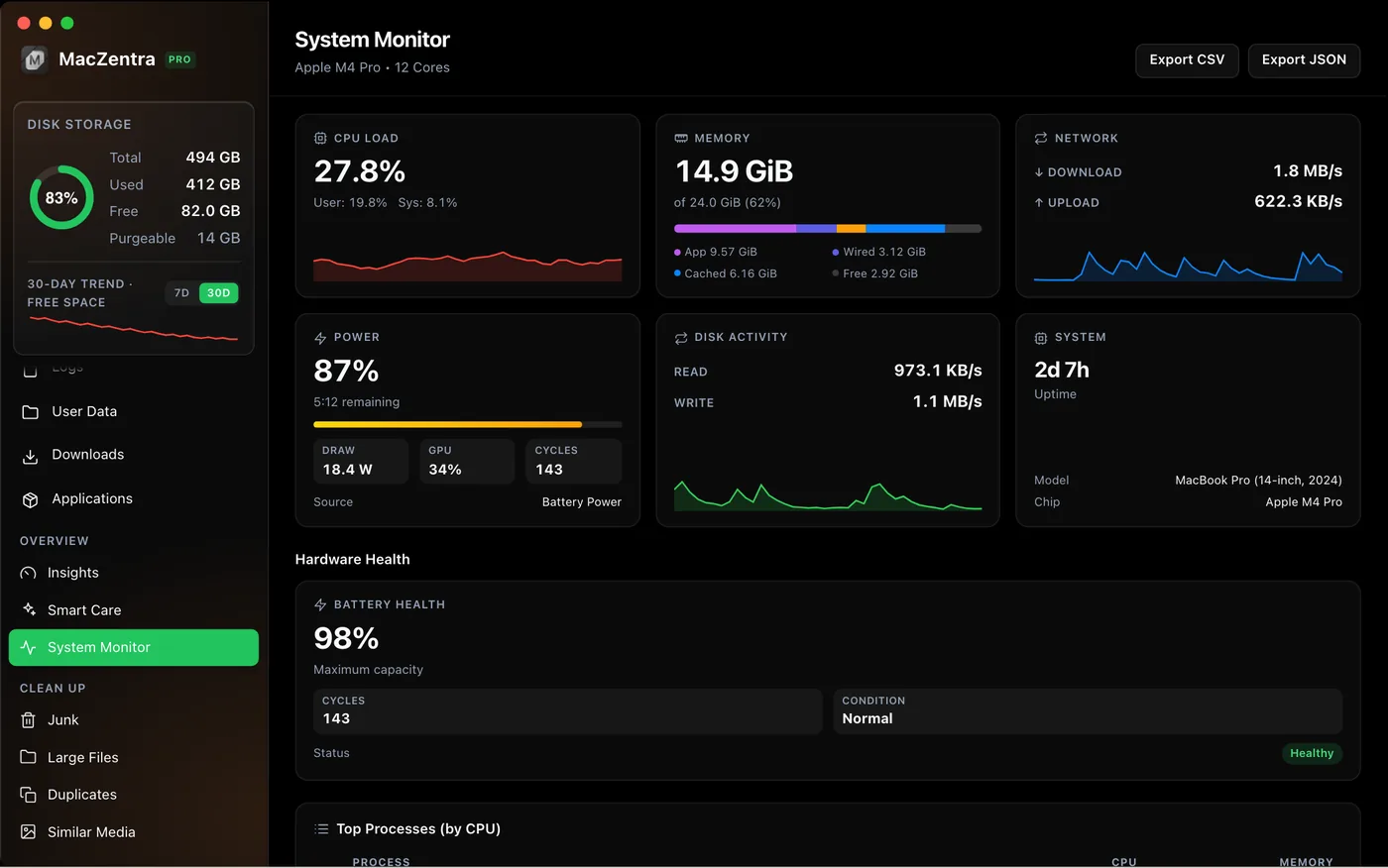
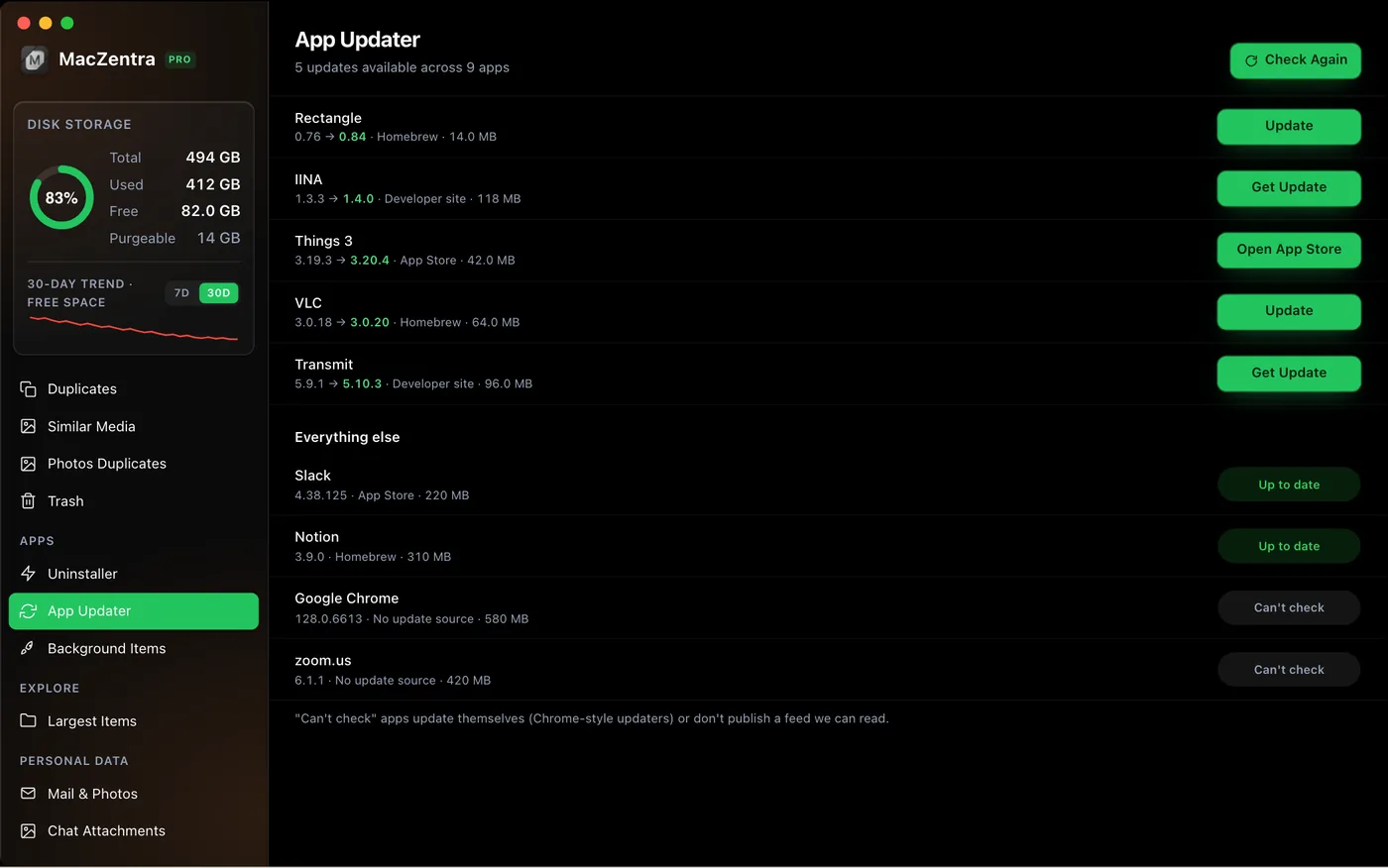
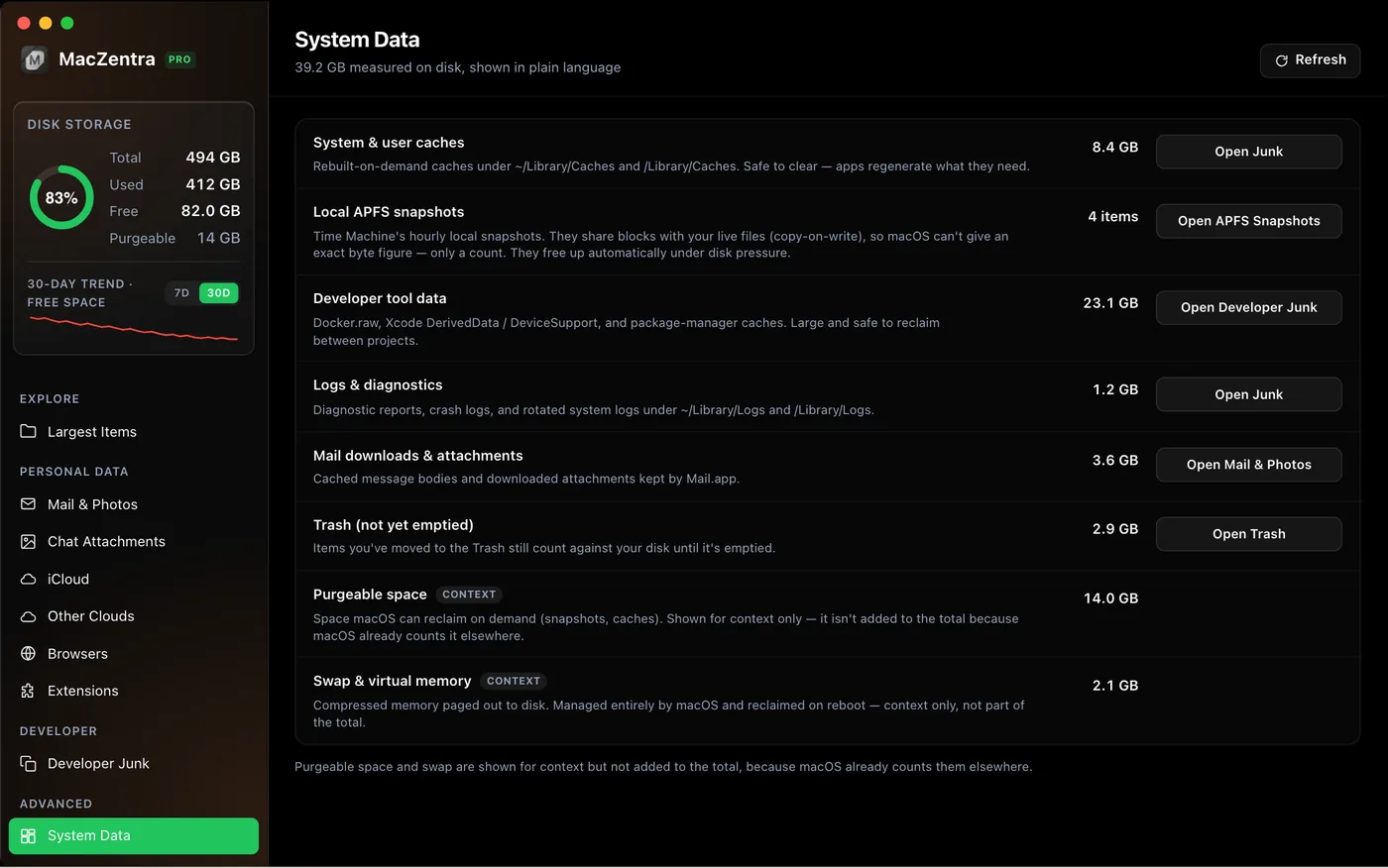
Smart Care
One-click maintenance: clears caches, logs and Trash, and frees unused memory.
System Monitor
Live CPU, memory, network, battery and power use, plus the busiest apps.
Drive Health (S.M.A.R.T.)
A Healthy or Degraded badge for every drive. View only, and free.
App Updater
Shows which apps have updates and opens the right place to update. Checks only when you click.
System Data
Explains what macOS counts as “System Data” and links to the tool that cleans it.
Background Items
See apps that start with your Mac and turn off the ones you don’t want.
Adware Check
Flags suspicious startup items and extensions. View only, never deletes. Free.
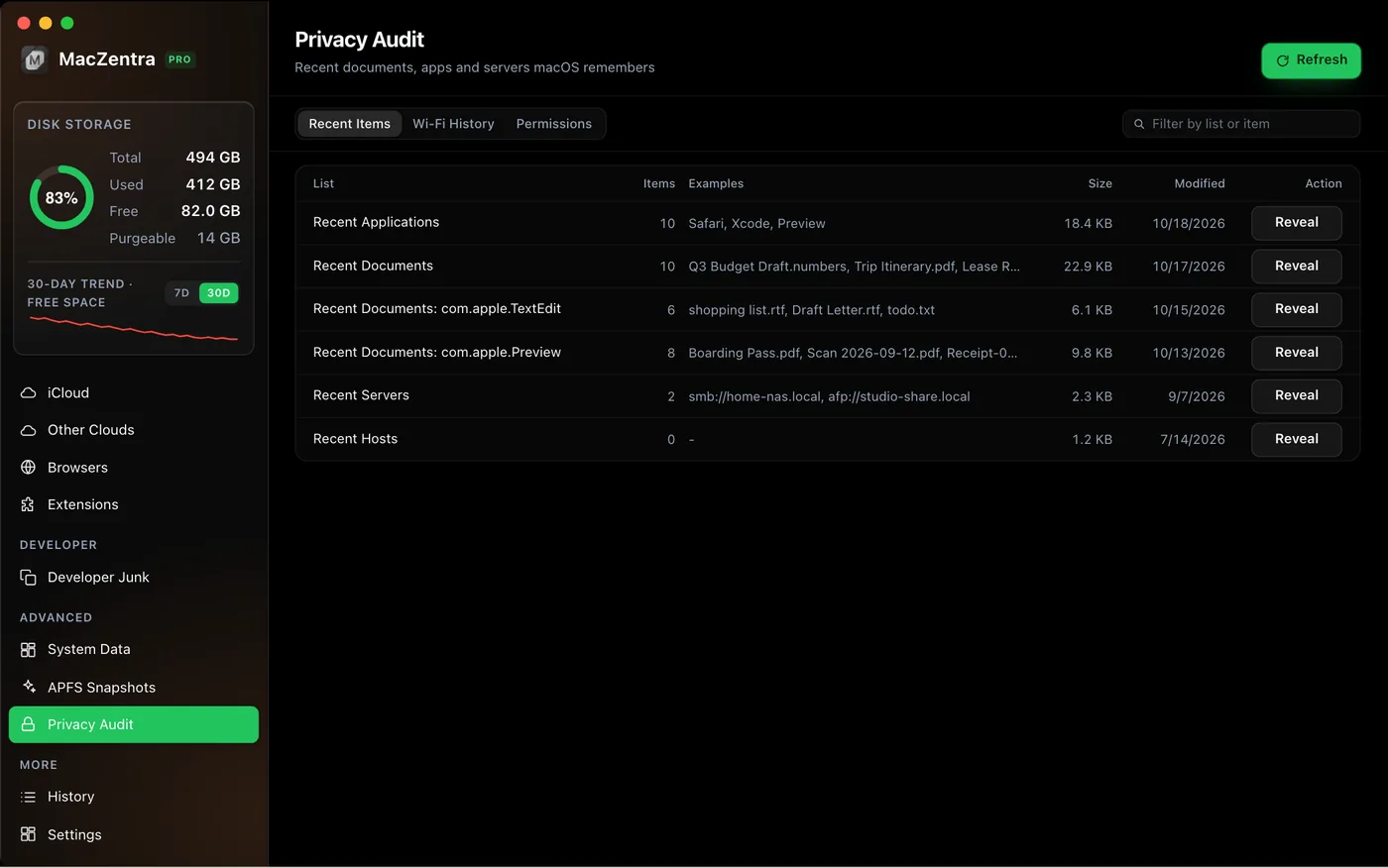
Privacy Audit
See what your Mac remembers: recent items, Wi-Fi history and app permissions. View only.
Mac Health Popover
One click in the menu bar shows CPU, memory, disk, network, temperature and top apps.
CPU & Memory Alerts
Get a notification when CPU or memory passes the limit you set.
Cleanup History
Every cleanup is saved with what was removed and the space freed.
Search
Search your home folder by file name. Results appear as you type.
Quick Look Preview
Press Spacebar on any item to preview it, like in Finder. Free.
Cleanup Queue
Collect items in a floating list, then trash them all in one click.
Themes
Eight dark themes, like Midnight, Aurora and Ocean. Your choice is remembered.
Safe by design
Safe to use: you can undo a cleanup
Removed files go to the Mac Trash, so you can put them back until you empty it. MacZentra refuses to delete important system files, and risky items are never pre-selected. The free version scans your whole disk and shows what is using space. Paying unlocks deleting.
Frequently asked questions
What does MacZentra clean?+
Temporary files and caches, logs, browser data, leftovers from coding tools (Docker, Xcode, node_modules, Conda), duplicate files, similar photos, large and old files, and files left behind by deleted apps. Everything you remove goes to the Mac Trash, so you can put it back.
Is MacZentra a Mac storage analyzer too?+
Yes. It shows your disk as a Treemap, a Sunburst and a Tree View, so you can see which folders use the most space. The visual maps are free.
What is free and what is paid?+
Scanning, the three disk maps and previews are free. Deleting is a one-time $49.99 purchase with no subscription.
Does MacZentra upload my files?+
No. Everything is scanned on your Mac, and your licence is checked offline.