
System Data
APFS Local Snapshots: Hidden Space in System Data
The MacZentra team · Updated Sep 30, 2026 · 5 min read
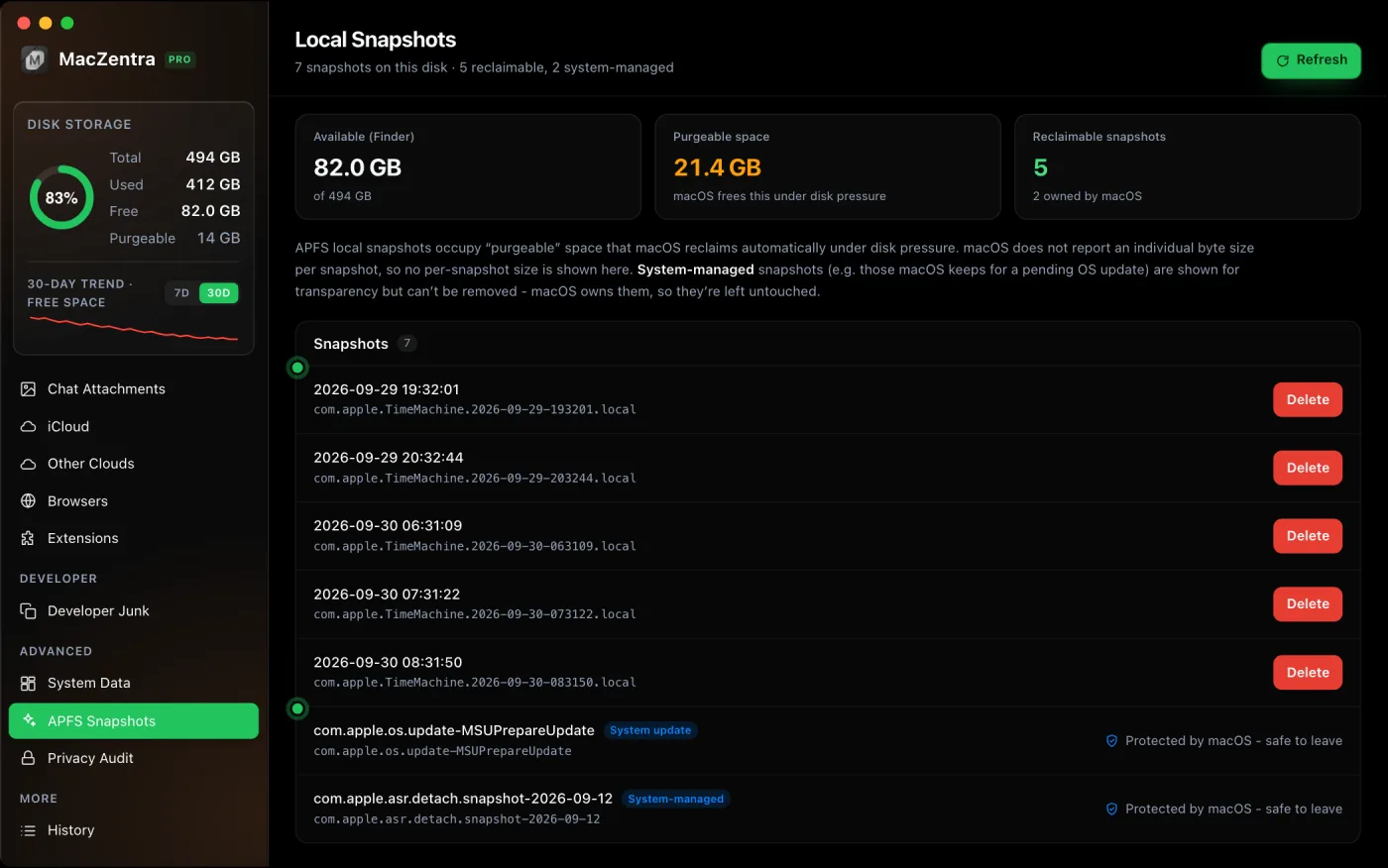
A local snapshot is a read-only, point-in-time copy of your disk that APFS keeps on the Mac itself. Time Machine makes them roughly hourly, and macOS makes one before installing an update. They share blocks with your live files, so a new snapshot costs almost nothing. But every file you delete or change afterwards stays on disk until the snapshot that references it is gone. That’s how snapshots quietly end up holding tens of gigabytes.
How to see your local snapshots
tmutil listlocalsnapshots /
You’ll see names like these. The prefix tells you who made the snapshot:
| Snapshot name | Made by | Can you delete it? |
|---|---|---|
com.apple.TimeMachine.2026-09-29-101530.local | Time Machine | Yes |
com.apple.os.update-… | macOS, for an update in progress | No. Leave it; macOS removes it |
You can also see them in Disk Utility: select your startup volume, then choose View → Show APFS Snapshots. The list shows each snapshot’s private size, which is how much space deleting it alone would free.
How to delete Time Machine local snapshots
Delete one by its date stamp (the part between TimeMachine. and .local):
sudo tmutil deletelocalsnapshots 2026-09-29-101530
Or ask macOS to thin them until a target amount of space is free, here about 20 GB, at the highest urgency (4):
sudo tmutil thinlocalsnapshots / 20000000000 4
Why can’t I delete the com.apple.os.update snapshot?
macOS takes this snapshot before applying a software update so it can roll back if something goes wrong. It’s protected by the system and removed automatically once the update is complete. Restarting to finish a pending update is the way to get that space back.
What is purgeable space?
Finder’s “available” figure includes purgeable space: storage macOS can reclaim on its own when it needs to, mainly local snapshots and some caches. That’s why Finder and the Storage screen often disagree with Terminal:
# Real free space right nowdf -h /# Container free space, as APFS sees itdiskutil info / | grep -i "free space"
macOS frees purgeable space automatically when an app asks for room. Some tools don’t trigger that, though: a large download, a VM or a game installer may see only the real free space and report that your disk is full. Deleting the snapshots makes the space properly free.
How long does Time Machine keep local snapshots?
Time Machine keeps local snapshots for about 24 hours and removes older ones automatically. It also thins them early when the disk is low on space. If you see snapshots much older than a day, it’s usually because a backup to your external drive hasn’t completed. Running a full backup often clears them.
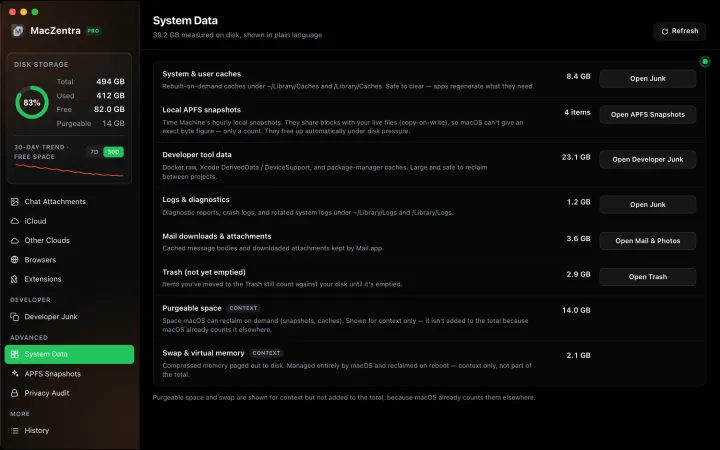
Snapshots are one part of the grey bar. For the rest, see System Data on Mac: what it is and how to shrink it.
Everything MacZentra can clean
Treemap and Sunburst disk maps, a duplicate finder, Developer Junk, a complete app uninstaller and more, in one native storage cleaner for Mac that’s 15.4 MB.
Explore all features →Related guides
System Data · 6 min
How Much Storage Does macOS Take Up?
How much storage macOS takes up on your Mac, how to measure each volume, why System Data looks so big, and how to reclaim space safely.
System Data · 7 min
What Is System Data on Mac? And How to Shrink It
What is System Data on Mac? The grey bar in macOS Storage. See what it holds, how much is normal, and why it grows after a macOS update.
System Data · 4 min
/Library/Caches vs ~/Library/Caches: What's the Difference?
/Library/Caches is shared by every user; ~/Library/Caches is yours. Real sizes from a Mac we checked, why the sticky bit matters, and which one to clear.
Check storage · 9 min
Best Mac Storage Cleaners 2026: Compared & Ranked
Mac storage cleaners and disk space analyzers compared by price, size, scan speed and licence. One-time, subscription and free options side by side.