System Data
/Library/Caches vs ~/Library/Caches: What's the Difference?
The MacZentra team · Updated Nov 9, 2026 · 4 min read
/Library/Caches is the shared, system-wide cache folder for every user on the Mac. ~/Library/Caches is your own cache folder inside your home folder. The user one usually holds far more data and is where app caches are cleared. The system one is normally small and best left alone unless one folder in it is clearly huge. On the Mac we checked, the system folder held 8.4 MB and the user folder 1.1 GB. Other accounts on the Mac have caches of their own, covered in shared storage across user accounts.
The difference between the two folders
- /Library/Caches belongs to the whole Mac. It is written by system services and installers, and it is shared by all accounts.
- ~/Library/Caches belongs to one user. The
~stands for your home folder, for example/Users/yourname. Apps you run as that user store their caches here.
To see what ~ means on your Mac:
echo ~
What we found on a real Mac
We listed both folders on one Mac running macOS 27.3. Your numbers will differ.
/Library/Caches: 8.4 MB in 9 items, owned by root with theadmingroup. The items includedColorSync,Desktop Pictures,com.apple.iconservices.storeand two folders for a software updater.~/Library/Caches: 1.1 GB in 48 items, readable only by the owner.
To check your own Mac:
ls -ld /Library/Caches ~/Library/Cachesdu -sh /Library/Caches ~/Library/Caches 2>/dev/nulldu -sh /Library/Caches/* 2>/dev/null | sort -h | tail -10
Why /Library/Caches is shown as world-writable
On our Mac the permissions were drwxrwxrwt. The final t is the sticky bit. Any user can add files to the folder, but a file can only be removed by its owner or by an administrator. That is why deleting items from it often asks for your password.
Is it safe to delete /Library/Caches?
- Don't delete the folder itself. macOS and other software expect it to exist.
- There is usually little to gain. It was 8.4 MB on our Mac. The space is almost always in
~/Library/Cachesinstead. - If one subfolder is clearly large, find out which app owns it, quit that app, and remove only that subfolder. It will be rebuilt as needed. If you can't tell which app it belongs to, leave it.
- Use the Trash, not
rm -rf, so you can restore something if an app misbehaves.
How to open these folders
In Finder choose Go → Go to Folder and type /Library/Caches for the system folder, or ~/Library/Caches for yours. Both are visible in Terminal too, with the commands above.
If space is your real concern, see how to find large files on Mac, what System Data is, and what /var/folders is.
Everything MacZentra can clean
Treemap and Sunburst disk maps, a duplicate finder, Developer Junk, a complete app uninstaller and more, in one native storage cleaner for Mac that’s 15.4 MB.
Explore all features →Related guides
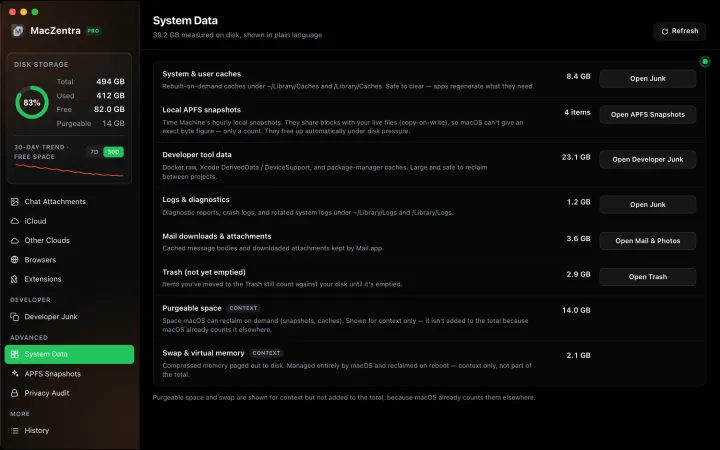
System Data · 6 min
How Much Storage Does macOS Take Up?
How much storage macOS takes up on your Mac, how to measure each volume, why System Data looks so big, and how to reclaim space safely.
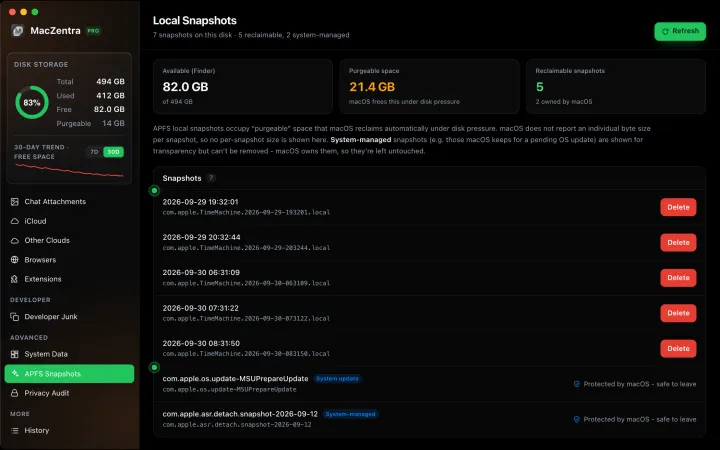
System Data · 5 min
System Data Jumped After a macOS Update: What to Clear
Why System Data grows by tens of GB after a macOS update, what is temporary, and the safe steps to shrink it: snapshots, leftover installers and caches.
System Data · 7 min
What Is System Data on Mac? And How to Shrink It
System Data is the grey bar in macOS Storage. See what it contains, how much is normal, and the safe order to shrink it, step by step.
System Data · 5 min
What Is /var/folders on Mac? Why It Uses GBs
What /private/var/folders holds, the 0, C, T and X folders, real sizes from a Mac we checked, and what is safe to clear. Includes the commands to measure it.