Free up space
How Much Storage Does macOS Take Up? | 2026 Guide
The MacZentra team · Updated Oct 25, 2026 · 11 min read
Manage your SSD by recognizing that the final macOS footprint exceeds the initial download size. The system requires disk space for the kernel and core applications, but the installation process creates additional overhead. In 2026, macOS Sequoia typically occupies between 12GB and 15GB. However, the functional footprint is much larger due to hidden installation buffers and the working space required for routine updates.
This guide clarifies storage usage by defining the difference between the base installation and the expanding System Data category. Learn to identify hidden bloat, including local Time Machine snapshots and massive browser caches, so you can decide exactly which files to purge to restore disk performance. This technical clarity allows you to manage your SSD effectively and move beyond the vague summaries provided by default system tools.
Key takeaways
- Expect macOS to occupy between 15GB and 35GB depending on your version and local cache accumulation.
- The 'System Data' category is not just the OS; it includes bloated browser caches, developer junk, and local snapshots.
- Visualizing your disk with Treemap or Sunburst views reveals large hidden files that standard macOS tools often miss.
- Switching from subscription-based cleaners to a one-time native utility like MacZentra reduces system overhead and protects privacy.
Table of contents
- Base installations occupy less space than their footprints suggest
- System Data expands to fill the vacuum of unmanaged disks
- Browser caches and developer junk hide in plain sight
- Visual mapping identifies the heavy files standard lists miss
- Ownership beats renting for long-term disk health
- Frequently asked questions
- Decide Between Manual Maintenance and Hardware Upgrades
Base installations occupy less space than their footprints suggest
When planning a drive partition or selecting a new machine, distinguish between the static footprint of the operating system and the dynamic space required for its maintenance. A clean installation of macOS Sequoia or macOS Sonoma typically occupies between 12GB and 15GB on the internal drive. This figure represents the core system files, the kernel, and default application binaries. However, viewing this as the total storage cost is a mistake that leads to failed updates and degraded system performance. The operating system requires a significant buffer to perform basic file operations and swap tasks, meaning a disk that is nearly full will throttle performance even if the OS files themselves are relatively compact.
Prioritize maintaining at least 30GB of free space before attempting a version upgrade or a major security patch. While the downloaded installer file might only be 12GB, the installation process involves unpacking compressed archives, creating temporary system snapshots, and duplicating files during the transition. macOS frequently refuses to initiate an update unless it detects this overhead, which often demands more than double the size of the OS itself. Users should verify current storage requirements on the official Apple support pages before clearing data, as these thresholds can shift with specific point releases. Ensuring this "working space" is available prevents disk-full errors that might otherwise require a recovery mode intervention to resolve.
System Data expands to fill the vacuum of unmanaged disks
System Data acts as a catch-all repository for files that do not fit into standard categories like Applications, Photos, or Documents. MacOS continues to use this label for a variety of temporary files, caches, and background assets required for system operations. Unlike static application files, this category is highly dynamic because the operating system prioritizes performance over disk economy, often retaining data until the storage drive approaches its capacity limit. This behavior often makes the operating system appear significantly larger than its actual installation footprint.
One of the primary drivers of an inflated System Data category is the accumulation of local snapshots. When Time Machine is enabled but the external backup drive is disconnected, macOS creates local backups on the internal SSD. These snapshots allow for file recovery without an external connection, but they can consume significant space if left unmanaged. Users can learn how to identify and prune these files in this guide to APFS Local Snapshots: Hidden Space in System Data. If the system perceives available room, it will keep these snapshots indefinitely, leading to the impression that the OS itself has doubled in size over time.
Beyond snapshots, System Data serves as the landing zone for developer-related clutter and system logs. For professionals using Xcode, derived data and legacy simulators often remain on the disk long after a project is completed, hidden deep within the Library folder. Additionally, system log files and diagnostic reports can bloat over months of uptime. Because macOS does not automatically purge these files unless storage becomes critical, manual intervention is necessary to reclaim the space. Identifying these specific sub-directories allows a user to shrink the System Data footprint without affecting core operating system stability.
Browser caches and developer junk hide in plain sight
Clear browser caches regularly to reclaim space that macOS often labels as generic system data. Safari, Chrome, and Firefox store images, scripts, and media files to accelerate page loading, but these directories frequently swell into a significant portion of the drive. Users should audit these folders through internal browser settings or manual file path navigation to prevent the "System Data" category from ballooning. For those managing heavy web workflows, a specialized guide to Chrome Browser Cleanup on Mac provides the necessary steps to remove deep-seated cache layers without deleting essential saved passwords or extensions.
To manage these hidden files effectively, navigate to the user Library folder using the "Go to Folder" command in Finder. Focus on the Caches, Application Support, and Developer subdirectories. While recent versions of macOS have refined how the system categorizes these files, the 2026 storage interface still clusters many of these items under a single label. Manually purging these directories ensures that the reported size of the operating system reflects the actual software required to run the machine rather than accumulated digital waste from previous projects and browsing sessions.
| Data Type | Typical Size | Impact on Performance |
|---|---|---|
| Browser Caches | Varies based on site volume | Slows disk indexing and can stall browser launches |
| Xcode Simulators | Multiple gigabytes per version | Consumes storage but only impacts CPU when active |
| Library Support Files | Scales with number of apps | Increases backup duration and slows metadata searches |
Visual mapping identifies the heavy files standard lists miss
The default storage overview in macOS System Settings provides a high-level summary that often obscures more than it reveals. While it identifies broad categories like "System Data" or "macOS," it fails to drill down into the nested directory structures where actual bloat resides. Users frequently find themselves staring at a massive bar labeled with a generic term, unable to see which specific application support files or legacy logs are responsible for the footprint. This lack of granularity forces a trial-and-error approach to disk management that is inefficient for professionals.
To move beyond these limitations, visual mapping techniques such as Treemaps and Sunburst views are essential. These visualizations represent the file system as nested rectangles or concentric circles, where the area of each shape corresponds directly to the file size. By translating numerical data into spatial relationships, these maps expose deep-seated folders that standard lists overlook. A user can instantly identify a massive cache folder buried four levels deep in the Library directory, which would otherwise remain hidden behind a generic "System" label.
MacZentra serves as a native, lightweight solution for generating these visual maps without the system overhead associated with bulkier utility suites. It allows users to scan their drives and interact with a Sunburst interface to pinpoint specific storage hogs for immediate removal. For those seeking a deeper understanding of how this software optimizes disk management workflows, more information is available About MacZentra. By using a dedicated tool designed for the current macOS architecture, professionals can reclaim space from the OS itself rather than just deleting personal documents.
Ownership beats renting for long-term disk health
Many storage management tools have evolved into resource-heavy suites that require constant background processes and recurring monthly fees. These bloated applications often consume significant disk space themselves, counteracting the primary goal of clearing storage. Choosing a native utility like MacZentra, which maintains a lean 11MB build, ensures that the software used to manage macOS does not become part of the storage problem. This lightweight approach minimizes the impact on system resources while providing the necessary tools to identify and remove unnecessary system files.
Privacy remains a critical concern when granting a utility deep access to a file system. Many modern competitors rely on cloud-based analysis, which necessitates uploading metadata or file structures to external servers for processing. A superior strategy involves using a local-scanning utility that keeps all data on the machine. Professionals should prioritize tools that operate entirely offline to maintain data integrity and prevent sensitive file paths from leaving the local environment. For a detailed look at how local processing protects user information, consult the Privacy Policy.
Long-term disk health is best maintained through tools that the user owns rather than rents. Subscription-based models often lock essential maintenance features behind a paywall, leading to neglected storage if a payment lapses or a subscription is canceled. Opting for a one-time purchase model provides permanent access to cleanup features without the threat of service interruptions. Users should verify specific licensing terms and current plan details on the official vendor page to ensure they align with their long-term budget, as pricing structures are subject to change.
Frequently asked questions
Why is my macOS System Data so large?
System Data expands because it caches temporary files, local Time Machine snapshots, and application support data that the OS does not immediately purge. You can reclaim this space by manually clearing the ~/Library/Caches folder or deleting old snapshots via Terminal. This category acts as a buffer that grows until the disk nears capacity.
How much space does macOS Sequoia need for a clean install?
A clean installation of macOS Sequoia occupies approximately 13GB of disk space, though the installer requires additional overhead during the process. You should maintain at least 25GB of free space to accommodate the download and the temporary files created during decompression. This ensures the system has enough room for swap files immediately after the first boot.
Can I delete files from the System Data category safely?
You can safely delete user-level caches, old iOS backups, and log files, but you should never modify the root System folder. Focus your efforts on the ~/Library/ directory where application leftovers reside, as these are not critical for OS stability. Avoid touching any files protected by System Integrity Protection to prevent boot failures.
Does clearing browser history actually free up significant Mac storage?
Clearing your history frees very little space, but purging the associated browser cache and "offline website data" can reclaim several gigabytes. Browsers store high-resolution media and scripts locally to accelerate page loads, which quickly accumulates into a massive footprint. Navigate to your browser's privacy settings and select "Clear all time" for the most impact.
Is there a way to see a visual map of what is taking up my Mac storage?
Use a third-party disk analyzer like DaisyDisk or GrandPerspective to generate a visual sunburst or treemap of your drive. These tools allow you to drill down into specific directories to see exactly which files occupy the most physical space. A visual map reveals massive hidden files that standard list views often categorize as generic System Data.
Decide Between Manual Maintenance and Hardware Upgrades
- Quantify System Data, checking if unmanaged caches currently occupy more than 60GB of your primary partition.
- Analyze workflow intensity, determining if your professional applications require high-speed local scratch space for daily operations.
- Calculate replacement value, comparing the expense of a new machine against the cost of offloading archival data to cloud or external tiers.
- Anticipate future overhead, budgeting at least 30GB of free space to accommodate the next cycle of 2026 feature updates.
Maintaining a lean disk is the only way to preserve the factory-level responsiveness of your hardware over its entire lifespan. Visit Maczentra to access specialized diagnostics that identify and remove the specific hidden system bloat discussed in this guide.
Everything MacZentra can clean
Treemap and Sunburst disk maps, a duplicate finder, Developer Junk, a complete app uninstaller and more, in one native storage cleaner for Mac that’s about 15 MB.
Explore all features →Related guides
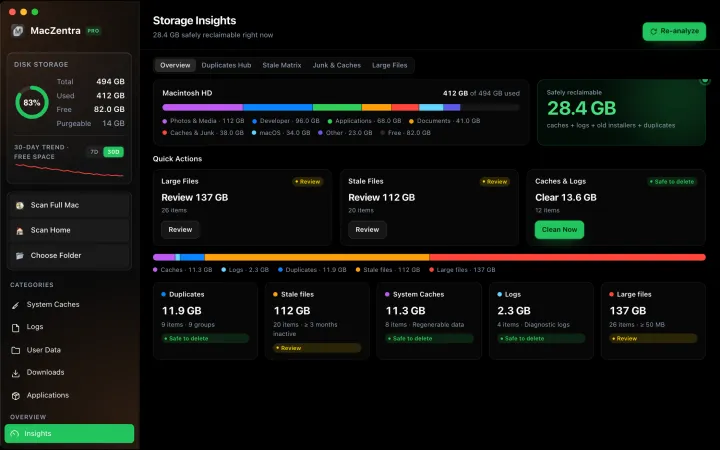
Free up space · 8 min
Free Up Space on Mac: 10 Fixes, Biggest First
Ten ways to free up Mac storage ranked by typical space recovered. Covers hidden Library folders and leftovers macOS Storage settings never show.

Free up space · 5 min
~/Library/Caches: What's Safe to Delete on Mac
Which ~/Library/Caches folders are safe to delete, which to keep, and how to clear them without breaking apps.
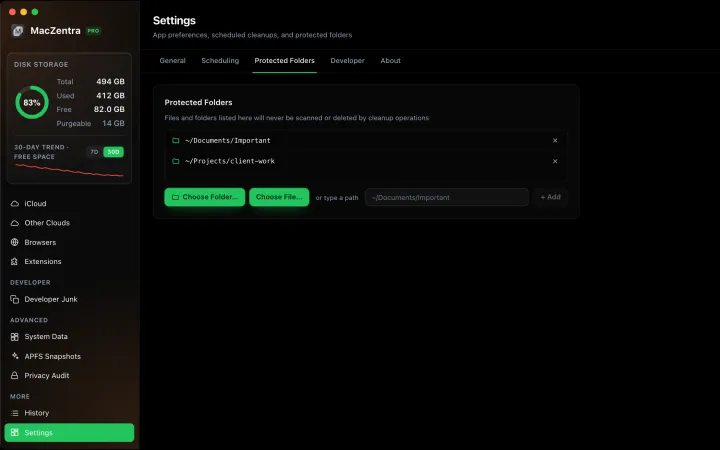
Free up space · 3 min
Protected Files & Folders: Keep Items Safe
How the built-in protected paths guard system-critical locations, and how to add your own custom folders to prevent accidental deletion.

Free up space · 4 min
Smart Care: One-Click Maintenance for Your Mac
Automate daily maintenance with Smart Care: clear caches, empty Trash, flush DNS, and purge inactive memory in a single workflow. Schedule it or run it on demand.