
System Data
What Is System Data on Mac? And How to Shrink It
The MacZentra team · Updated Nov 17, 2026 · 7 min read
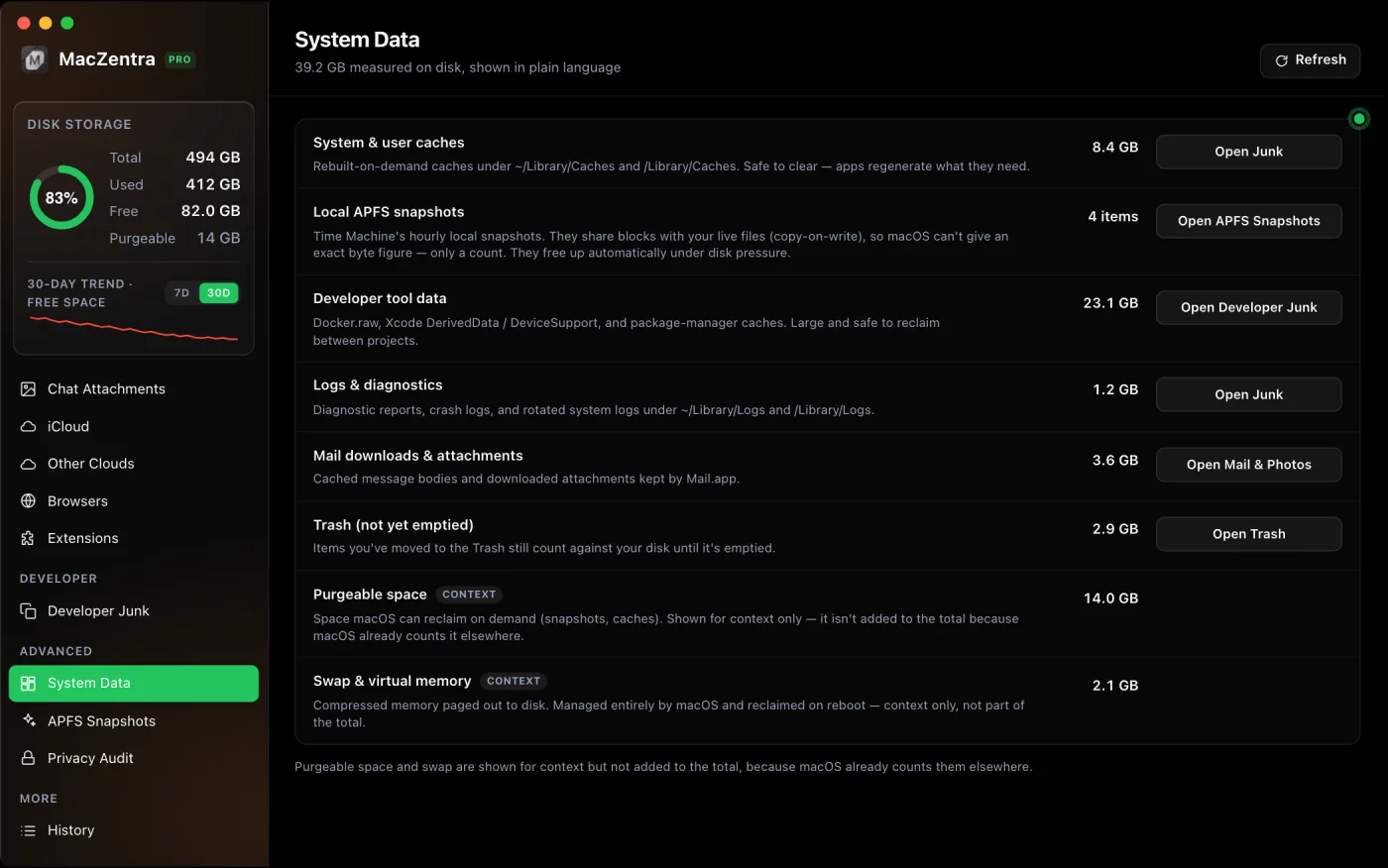
System Data on Mac is the grey part of the bar in System Settings → General → Storage. It’s everything macOS doesn’t sort into a named category: caches, logs, local Time Machine snapshots, virtual machine disks, app support files and temporary data. Most of it can shrink safely, but never by deleting system folders.
This guide covers what is inside System Data, how much is normal and why it grows. For the clean-up itself, follow the steps in how to clear System Data on Mac.
What’s inside System Data?
| What | Where it usually lives | Can you shrink it? |
|---|---|---|
| App and browser caches | ~/Library/Caches | Yes. What’s safe |
| Local snapshots | Hidden APFS snapshots of your disk | Usually. How |
| Virtual machine disks | Docker.raw, VM bundles | Yes. Docker guide |
| Developer data | ~/Library/Developer | Mostly. Xcode guide |
| Logs | ~/Library/Logs, /Library/Logs | Yes, old ones |
| App support data | ~/Library/Application Support | Leftovers from deleted apps, yes |
| Downloaded iCloud files | ~/Library/Mobile Documents | Yes, by eviction. How |
| Swap and sleep image | /private/var/vm | No. macOS manages it; a restart shrinks swap |
| Temporary files | /private/var/folders | No. Cleared by macOS, largely on restart |
How big should System Data be?
There’s no single right number, because it depends on your apps. Tens of gigabytes is normal on most Macs. It becomes worth investigating when it’s a large share of your disk, keeps growing week after week, or jumps suddenly. Sudden jumps are usually a new local snapshot, a VM disk, or an app caching a large download.
Find out what’s actually taking the space
The Storage screen won’t itemise System Data, so you need to look at folder sizes directly. The biggest candidates are in your user Library. This lists its largest subfolders:
du -sh ~/Library/* 2>/dev/null | sort -h | tail -15du -sh ~/Library/Containers/* 2>/dev/null | sort -h | tail -10
And this shows whether local snapshots are holding space:
tmutil listlocalsnapshots /
Terminal needs Full Disk Access (System Settings → Privacy & Security) to read some of these folders; without it, sizes come out too low.
Why System Data grows after a macOS update
System Data often jumps by tens of gigabytes right after a macOS update. Most of that is temporary. The update leaves a rollback point, sometimes an installer, and a round of rebuilt caches and indexes.
| What is taking the space | Why it appears | Safe to remove? |
|---|---|---|
com.apple.os.update… | A rollback snapshot kept while the update is applied | Leave it. macOS removes it itself |
com.apple.TimeMachine… | Local snapshots taken around the update hold every file changed since | Yes. How |
| Leftover installer | A full Install macOS … app in Applications | Yes, once the update has finished |
| Rebuilt caches | Apps and macOS recreate caches after an upgrade | Usually, but they refill |
| Spotlight index | Rebuilt in the background (mds_stores) | Leave it. It settles in a day or two |
The best first move is to wait. Restart once after the update completes, then give the Mac a day or two of normal use, because indexing and snapshot clean-up both run in the background. Clearing things in the middle of that just means they come back.
A leftover installer is the one thing to remove straight away: drag it to the Trash, since a fresh copy can be downloaded if you ever need a boot drive. If System Data is still large after a week and the snapshot list is clean, the update isn’t the cause. Look for a large app support folder or old developer files with a disk map instead of guessing.
How to shrink System Data safely
The safe order is short: restart to clear temporary files and swap, clear app caches and logs, deal with developer data such as Docker and Xcode, remove leftovers of apps you have already uninstalled, then thin local snapshots. Each step, with exact commands and a safe-to-delete table, is in how to clear System Data on Mac.
Seeing the same category on your phone? It works differently there, and iPhone System Data explained covers it. If you are not sure whether the Mac is short of storage or memory, read memory vs storage on a Mac. On an older Mac the same category is labelled Other, explained in what Other in Mac storage is.
What not to delete
Leave /System, /usr, /private/var and the keychains in ~/Library/Keychains alone. Don’t delete ~/Library folders wholesale either: Application Support, Containers and Group Containers hold real app data like your mail, notes and settings, not just cache. Delete individual subfolders only when you know which app they belong to.
To see which folders are actually large, start with how to find large files on Mac or map the whole disk with a Mac disk usage analyzer. Caches are the most common safe win; the ~/Library/Caches guide explains which folders to clear. Two common hidden contributors have their own guides: /var/folders and the Spotlight index (mds_stores).
Everything MacZentra can clean
Treemap and Sunburst disk maps, a duplicate finder, Developer Junk, a complete app uninstaller and more, in one native storage cleaner for Mac that’s 15.4 MB.
Explore all features →Related guides
System Data · 6 min
How Much Storage Does macOS Take Up?
How much storage macOS takes up on your Mac, how to measure each volume, why System Data looks so big, and how to reclaim space safely.
System Data · 4 min
/Library/Caches vs ~/Library/Caches: What's the Difference?
/Library/Caches is shared by every user; ~/Library/Caches is yours. Real sizes from a Mac we checked, why the sticky bit matters, and which one to clear.
System Data · 5 min
What Is /var/folders on Mac? Why It Uses GBs
What /private/var/folders holds, the 0, C, T and X folders, real sizes from a Mac we checked, and what is safe to clear. Includes the commands to measure it.
Check storage · 9 min
Best Mac Storage Cleaners 2026: Compared & Ranked
Mac storage cleaners and disk space analyzers compared by price, size, scan speed and licence. One-time, subscription and free options side by side.