
Free up space
Protected Files & Folders: Keep Items Safe
The MacZentra team · Updated Oct 1, 2026 · 3 min read
A storage cleaner is only as good as the things it refuses to touch. MacZentra has two layers of protection: a built-in guard that blocks macOS system-critical locations on every deletion path, and a user-configurable ignore list for your own folders. Together they mean a scan can never offer to delete something that would break your Mac, and a cleanup can never sweep up a project you asked it to leave alone.
The built-in guard: system-critical paths
Every deletion in the app, whether it comes from the treemap, the Junk Cleaner, the uninstaller or a batch cleanup, routes through a single safety choke point. Before anything moves to the Trash, that guard checks the path against a list of locations macOS depends on. If a path is protected, it is filtered out of scans entirely, so it is never even shown as a deletable item.
| Protected location | Why it's off-limits |
|---|---|
/System | The sealed, read-only system volume. Removing anything here can stop macOS booting. |
/usr | Core Unix binaries and libraries the OS and your shell rely on. |
/private/var/db | System databases, including launchd and configuration state. |
/private/var/folders | Per-user and per-app temporary stores macOS manages itself. |
| Keychains | Your saved passwords, certificates and keys. |
Your home and ~/Library roots | Blocked wholesale as roots so a cleanup can never target your entire account. |
The guard also blocks the caches of live macOS daemons, folders such as com.apple.Safari*, HomeKit/homed, CloudKit, containermanagerd, passd, Siri (com.apple.campo) and the widget store (com.apple.chrono). These are data-vault caches that no non-Apple process can remove even with Full Disk Access, so offering them would only produce errors.
Protected Folders: your own ignore list (Pro)
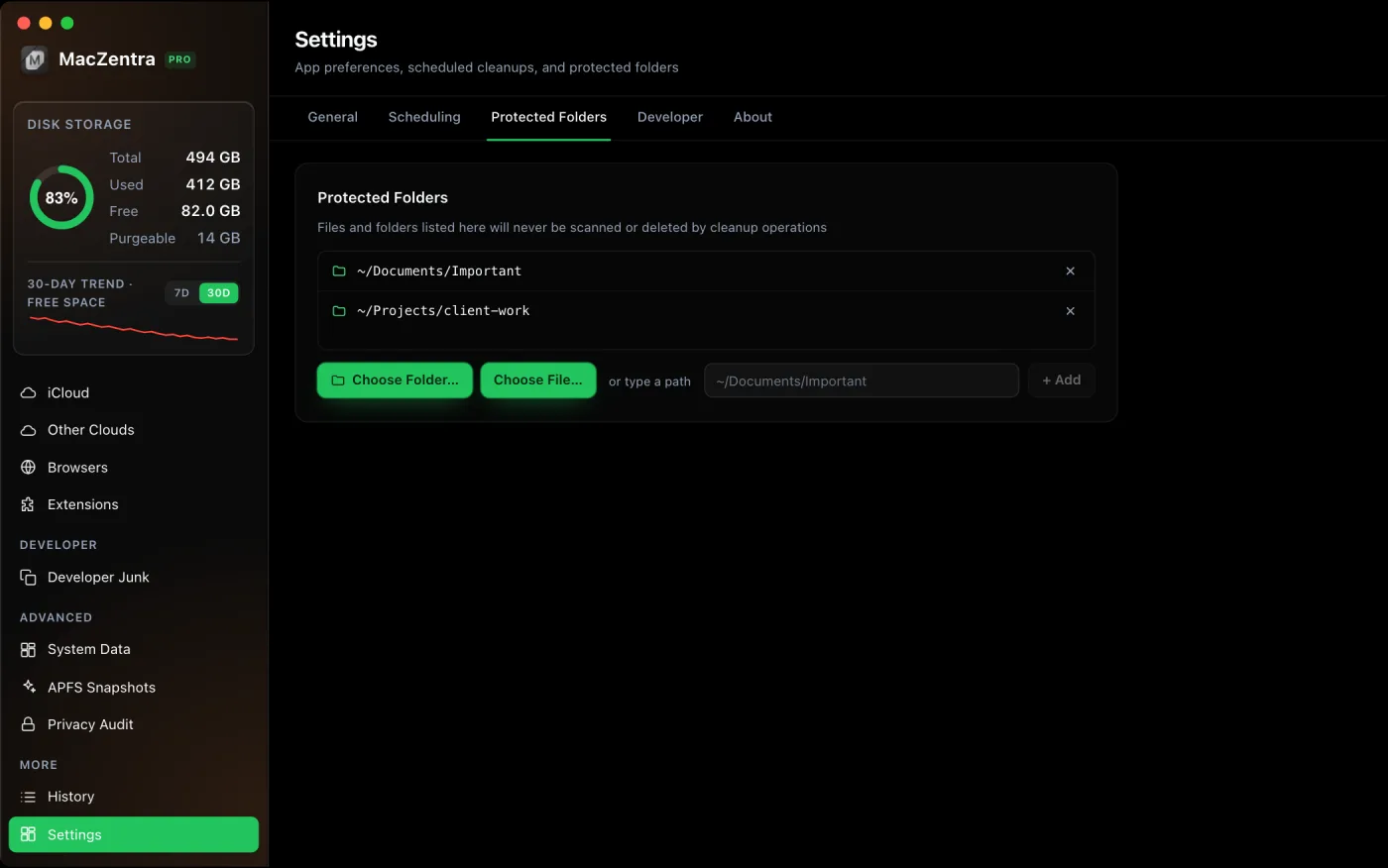
The built-in guard protects the system. Protected Folders lets you protect yourself. It is a user-configurable list of folders that are excluded from every scan and every cleanup operation, which is useful for:
- Work-in-progress projects you don't want surfaced as "stale" or "large".
- External or network drives you'd rather the cleaner never walked.
- Sensitive folders you simply want kept out of results.
How to add a protected folder
Open the Settings panel and find Protected Folders. Add a folder, and it is immediately excluded from all future scans and cleanups. Your list is persisted to disk, so it survives relaunches:
~/Library/Application Support/com.macstoragecleaner.app/protected_paths.json
This is entirely separate from the built-in system guard. You can add or remove your own entries freely; the system-critical protections are always on and can't be switched off.
Is anything ever deleted permanently?
No. The app only ever moves items to the macOS Trash via the system Trash, so everything it removes is recoverable until you empty the Trash yourself. Combined with the two protection layers, that's three independent safeguards between a scan and losing something you wanted to keep.
If you work with Docker, Xcode or large build folders, pair this with Developer Mode, which shows a unified-diff preview of exactly what a deletion will remove before you commit to it.
Everything MacZentra can clean
Treemap and Sunburst disk maps, a duplicate finder, Developer Junk, a complete app uninstaller and more, in one native storage cleaner for Mac that’s 15.4 MB.
Explore all features →Related guides
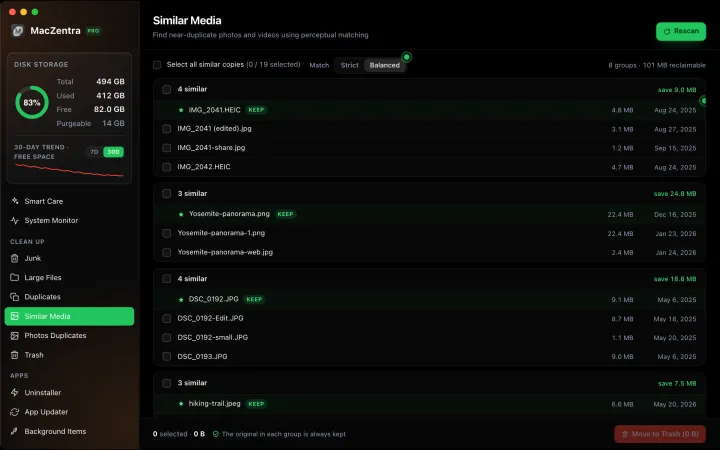
Free up space · 8 min
Find and Delete Duplicate Photos on a Mac
Delete duplicate photos on a Mac: the free Photos Duplicates album, a Finder Smart Folder for loose images, and a near-duplicate scan.
Free up space · 6 min
Chrome Browser Cleanup on Mac: Clear the Right Data
There's no Chrome Cleanup Tool for Mac. See where Chrome keeps its cache and profile data, what's safe to clear, and the best ways to reclaim space safely.
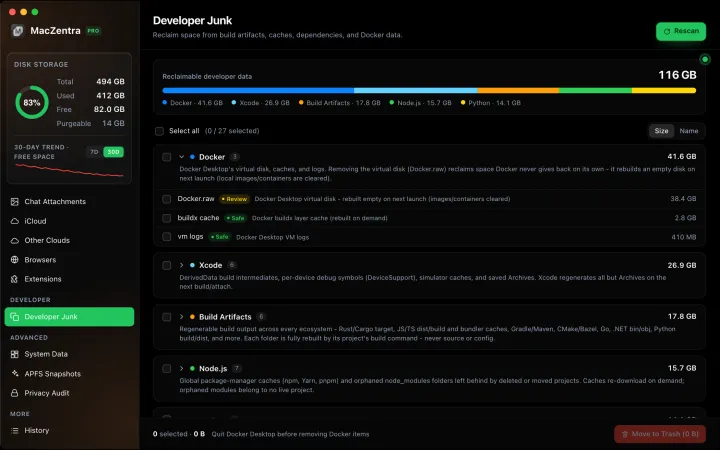
Free up space · 9 min
Clear Developer Caches on Mac: Homebrew, pip, Gradle
How to clear developer caches on a Mac: where Homebrew, pip, Gradle, Cargo and CocoaPods store data, the command for each, and what not to delete.
Check storage · 9 min
Best Mac Storage Cleaners 2026: Compared & Ranked
Mac storage cleaners and disk space analyzers compared by price, size, scan speed and licence. One-time, subscription and free options side by side.