Free up space
Chrome Browser Cleanup on Mac: Clear the Right Data
The MacZentra team · Updated Oct 18, 2026 · 6 min read
Chrome gets heavier the longer you use it. Cache, service workers, local databases and old profiles pile up, and after a year or two the browser can be one of the biggest things on your disk. The built-in Clear browsing data button handles part of that. This guide covers what it misses, what's safe to remove and what's not, and the options for a proper Chrome browser cleanup on a Mac.
Is there a Chrome Cleanup Tool for Mac?
Short answer: no. The Chrome Cleanup Tool people remember was a Windows utility for removing unwanted software. Nothing like it exists for macOS, so on a Mac you work with Chrome's own settings, the files on disk, or a cleaner app.
Where Chrome keeps its data on a Mac
Two folders hold almost everything. The cache lives in your Library, and the profile data sits in Application Support. Open them from Finder with Go, then Go to Folder.
# cache, safe to clear~/Library/Caches/Google/Chrome# profiles, history, cookies, extensions, local databases~/Library/Application Support/Google/Chrome
The cache is the throwaway part. Chrome rebuilds it as you browse, and clearing it only makes the next visit to each site a bit slower. Application Support is different. It holds your logins, extensions, bookmarks and settings, so you don't delete it wholesale.
| Data | What it is | Safe to clear? |
|---|---|---|
| Cache | Saved copies of images and scripts | Yes, rebuilt automatically |
| Cookies | Your logins and site preferences | Only if you're fine signing back in |
| History | Pages you've visited | Your call, it erases the record |
| Local storage and IndexedDB | Data web apps keep in the browser | Usually, but some apps lose offline data |
| Old profiles | Extra Chrome users you no longer use | Yes, once you're sure they're unused |
Option 1: Chrome's own clear data screen
Type chrome://settings/clearBrowserData into the address bar. Choose a time range, tick Cached images and files, and leave cookies unticked unless you want to log out everywhere. It's free, it's safe, and Chrome can stay open. The catch is that it only clears what Chrome decides to show you. Disk-heavy leftovers like inactive profiles stay put.
Option 2: Clear the folders by hand
Quit Chrome completely first. If it's running, it keeps its databases open, and removing files underneath it can corrupt the profile. Then delete the contents of the cache folder above and leave Application Support alone. Our guide to clearing browser cache on a Mac has the same steps for Safari and Firefox.
Option 3: Use a cleaner that measures first
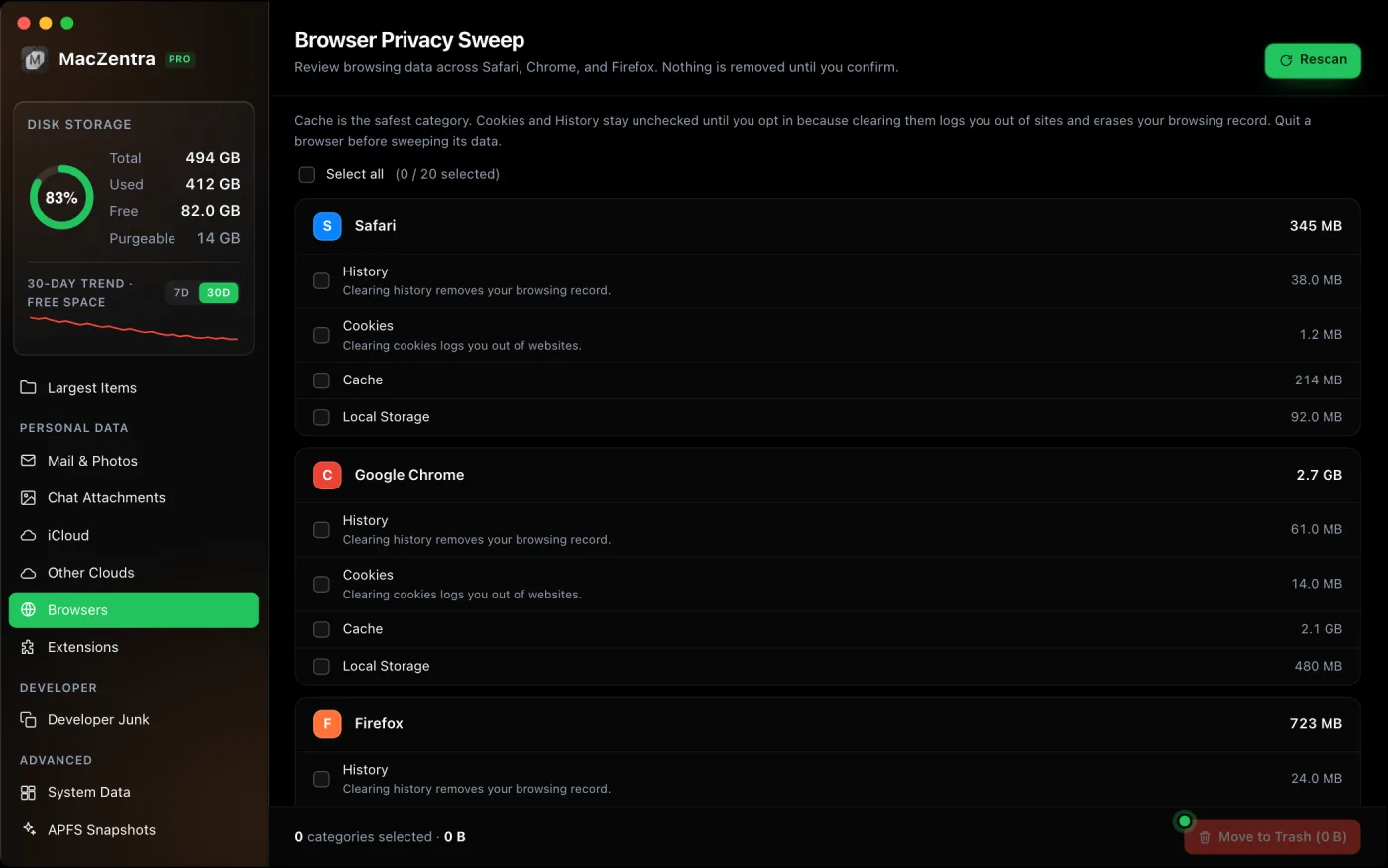
A cleaner earns its keep when you want numbers before you delete anything. You see how much each browser holds, split by type, and you decide what goes. That's the idea behind the Browser Privacy Sweep in MacZentra. It covers Safari, Chrome and Firefox, lists History, Cookies, Cache and Local Storage for each, and leaves cookies and history unticked by default so a quick clean doesn't log you out.
Weighing a few cleaners against each other? Our Mac storage cleaner comparison covers price, size and speed side by side.
What to look for in any Chrome cleanup tool
- It shows sizes per category before it deletes.
- It moves files to the Trash so a mistake can be undone.
- It scans on your Mac and doesn't upload browsing data.
- It warns you when the browser is still running.
- The price is clear and doesn't renew behind your back.
A quick Chrome cleanup routine
- Check how big the two folders are with Get Info (Command-I) in Finder.
- Clear cached images and files from chrome://settings/clearBrowserData.
- Remove profiles you no longer use from the profile menu in Chrome.
- Quit Chrome and clear the cache folder if you still want more space back.
- Repeat every few months. The cache refills as you browse.
Questions people ask
How much space can I get back from Chrome?
A daily-driver browser often holds a few gigabytes of cache, and developers who test web apps can see more from local databases and service workers. The only way to know is to check the folder sizes on your own Mac.
Will clearing Chrome's cache delete my bookmarks or passwords?
No. Bookmarks, saved passwords and extensions don't live in the cache. Cookies are a separate item. Clearing those will sign you out of sites.
Why is Chrome still big after I cleared it?
Check for extra profiles, large extension data and local storage from web apps. These sit outside the basic cache. Chrome's own settings screen won't point at them, but a size breakdown will.
Is it safe to delete the Chrome folder in Application Support?
Not unless you're ready to start over. It contains your profiles, extensions and settings. Clear what you need inside Chrome, or use a tool that targets the cache, cookies and local storage separately.
Everything MacZentra can clean
Treemap and Sunburst disk maps, a duplicate finder, Developer Junk, a complete app uninstaller and more, in one native storage cleaner for Mac that’s about 15 MB.
Explore all features →Related guides
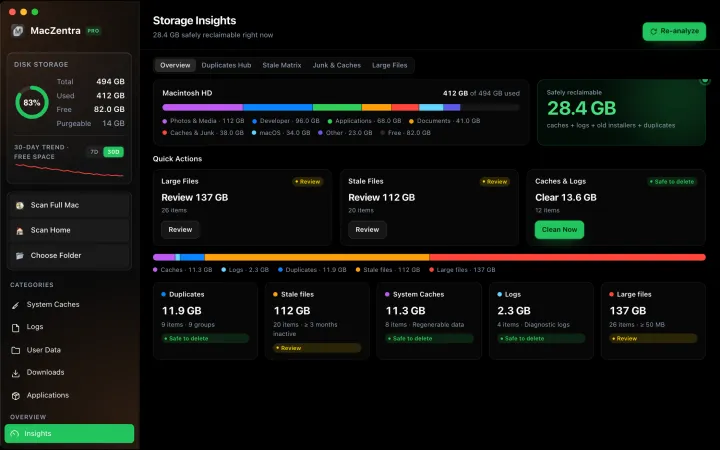
Free up space · 8 min
Free Up Space on Mac: 10 Fixes, Biggest First
Ten ways to free up Mac storage ranked by typical space recovered. Covers hidden Library folders and leftovers macOS Storage settings never show.
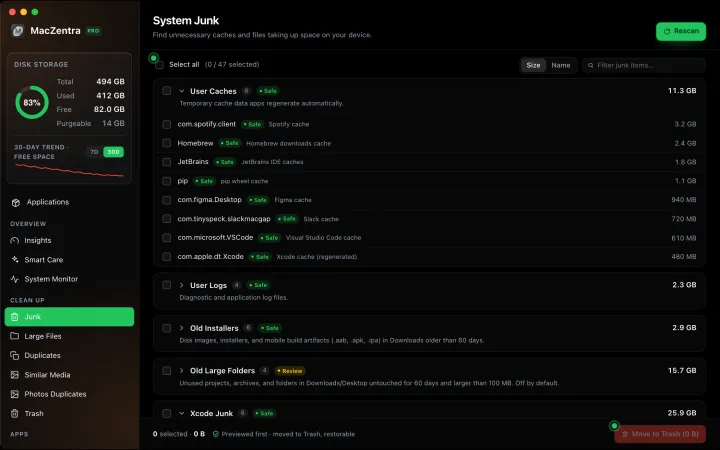
Free up space · 5 min
~/Library/Caches: What's Safe to Delete on Mac
Which ~/Library/Caches folders are safe to delete, which to keep, and how to clear them without breaking apps.
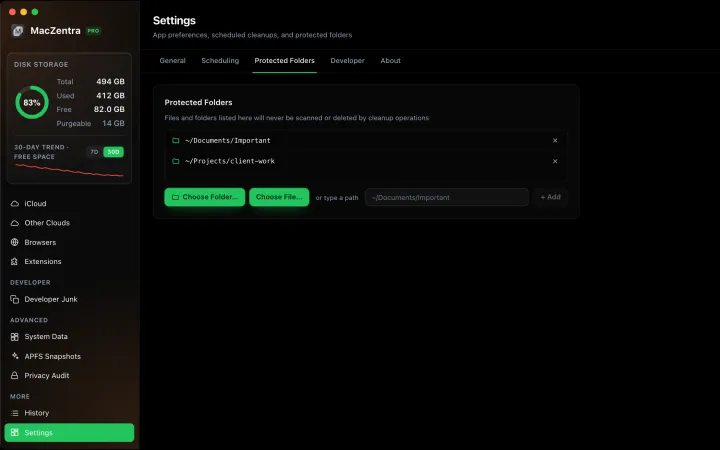
Free up space · 3 min
Protected Files & Folders: Keep Items Safe
How the built-in protected paths guard system-critical locations, and how to add your own custom folders to prevent accidental deletion.
Free up space · 4 min
Smart Care: One-Click Maintenance for Your Mac
Automate daily maintenance with Smart Care: clear caches, empty Trash, flush DNS, and purge inactive memory in a single workflow. Schedule it or run it on demand.