
Developer junk
Shrink Docker.raw on Mac: Reclaim Disk Space Safely
The MacZentra team · Updated Sep 30, 2026 · 5 min read
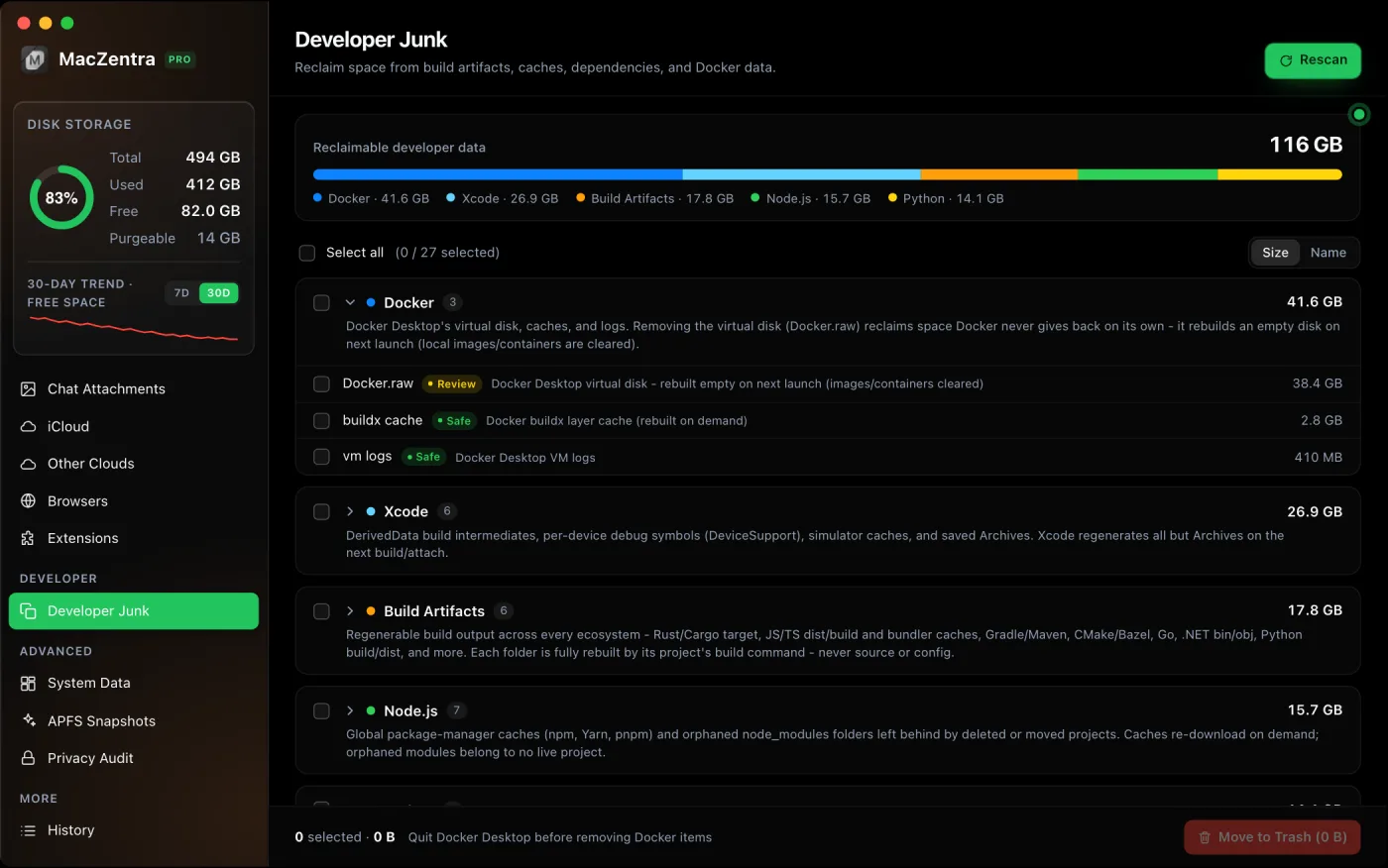
Docker.raw gets huge because Docker Desktop keeps every image, container, volume and build cache inside one virtual disk file. That file grows as you pull and build, but deleting things inside Docker doesn’t always hand the space back to macOS. Pruning frees space inside the disk; getting it back on your Mac sometimes also means shrinking or resetting the disk image.
This guide explains what Docker.raw is, how to measure its real size (the number Finder shows can be misleading), and three ways to reclaim the space, from least to most destructive.
What is Docker.raw?
Containers are a Linux feature, so on a Mac Docker Desktop runs a small Linux virtual machine. That VM’s entire disk is stored as a single file in your Library:
~/Library/Containers/com.docker.docker/Data/vms/0/data/Docker.raw
It’s a sparse file: it has a large maximum size (often 64 GB or more), but macOS only stores the blocks that actually hold data. So the file starts small and grows every time you pull an image, run a build or write to a volume. In macOS Storage settings it’s counted under System Data, which is why a Docker-heavy Mac often has a surprisingly large grey bar.
How to check how big Docker.raw really is
In Docker Desktop, open Settings → Resources (under Advanced on recent versions) to see the disk limit and how much is used. For the number that matters on your Mac, compare these two in Terminal:
# Nominal (maximum) size of the sparse filels -lh ~/Library/Containers/com.docker.docker/Data/vms/0/data/Docker.raw# Space it actually occupies on your diskdu -h ~/Library/Containers/com.docker.docker/Data/vms/0/data/Docker.raw
ls shows the ceiling; du shows the real footprint. A 64 GB ls figure with a 9 GB du figure means you’d only get 9 GB back. On a development Mac, 10 to 40 GB is common. Well above that usually means old images and build cache have piled up.
How to shrink Docker.raw
1. Prune what you don’t need inside Docker
Start by seeing what Docker itself thinks it’s storing, then remove the parts you can rebuild. Run docker system df before and after so you can see what changed.
docker system df # what's using space inside Dockerdocker builder prune -a # all build cache (often the biggest item)docker image prune -a # images not used by any containerdocker container prune # stopped containersdocker volume prune # unused anonymous volumes
Or do it in one go with docker system prune -a, which removes stopped containers, unused networks, every image not used by a container, and build cache. Add --volumes only if you’re sure: it also removes unused anonymous volumes, which is where some setups keep local databases. Named volumes are only removed by docker volume prune -a.
Then check du -h on Docker.raw again. Recent Docker Desktop versions release freed blocks back to macOS, sometimes after a short delay. If the file hasn’t shrunk after a few minutes, move on to step 2.
2. Lower the disk size limit
In Settings → Resources, reduce the disk image size (labelled Virtual disk limit on recent versions) and click Apply & restart. Docker rebuilds the disk at the new size, which compacts it. Depending on your version, this can also wipe the existing disk, so read the confirmation dialog and export anything you can’t re-pull (see below) before you accept.
3. Reset the disk entirely
If you can afford to lose every local image, container and volume, this is the fastest route. Click the Troubleshoot (bug) icon in Docker Desktop and choose Clean / Purge data. Docker creates a fresh, near-empty disk on the next start. Anything you didn’t push to a registry or export is gone.
Can I delete Docker.raw?
Yes, as long as Docker Desktop is fully quit (menu bar whale → Quit Docker Desktop) and you accept losing everything inside it. Docker creates an empty disk the next time it starts. If a volume holds data you can’t recreate, export it first:
# Save a volume to a .tgz in the current folderdocker run --rm -v myvolume:/data -v "$PWD":/backup alpine \tar czf /backup/myvolume.tgz -C /data .
Why doesn’t Docker.raw shrink after docker system prune?
Pruning frees space in the Linux filesystem inside the VM. For that to show up on your Mac, the VM has to tell macOS which blocks are now empty so the sparse file can release them. Current Docker Desktop versions do this automatically but not always instantly; older versions often didn’t at all. When it doesn’t happen, lowering the disk limit (step 2) forces a compact rebuild.
How to uninstall Docker Desktop completely
Use Docker’s own uninstaller: Troubleshoot icon → Uninstall. It removes the app and the disk image. Afterwards, check for leftovers:
~/Library/Containers/com.docker.docker~/Library/Group Containers/group.com.docker~/.docker(your CLI config and contexts)- the
dockercommand-line links in/usr/local/bin
Docker is rarely the only developer tool filling your disk. The usual next suspects are Xcode’s DerivedData, simulators and device support files and old node_modules folders from projects you no longer touch.
Everything MacZentra can clean
Treemap and Sunburst disk maps, a duplicate finder, Developer Junk, a complete app uninstaller and more, in one native storage cleaner for Mac that’s 15.4 MB.
Explore all features →Related guides
Developer junk · 3 min
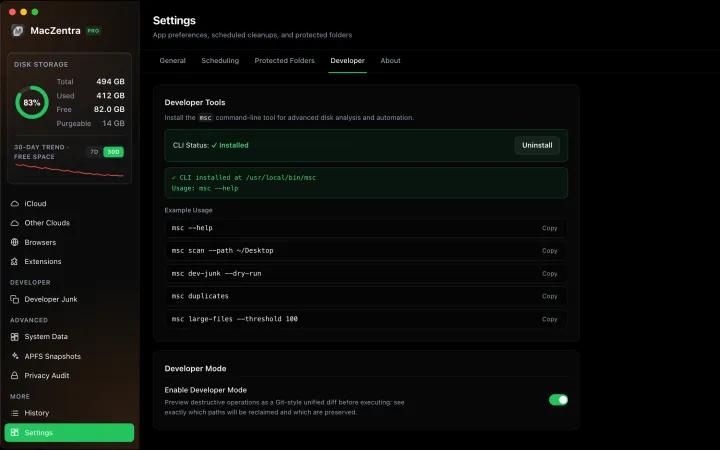
Developer Mode: Preview Deletions as a Git Diff
See exactly what will be deleted before you commit, as a live unified diff. Ideal for auditing risky deletions like Docker.raw or Xcode archives.
Developer junk · 5 min
Xcode DerivedData: What's Safe to Delete
DerivedData is always safe to delete. Three ways to clear it, plus device support, archives and simulators that fill your Mac.
Developer junk · 6 min
Delete Every node_modules Folder on Your Mac
List every node_modules folder by size in one command, delete the stale ones, and clear npm, Yarn, pnpm and Bun caches.
Check storage · 9 min
Best Mac Storage Cleaners 2026: Compared & Ranked
Mac storage cleaners and disk space analyzers compared by price, size, scan speed and licence. One-time, subscription and free options side by side.