
System Data
How Much Storage Does macOS Take Up?
The MacZentra team · Updated Nov 10, 2026 · 6 min read
How much storage does macOS take up? The operating system itself is usually a modest slice of your disk, but it isn't one number, and Apple doesn't publish a fixed figure because it changes with every release. What makes macOS look huge is everything around it: the System Data category, snapshots, swap files and installers. Here's how to see the real numbers on your own Mac.
Where macOS actually lives
Since macOS Catalina, the system sits on its own read-only volume, separate from your files. From Big Sur on, that volume is also sealed and signed by Apple, so nothing (including you) can change or trim it. Your apps, documents and caches live on a second volume, the Data volume. Both share the same APFS container, so they draw from one pool of free space.
| Volume | What it holds | Can you shrink it? |
|---|---|---|
| System | macOS itself, sealed and read-only | No. It's replaced whole on each update. |
| Data | Your apps, files, caches, logs, snapshots | Yes, this is where cleanup happens. |
| Preboot, Recovery | Startup files and the recovery system | No, macOS manages them. |
| VM | Swap files when memory runs short | Indirectly, by freeing memory. |
Measure it on your own Mac
Open System Settings → General → Storage. The coloured bar splits your disk into categories, and the macOS segment is the system volume. Hover over it to see the size. For exact numbers per volume, Terminal is quicker:
# Every volume in the container, with the space each one usesdiskutil apfs list# Just the system volumediskutil info / | grep "Volume Used Space"# Current swap usesysctl vm.swapusage
In the diskutil apfs list output, look for the role next to each volume: System, Data, Preboot, Recovery and VM. The "Capacity Consumed" line under each one is what it really uses.
Why macOS seems to take far more than that
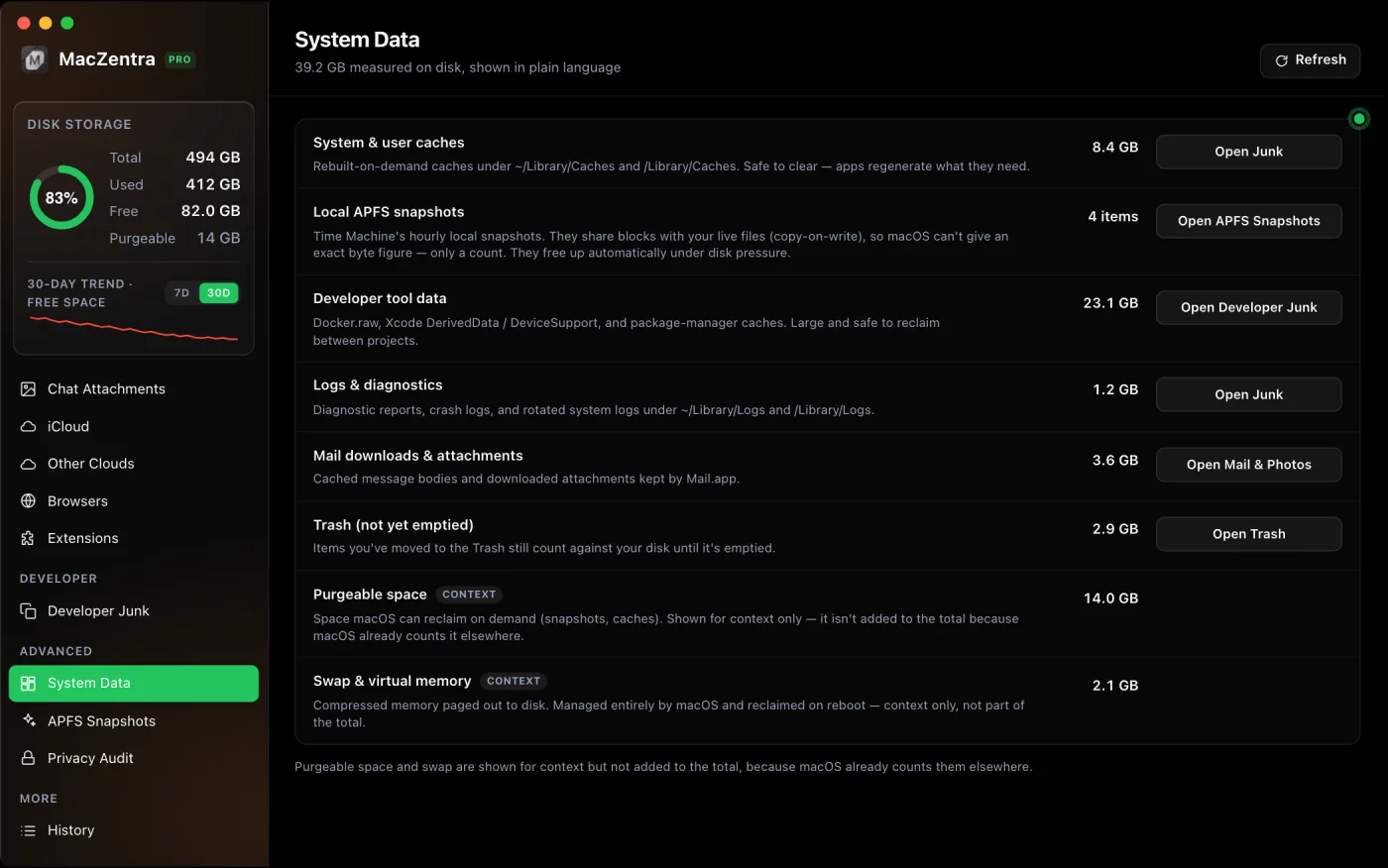
When people say macOS takes 50 or 100 GB, they're usually reading the System Data bar, not the macOS one. System Data is a catch-all for things that don't fit the other categories:
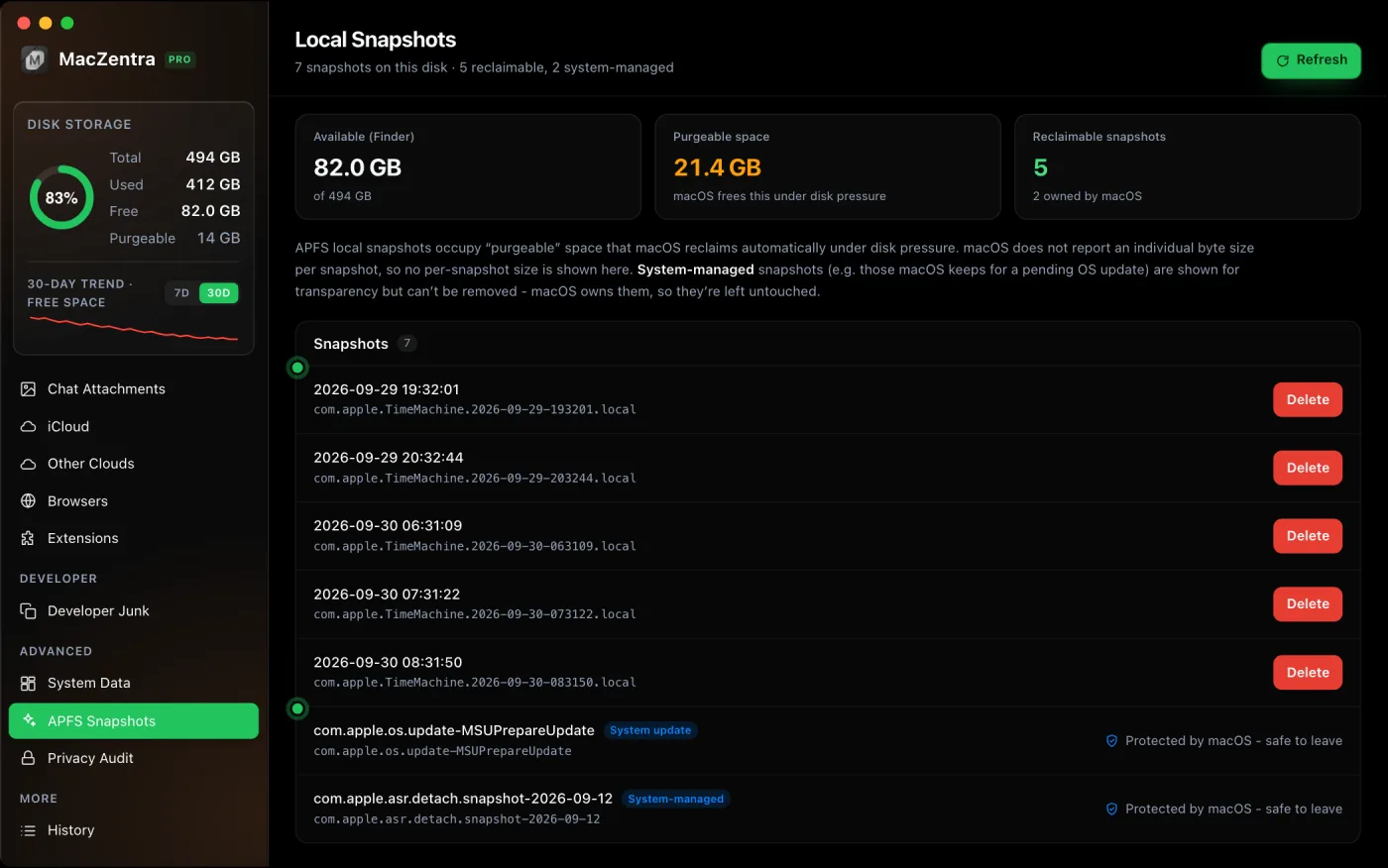
- Local Time Machine snapshots. macOS keeps them on the internal drive and frees them when space runs low, which is why they show as "purgeable". See APFS local snapshots.
- Caches and logs. App, browser and system caches in
~/Library/Cachesand/Library/Caches, plus logs and diagnostic reports. - Temporary files. The per-user folders under
/var/folderscan reach several gigabytes, explained in what /var/folders is. - Swap and sleep files on the VM volume, which grow when apps use more memory than the Mac has.
- Developer data. Xcode DerivedData, simulators and Docker's disk image often land here too.
The full breakdown, and the safe order to shrink it, is in our guide to System Data on Mac.
How much free space a macOS update needs
Updates need room beyond the size of macOS. A full installer for a recent version is a download of more than 12 GB, and the install unpacks it and keeps the old system until the new one boots. Apple lists the required free space for each version on its support pages, and the Mac warns you if there isn't enough. Leave generous headroom before a major upgrade rather than clearing space at the last minute.
Reclaim space without touching macOS
Since the system volume can't be trimmed, the space you can get back is all on the Data volume. Work in this order:
- Delete leftover macOS installers from Applications.
- List local snapshots with
tmutil listlocalsnapshots /. They clear themselves, but a recent backup to an external drive lets macOS release them sooner. - Remove old iPhone and iPad backups in Finder: select the device, then Manage Backups. Each one can be many gigabytes.
- Clear app and browser caches you can rebuild.
- Check developer folders if you write code, then look for large files and duplicates.
For the full checklist with the biggest wins first, see 10 ways to free up space on a Mac.
Questions people ask
How much space does macOS need for a clean install?
It depends on the version, and Apple lists the requirement on its support page for each one. Check that page before installing, and plan for extra room on top for updates and your own apps.
Can I delete files from System Data?
Some of them. Caches, old logs, installers and device backups are safe to remove. The system volume itself and anything macOS manages, such as swap files, should be left alone.
Why did macOS get bigger after an update?
New versions add features and frameworks, and the update may leave a snapshot behind for a while. Check the macOS segment in Storage settings again a day or two later, once macOS has tidied up.
Does a bigger drive make macOS use more space?
Not the system itself. On a large drive, macOS has less pressure to clear caches and snapshots, so System Data can stay bigger for longer.
Everything MacZentra can clean
Treemap and Sunburst disk maps, a duplicate finder, Developer Junk, a complete app uninstaller and more, in one native storage cleaner for Mac that’s 15.4 MB.
Explore all features →Related guides
System Data · 7 min
What Is System Data on Mac? And How to Shrink It
What is System Data on Mac? The grey bar in macOS Storage. See what it holds, how much is normal, and why it grows after a macOS update.
System Data · 4 min
/Library/Caches vs ~/Library/Caches: What's the Difference?
/Library/Caches is shared by every user; ~/Library/Caches is yours. Real sizes from a Mac we checked, why the sticky bit matters, and which one to clear.
System Data · 5 min
What Is /var/folders on Mac? Why It Uses GBs
What /private/var/folders holds, the 0, C, T and X folders, real sizes from a Mac we checked, and what is safe to clear. Includes the commands to measure it.
Check storage · 9 min
Best Mac Storage Cleaners 2026: Compared & Ranked
Mac storage cleaners and disk space analyzers compared by price, size, scan speed and licence. One-time, subscription and free options side by side.