Check storage
Mac Disk Usage Analyzer: Read a Treemap and Sunburst
The MacZentra team · Updated Nov 11, 2026 · 5 min read
A Mac disk usage analyzer scans your drive and shows which folders hold the space, so you stop guessing. The three common views are the Treemap, the Sunburst and a sorted tree list. Each answers a different question. This guide explains how to read them, what to check first, and what you can do with only the tools built into macOS.
The three views and what each is for
| View | Best for | How to read it |
|---|---|---|
| Treemap | Spotting the heaviest folder at a glance | Every rectangle is sized by space used, so big blocks are big folders |
| Sunburst | Following a path down the folder levels | Each ring is one level deeper; click through to drill in |
| Tree View | Exact numbers | Sort folders by size, file count or last modified date |
What to look at first
Start with the largest blocks. Most Macs have a handful of folders holding most of the used space. Then check these, roughly in order of how often they turn out to matter:
| Where | What is usually there |
|---|---|
~/Library | Caches, logs and app support files. See the guide to Library caches |
~/Downloads | Old installers, disk images and exports |
| Developer folders | Xcode DerivedData, Docker disk images and node_modules |
| Photos and media libraries | Large, and often hiding duplicates |
Check disk usage with Terminal
You do not need extra software to find the biggest folders in your home directory:
du -h -d 1 ~ 2>/dev/null | sort -h | tail -15
Run it again inside the largest folder you find, and repeat. It works, but you read numbers instead of seeing shapes, and each level means a new command.
Why Storage settings is not enough
System Settings → General → Storage groups space into broad categories, and most of the difficult space ends up under System Data. It does not tell you which folder is responsible. For the background, see System Data on Mac. A disk analyzer shows the actual folders instead.
Give the analyzer Full Disk Access
Without Full Disk Access, macOS hides protected folders and some caches from every app, so the map shows less than what is really on the disk. Grant it in System Settings → Privacy & Security → Full Disk Access, then scan again.
Next steps
Once you know where the space is, the fixes are in how to find large files on Mac and how to free up space on Mac.
Everything MacZentra can clean
Treemap and Sunburst disk maps, a duplicate finder, Developer Junk, a complete app uninstaller and more, in one native storage cleaner for Mac that’s 15.4 MB.
Explore all features →Related guides
Check storage · 9 min
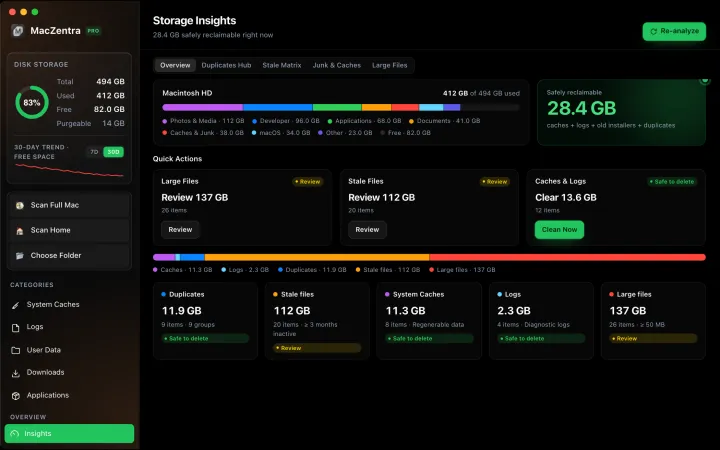
Best Mac Storage Cleaners 2026: Compared & Ranked
Mac storage cleaners and disk space analyzers compared by price, size, scan speed and licence. One-time, subscription and free options side by side.
Check storage · 5 min
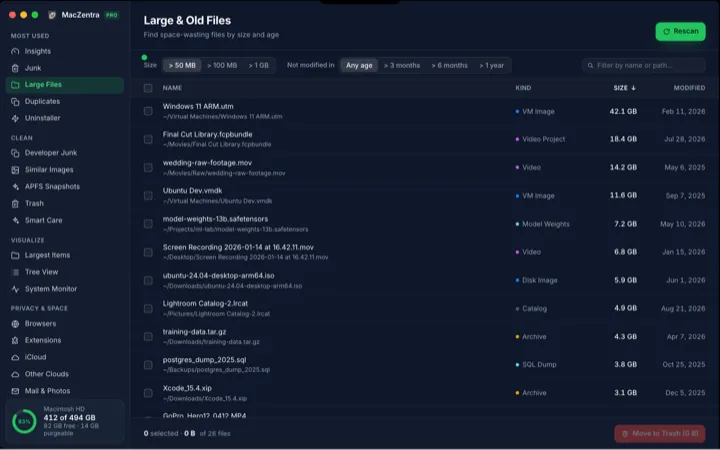
Find Large Files on Mac: 4 Ways, Built-in to Terminal
The fastest ways to find large files on a Mac: Storage settings, a Finder search, one Terminal command, or a treemap. Steps and commands for each.
Check storage · 6 min
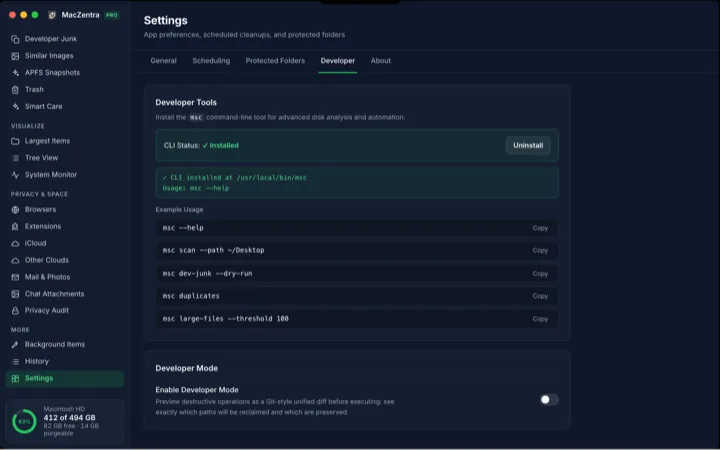
MacZentra CLI: Command Reference and Use Cases
The msc command runs MacZentra from the terminal. Scan paths, find duplicates, check developer junk and preview deletions without opening the app.
Check storage · 3 min
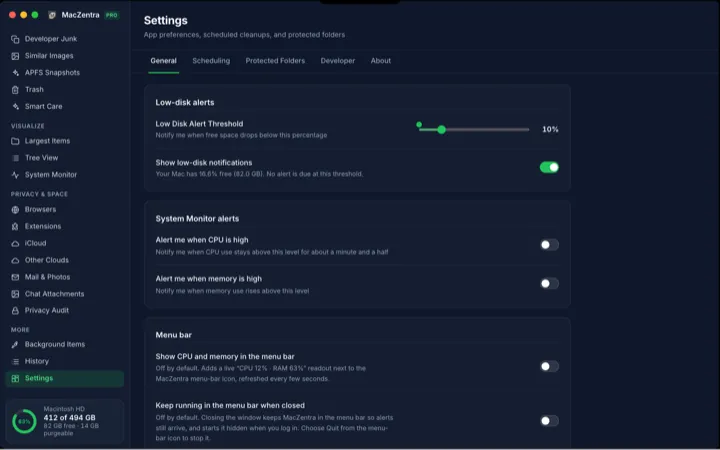
Low-Disk Alerts from Your Mac's Menu Bar
MacZentra watches free space in the background and sends one native alert when it drops below your threshold. Run Smart Care from the tray.