
Check storage
Find Large Files on Mac: 4 Ways, Built-in to Terminal
The MacZentra team · Updated Nov 17, 2026 · 5 min read
The quickest built-in way to find large files on a Mac is System Settings → General → Storage, then the ⓘ button next to Documents, which opens a Large Files list. It only covers some folders, though. For a complete answer, search by size in Finder, use one Terminal command, or look at a map of your disk drawn to scale.
1. Storage settings: the Large Files list
Open System Settings → General → Storage and click ⓘ next to Documents. The Large Files tab lists your biggest files with sizes and last-opened dates, and you can delete straight from the list. It’s fast and needs no setup.
The catch: it only lists regular documents in your home folder. It skips hidden Library folders, app data and anything counted as System Data, which is often where the biggest items are.
2. Finder: search by file size
Finder can search every folder by size:
Set up the search
Open Finder and press ⌘F. Choose This Mac. In the first criteria menu, choose Other…, tick File Size, then set it to “is greater than 1 GB”. Click Save to keep the search in the sidebar.
Finder searches rely on Spotlight, so they miss folders Spotlight doesn’t index, including much of ~/Library.
3. Terminal: the complete list
Terminal sees everything you have permission to read, including hidden folders. Give Terminal Full Disk Access (System Settings → Privacy & Security) first, or some folders are skipped.
# Every file over 1 GB in your home folder, biggest lastfind ~ -type f -size +1G -exec du -h {} + 2>/dev/null | sort -h# The biggest folders in your home folderdu -sh ~/* ~/Library 2>/dev/null | sort -h# Fast Spotlight search for files over 1 GB (indexed folders only)mdfind "kMDItemFSSize > 1000000000"
Narrow it down: old files, one volume, a browsable list
Files you have not touched in months are the safest to review first. This lists downloads over 100 MB that have not changed in 180 days:
find ~/Downloads -type f -size +100M -mtime +180 -exec du -h {} + 2>/dev/null | sort -rh
Add -x to du (du -shx ~/*) to stay on one volume, so mounted drives and network shares do not inflate the totals. mdfind only sees locations Spotlight indexes and is only as fresh as the index, so use find when you need a complete answer and mdfind when you need a fast one. If you would rather browse than read lines, the free command-line tool ncdu (brew install ncdu) lets you move through folders sorted by size with the arrow keys.
None of these commands delete anything. If you remove files afterwards, drag them to the Trash in Finder rather than using rm, which skips the Trash and cannot be undone. Compare the totals with df -h /, and see how to clear System Data on Mac if the numbers you find are far smaller than what is used.
4. A disk map drawn to scale
Lists answer “which files are big?”. A map answers “where did my space go?”, which is often a different question. A folder holding 200,000 small files never appears in a large-files list, but it’s the biggest block on a map. Think photo library derivatives, message attachments, node_modules or cache folders. Treemaps draw every folder as a rectangle sized by how much it holds, so the biggest things are the biggest shapes on screen.
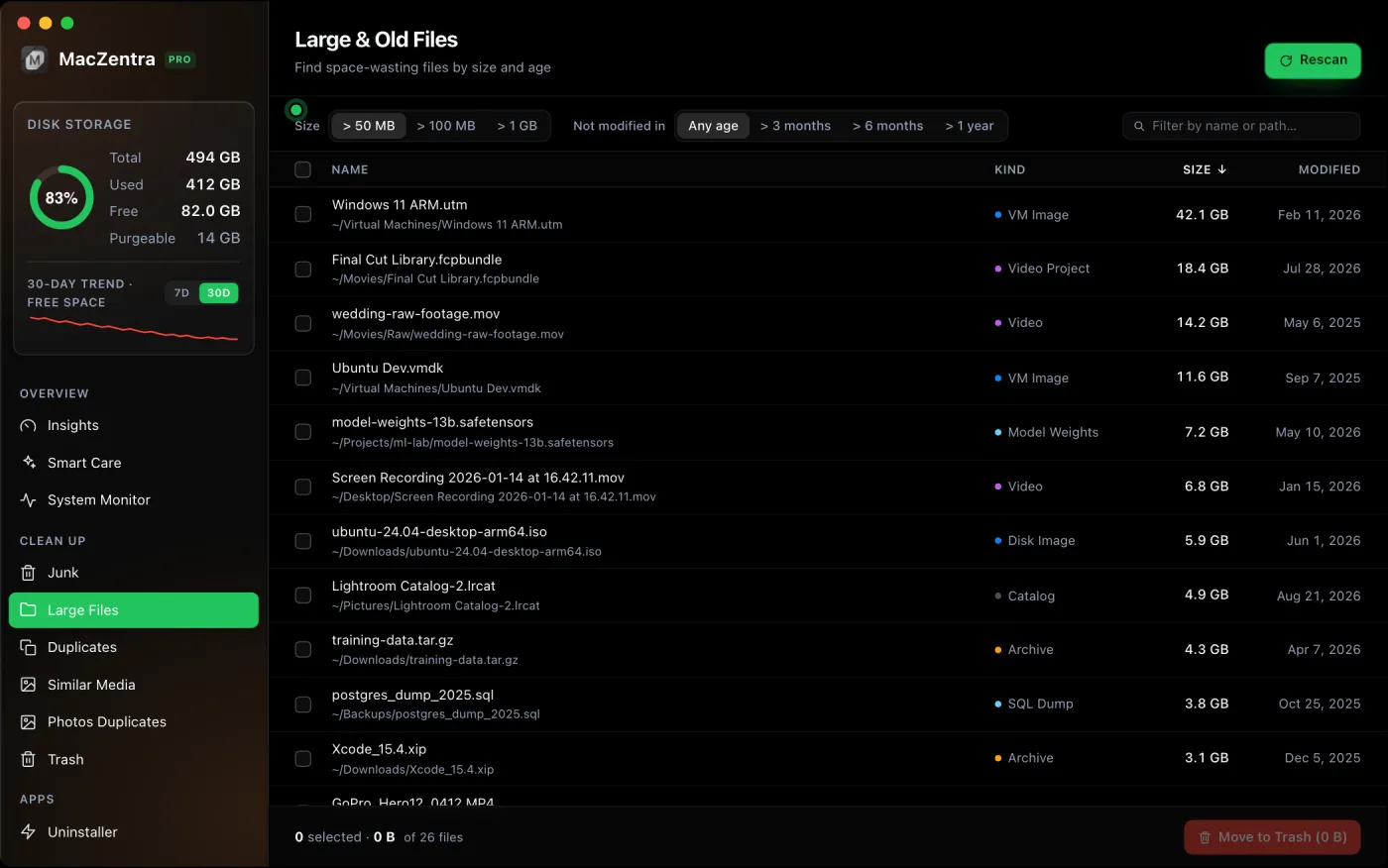
Video is usually the largest file type on a Mac. If you want to keep a clip and still save room, see how to compress a video on iPhone and Mac.
What to do with large files you find
Before deleting, check what the file is. Big files you’ve created yourself (videos, disk images, archives, exports) are usually safe to move to an external drive or delete once backed up. Big files inside ~/Library belong to an app. Look them up before removing them; guides like Docker.raw and local snapshots cover the most common ones.
Remember that moving something to the Trash doesn’t free the space until you empty it. If space still doesn’t come back, see why deleted files do not free space.
If the biggest item is the grey bar in Storage settings, see what System Data is and whether ~/Library/Caches is safe to delete. If you only need the totals first, see how to check storage on a Mac. For a visual map of the whole disk, try a Mac disk usage analyzer.
Everything MacZentra can clean
Treemap and Sunburst disk maps, a duplicate finder, Developer Junk, a complete app uninstaller and more, in one native storage cleaner for Mac that’s 15.4 MB.
Explore all features →Related guides
Check storage · 4 min
Mac App Updater: Homebrew, Sparkle, App Store
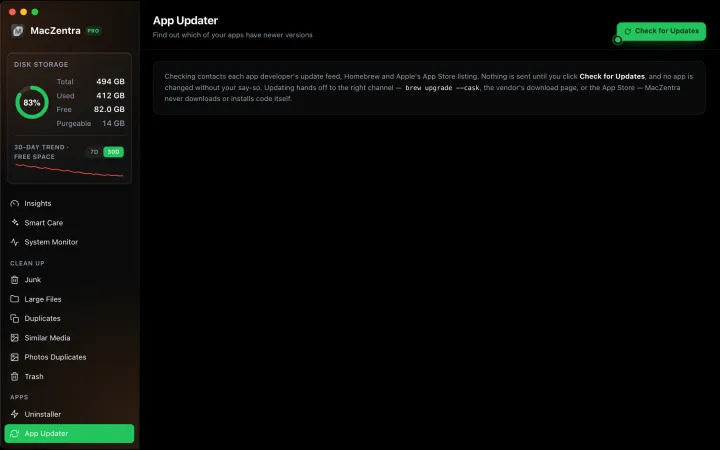
MacZentra's App Updater finds apps with a newer version and hands each update to Homebrew, the developer's feed or the Mac App Store. Read-only until you click.
Check storage · 6 min
How to Find and Delete Duplicate Files on a Mac
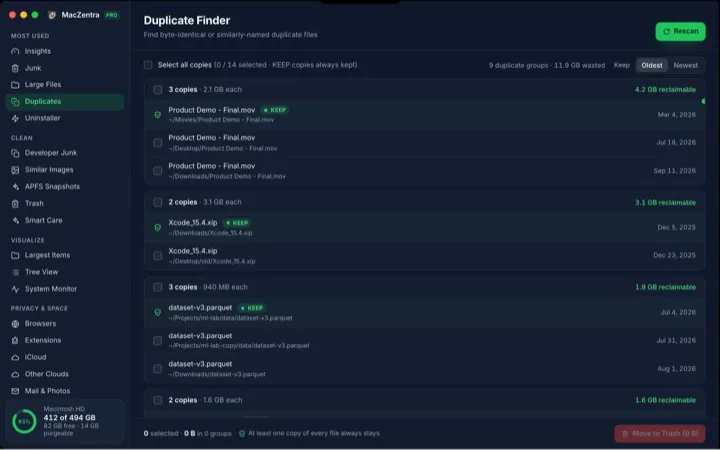
Find true byte-for-byte duplicate files on a Mac. How staged hashing works, why the same name is not enough, and how to delete copies but keep the original.
Check storage · 6 min
Mac Storage Optimization That Actually Works
What macOS storage optimization really cleans, what it leaves behind, and how to reclaim the rest of your disk without a subscription.
Free up space · 8 min
Free Up Space on Mac: 10 Fixes, Biggest First
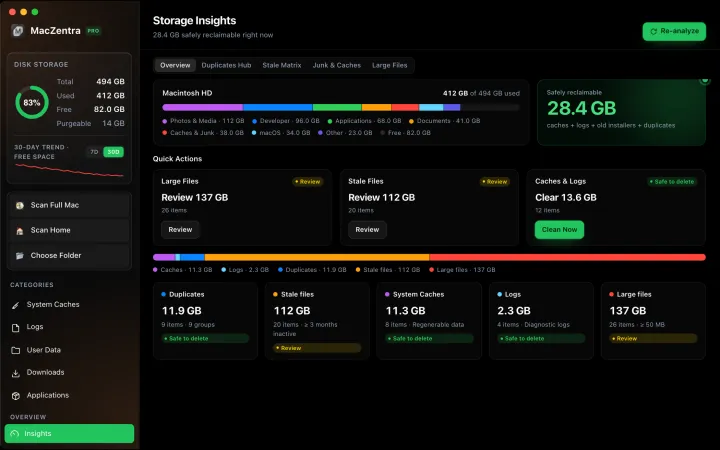
Ten ways to free up Mac storage ranked by typical space recovered. Covers hidden Library folders and leftovers macOS Storage settings never show.