
Free up space
Uninstall Apps on Mac Completely, Including Leftovers
The MacZentra team · Updated Nov 17, 2026 · 6 min read
Dragging an app to the Trash removes the .app bundle, but not the caches, preferences and support files it scattered across your Library. Those leftovers are usually small individually and large in aggregate, and they linger for years after the app is gone. To fully uninstall an app you need to remove the bundle and its debris together.
Where an app leaves its files
Most of an app's leftovers live under your home Library, keyed by its bundle identifier (something like com.vendor.app):
| Location | What it holds |
|---|---|
~/Library/Caches/<bundle-id> | Cached data, often the largest leftover. |
~/Library/Preferences/<bundle-id>.plist | Settings and window state. |
~/Library/Application Support/<app> | Databases, profiles, downloaded content. |
~/Library/Logs/<app> | Log files. |
~/Library/Saved Application State | Reopen-windows state. |
~/Library/Containers / Group Containers | Sandboxed app data (App Store apps). |
Uninstalling an app by hand
1. Quit it, then remove the bundle
Quit the app (and check Activity Monitor for background helpers). Then move it to the Trash from /Applications.
2. Find its leftovers by bundle id
Find the bundle id, then search your Library for anything matching it:
# Bundle id of an apposascript -e 'id of app "AppName"'# Then look for leftovers (adjust the id)find ~/Library -iname "*com.vendor.app*" -maxdepth 4 2>/dev/null
Leftovers from apps you already deleted
The harder problem is orphaned leftovers: support, preference and cache files whose owning app was removed long ago, so there's no bundle to search from. These are findable by reversing the logic, take each leftover's bundle id and check whether any installed app still claims it. Apple's own namespace (com.apple.*) is excluded, because those belong to macOS, not to a third-party app you removed.
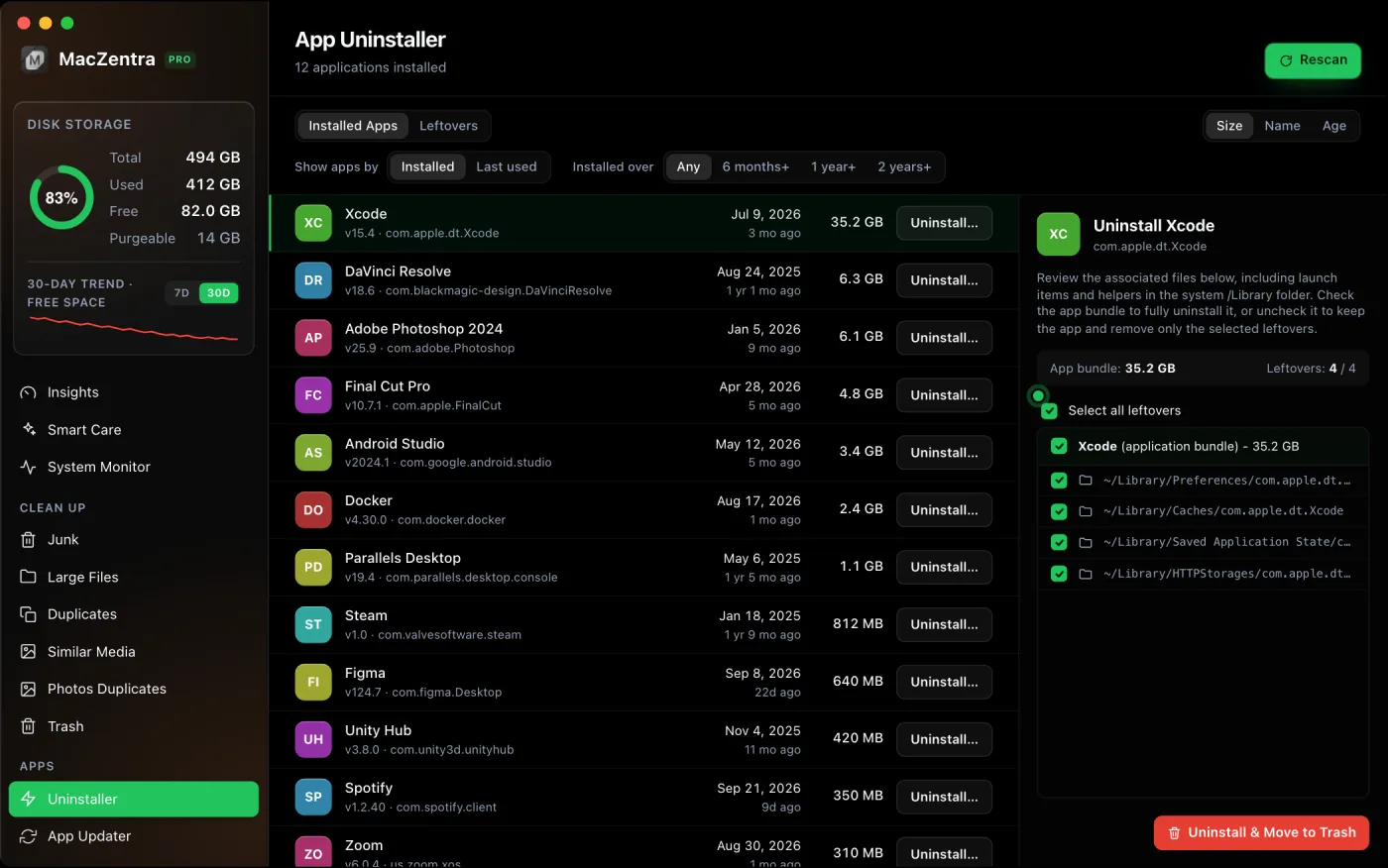
If macOS refuses to move an app to the Trash at all, how to delete apps on a Mac that won’t delete goes through the causes one by one.
What not to remove
Leave anything under com.apple.* alone, those are macOS system files, not app leftovers (see how MacZentra protects system-critical paths). Also keep files for apps you still use. If you're unsure whether a folder is a leftover or live data, the safe move is to Trash it (recoverable) and watch for a week before emptying.
For the browser-specific case, where "uninstalling" usually means clearing data rather than removing the app, see clearing browser cache and privacy data.
Everything MacZentra can clean
Treemap and Sunburst disk maps, a duplicate finder, Developer Junk, a complete app uninstaller and more, in one native storage cleaner for Mac that’s 15.4 MB.
Explore all features →Related guides
Free up space · 6 min
How to Clear App Cache on iPhone
How to clear app cache on iPhone: three methods that work, why Offload App keeps Documents and Data, and what each one costs in logins and downloads.

Free up space · 6 min
How to Find and Delete Screenshots on iPhone
How to find screenshots on iPhone in Photos, select hundreds at once, delete them, and empty Recently Deleted so the space comes back.
Free up space · 8 min
Free Up Space on Mac: 10 Fixes, Biggest First
Ten ways to free up Mac storage ranked by typical space recovered. Covers hidden Library folders and leftovers macOS Storage settings never show.
Check storage · 9 min
Best Mac Storage Cleaners 2026: Compared & Ranked
Mac storage cleaners and disk space analyzers compared by price, size, scan speed and licence. One-time, subscription and free options side by side.