
Free up space
How to Clear App Cache on iPhone
The MacZentra team · Updated Nov 17, 2026 · 6 min read
To clear app cache on iPhone, there is no single button, because iOS has no system-wide “clear cache” and no app can clear another app’s data. You have three real options: use the app’s own storage or cache setting if it has one, clear Safari’s website data, or delete the app and reinstall it. Offload App does not clear anything.
Why iOS has no “clear cache” button
Every iPhone app lives in its own sandbox. It can read and write its own files, and nothing else. That is good for privacy, and it is also why no cleaner app, ours included, can reach into Instagram or Spotify and empty their caches. Only the app itself can do that, and only if its developer built a way to trigger it.
What you see in Settings → General → iPhone Storage is the total each app holds. Whether any of it is a safe-to-clear cache is up to the app. So the honest answer to “how to clear cache on iPhone apps” depends on the app, and the rest of this guide shows you how to tell.
Read App Size and Documents and Data first
Open Settings → General → iPhone Storage, wait for the list to finish loading, and tap an app. You’ll see two figures that matter.
- App Size is the app itself: its code and built-in resources. It only changes when the app updates, and you can’t shrink it without deleting the app.
- Documents & Data is everything the app has stored for you: downloaded media, cached images, offline files, message history and settings. This is the number that balloons.
If App Size is 200 MB and Documents & Data is 8 GB, the app isn’t the problem, its stored content is. Part of that is cache that the app would rebuild on its own. Part may be data you actually want, such as downloaded videos or chat history, so the three methods below differ in what they cost you. For the full tour of the storage screen, see how to check iPhone storage.
Method 1: use the app’s own storage or cache setting
This is the safest route because the app decides what is disposable. Open the app and look in its settings for words like Storage, Data and Storage, Cache or Downloads. Not every app has one.
- WhatsApp. It has a storage management screen in its Settings, under Storage and Data, where you can see chats ranked by size and remove large files without deleting the conversation. Back up your chats before you remove anything you may want later.
- Telegram. Its Settings has a Data and Storage section with Storage Usage, which lets you clear cached media by type.
- Instagram. As far as we know, the iPhone app has no clear cache button, so for a large Instagram Documents & Data figure reinstalling is the only way.
- Streaming and music apps. Many keep a Downloads or Offline section where you can remove saved items. That frees the downloads but not always the cache behind them.
Menus move between app versions, so use the wording above as a guide to what to look for. If you open an app’s settings and find nothing about storage or cache, that app has no built-in way to clear it.
Method 2: clear Safari history and website data
Safari is the one place on the iPhone where a system setting really does clear cache. It also removes history and cookies, so you’ll be signed out of most websites.
- Open Settings. On iOS 18 and later, tap Apps, then Safari. On iOS 17 and earlier, tap Safari directly.
- Scroll down and tap Clear History and Website Data.
- Choose a time range if iOS offers one, then confirm.
If you want to clear the Safari cache on iPhone without losing every login, go to Advanced → Website Data in the same Safari settings. You can see which sites store the most and remove them one at a time, or search for a single site. Safari’s data counts toward the Safari entry in iPhone Storage, but a lot of what iOS calls System Data is also browser and system cache that you can’t clear by hand. Our guide to why iPhone System Data is huge explains that part.
Method 3: delete and reinstall the app
When an app has no cache setting and its Documents & Data keeps growing, deleting it and installing it again is the only method that works for any app. A reinstall removes the app’s stored files and starts from a clean state.
- Go to Settings → General → iPhone Storage and tap the app.
- Tap Delete App and confirm. Do not tap Offload App (see the next section).
- Open the App Store, find the app and download it again.
- Sign in. Check the app’s Documents & Data figure afterwards to see what you gained.
Offload App does not clear Documents and Data
This is the most common mistake. Offload App removes the app itself and frees its App Size, but it keeps the app’s Documents & Data so everything is still there when you reinstall. That is the point of the feature, and it is exactly why it does nothing for a bloated cache. If your goal is to reduce Documents & Data, choose Delete App instead.
What each method clears and what you lose
| Method | What it clears | What you lose |
|---|---|---|
| App’s own storage or cache setting | Cached media and files the app marks as disposable | Usually nothing, though offline downloads may need re-downloading |
| Safari Clear History and Website Data | Safari cache, history and cookies | Website logins, browsing history, saved site preferences |
| Safari Advanced, Website Data | Data for the sites you pick | Logins for those sites only |
| Delete App, then reinstall | The app and all of its Documents & Data | Local logins, downloads, drafts and anything not stored online or backed up |
| Offload App | App Size only | Nothing, because Documents & Data is kept, so it does not clear cache |
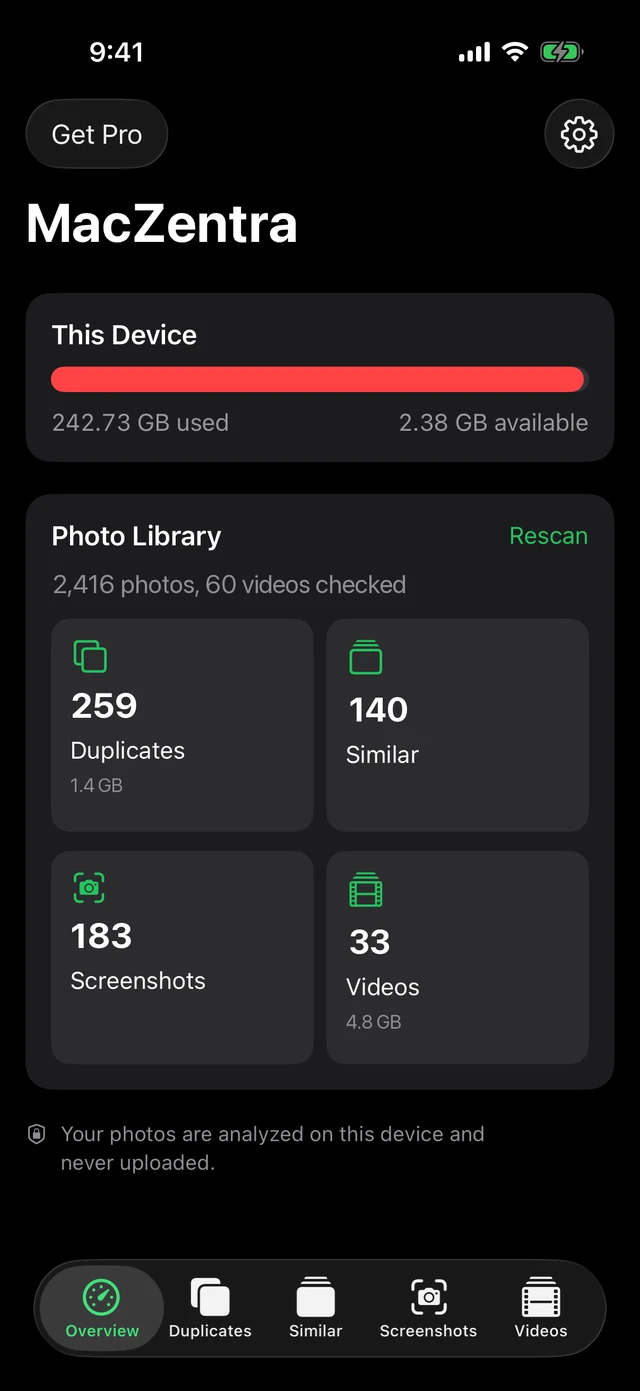
If space is the real problem, clearing caches is a small win next to the bigger levers. What to do when iPhone storage is full ranks them, how to get more storage on iPhone covers your options beyond deleting, and photos are often the biggest item, so see cleaning duplicates and screenshots on iPhone. On a computer, the equivalent job is covered in how to clear cache on a Mac.
Questions people ask
How do I clear the Instagram cache on iPhone?
As far as we know, Instagram’s iPhone app has no clear cache option. Check its settings for a storage entry, and if there isn’t one, delete the app and reinstall it. Your posts and account stay on Instagram’s servers, but you’ll need to sign in again.
How do I clear WhatsApp cache on iPhone without losing chats?
Use WhatsApp’s own storage management screen in its Settings under Storage and Data. It lets you remove big files per chat while keeping the messages. Make a chat backup first if the media matters to you, because deleted media can’t be recovered from the phone.
Is it safe to delete an app to clear its cache?
It’s safe for the phone, but not always for your data. Anything stored only on the device is gone, so check that your account, backup or iCloud holds what you need before you tap Delete App.
Does Offload App clear the cache?
No. Offload App keeps Documents & Data, so a large cache stays exactly as it was. Only deleting the app removes it.
Why is Documents and Data still huge after I clear Safari?
Safari’s website data is one entry among many. Other apps keep their own Documents & Data, and iOS never counts that under Safari. Open iPhone Storage, sort by size and check the largest apps one by one.
Everything MacZentra can clean
Treemap and Sunburst disk maps, a duplicate finder, Developer Junk, a complete app uninstaller and more, in one native storage cleaner for Mac that’s 15.4 MB.
Explore all features →Related guides
Free up space · 8 min
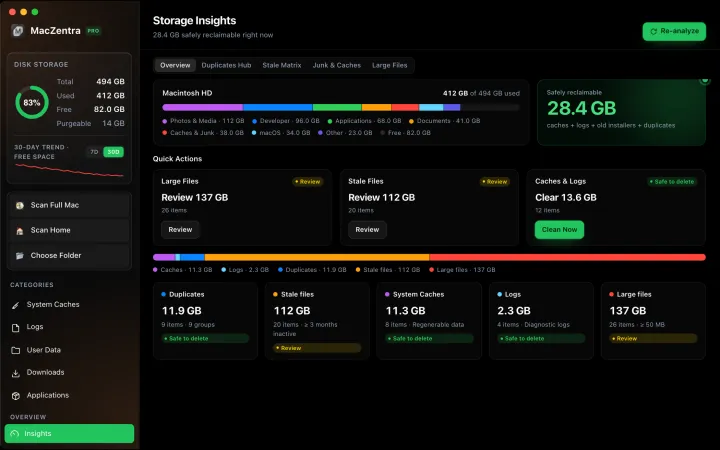
Free Up Space on Mac: 10 Fixes, Biggest First
Ten ways to free up Mac storage ranked by typical space recovered. Covers hidden Library folders and leftovers macOS Storage settings never show.

Free up space · 5 min
Is It Safe to Delete Library Caches on Mac? What to Keep and Clear
Yes for most apps. See which ~/Library/Caches and /Library/Caches folders are safe to delete, which to leave alone, and how to clear them step by step.
Free up space · 3 min
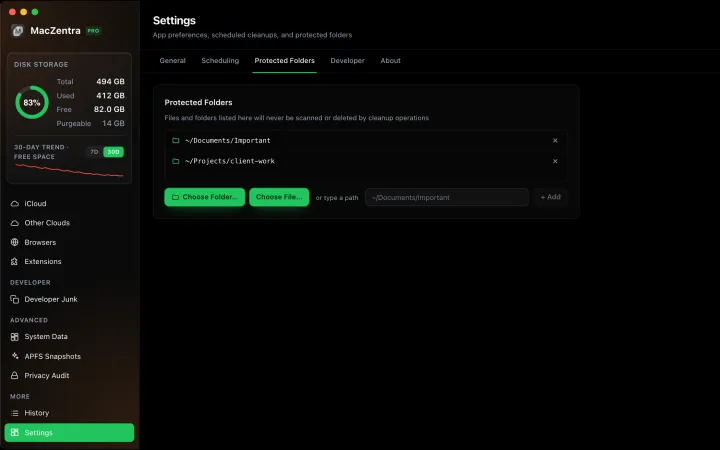
Protected Files & Folders: Keep Items Safe
How the built-in protected paths guard system-critical locations, and how to add your own custom folders to prevent accidental deletion.

Free up space · 4 min
Smart Care for Mac: Automate Cache, Trash and Memory Cleanup
Automate Mac maintenance with Smart Care: clear caches, empty Trash, flush DNS and purge inactive memory in one workflow. Schedule it or run it on demand.