
Free up space
How to Find and Delete Screenshots on iPhone
The MacZentra team · Updated Nov 17, 2026 · 6 min read
To find screenshots on iPhone, open Photos and look for the Screenshots album under Media Types. Every screenshot you take is saved into your Photos library, so that one album holds them all. Tap Select, drag a finger across the grid to pick many at once, then delete them. They stay in Recently Deleted for 30 days.
Where do screenshots go on iPhone?
Unless you choose otherwise when you take one, a screenshot is saved straight into the Photos library, next to your camera shots. It shows up in the main library sorted by date, and iOS also files it into a ready-made album. To reach that album, open Photos and go to Media Types → Screenshots. On iOS 17 and earlier, look under the Albums tab and scroll down. On iOS 18 and later, scroll to the bottom of the main Photos screen, where Media Types sits among the collections.
The album is a view, not a copy. A screenshot lives in the library once, and the Screenshots album simply shows the ones that are screenshots. Deleting from the album deletes the photo itself. If iCloud Photos is on, that deletion syncs to your other devices too, so check anything you might want first.
How to find screenshots on iPhone, step by step
- Open Photos.
- Go to Media Types (under Albums on older versions, near the bottom of the main screen on newer ones).
- Tap Screenshots. The newest are at the bottom.
- Scroll up to reach older ones. Years of them can be sitting there.
The layout differs a little between iOS versions, so use the name of the album as your guide.
How to delete all screenshots on iPhone
There is no single “delete every screenshot” button, but selecting a lot at once is quick once you know the gesture.
- In the Screenshots album, tap Select at the top right.
- Press on the first thumbnail you want, then drag your finger across the grid without lifting it. Every thumbnail you pass over gets ticked.
- Keep going down the grid. If you lose the selection, tap Select again and repeat from where you stopped. Working in batches of a few hundred is fine.
- Tap the bin icon at the bottom right, then confirm Delete.
Before a big delete, scroll through once. Screenshots often hold things people forget about, such as a boarding pass, a receipt, a two-factor code or a map. Save any you need to Files or Notes first, then delete the rest.
How do you select all photos on iPhone?
The Photos app has no standard Select All button in the library. The reliable way to pick a lot of photos is the one above: tap Select, then drag across the grid. It works in the main library, in any album and in Media Types. For a smaller job, tap a few thumbnails one by one. The one place that does offer an all-at-once option is Recently Deleted, where Select then Delete Allremoves everything in the folder.
Recently Deleted keeps them for 30 days
Deleting a screenshot moves it to Recently Deleted, and it keeps using space until that folder is emptied. iOS clears items after 30 days on its own, but if you are cleaning up because storage is full, do it now. Open Albums → Utilities → Recently Deleted(on iOS 18 and later, find Utilities at the bottom of the main Photos screen), tap Select, then Delete All.
Then check the result. Open Settings → General → iPhone Storage and the Photos entry should have shrunk. Our guide to checking iPhone storage explains how to read that screen.
Screen recordings and other media types
Screen recordings are saved to the same library and appear under Media Types → Screen Recordings. A recording is video, so a short one is usually far larger than a screenshot. Clearing a few old recordings often frees more than hundreds of screenshots.
| Media type | Where it is in Photos | Why it piles up |
|---|---|---|
| Screenshots | Media Types → Screenshots | One tap saves it, and nothing prompts you to delete it later. |
| Screen Recordings | Media Types → Screen Recordings | Video files, so each one can be large, and they are rarely watched twice. |
| Videos | Media Types → Videos | Long clips take far more space than still photos. |
| Live Photos | Media Types → Live Photos | Each one stores a short clip alongside the still. |
| Duplicates | Utilities → Duplicates | Re-downloads and imports leave copies behind. |
Delete a screenshot right after taking it
You do not have to save every screenshot. After you take one, a small preview thumbnail appears in the corner. Tap it to open the screenshot, then tap Done. The choices include Save to Photos, Save to Files and Delete Screenshot. Pick delete and it never reaches your library. If you ignore the thumbnail or swipe it away, the screenshot is saved to Photos as usual, which is how most people end up with so many.
- Share it first with the share button on the preview, then delete it. The recipient still gets it.
- Use Markup on the preview for a quick note or crop, then decide whether to keep it.
How to automatically save screenshots on iPhone
Saving is already the default. Take a screenshot, let the thumbnail go, and it lands in Photos and in the Screenshots album with no setting to turn on. If yours are not appearing, check that you did not pick Delete Screenshot or Save to Files from the preview, and that your phone has free space. A full phone can fail to save new shots, which is covered in what to do when iPhone storage is full.
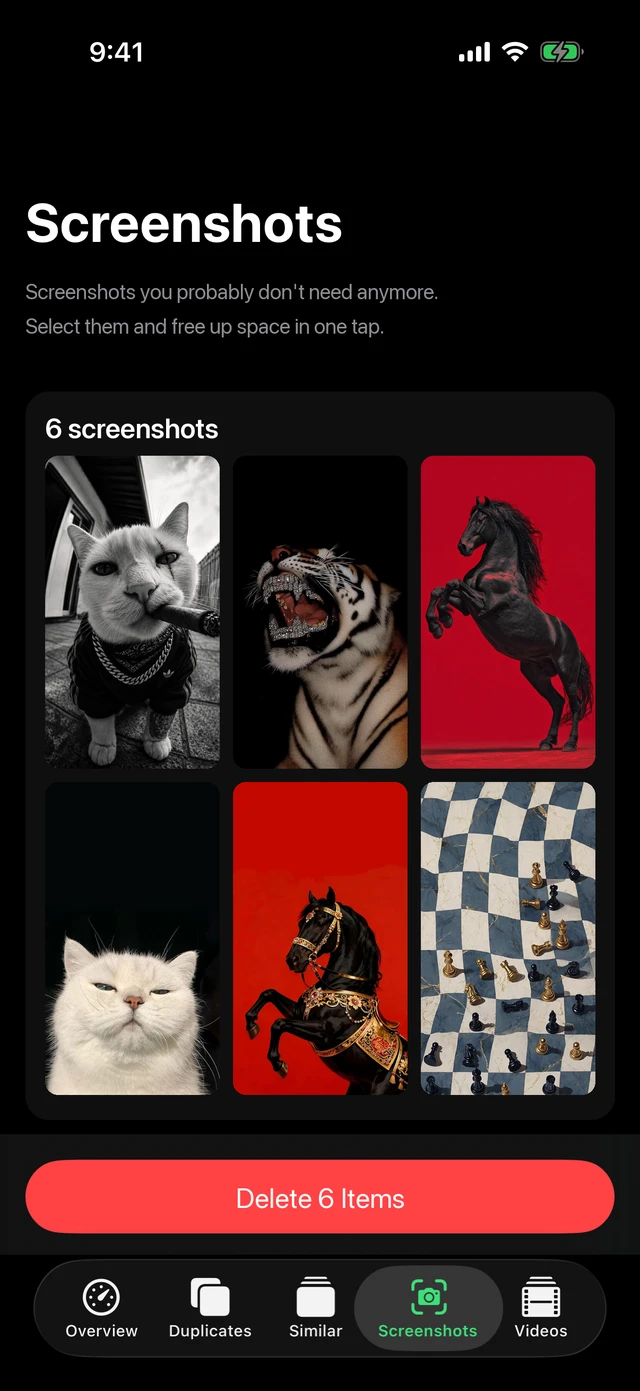
Clean up screenshots with MacZentra on iPhone
The built-in method works, but it means scrolling a grid by hand. The broader guide on cleaning iPhone photos, duplicates and screenshots covers the other tools. MacZentra for iPhone scans your photo library on the device, lists screenshots and large videos with their sizes, and lets you review before anything is deleted. Deleted items still go to Recently Deleted, so you can change your mind.
Duplicates are a separate pile, covered in how to delete duplicate photos on iPhone. If System Data is the bigger problem, read why iPhone System Data is huge.
Questions people ask
Do screenshots take up much space on iPhone?
One screenshot is small, but they add up over the years. Check Settings → General → iPhone Storage → Photos for the total, then compare it with what the Screenshots album holds. Videos and screen recordings are usually the bigger target.
Why is my storage the same after I deleted screenshots?
They are probably still in Recently Deleted, which keeps using space for 30 days. Empty it from Utilities → Recently Deleted, then check iPhone Storage again.
Will deleting screenshots on my iPhone delete them from iCloud?
Yes, when iCloud Photos is on. The library is shared across your devices, so deleting on one removes it from the others. Turning off iCloud Photos changes this, so read the full-storage guide before switching it off.
Can I find screenshots from a certain date on iPhone?
Yes. Open the Screenshots album and scroll, since the grid is in date order, with the newest at the bottom.
Is there an app that finds screenshots for me?
There is, and MacZentra for iPhone is one. It scans on the device and shows screenshots with their sizes. See the iPhone and iPad page for details.
Everything MacZentra can clean
Treemap and Sunburst disk maps, a duplicate finder, Developer Junk, a complete app uninstaller and more, in one native storage cleaner for Mac that’s 15.4 MB.
Explore all features →Related guides
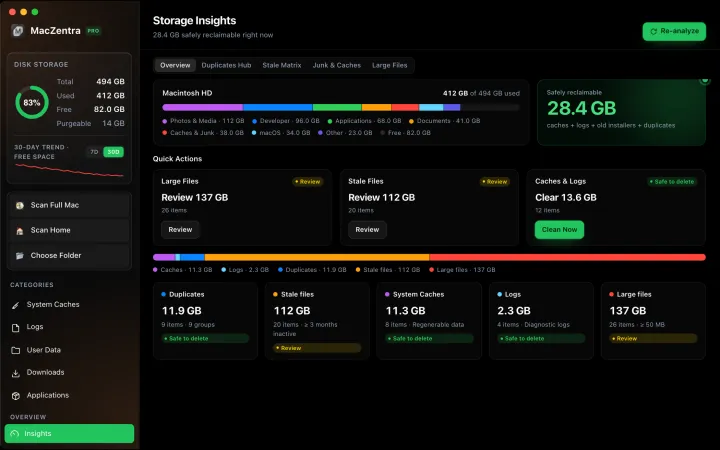
Free up space · 8 min
Free Up Space on Mac: 10 Fixes, Biggest First
Ten ways to free up Mac storage ranked by typical space recovered. Covers hidden Library folders and leftovers macOS Storage settings never show.
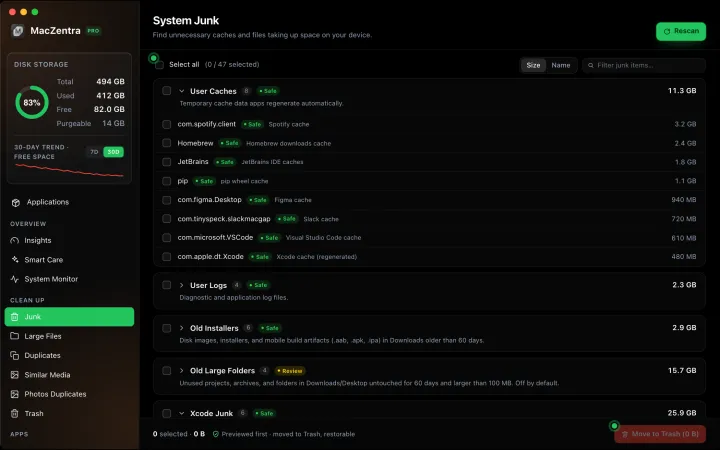
Free up space · 5 min
Is It Safe to Delete Library Caches on Mac? What to Keep and Clear
Yes for most apps. See which ~/Library/Caches and /Library/Caches folders are safe to delete, which to leave alone, and how to clear them step by step.
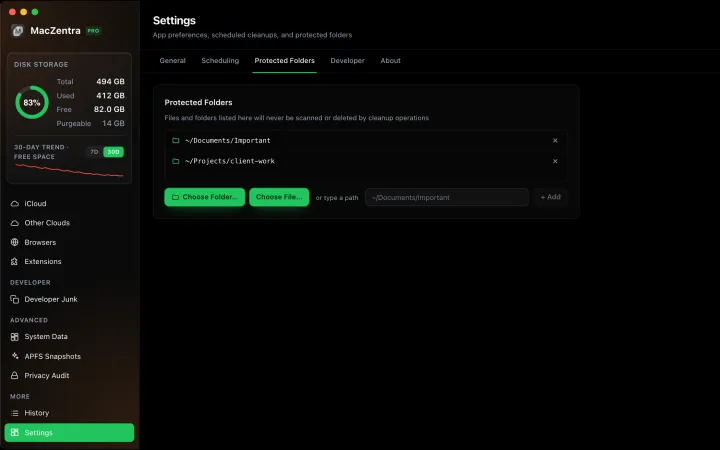
Free up space · 3 min
Protected Files & Folders: Keep Items Safe
How the built-in protected paths guard system-critical locations, and how to add your own custom folders to prevent accidental deletion.
Free up space · 4 min
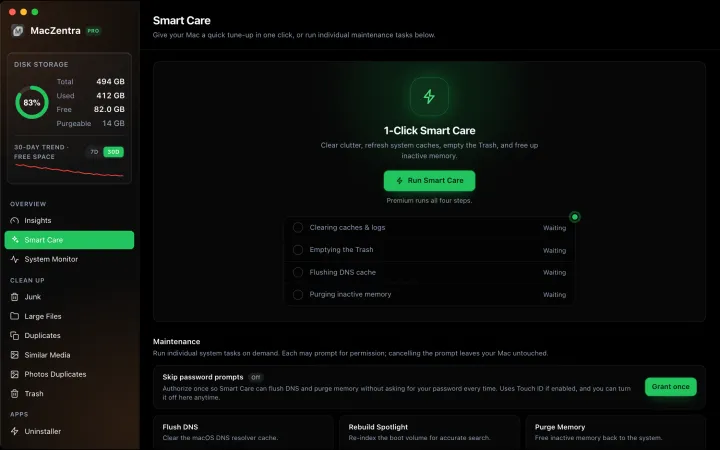
Smart Care for Mac: Automate Cache, Trash and Memory Cleanup
Automate Mac maintenance with Smart Care: clear caches, empty Trash, flush DNS and purge inactive memory in one workflow. Schedule it or run it on demand.