
Free up space
Smart Care for Mac: Automate Cache, Trash and Memory Cleanup
The MacZentra team · Updated Nov 15, 2026 · 4 min read
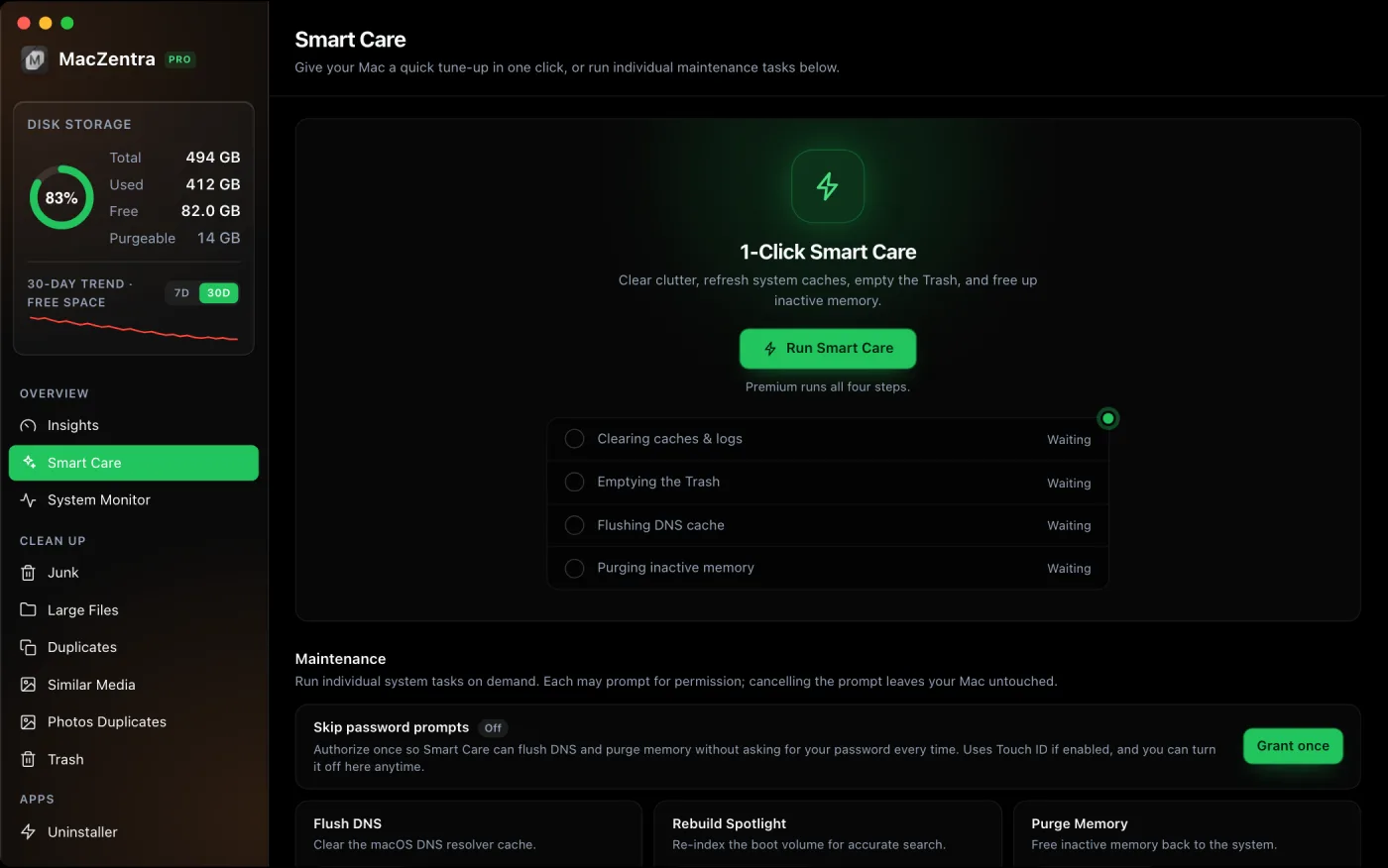
Most Mac maintenance is the same handful of chores done in the same order: clear caches and logs, empty the Trash, flush DNS, and purge inactive memory. Smart Care does all four in one click. Each step runs independently, so if you cancel a password prompt the rest still finish, and you get a summary of exactly how much space came back and what each step did.
What Smart Care runs, in order
| Step | What it does | Equivalent by hand |
|---|---|---|
| Clear caches & logs | Moves user caches and old logs to the Trash (recoverable). | Clearing ~/Library/Caches and ~/Library/Logs selectively |
| Empty Trash | Permanently removes what's already in the Trash to reclaim the space for real. | Finder → Empty Trash |
| Flush DNS | Clears the DNS resolver cache so stale lookups don't linger. | sudo dscacheutil -flushcache |
| Purge inactive memory | Asks macOS to release inactive memory pages back to the free pool. | sudo purge |
Independent steps, no all-or-nothing
Two of the steps, flushing DNS and purging memory, need administrator rights, so macOS shows an authentication prompt. If you cancel that prompt, Smart Care marks the step Skipped and carries on with the rest instead of aborting the whole run. That's the key difference from a shell script: one declined prompt doesn't throw away the work the other steps already did.
How to run it
- Open MacZentra and go to the Smart Care view.
- Click the one-click maintenance button.
- Approve the two authentication prompts (or skip them, the rest still run).
- Read the summary: total space reclaimed and the result of each step.
You can also kick off Smart Care without opening the main window: the menu-bar icon has a Run Smart Care item. See low-disk alerts from your menu bar for how the background agent works.
Doing it by hand instead
If you prefer the Terminal, these are the same four chores. The caches step is the one to be careful with; clearing everything blindly can log you out of some apps, so Smart Care only targets safe user caches and routes them to the Trash first.
# Empty the Trash is done in Finder; the rest:sudo dscacheutil -flushcachesudo killall -HUP mDNSResponder # some macOS versions also need thissudo purge
How often should I run it?
Weekly is plenty for most people; the caches it clears refill naturally as you use your apps, so running it daily rarely frees much more. The best time is when a disk-space warning appears, which is exactly when the menu-bar low-disk alert will nudge you. If a single run doesn't free enough, the bigger wins are usually in large files and leftovers rather than caches. To check which cache folders are safe to clear by hand, see ~/Library/Caches: what's safe to delete, and for the grey bar in Storage settings, what System Data is.
Everything MacZentra can clean
Treemap and Sunburst disk maps, a duplicate finder, Developer Junk, a complete app uninstaller and more, in one native storage cleaner for Mac that’s 15.4 MB.
Explore all features →Related guides
Free up space · 6 min
iPhone Storage Full: What to Do First
iPhone storage full? Empty Recently Deleted, offload apps and trim Messages attachments. Seven built-in fixes, quickest first, with exact Settings paths.
Free up space · 6 min
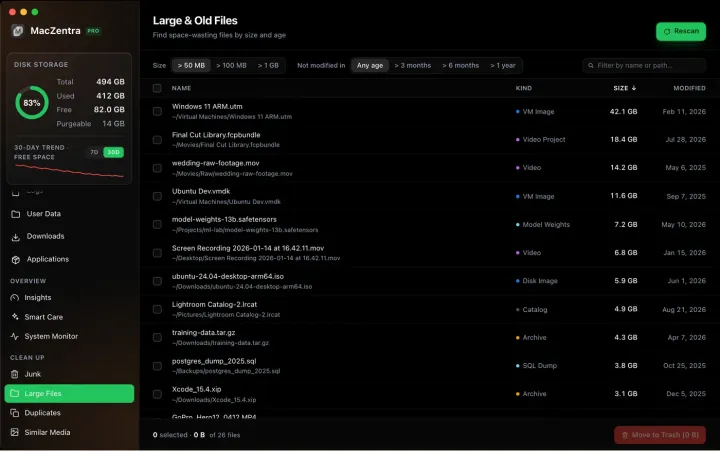
iCloud Storage Full: How to Free It Up
iCloud storage full? Find what is using it and free it up on iPhone and Mac: old backups, Photos, Drive, Messages and Mail, without a bigger plan.

Free up space · 6 min
How to Delete Duplicate Photos on iPhone
How to delete duplicate photos on iPhone with the built-in Duplicates album and Merge, plus what to do about similar shots and bursts.
Check storage · 9 min
Best Mac Storage Cleaners 2026: Compared & Ranked
Mac storage cleaners and disk space analyzers compared by price, size, scan speed and licence. One-time, subscription and free options side by side.