
Check storage
How to Find and Delete Duplicate Files on a Mac
The MacZentra team · Updated Oct 1, 2026 · 6 min read
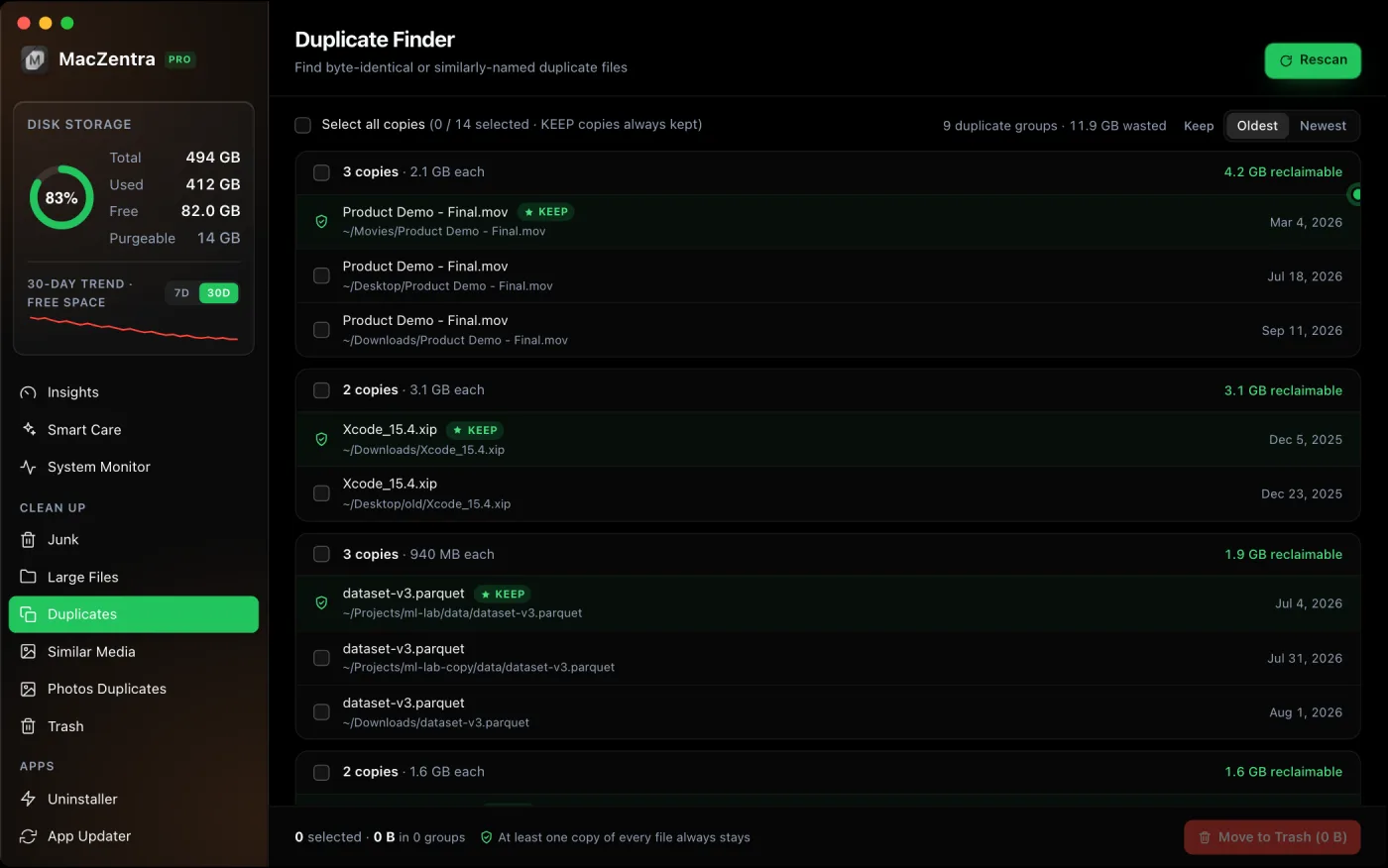
Duplicate files, the same download saved twice, a project copied "just in case", exports that never got cleaned up, quietly add up to gigabytes. The safe way to find them is by content, not by name: two files are only true duplicates when their bytes match exactly, so you can delete one copy knowing the other is identical.
Why "same name" isn't good enough
Matching on filename alone is risky in both directions. Two unrelated files can share a name (IMG_0001.jpg from two different cameras), and two identical files can have different names (report.pdf and report copy.pdf). The only way to be sure a copy is safe to delete is to compare the actual contents.
How content-based duplicate detection works
Reading every byte of every file would be painfully slow on a large disk, so good tools stage the work from cheap checks to expensive ones, and only fully read files that survive each stage:
| Stage | Check | What it eliminates |
|---|---|---|
| 1. Size | Group files by exact byte size | A file with a unique size can't have a twin, discarded immediately. |
| 2. Head hash | Hash only the first few KB | Same-size files that differ in their opening bytes (most large media). |
| 3. Probe hash | Hash head + middle + tail of large survivors | Big files that match at the start but differ later (VM disks, databases). |
| 4. Full hash | Full BLAKE3 of what's left | Confirms byte-for-byte identity. Only true duplicates remain. |
A file is only ever called a duplicate when it shares both an exact size and an exact full hash with another. That staging is why a scan of hundreds of thousands of files finishes quickly instead of reading the whole disk.
Finding duplicates by hand
A quick Terminal pass
You can approximate the above with a checksum. This hashes every file under a folder and lists any hash that appears more than once:
# Hash every file, then show only the duplicated hashesfind ~/Downloads -type f -exec shasum -a 256 {} + \| sort | uniq -w64 -D
It works, but it reads every byte of every file (no size pre-filter), so it's slow on large folders and offers no safe way to pick which copy to keep. Treat it as a spot check, not a cleanup plan.
Skip build folders
If you develop, a whole-disk duplicate scan will drown in build-artifact "duplicates" from node_modules, .git, build and target. Those are reinstallable, not something you'd hand-delete one by one. Exclude them so the results are files you actually chose to keep. For those folders specifically, see cleaning up node_modules.
What about files that are nearly the same?
Exact matching won't catch a document re-exported with a tiny change, or a photo resized on the way out of an app. Those need fuzzy matching: by filename for documents, or perceptual hashing for images. See finding duplicate and similar photos for the image case.
Everything MacZentra can clean
Treemap and Sunburst disk maps, a duplicate finder, Developer Junk, a complete app uninstaller and more, in one native storage cleaner for Mac that’s 15.4 MB.
Explore all features →Related guides
Check storage · 3 min
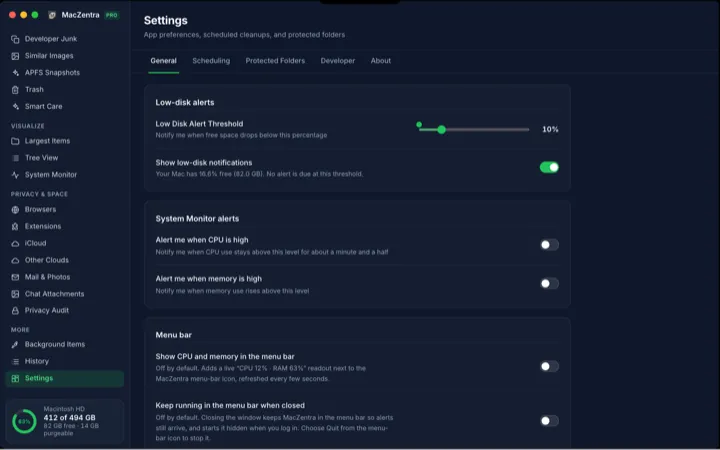
Low-Disk Alerts from Your Mac's Menu Bar
MacZentra watches free space in the background and sends one native alert when it drops below your threshold. Run Smart Care from the tray.
Check storage · 4 min
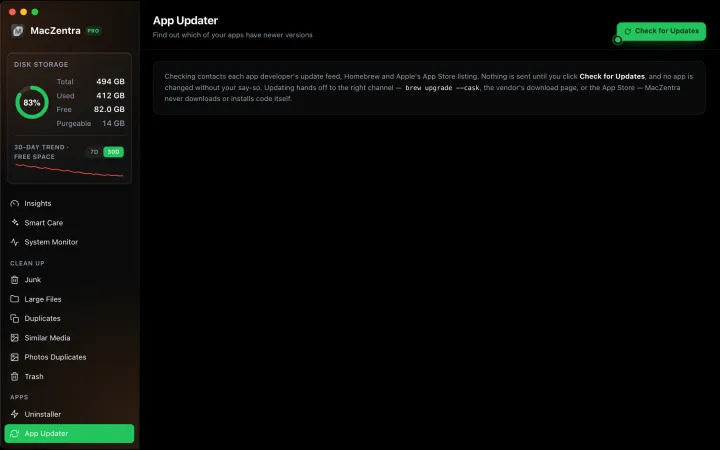
Mac App Updater: Homebrew, Sparkle, App Store
MacZentra's App Updater finds apps with a newer version and hands each update to Homebrew, the developer's feed or the Mac App Store. Read-only until you click.
Check storage · 6 min
Mac Storage Optimization That Actually Works
What macOS storage optimization really cleans, what it leaves behind, and how to reclaim the rest of your disk without a subscription.
Free up space · 8 min
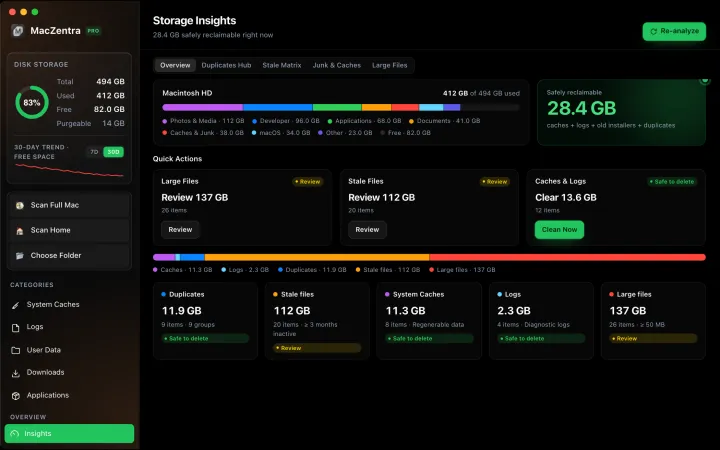
Free Up Space on Mac: 10 Fixes, Biggest First
Ten ways to free up Mac storage ranked by typical space recovered. Covers hidden Library folders and leftovers macOS Storage settings never show.