
Check storage
Is Full Disk Access Safe on Mac? What to Check
The MacZentra team · Updated Nov 23, 2026 · 5 min read
Full Disk Access is a macOS permission that lets an app read files in protected places, such as Mail, Messages and other apps’ data. A storage cleaner needs it to scan the whole disk, and it is safe to grant only to an app you trust. This guide explains what it allows, what MacZentra does with it, and how to check and revoke it.
What Full Disk Access allows
macOS protects certain folders even from apps you’ve installed. Mail, Messages, Safari data and some system databases need an extra permission before an app can read them. That permission is Full Disk Access, and you grant it in System Settings, then Privacy & Security, then Full Disk Access.
It is a broad permission, so treat it seriously. An app with it can read most of your files. That is why the sensible rule is: grant it only to software from a developer you can verify.
Why a storage cleaner asks for it
Without it, a scan can only see what your account normally can. Large parts of Mail, Messages attachments and app data stay hidden, and a folder you can’t read can’t be sized. The result is a map with holes. Granting access lets the scan account for the whole disk, which is how you find out where space went. If System Data looks huge, our System Data guide shows what that block holds.
What MacZentra does with it
| Question | Answer |
|---|---|
| Are my files uploaded? | No. Scanning happens on your Mac, and nothing is uploaded |
| Does it delete things on its own? | No. You choose items, and removed files go to the Trash so they can be restored |
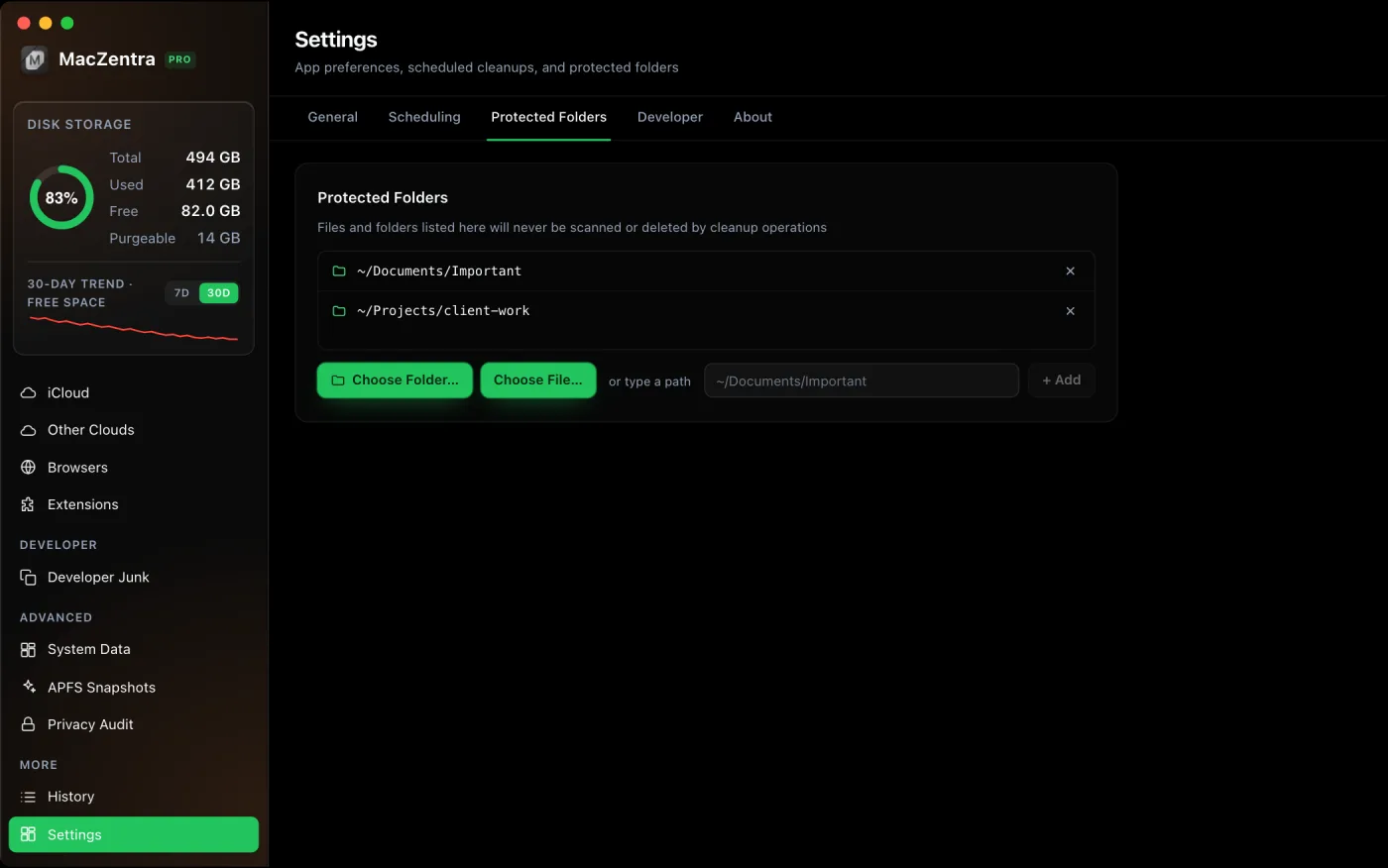
| What reads protected data? | The Privacy Audit lists which apps hold permissions by reading macOS’s permission databases in read-only mode |
| What else uses it? | Repairing the Mail index, which needs to see the Mail folder |
| Usage statistics? | Opt-in only |
| Can it remove built-in apps? | The uninstaller refuses macOS system apps |
How to check any app before granting it
- Download only from the developer’s own site or the App Store.
- Check the signature and notarization in Terminal. For MacZentra, after moving it to Applications:Terminalcodesign --verify --deep --strict /Applications/MacZentra.appA valid, notarized app passes both. Notarization is a baseline malware check by Apple, not a review of what the app recommends deleting.Terminalspctl --assess --type execute -vv /Applications/MacZentra.app
- Scan first with the free scan, and look at the results before you pay or delete anything.
- Back up with Time Machine before any cleanup.
How to grant it, and take it back
- Open System Settings, then Privacy & Security, then Full Disk Access.
- Turn the switch on for the app. macOS may ask you to quit and reopen it.
- To revoke, return to the same list and turn the switch off, or remove the app with the minus button.
Revoke it any time you stop using a tool. A good habit is to review that list every few months and remove anything you no longer run. For what else to check on a full Mac, see how to check storage on a Mac.
Questions people ask
Is Full Disk Access safe?
It is safe for software you trust and risky for software you don’t. It lets an app read most of your files, so grant it only to apps from a verifiable developer, and revoke it when you stop using them.
Can I use MacZentra without Full Disk Access?
Partly. Some folders stay unreadable, and features that need protected data, such as the Privacy Audit, tell you to grant access. The App Store edition scans your home folder and chosen folders without it.
Does MacZentra send my files anywhere?
No. The scan runs locally and nothing is uploaded. Usage statistics are opt-in only.
How do I remove Full Disk Access from an app?
Open System Settings, then Privacy & Security, then Full Disk Access, and switch the app off.
Everything MacZentra can clean
Treemap and Sunburst disk maps, a duplicate finder, Developer Junk, a complete app uninstaller and more, in one native storage cleaner for Mac that’s 15.4 MB.
Explore all features →Related guides

Check storage · 7 min
Recover Deleted Photos on iPhone: 4 Ways That Work
Deleted photos on iPhone? Check Recently Deleted first (30 days), then iCloud.com, a backup or a shared copy. Steps for each and what is gone for good.
Check storage · 6 min
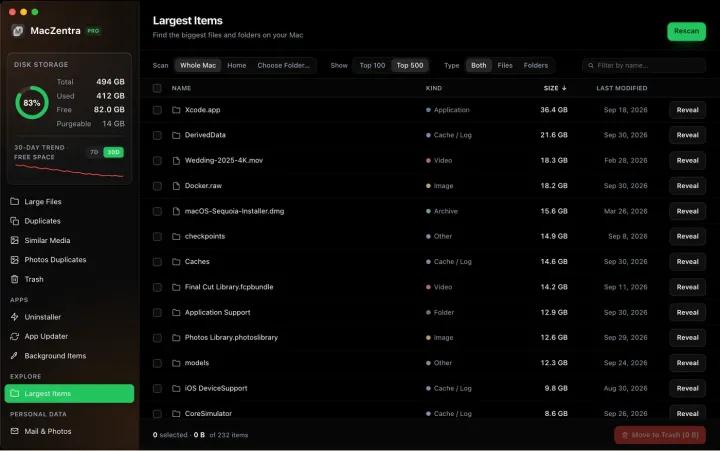
Best Mac Disk Space Analyzer Apps, Ranked
The best Mac disk space analyzer apps ranked: MacZentra, DaisyDisk, GrandPerspective and more, compared on disk map, delete safety and price.
Check storage · 4 min
Mole Mac Cleaner: What It Is and How It Compares
Mole is a free, open-source Mac cleaner you run from Terminal. See what it does, how it installs and how it compares with MacZentra.
Free up space · 8 min
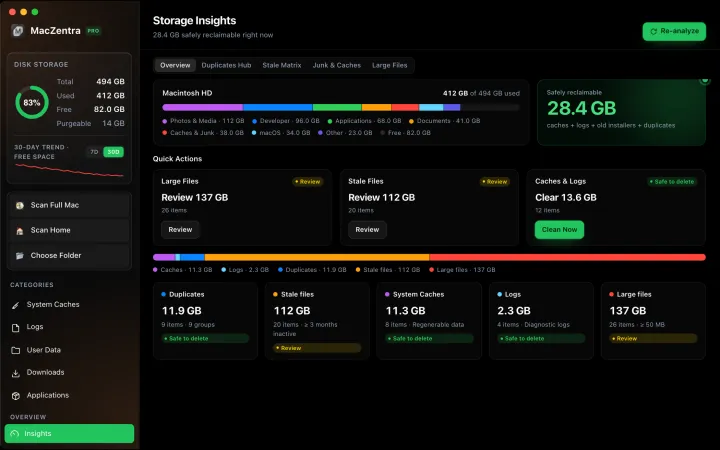
Free Up Space on Mac: 10 Fixes, Biggest First
Ten ways to free up Mac storage ranked by typical space recovered. Covers hidden Library folders and leftovers macOS Storage settings never show.