
Check storage
How to Check Storage on Mac: 5 Ways
The MacZentra team · Updated Nov 17, 2026 · 7 min read
To check storage on a Mac, open the Apple menu, choose System Settings, click General, then Storage. The bar at the top shows how much space is used and how much is free. That answers “how full is my Mac?” in about ten seconds. It doesn’t tell you which folders are responsible, so this guide covers five ways to check Mac storage, from the quickest glance to a full breakdown.
1. System Settings: the standard way to check storage
These steps work on every Mac running macOS 13 Ventura or later, whether it’s a MacBook Air, MacBook Pro, iMac or Mac mini.
- Click the Apple menu in the top-left corner of the screen.
- Choose System Settings.
- Click General in the sidebar, then Storage.
- Wait a few seconds. macOS works out the categories after the window opens, so the first numbers can change.
You get a coloured bar with used and total space above it, and a list of categories underneath. Click the ⓘ button next to a category to see what’s inside. Documents is the most useful, because it has a Large Files tab sorted by size.
On macOS 12 Monterey and earlier, the path is Apple menu → About This Mac → Storage, then Manage for the category list.
2. Finder: see free disk space at a glance
If you only want the free-space number, Finder shows it without opening Settings. There are three ways.
Status bar. Open a Finder window and press ⌘/, or choose View → Show Status Bar. The bottom edge of the window now shows how much space is available on that disk.
Get Info. Click your disk in the Finder sidebar (usually Macintosh HD) and press ⌘I. The window lists Capacity, Available and Used. The same shortcut works on any folder, and Finder adds up its size for you.
Quick Look. Select the disk and press the Space bar for a one-line summary.
3. Disk Utility: the exact figures, including purgeable space
Open Disk Utility from Applications → Utilities and select Macintosh HD in the sidebar. You’ll see Used and Free, and on most Macs a line such as “247 GB available (38 GB purgeable)”.
Purgeable space is storage macOS is using right now but can hand back when it needs room. Local Time Machine snapshots and files already stored in iCloud are the usual contents. It’s also why Finder and System Settings sometimes disagree about free space. Our guide to APFS local snapshots explains how they’re created and when macOS removes them.
4. Terminal: check disk space folder by folder
Terminal is the only built-in tool that gives a size for every folder at once. The first command prints the size of the startup disk with the space used and available. The second lists the twenty largest folders in your home folder, and the third does the same for the hidden Library folder.
# Total, used and available space on the startup diskdf -h /# The 20 biggest folders in your home folderdu -sh ~/* 2>/dev/null | sort -hr | head -20# The same for the hidden Library folderdu -sh ~/Library/* 2>/dev/null | sort -hr | head -20
The Library command is where most surprises turn up: caches, app support files and old device backups all live there. Before you remove anything, read which Library caches are safe to delete. There are more commands in our walkthrough on how to find large files on a Mac.
5. A storage analyzer: see what is using the space
The four methods above give you totals. None of them draws a picture of the whole disk, and that picture is what you want when the disk is nearly full. A storage analyzer scans the drive and draws every folder as a block sized by the space it takes. A 60 GB folder is a large block and a 2 MB folder is a dot, so the worst offenders stand out without reading a list.
New to these maps? How to read a treemap and a sunburst covers the two common layouts, and the Mac storage analyzer page shows what a full scan looks like.
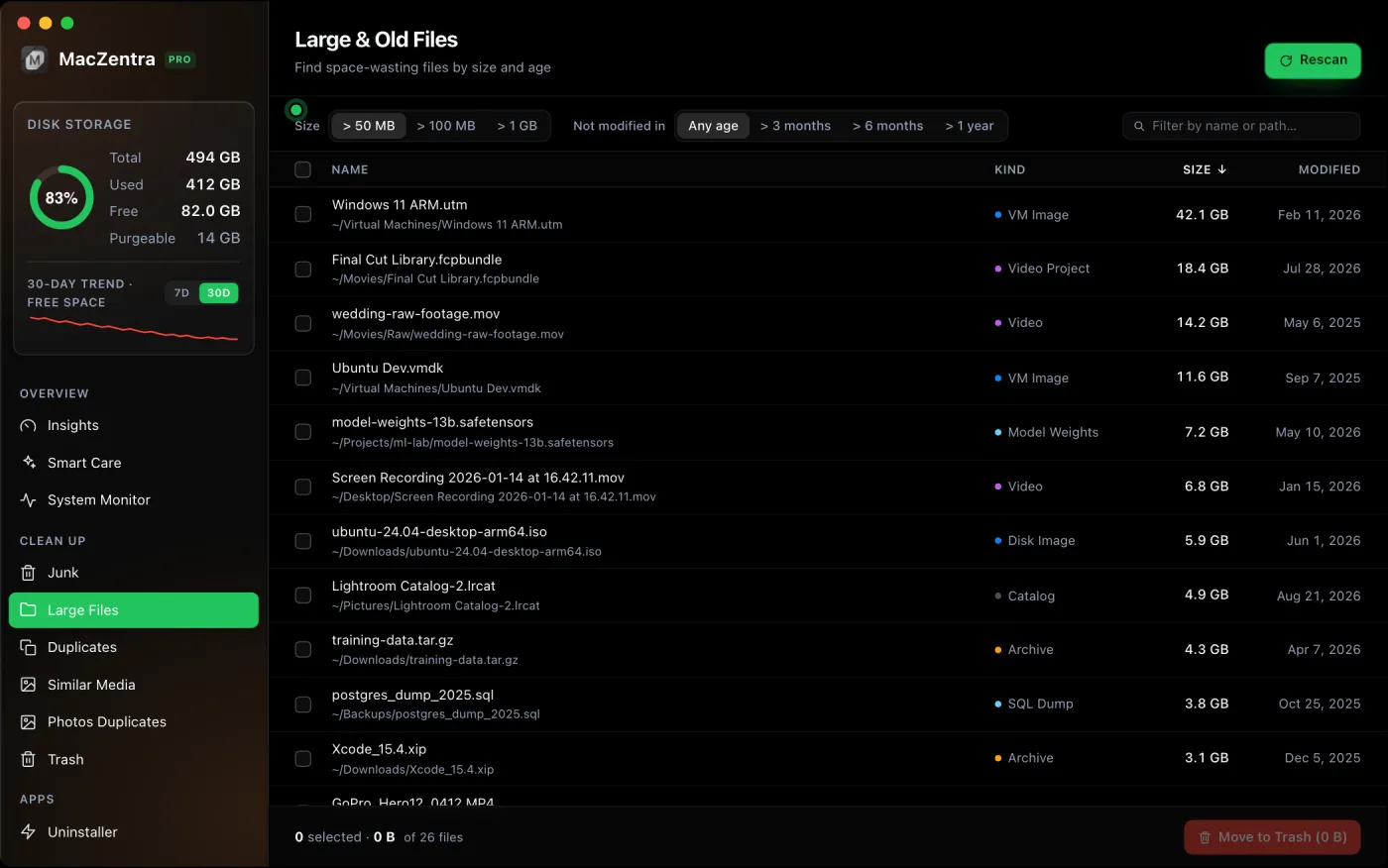
What the colours in the Mac storage bar mean
Each segment of the bar in Storage settings is a category. Hover over a segment to see its name and size.
| Category | What is in it | Can you reduce it? |
|---|---|---|
| Applications | Apps in the Applications folder | Yes. Uninstall apps completely, leftovers included |
| Documents | Files in your home folder, Downloads included | Yes. Start with the Large Files tab |
| Photos | Your Photos library | Yes. Remove duplicates or turn on Optimize Mac Storage |
| iCloud Drive | Synced files that are also stored on the Mac | Yes. See freeing up iCloud Drive space |
| Mail and Messages | Mailboxes, attachments and message history | Yes. Attachments are the large part |
| macOS | The operating system itself | No. See how much storage macOS takes up |
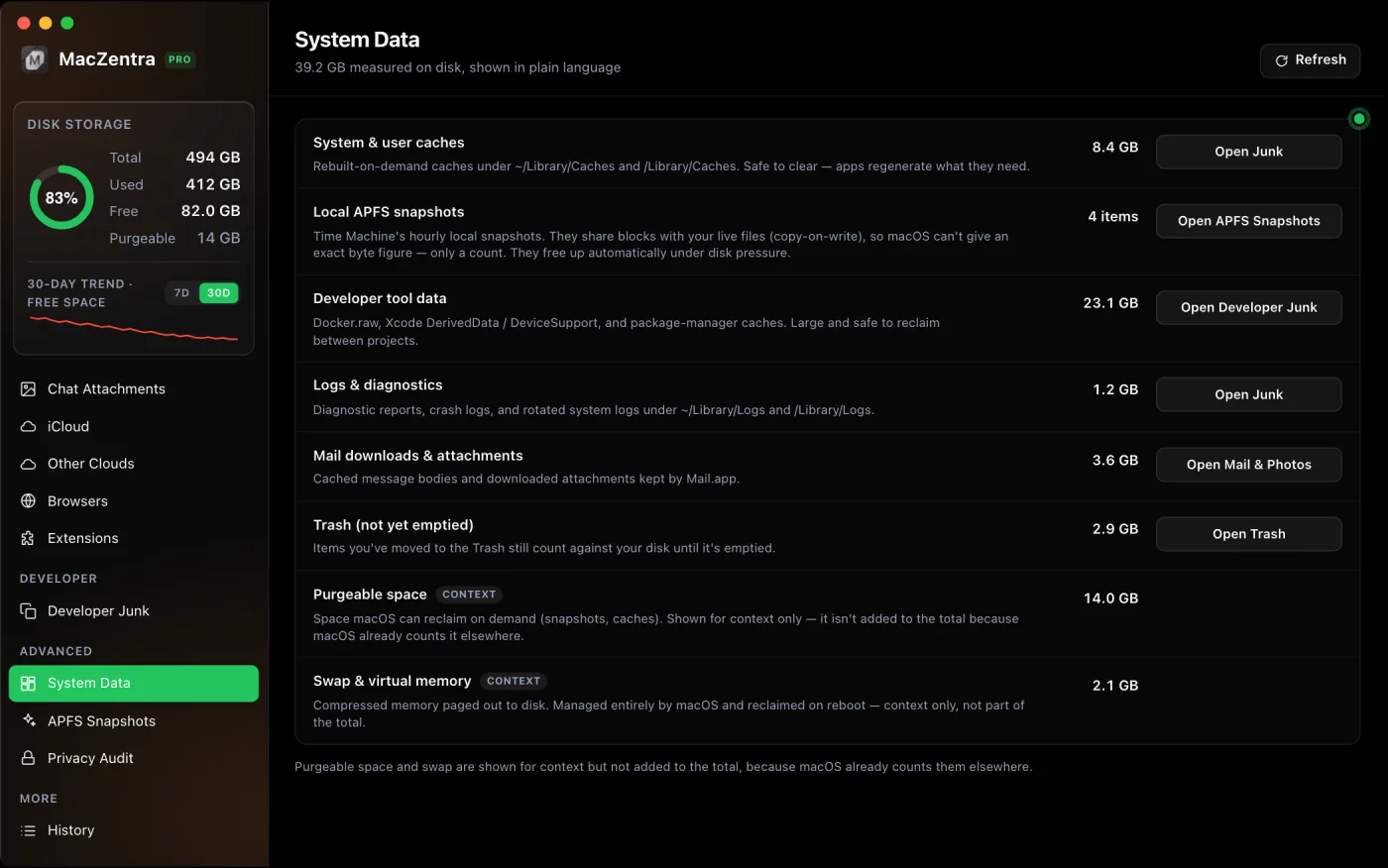
| System Data | Caches, logs, snapshots and whatever fits no other category | Partly. See below |
| Other Users and Shared | Files owned by other accounts, plus the Shared folder | Only as an administrator. See Other Users and Shared explained |
System Data is the one people ask about most. It’s a leftover bucket: app caches, log files, local snapshots, developer tool output and support files from apps you deleted long ago. Tens of gigabytes is normal. When it’s far larger, something specific is behind it, and what System Data is and how to shrink it walks through the usual causes.
Why the storage numbers don’t match
Finder, System Settings and Disk Utility can each report a different amount of free space. Three things cause it.
Purgeable space. Finder counts it as available. Disk Utility lists it separately. Both are right.
Local snapshots. After you delete a large file, a Time Machine snapshot can keep its blocks on disk for up to 24 hours. The file is gone but the space hasn’t come back yet. It’s the most common reason for storage not freeing up after deleting files.
The calculation is still running. Storage settings fills in the categories in the background. Give it a minute before you trust the numbers.
How much free space should a Mac have?
Apple doesn’t publish a required figure. A workable rule of thumb is to keep 10 to 15 percent of the disk free. macOS needs room for virtual memory, for app caches and for installing updates, and a major macOS upgrade needs a large block of free space while it installs. Run short and you start seeing “Your disk is almost full” alerts, failed updates and slow app launches.
Already under that line? Work through 10 fixes to free up space on a Mac, biggest first. To catch it earlier next time, MacZentra can warn you from the menu bar when free space runs low.
If the alert is already on screen, what to delete first when the startup disk is full gives the order to work in. Not sure whether the problem is storage at all? Memory vs storage on a Mac tells the two apart. On a phone, the same screen is covered in how to check iPhone storage.
Questions people ask
How do I check storage on a MacBook Air or MacBook Pro?
The steps are the same on every Mac. Open the Apple menu, choose System Settings, click General, then Storage.
Is there a shortcut to check storage on a Mac?
There’s no single key for the Storage screen. Press ⌘Space, type “Storage” and press Return. In Finder, ⌘/ shows free space in the status bar.
Why does my Mac say storage is full after I deleted files?
The files are probably still in the Trash, or a local snapshot is holding the space. Empty the Trash first, then wait a day or look for snapshots in Disk Utility.
How do I see which files take up the most space on my Mac?
In Storage settings, click the ⓘ button next to Documents and open Large Files. For the whole disk, hidden folders included, use the du command above or a storage analyzer.
How do I check disk space on a Mac with Terminal?
Run df -h /. The Avail column is the free space on the startup disk.
Everything MacZentra can clean
Treemap and Sunburst disk maps, a duplicate finder, Developer Junk, a complete app uninstaller and more, in one native storage cleaner for Mac that’s 15.4 MB.
Explore all features →Related guides
Check storage · 4 min
Mole Mac Cleaner: What It Is and How It Compares
Mole is a free, open-source Mac cleaner you run from Terminal. See what it does, how it installs and how it compares with MacZentra.
Check storage · 9 min
Best Mac Storage Cleaners 2026: Compared & Ranked
Mac storage cleaners and disk space analyzers compared by price, size, scan speed and licence. One-time, subscription and free options side by side.
Check storage · 5 min
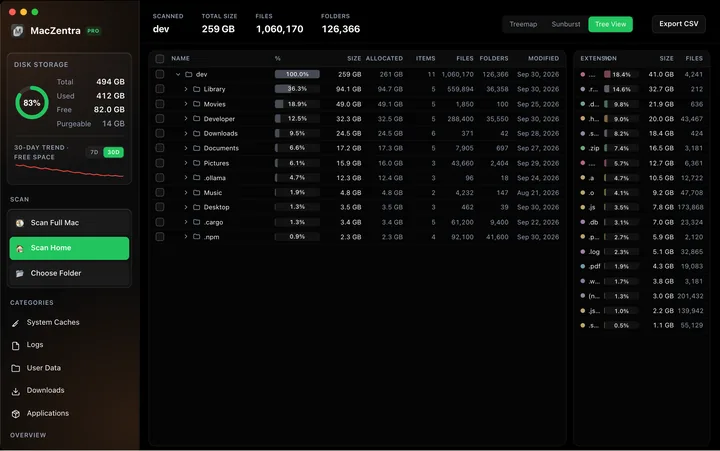
Mac Disk Usage Analyzer: Read a Treemap and Sunburst
How to read a Mac disk usage analyzer: Treemap, Sunburst and Tree View explained, what to check first, and a Terminal command to find big folders.
Check storage · 5 min
Find Large Files on Mac: 4 Ways, Built-in to Terminal
The fastest ways to find large files on a Mac: Storage settings, a Finder search, one Terminal command, or a treemap. Steps and commands for each.