
Check storage
Best Mac Disk Space Analyzer Apps, Ranked
The MacZentra team · Updated Nov 23, 2026 · 6 min read
The best Mac disk space analyzer is the one that shows you the biggest folders at a glance and lets you act on them without leaving the app. On that test we rank MacZentra first, ahead of DaisyDisk, GrandPerspective, Disk Inventory X and OmniDiskSweeper. Details were checked on each vendor’s own page in November 2026.
A Mac storage analyzer answers one question: what is using my disk? The built-in Storage screen gives you categories. An analyzer gives you the actual folders and files, sized and ranked. Here is how the five compare, and how we scored them.
How we ranked them
Four checks, in this order of weight:
| Check | Why it matters |
|---|---|
| Visual map of the disk | A picture of sizes finds a 40 GB folder faster than a sorted list |
| Acts on what it finds | Seeing the problem and fixing it in one place saves a trip through Finder |
| Safety of deleting | Trash first means a wrong click is recoverable |
| Price and upkeep | Free is fine if the app is maintained for your macOS version |
The short answer
| Rank | App | Best for | Price |
|---|---|---|---|
| 1 | MacZentra | Map and cleanup in one app, with a free scan | $49.99 one time, scan free |
| 2 | DaisyDisk | A polished radial map | One-time purchase |
| 3 | GrandPerspective | Free treemap, actively updated | Free (App Store copy $2.99) |
| 4 | Disk Inventory X | Free treemap on an older Mac | Free, development stopped |
| 5 | OmniDiskSweeper | A plain list, largest first | See the vendor page |
1. MacZentra: map it, then clean it
MacZentra scans your Mac into three views of the same data: a Treemap, a Sunburst and a Tree View. Largest Items and Large Files lists sit beside them, and the same scan feeds Duplicates, Developer Junk, System Data and APFS Snapshots. It is a native Rust and Tauri app of 15.4 MB for macOS 13 Ventura or later on Apple silicon.
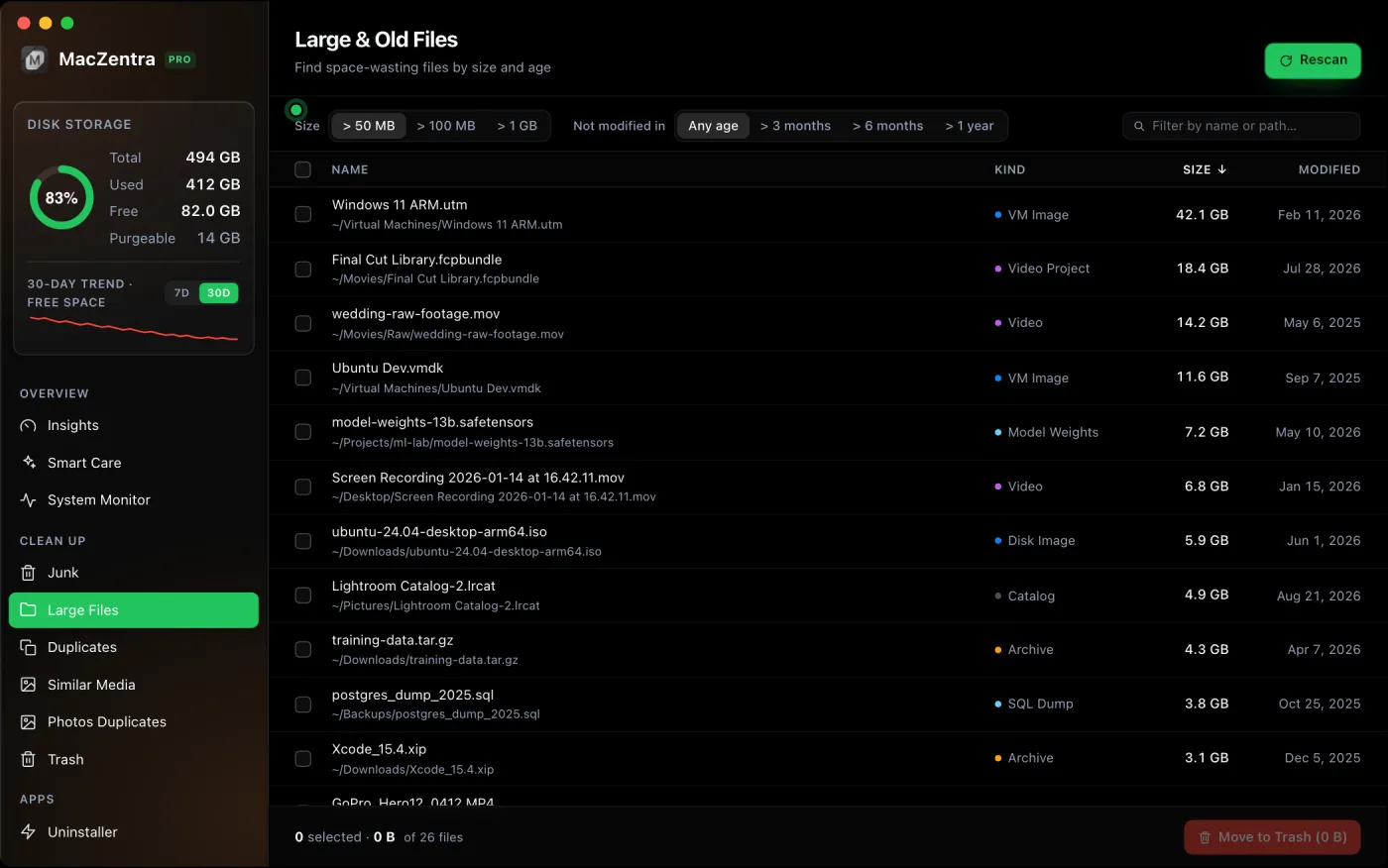
Why it is first: it is the only one here that goes from the map to the fix. You spot the folder, then clean it from the same screen, and everything removed goes to the Trash. The scan runs locally and nothing is uploaded. Scanning and every visualization are free, and cleaning is $49.99 once with no subscription.
Not great: cleaning needs the paid version. It won’t run on Intel Macs, and it is a newer name than DaisyDisk or the free open-source tools. We also haven’t published scan-speed benchmarks, so we don’t claim to be fastest.
2. DaisyDisk: the nicest map
DaisyDisk is a long-running paid analyzer. Its page lists version 4.34.2 from 10 July 2026, support for macOS 10.13 and later, and a one-time purchase for up to five personal Macs with a 30-day money-back guarantee. You click through nested rings, preview files and remove what you don’t need.
Good: quick, clear and well maintained. Not great: it is an analyzer first. Its own comparison page says deleted files are removed permanently, so check each item before you confirm. More in our DaisyDisk alternatives page.
3. GrandPerspective: the free treemap that is still updated
GrandPerspective draws every file as a rectangle sized by its space. It is free and open source, with an App Store copy at $2.99 that its page calls the same app. The page lists version 3.8.1 from 13 September 2026 and needs macOS 14 or later. It can delete files and folders from the view.
Good: free, maintained and honest about what it is. Not great: the page doesn’t say whether deletes go to the Trash, and there is no cleanup beyond that.
4. Disk Inventory X: a classic, now frozen
Disk Inventory X is a free treemap app released under the GPL. Its download is labeled for macOS 10.13 to 10.15, and the author says on the page that development won’t resume, pointing to successor projects. It can still be useful on an older Mac, but it isn’t built for current macOS.
5. OmniDiskSweeper: a plain list
OmniDiskSweeper from the Omni Group lists the files on a drive from largest to smallest, and its page says you can trash or open them. There is no map, which is why it ranks last for visual analysis. It suits you if you want a sorted list and nothing else. Check the vendor page for the current build and your macOS version.
What about the built-in Storage settings?
Open System Settings, then General, then Storage. It is free and safe, but it groups space into categories and leaves System Data as one grey block. Use it first, and reach for an analyzer when you need to see inside a category. Our guide to reading a treemap and sunburst shows how.
Which one should you pick?
| Your situation | Pick |
|---|---|
| You want to find big things and delete them in one app | MacZentra |
| You only want a good map, and you’ll delete in Finder | DaisyDisk or GrandPerspective |
| You want free and your Mac runs macOS 14 or later | GrandPerspective |
| Your Mac is old | Disk Inventory X |
| You like a sorted list | OmniDiskSweeper |
Once you know what is big, read which large files are safe to delete before you remove anything, and see how to find large files on a Mac if you want the Finder route.
Questions people ask
What is the best Mac disk space analyzer?
For finding and fixing in one app, MacZentra. For a map alone, DaisyDisk (paid) or GrandPerspective (free). We make MacZentra, so use the table above to check the tradeoffs.
Is there a free Mac disk space analyzer?
Yes. GrandPerspective and Disk Inventory X are both free and open source, and MacZentra’s scan and every map view are free too. Only MacZentra’s cleaning is paid.
Is a disk analyzer safe to use?
Reading sizes is safe. Deleting is where care matters, so prefer a tool that sends files to the Trash, and back up first. Don’t delete anything in system folders you don’t recognise.
Why does my analyzer show less than Storage settings?
Storage settings counts purgeable space and some system data a normal scan can’t read. Our guide to System Data on Mac explains the gap.
Everything MacZentra can clean
Treemap and Sunburst disk maps, a duplicate finder, Developer Junk, a complete app uninstaller and more, in one native storage cleaner for Mac that’s 15.4 MB.
Explore all features →Related guides
Check storage · 7 min
Mac Storage Not Freeing Up After Deleting Files
Deleted files but Mac storage didn't change? Six causes, from the Trash and Photos to local snapshots and purgeable space, each with a fix to free it.
Check storage · 5 min
MacZentra App Store vs Web Version: Differences and Pricing
How the App Store edition (free, $19.99/year) differs from the $49.99 lifetime web version: features, limits, why the prices differ, and which to pick.
Check storage · 4 min
Mac App Store Sandbox: What a Cleaner Can and Can't Do
Why a Mac App Store storage cleaner can't scan your whole disk, what the App Sandbox blocks, and what still works in the MacZentra App Store edition today.
Free up space · 8 min
Free Up Space on Mac: 10 Fixes, Biggest First
Ten ways to free up Mac storage ranked by typical space recovered. Covers hidden Library folders and leftovers macOS Storage settings never show.