
Free up space
iCloud Storage Full: How to Free It Up
The MacZentra team · Updated Nov 17, 2026 · 6 min read
When iCloud storage is full, the fastest way to free it up is to check what is using it, then clear the biggest items first: old device backups, Photos, iCloud Drive files, Messages attachments and Mail. Each can be shrunk from your iPhone or Mac without buying a bigger plan. The one catch: deleting synced items removes them from every device.
iCloud storage is not the same as device storage
The “iCloud Storage Is Full” alert is about the space in your iCloud account, not the space on your phone or Mac. Deleting apps from a full iPhone does nothing for it, and emptying iCloud does not make room on the device. They are two separate meters. If you want the device side, read how to check iPhone storage or how to check storage on a Mac.
Backups fail, photos stop uploading and new iCloud Mail can stop arriving when the account is full. The fix is to find out what holds the space, then work down the list below in order.
Step 1: see what is using your iCloud storage
Start with the breakdown. It shows each category as a coloured bar, with the biggest items listed underneath.
- iPhone or iPad: open Settings, tap your name, then iCloud. Tap Manage Account Storage (on some iOS versions you tap the storage bar instead) for the full list, sorted by size.
- Mac: open System Settings, click your name, then iCloud. Click Manage next to the storage bar to see the same list.
Photos and Backups are usually at the top. The table below covers what counts against your storage and how to shrink each one.
| What counts | Usually how big | How to shrink it |
|---|---|---|
| Device backups | Often the largest item | Delete backups of old devices, turn off backup for apps you don’t need. |
| iCloud Photos | Grows with every photo and video | Delete duplicates, screenshots and long videos, then empty Recently Deleted. |
| iCloud Drive | Depends on your files | Delete large files you no longer need, including Desktop and Documents contents. |
| Messages in iCloud | Attachments add up | Delete big photos, videos and whole conversations. |
| iCloud Mail | Attachments and old mail | Delete large messages, empty Trash and Junk. |
| App data | Varies by app | Delete an app’s data or switch off its iCloud toggle. |
Step 2: delete old device backups to clear iCloud storage
Old backups are the easiest win. An iPhone you sold two years ago can still have a full backup sitting in your account.
- Open the breakdown from Step 1 and tap or click Backups.
- Select a device you no longer use.
- Choose the delete option. On your current device you can instead turn off backup for individual apps to make the next backup smaller.
Deleting a backup is permanent, and the next backup of that device starts from scratch. Keep the backup of any device you might still restore from.
Step 3: clean up iCloud Photos
With iCloud Photos on, everything in your library counts against your storage, and deleting a photo on one device deletes it everywhere. That also means the “Optimize iPhone Storage” setting only frees space on the device. It does not reduce what iCloud holds.
To shrink the library itself, clear the pieces that are easy to spot: duplicates, screenshots and long videos. Our guides on cleaning iPhone photos and finding duplicate photos on a Mac cover the details.
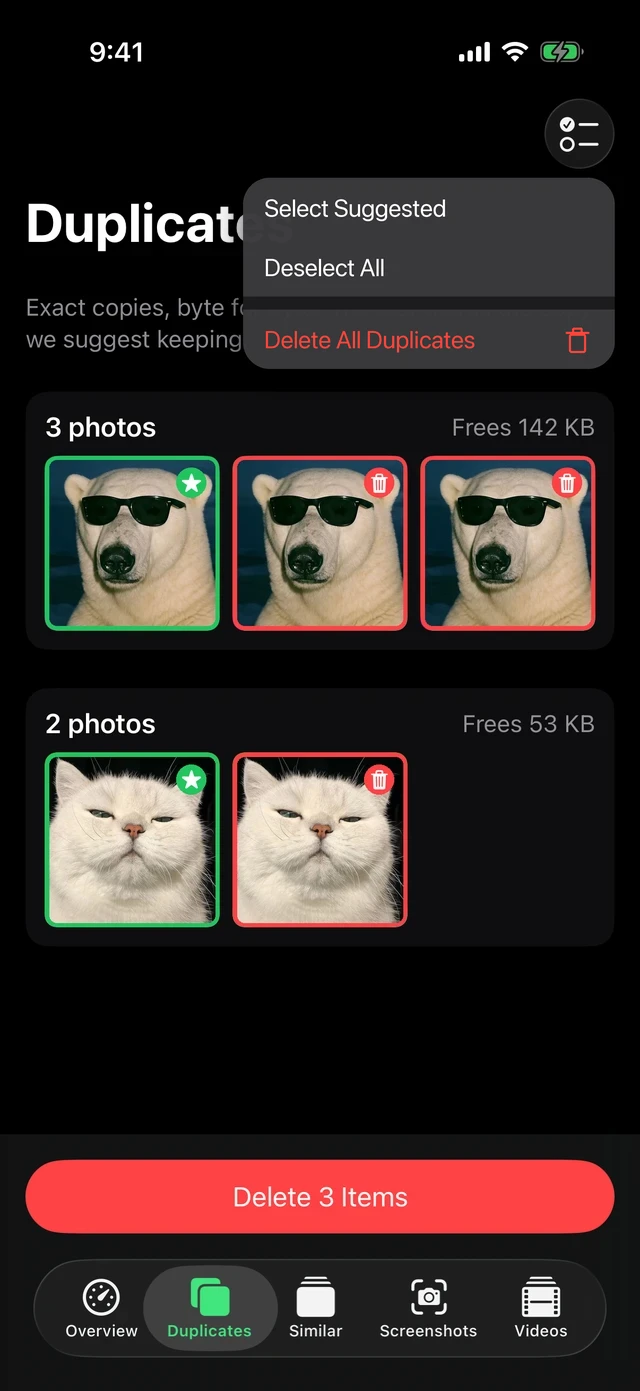
Step 4: how to clear iCloud storage used by iCloud Drive
Open the Files app and tap iCloud Drive on iPhone, or open iCloud Drive in the Finder sidebar on a Mac. Sort by size and delete what you no longer need. If Desktop & Documents Folders is on, your Mac’s Desktop and Documents are in there too.
Do not confuse this with the “Remove Download” option on a Mac. It frees space on the Mac only, and the file still counts in iCloud, as explained in how Optimize Mac Storage and eviction work. To lower your iCloud figure, the file has to be deleted. Deleted files go to Recently Deleted in Files, or to the Trash on a Mac, so empty those as well.
Step 5: reduce iCloud storage used by Messages and Mail
Messages. If Messages in iCloud is on, photos and videos from chats count against your storage. On iPhone, go to Settings → General → iPhone Storage → Messages and use Review Large Attachments. On a Mac, open a conversation, click its info button and delete large attachments from there. Our guide to Messages taking up space on a Mac goes further.
Mail. Mail only counts here if you use an iCloud address. Search for messages with large attachments, delete them, then empty Trash and Junk, because those folders are still stored.
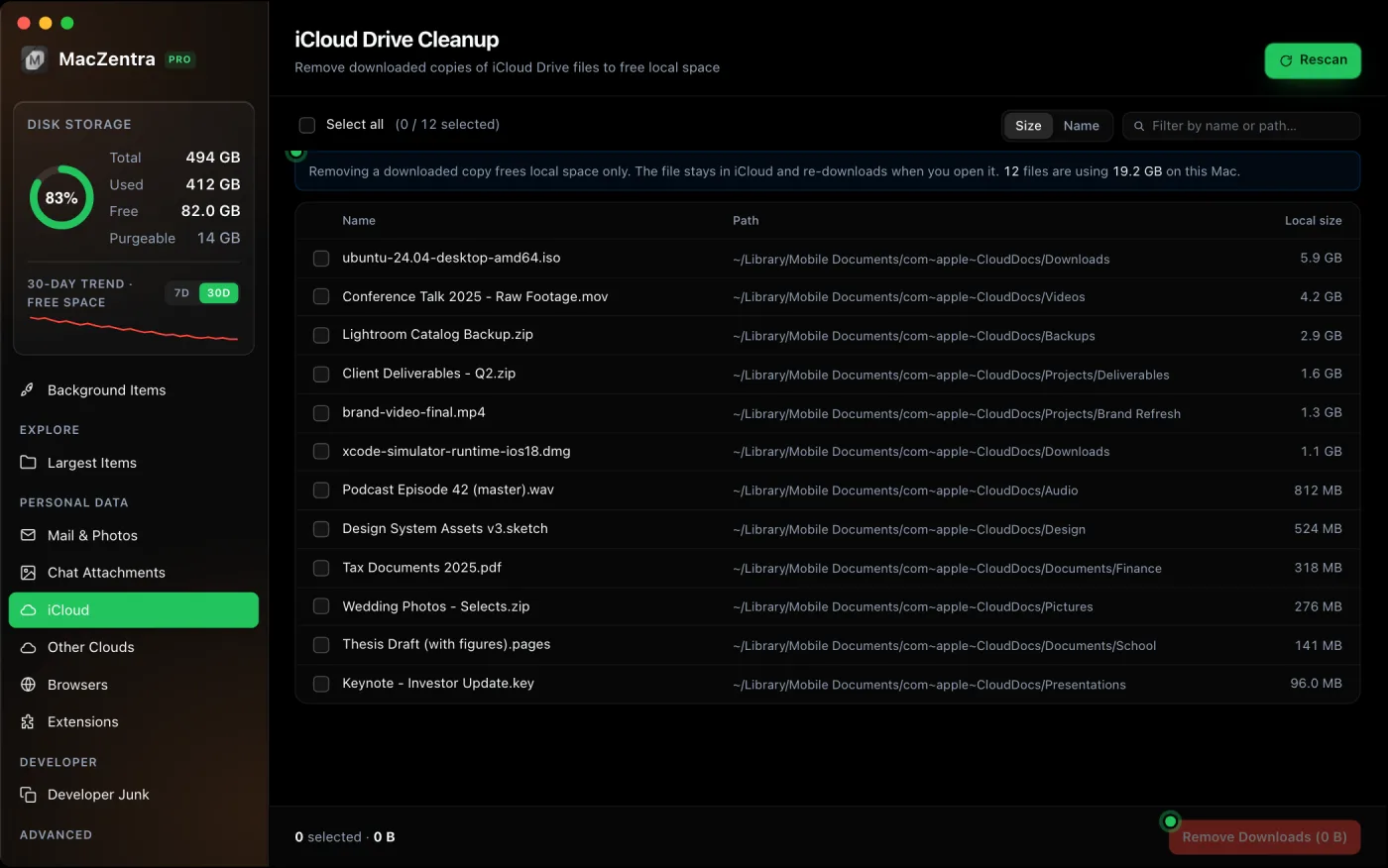
Step 6: manage iCloud storage used by app data
Back in the breakdown, tap an app to see how much it stores. Some apps let you choose Delete Documents & Data, which removes that app’s data from iCloud and from your other devices. Others you can switch off under Apps Using iCloud in the iCloud settings. Check what the app holds before you delete it, because there is no undo.
When a bigger iCloud plan is the sensible answer
Cleaning works when the space is held by clutter. It stops working when the space is held by things you want to keep. If your photo library is mostly photos you value, if several family devices back up to one account, or if you have trimmed everything above and the alert keeps returning, a larger plan is the honest fix. Family Sharing lets a plan be shared with the people in your group.
If you would rather add room another way, how to get more storage on a Mac compares the options, and what to do when iPhone storage is full covers the device side.
Questions people ask
How do I clear iCloud storage on my iPhone?
Go to Settings → your name → iCloud → Manage Account Storage. Delete old backups first, then clear Photos, Messages attachments and app data. Empty Recently Deleted in Photos and Files afterwards.
How do I clear iCloud storage on my Mac?
Open System Settings → your name → iCloud and click Manage. The categories are the same as on iPhone. Delete from the list, then empty the Trash and Recently Deleted in Photos.
Why is my iCloud storage still full after I deleted photos?
Deleted photos stay in Recently Deleted for 30 days and still count. Empty that album to free the space now. The figure can take a few minutes to update.
Does deleting from iCloud delete it from my iPhone?
For synced data such as Photos, iCloud Drive and Messages in iCloud, yes. The deletion reaches every device signed in to the account. Backups are the exception, since deleting one does not touch the data on the device.
Can I turn off iCloud Photos to free up iCloud storage?
Yes, but read what iOS says about your originals before confirming, and keep a copy of your library first. For a safer way to cut the size, see our guide on iPhone storage full with iCloud.
Everything MacZentra can clean
Treemap and Sunburst disk maps, a duplicate finder, Developer Junk, a complete app uninstaller and more, in one native storage cleaner for Mac that’s 15.4 MB.
Explore all features →Related guides
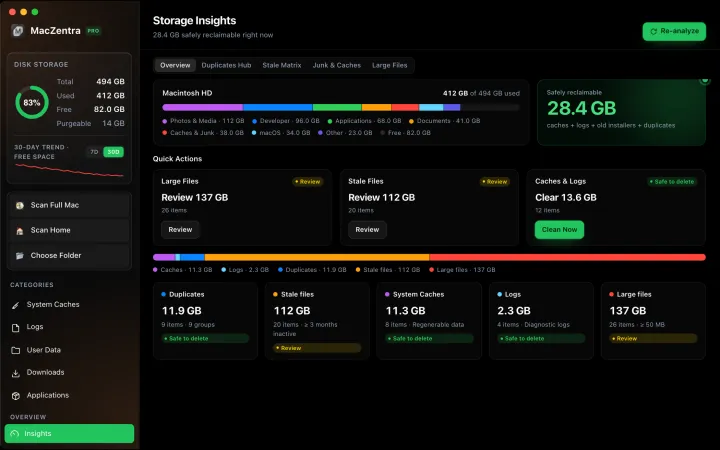
Free up space · 8 min
Free Up Space on Mac: 10 Fixes, Biggest First
Ten ways to free up Mac storage ranked by typical space recovered. Covers hidden Library folders and leftovers macOS Storage settings never show.

Free up space · 5 min
Is It Safe to Delete Library Caches on Mac? What to Keep and Clear
Yes for most apps. See which ~/Library/Caches and /Library/Caches folders are safe to delete, which to leave alone, and how to clear them step by step.

Free up space · 3 min
Protected Files & Folders: Keep Items Safe
How the built-in protected paths guard system-critical locations, and how to add your own custom folders to prevent accidental deletion.

Free up space · 4 min
Smart Care for Mac: Automate Cache, Trash and Memory Cleanup
Automate Mac maintenance with Smart Care: clear caches, empty Trash, flush DNS and purge inactive memory in one workflow. Schedule it or run it on demand.