Free up space
How to Delete Duplicate Photos on a MacBook Air
The MacZentra team · Updated Oct 18, 2026 · 6 min read
A MacBook Air doesn't leave much room to waste. Plenty of them ship with 256 GB, and a few years of phone photos, screenshots and exported edits can eat a big share of that. Most of those pictures are copies of each other. Here's how to delete duplicate photos on a MacBook Air, starting with what macOS already does for free.
Start with the Duplicates album in Photos
Since macOS Ventura, the Photos app can group duplicates for you. Open Photos, scroll the sidebar to Utilities and click Duplicates. The album only appears once Photos has found something, so if you don't see it, either you're clean or the first scan is still running. On a big library that first pass can take hours, so leave the Mac plugged in overnight.
Pick a set and choose Merge. Photos keeps the best version, carries over the metadata and sends the extra copies to Recently Deleted. They stay there for 30 days, which means you won't get the space back until you open that album and choose Delete All.
Apple doesn't publish how strict the matching is. People who've used it report that it catches more than byte-for-byte clones, such as a full-size photo sitting next to a smaller copy of itself. It's a solid first step, but it only looks inside the Photos library.
Check the folders Photos never sees
Photos can't flag a picture it doesn't manage. Email attachments pile up in Downloads, AirDropped shots land on the Desktop, and old project folders keep their own copies. A Finder Smart Folder pulls all of them into one list:
- In Finder, choose File, then New Smart Folder.
- Click the + button at the top right of the window.
- Set the first menu to Kind and the second to Image.
- Sort by Name. Files like IMG_2041 (1).jpg or IMG_2041 copy.jpg will sit right next to the original.
Compare the size and date of each pair before you trash anything. Two files with the same name aren't always the same picture.
Catch the near-duplicates
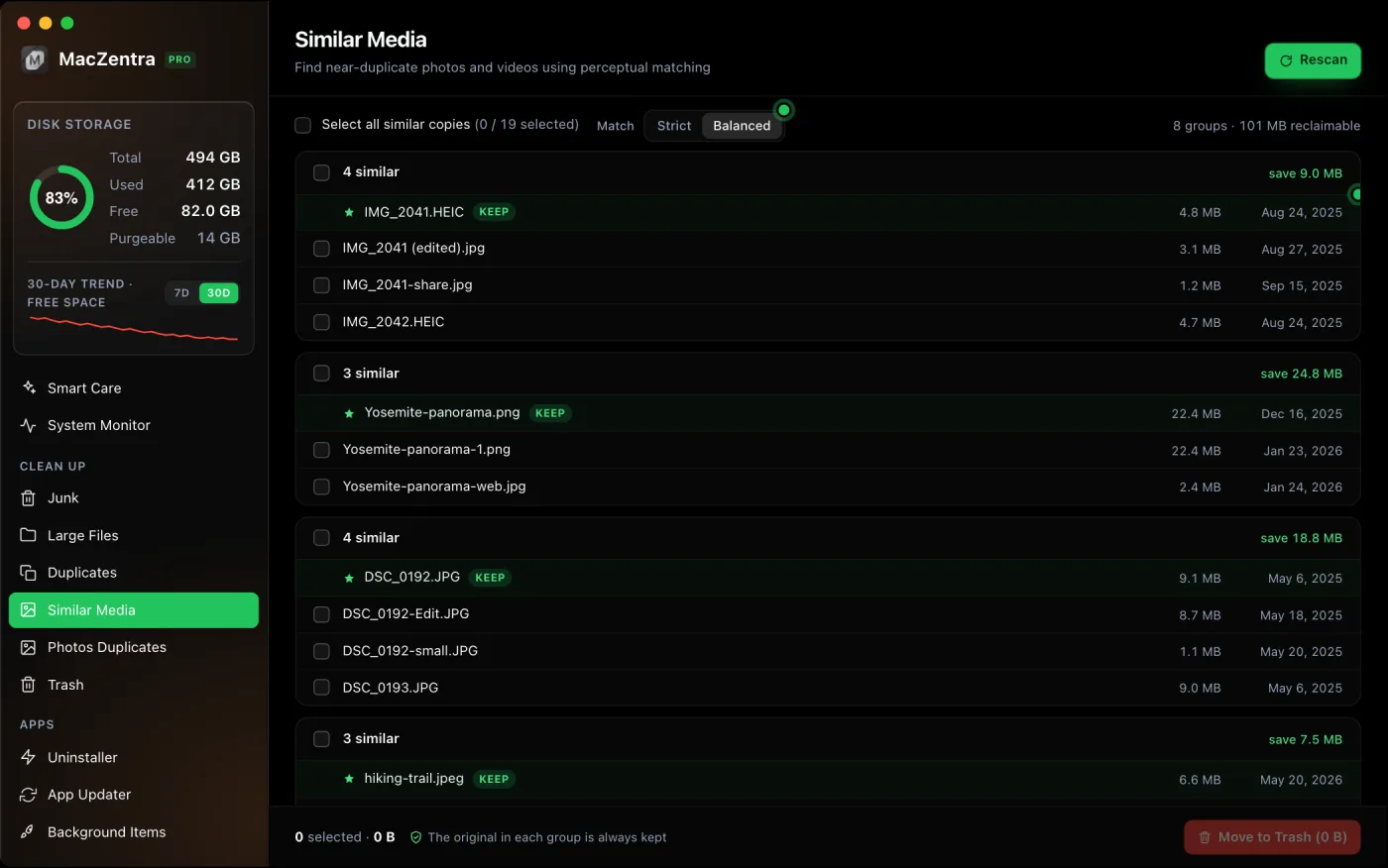
This is the part most people miss. Resize a photo for an email, re-export it from an editor or let a messaging app recompress it, and you have a new file that looks identical but isn't. File-level tools skip it. Finding these takes image matching, which compares what the picture looks like instead of what the file contains. We explain how that works in our guide to finding duplicate photos on a Mac.
Where MacZentra fits
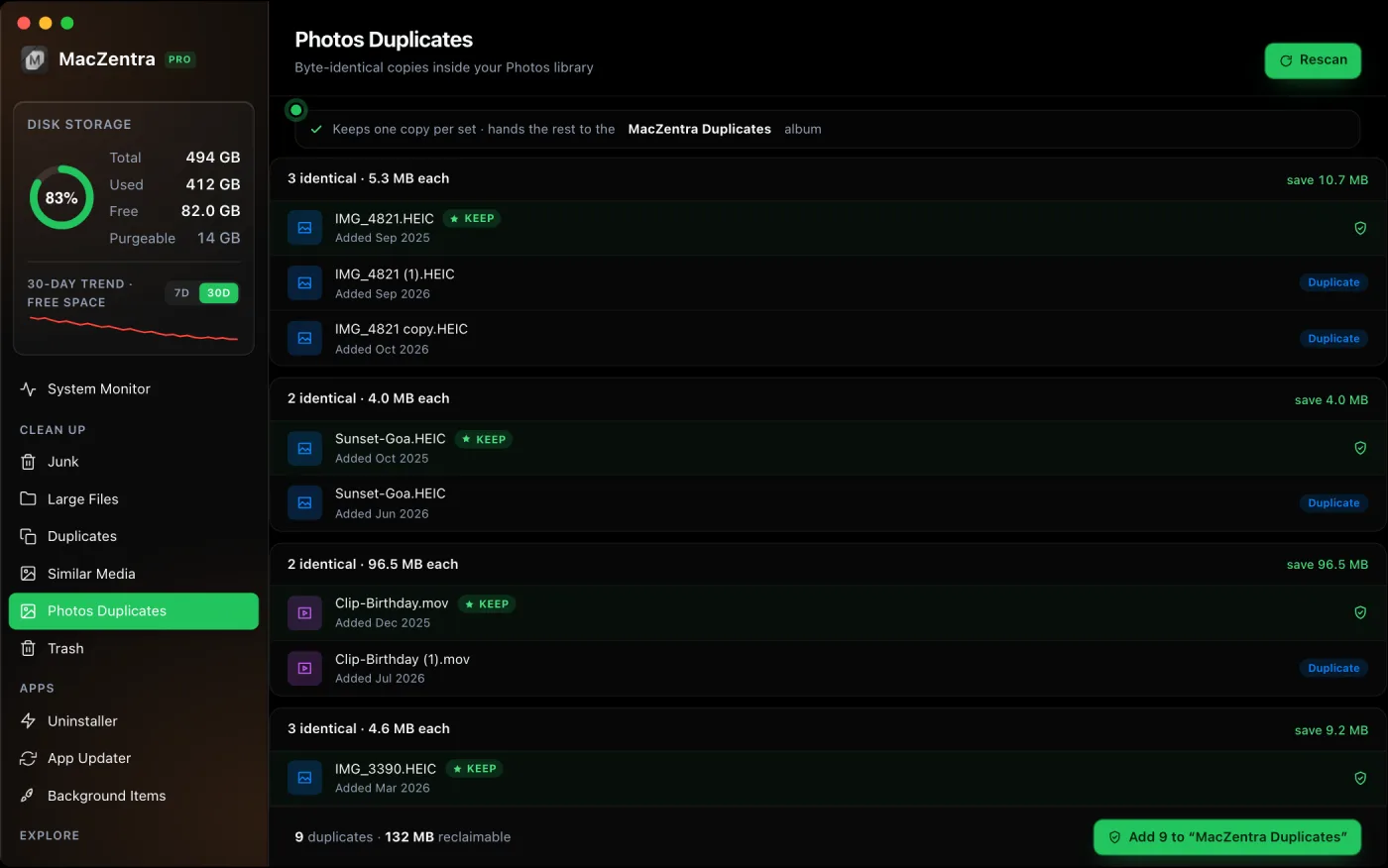
We built MacZentra with three separate tools for this job, because each one catches a different kind of copy. Photos Duplicates looks inside your Photos library for identical files, keeps one per set and puts the rest in an album called MacZentra Duplicates, so you review and delete them in Photos yourself. The Duplicate Finder checks everywhere else on the disk. Similar Media handles the resized and edited copies.
A sensible order to work in
- Make sure you have a recent Time Machine backup. Photo libraries are hard to rebuild.
- Work through the Duplicates album in Photos first. It's free and safe.
- Run the Smart Folder search for Downloads, Desktop and old project folders.
- Scan for near-duplicates and review each group by eye.
- Empty Recently Deleted in Photos, then empty the Trash.
- Open System Settings, General, Storage and check the new number.
Questions people ask
Does deleting a photo in Photos remove it from iCloud?
Yes. With iCloud Photos on, a deletion syncs to your iPhone, iPad and iCloud. That's why the backup comes first. If you only want to free local space, Optimize Mac Storage is the safer switch, and we cover it in freeing iCloud Drive space without losing files.
Will merging duplicates lose my edits or captions?
Photos tries to keep the best version and merge the metadata. Behaviour has varied between macOS releases, so merge a small set first and check the result before you run it on the whole library.
How do I know a third-party finder is safe?
Look for three things. It should show you every match before deleting, send files to the Trash instead of erasing them, and scan on your Mac without uploading anything. If any of those is missing, skip it.
Is this only for MacBook Air?
No, the steps work on any Mac. The Air just feels the pressure first because of its smaller drive. For the wider picture, see 10 ways to free up space on a Mac.
Everything MacZentra can clean
Treemap and Sunburst disk maps, a duplicate finder, Developer Junk, a complete app uninstaller and more, in one native storage cleaner for Mac that’s about 15 MB.
Explore all features →Related guides
Free up space · 8 min
Free Up Space on Mac: 10 Fixes, Biggest First
Ten ways to free up Mac storage ranked by typical space recovered. Covers hidden Library folders and leftovers macOS Storage settings never show.
Free up space · 5 min
~/Library/Caches: What's Safe to Delete on Mac
Which ~/Library/Caches folders are safe to delete, which to keep, and how to clear them without breaking apps.
Free up space · 3 min
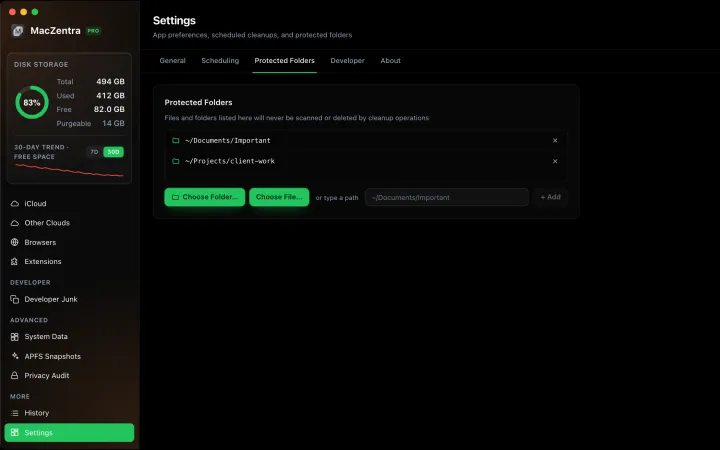
Protected Files & Folders: Keep Items Safe
How the built-in protected paths guard system-critical locations, and how to add your own custom folders to prevent accidental deletion.

Free up space · 4 min
Smart Care: One-Click Maintenance for Your Mac
Automate daily maintenance with Smart Care: clear caches, empty Trash, flush DNS, and purge inactive memory in a single workflow. Schedule it or run it on demand.