System Data
Other Users and Shared on Mac Storage Explained
The MacZentra team · Updated Oct 18, 2026 · 6 min read
Open Storage settings on a Mac with more than one account and you may spot a grey slice labelled Other Users and Shared, sometimes tens of gigabytes wide. It doesn't open, it doesn't list files, and it won't tell you whose they are. This guide explains what the label covers and how to find the biggest piece so you can decide what to remove.
What "Other Users and Shared" means
It's the space used by data that isn't in your own home folder. That mostly means two things. The first is every other account on the Mac, including old ones nobody uses anymore. The second is /Users/Shared, a folder meant for files that several accounts use together.
macOS keeps accounts private from each other, so from your login it can only add up the size. It can't sort the contents into photos, documents or apps the way it does for your own files. That's why you get one grey block and no detail.
Find out which part is big
Start by seeing who's on the machine. Open System Settings and click Users and Groups. Every account is listed there. If you recognise all of them, move on to measuring. If one belongs to someone who left years ago, that's your first suspect.
To measure, open Terminal and ask for the size of each home folder. You'll need an administrator password because those folders are private. The first command can take a minute on a large drive.
# size of every account's home foldersudo du -sh /Users/* 2>/dev/null# size of the shared folderdu -sh /Users/Shared
Now you know whether the weight sits in one account or in the shared folder, and you can choose the right fix.
Clean up the Shared folder
Open /Users/Shared in Finder (choose Go, then Go to Folder, and paste the path). Switch to list view and turn on the Size column. Some installers and apps park support files here, so don't delete a folder just because it looks old.
- Move large media libraries and project files you still need to an external drive.
- Delete installers and disk images you no longer use.
- Leave folders that belong to apps you still run until you've checked what they are.
Remove an account you don't need
Deleting an unused account is the biggest single win, because its whole home folder goes with it. Open System Settings, then Users and Groups, click the i next to the account and choose Delete User. macOS asks what to do with the files:
- Save the home folder in a disk image. Keeps a copy you can open later, so it frees less space.
- Don't change the home folder. Removes the login but leaves the files where they are.
- Delete the home folder. Frees the space, and everything stored only on this Mac in that account is gone.
Clean the accounts you keep
Active accounts grow too, and their caches count toward this total. Log in to each one and run the same routine: empty the Trash, clear Downloads, and clear the browser cache. Our guides on freeing up space on a Mac and clearing browser cache cover the steps. If a secondary account is used for development, the biggest culprits are usually build folders and package caches, which node_modules cleanup and clearing Xcode DerivedData walk through.
Where a map helps
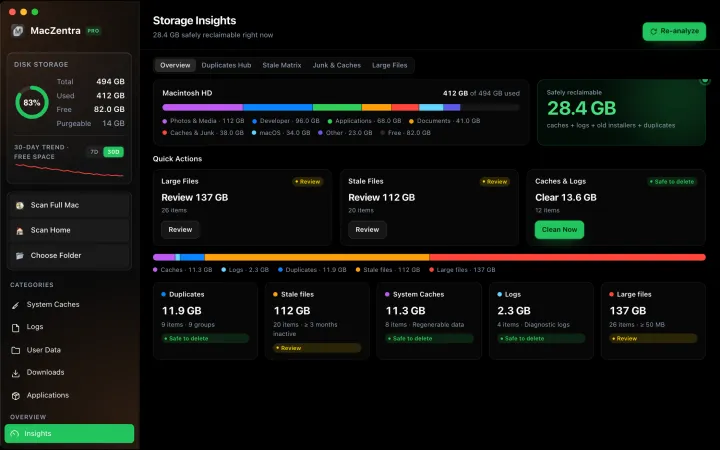
Terminal numbers tell you which folder is big. They don't show what's inside it. A visual map does, because the largest folders are simply the largest shapes on screen.
Questions people ask
Why can't I see inside Other Users and Shared?
Because those files belong to other accounts, and macOS doesn't let one account browse another's private data. That's a privacy feature, not a bug.
Is it safe to delete things in /Users/Shared?
Only if you know what they are. Files you put there yourself are fine to move or remove. Folders created by installers may be used by apps you still have, so check first.
Will deleting a user remove their iCloud files?
No. It removes what's stored on this Mac. Files that live in that person's iCloud stay in iCloud. Anything kept only on this Mac in the home folder is gone once you choose to delete it.
The number is still big after cleanup. What else counts?
Storage settings can lag behind for a few minutes, and emptied Trash space sometimes shows up late. If System Data is the bigger slice, read our guide to System Data on Mac.
Everything MacZentra can clean
Treemap and Sunburst disk maps, a duplicate finder, Developer Junk, a complete app uninstaller and more, in one native storage cleaner for Mac that’s about 15 MB.
Explore all features →Related guides
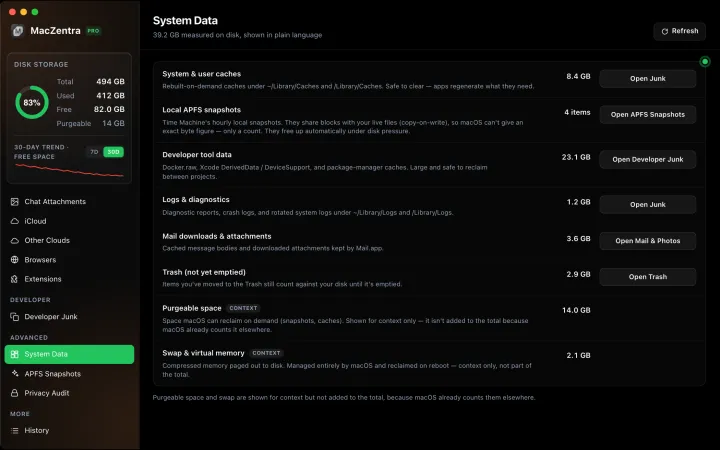
System Data · 7 min
System Data on Mac: What It Is and How to Shrink It
System Data is the grey bar in macOS Storage settings. What it actually contains, how much is normal, and the safe order to shrink it.
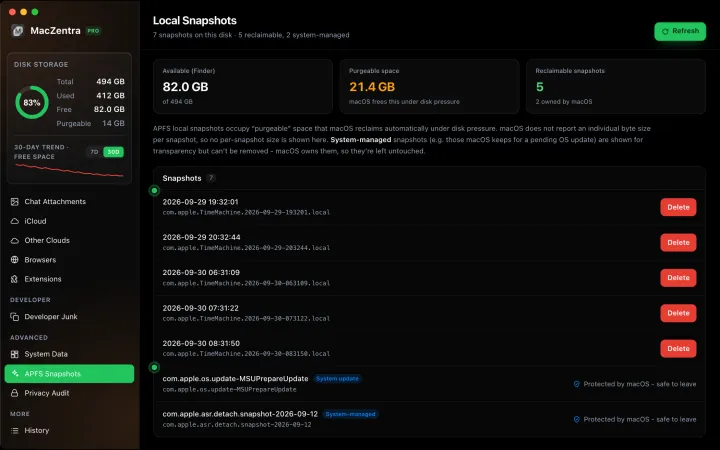
System Data · 5 min
APFS Local Snapshots: Hidden Space in System Data
Local Time Machine and macOS update snapshots can hold tens of gigabytes. How to list them, which ones you can delete, and why "purgeable" space isn't free yet.
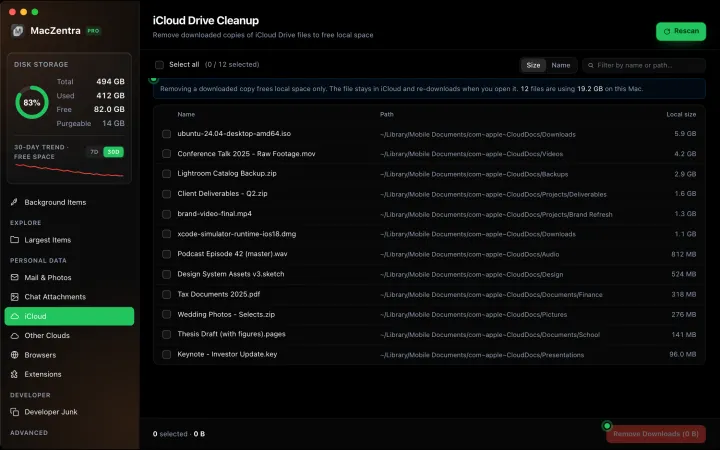
System Data · 5 min
Free Up iCloud Drive Space Without Losing Files
Use Optimize Mac Storage or manual eviction to free local copies of iCloud files. How eviction works, why it's reversible, and how it differs from deleting.
Check storage · 7 min
Best Mac Storage Cleaners 2026: Compared & Ranked
Mac cleaners compared by price, size, scan speed and licence type. One-time-purchase, subscription and free options side by side.