System Data
System Data Jumped After a macOS Update: What to Clear
The MacZentra team · Updated Nov 11, 2026 · 5 min read
System Data often jumps by tens of gigabytes after a macOS update. It is usually temporary: the update leaves a rollback snapshot, installer files and rebuilt caches behind, and most of it clears on its own once the update has finished and the Mac has settled. Here is what is taking the space, what is safe to remove, and what to leave alone.
Why System Data grows after an update
| What is taking the space | Why it appears | Safe to remove? |
|---|---|---|
| Update snapshot (com.apple.os.update…) | macOS keeps a rollback point while the update is applied | Leave it. macOS removes it itself |
| Time Machine local snapshots | Taken around the update, and they hold every file changed since | Yes, if you accept losing the last few hours of local restore points |
| Installer files | The downloaded update or a full “Install macOS” app in Applications | Yes, once the update has finished |
| Rebuilt caches | Apps and macOS recreate caches after an upgrade | Usually, but they refill. See the guide on Library caches |
| Spotlight re-indexing | The search index is rebuilt in the background | Leave it. It settles in a day or two |
Step 1: finish the update and wait
Restart once more after the update completes, and give the Mac a day or two of normal use. Spotlight indexing and snapshot clean-up both happen in the background, and System Data often shrinks without you doing anything. Clearing things in the middle of that process just means they come back.
Step 2: delete the installer if one is left over
If you downloaded a full installer, it sits in Applications as Install macOS …. After a successful update you can drag it to the Trash. A fresh copy can always be downloaded again if you need to make a boot drive.
Step 3: check the local snapshots
tmutil listlocalsnapshots /
Snapshots named com.apple.TimeMachine… can be deleted. The com.apple.os.update… one is managed by macOS and is removed when the update is complete. Our guide to APFS local snapshots has the exact commands.
Step 4: clear what you recognise in caches
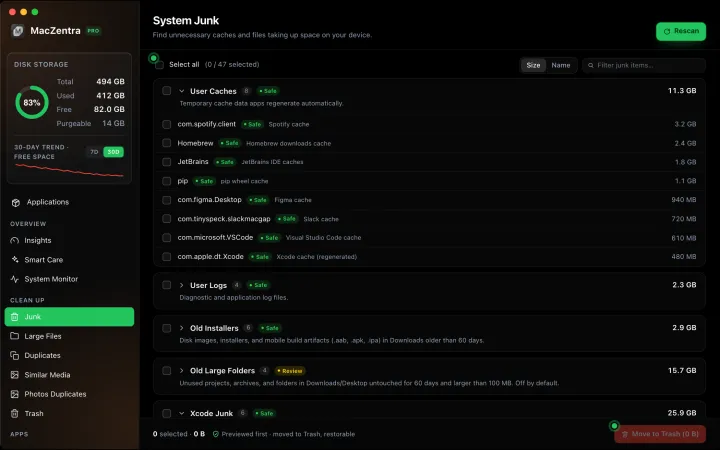
Caches are rebuilt on demand, so clearing the large ones for apps you no longer use is low risk. Work through them with care, as described in Is ~/Library/Caches safe to delete? Anything marked as belonging to the system itself is better left alone.
What not to delete
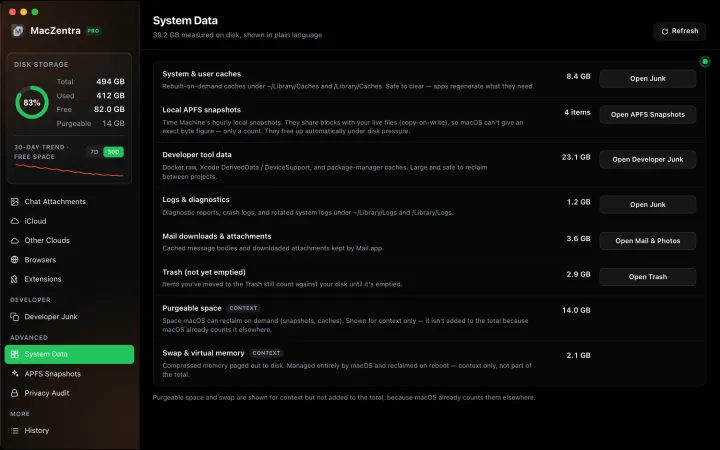
Do not remove files under /System, and do not delete folders you cannot identify just because they are large. System Data is a label for files macOS cannot sort into Apps, Photos or Documents. It is not one folder you can empty. For the full picture, read System Data on Mac: what it is and how to shrink it.
How long until System Data shrinks?
Usually within a few days of the update finishing, as indexing completes and Time Machine thins its snapshots. If it is still large after a week and the snapshot list is clean, look for a large app support folder or old developer files with a disk map instead of guessing.
Everything MacZentra can clean
Treemap and Sunburst disk maps, a duplicate finder, Developer Junk, a complete app uninstaller and more, in one native storage cleaner for Mac that’s 15.4 MB.
Explore all features →Related guides
System Data · 6 min
How Much Storage Does macOS Take Up?
How much storage macOS takes up on your Mac, how to measure each volume, why System Data looks so big, and how to reclaim space safely.
System Data · 7 min
What Is System Data on Mac? And How to Shrink It
System Data is the grey bar in macOS Storage. See what it contains, how much is normal, and the safe order to shrink it, step by step.
System Data · 4 min
/Library/Caches vs ~/Library/Caches: What's the Difference?
/Library/Caches is shared by every user; ~/Library/Caches is yours. Real sizes from a Mac we checked, why the sticky bit matters, and which one to clear.
System Data · 5 min
What Is /var/folders on Mac? Why It Uses GBs
What /private/var/folders holds, the 0, C, T and X folders, real sizes from a Mac we checked, and what is safe to clear. Includes the commands to measure it.