Check storage
Mac Storage Not Freeing Up After Deleting Files
The MacZentra team · Updated Oct 18, 2026 · 7 min read
You deleted a pile of files, and the storage bar barely moved. It's one of the most common Mac complaints, and it almost always has a boring explanation. This guide covers why Mac storage doesn't free up after deleting files, the six usual causes, and how to check each one in a few minutes.
Start here: did you empty the Trash?
Dragging a file to the Trash doesn't free any space. The file just moves to a folder, and it keeps taking up the same room until the Trash is emptied. Right-click the Trash icon in the Dock and choose Empty Trash, or use Finder, then Empty Trash.
If the option is greyed out or a file refuses to go, a running app may be holding it. Quit that app and try again. Files in the Trash that were deleted from an external drive live in a hidden .Trashes folder on that drive, not on your Mac.
Cause 1: Photos keeps deleted items for 30 days
Deleting a photo in the Photos app sends it to Recently Deleted, where it stays for 30 days. The space isn't released until that album is emptied. Open Photos, click Recently Deleted in the sidebar, enter your password if asked, and choose Delete All. Note that with iCloud Photos on, this also removes the pictures from your other devices.
Cause 2: Local Time Machine snapshots
This is the one that confuses people most. When Time Machine is on, macOS keeps local snapshots of your disk on the disk itself. A snapshot preserves files as they were at one moment, so if you delete a file that a snapshot still references, the data stays until the snapshot is gone.
List what you have with one Terminal command:
tmutil listlocalsnapshots /
Each line is a snapshot with a date. macOS removes old ones automatically, and normally clears them when space runs low, but they can hold gigabytes in the meantime. Our full guide to APFS local snapshots explains the delete commands and why one particular snapshot can't be removed.
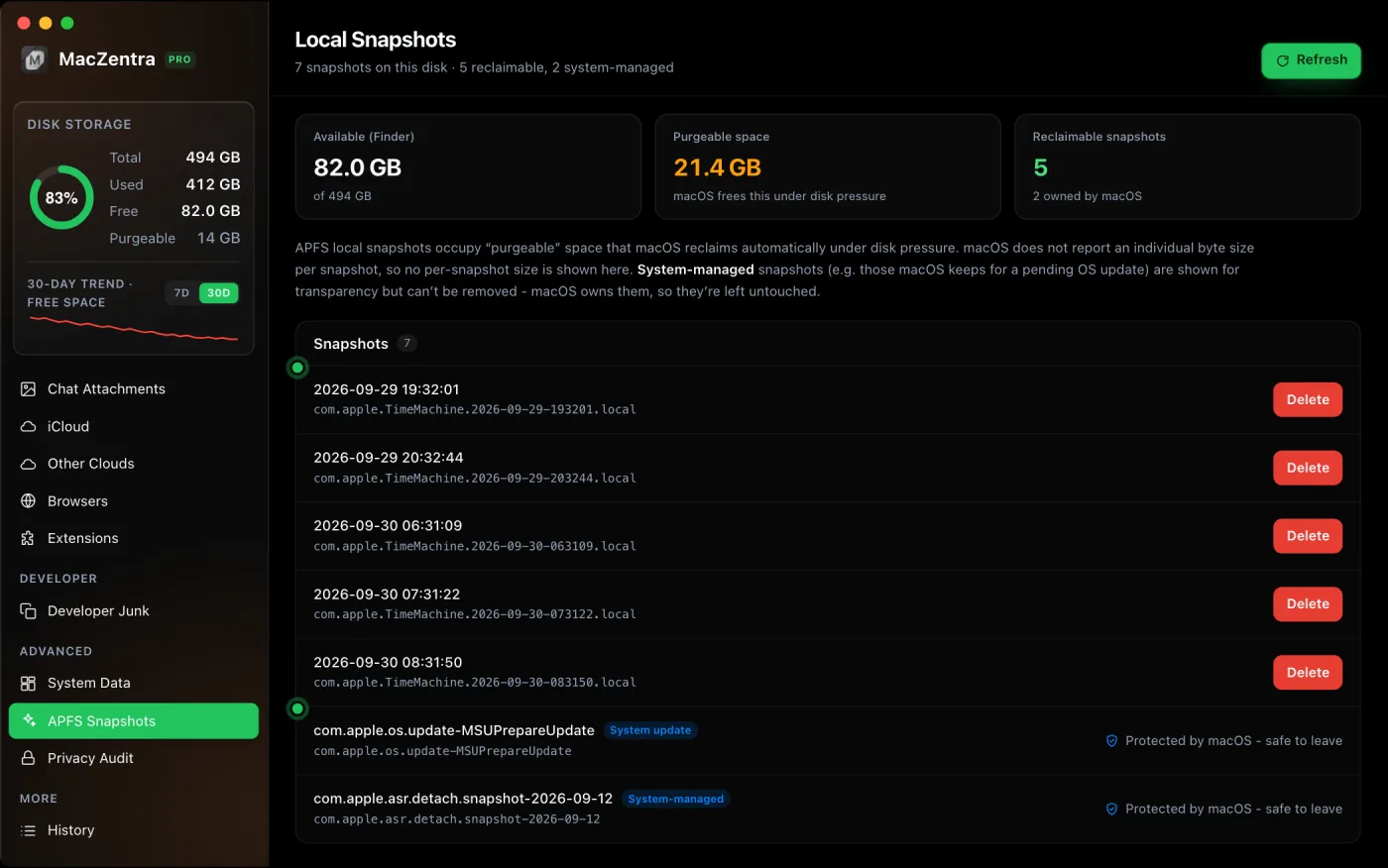
Cause 3: The storage figure hasn't caught up
System Settings doesn't recalculate the Storage bar instantly. After a big deletion it can take a few minutes, and sometimes you need to close and reopen the pane. Don't judge the result from a single glance. Check the real number in Terminal:
df -h /System/Volumes/Data
The Avail column is the free space on your data volume. It updates faster than the Settings graphic and doesn't count purgeable space as free.
Cause 4: Purgeable space is counted differently
macOS marks some data as purgeable: things it can delete on demand if it needs room, such as cached iCloud files and some snapshots. The Settings screen may add that to your available space, while Terminal and Finder report only the guaranteed free space. The two numbers disagree, and neither is wrong.
| Where you look | What it shows |
|---|---|
| System Settings, Storage | Free space, usually including purgeable |
| Finder, Get Info on the disk | Available space, with purgeable listed separately |
| df -h in Terminal | Raw free blocks, not counting purgeable |
If the numbers differ by a few gigabytes, that's purgeable space, not a bug. You can read more in the purgeable section of our snapshots guide.
Cause 5: You deleted a copy, not the original
A file can exist in more than one place. A photo may live in Photos and in a folder you exported it to. A project may sit in a folder and in iCloud Drive. Removing one copy frees nothing if the other stays. This is where finding duplicate files pays off, because the same data is counted twice.
Cause 6: A running app is still holding the file
On macOS, if an app has a file open when you delete it, the space isn't returned until that app closes the file. The classic example is a huge log file deleted while the app writing to it keeps running. If you removed something large and nothing changed, restart the app that was using it, or restart the Mac.
The checklist, in order
- Empty the Trash and confirm the Trash is really empty.
- Empty Recently Deleted in Photos, if you removed pictures.
- Run
df -h /System/Volumes/Dataand compare the figure with the one in Settings. - Run
tmutil listlocalsnapshots /and look for snapshots from before your clean-up. - Quit apps that were using the large files, or restart the Mac.
- Check that the files you deleted weren't copies of data stored elsewhere.
When the space is still gone
If you've been through the checklist and your disk is still fuller than your files add up to, the missing space is probably under System Data. That category covers caches, logs, snapshots and other things Finder doesn't show as normal files. We break it down in what System Data is on a Mac and how to reduce it.
- Large caches under
~/Library/Cachescan run to several gigabytes. - Old iOS update files and device backups sit in your Library folder.
- Mail attachments are stored locally even after you read them.
- Developer tools leave build data, simulators and container images.
Cause 7: Trash on other volumes and accounts
Each disk keeps its own Trash. Files you deleted from an external drive or a second volume sit in that disk's own .Trashesfolder, so emptying the main Trash won't reach them. Files from other user accounts on the same Mac go to those accounts' Trash, and you need to sign in as that user, or check the Other Users figure in Storage, to find them. Our guide to Other Users and Shared storage explains that category.
Thin the snapshots from Terminal
If snapshots are the cause and you can't wait for macOS to clear them, you can ask it to thin them. This command requests that up to a set number of bytes be freed, with an urgency from 1 to 4:
sudo tmutil thinlocalsnapshots / 10000000000 4
That asks macOS to reclaim about 10 GB from local snapshots. It works on Time Machine snapshots only, so snapshots belonging to a system update stay put. Make sure you have a recent external backup first.
Things that don't help
- Deleting files from the Library or System folders by guesswork. You can lose settings or break apps, and the snapshot or cache that holds the space is usually somewhere else.
- "Memory purge" or one-click booster apps. They deal with RAM, not disk space, so they won't move the storage bar.
- Reinstalling macOS. It's a heavy fix for a problem that almost always comes down to the Trash, Photos or snapshots.
How much free space does a Mac need?
macOS uses free space for swap files, system updates and temporary data, so a drive that is almost full feels slow and can fail to install updates. There's no official number, but a comfortable margin of several gigabytes is a sensible minimum, and more if you work with large video or photo libraries. If you keep landing at the edge, the lasting fix is to move big archives to an external disk, not to keep deleting small files.
It also helps to check Storage in System Settings after each clean-up, so you learn which actions free real space on your Mac and which ones don't. That habit makes the next round faster, because you stop spending time on the changes that never show up in the bar.
Questions people ask
Why does my Mac still say storage is full after I deleted files?
Usually one of three reasons: the Trash isn't empty, Photos is holding items in Recently Deleted, or local snapshots still reference the data. Work through the checklist above, then restart.
How long does it take for storage to update on a Mac?
Often a few minutes. If the figure hasn't changed after a restart, look at snapshots and purgeable space rather than waiting longer.
Is it safe to delete local snapshots?
Time Machine's local snapshots are safe to remove if you also have a regular backup on an external drive or network disk. They exist as a convenience, not as your only copy. Snapshots macOS manages for system updates should be left to the system.
Does emptying the Trash securely erase files?
No. Emptying the Trash frees the space for reuse, and nothing more. It's a normal delete, not a secure erase.
Everything MacZentra can clean
Treemap and Sunburst disk maps, a duplicate finder, Developer Junk, a complete app uninstaller and more, in one native storage cleaner for Mac that’s about 15 MB.
Explore all features →Related guides
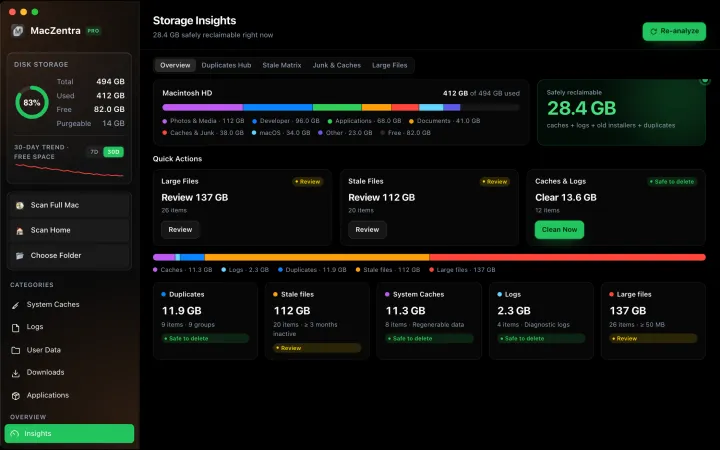
Check storage · 7 min
Best Mac Storage Cleaners 2026: Compared & Ranked
Mac cleaners compared by price, size, scan speed and licence type. One-time-purchase, subscription and free options side by side.
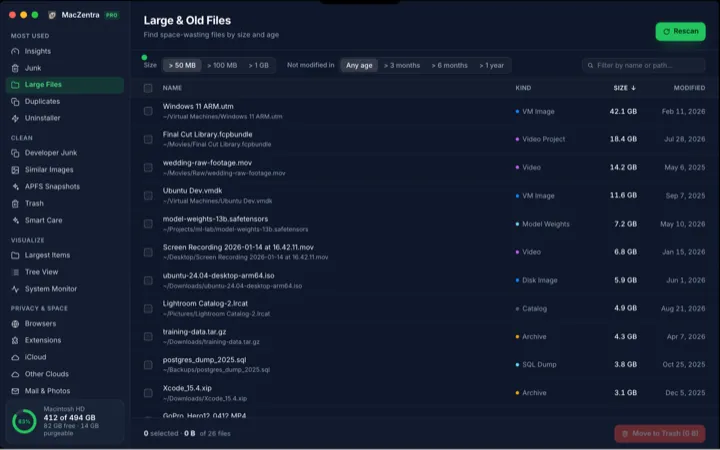
Check storage · 5 min
How to Find Large Files on a Mac: 4 Ways, From Built-in to Terminal
Find the biggest files on your Mac using Storage settings, Finder, Terminal or a treemap. Includes how to spot big folders full of small files.
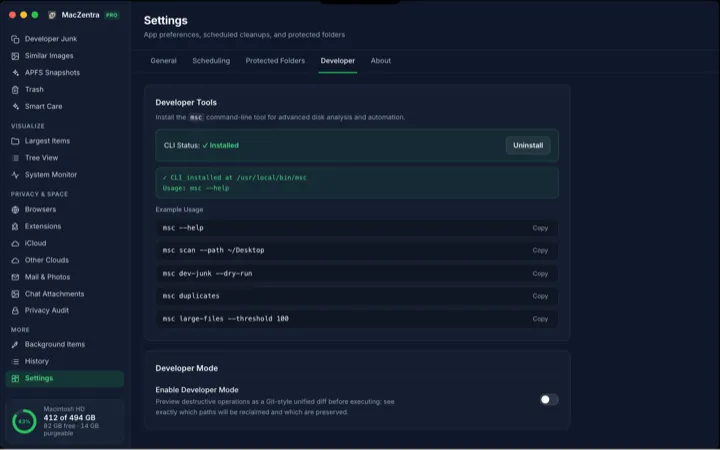
Check storage · 6 min
MacZentra CLI: Command Reference and Use Cases
The msc command runs MacZentra from the terminal. Scan paths, find duplicates, check developer junk and preview deletions without opening the app.
Check storage · 3 min
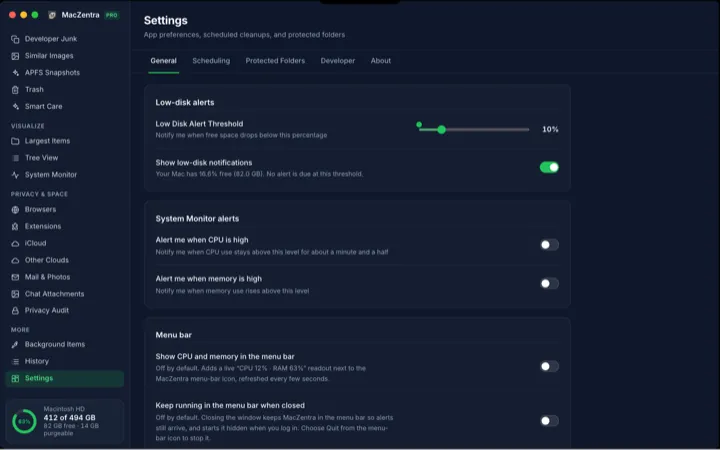
Low-Disk Alerts from Your Mac's Menu Bar
MacZentra watches free space in the background and sends one native alert when it drops below your threshold. Run Smart Care from the tray.