
Free up space
Reduce Photos Library Size on Mac: 5 Ways
The MacZentra team · Updated Nov 22, 2026 · 6 min read
To reduce the size of your Photos library on a Mac, turn on Optimize Mac Storage if you use iCloud Photos, empty Recently Deleted, remove large videos and duplicates, or move the library to an external drive. Photos is often the largest single item on a Mac, and nothing about it shrinks on its own.
Where the Photos library is and how big it is
By default the library is one file in your Pictures folder, Photos Library.photoslibrary. Right-click it and choose Get Info to see its size. It looks like a single file, but it’s a package full of originals, edited versions, thumbnails and a database.
Five ways to shrink it, biggest first
1. Turn on Optimize Mac Storage
If you use iCloud Photos, open Photos, go to Settings, then the iCloud tab, and choose Optimize Mac Storage. Full-size originals live in iCloud, and your Mac keeps smaller versions and downloads a full one when you open a photo. This is the biggest saving for most people, but it needs enough iCloud storage and a connection when you want an original.
2. Empty Recently Deleted
Photos keeps deleted items for 30 days. Open Recently Deleted in the sidebar and click Delete All if you’re sure. With iCloud Photos on, deleting on the Mac removes the photo on your other devices too.
3. Find the large videos
Video is usually most of the weight. Create a smart album with File > New Smart Album, set the rule to File Size is greater than a number such as 500 MB, and review what comes up. Delete what you don’t need, or export it to a drive first.
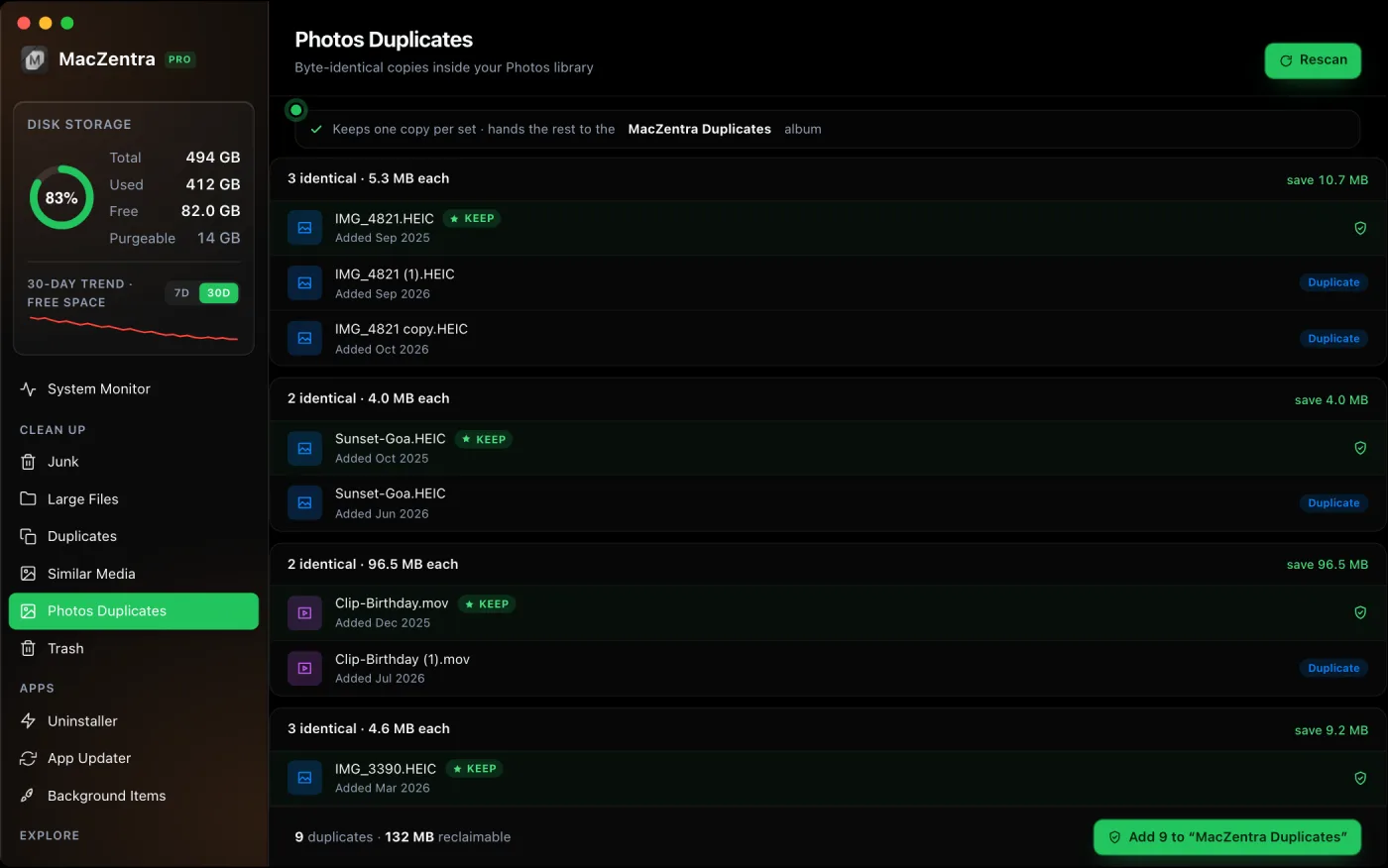
4. Remove duplicates
Identical copies come from imports and shared libraries. Recent versions of macOS have a Duplicates album in the sidebar that you can review and merge. Our guide to finding and deleting duplicate photos on a Mac covers that route and the alternatives.
5. Move the library to an external drive
- Quit Photos and copy
Photos Library.photoslibraryto an external drive formatted as APFS or Mac OS Extended. - Hold Option while opening Photos and choose the copy on the drive.
- Check that your photos and albums look right.
- If you use iCloud Photos, open Settings, then General, and click Use as System Photo Library.
- Only then delete the original from the Mac, and empty the Trash.
The drive must be connected whenever you want to open Photos. If you’re choosing between this and other ways to get more room, how to get more storage on a Mac compares the options.
What each method saves
| Method | Space saved | Catch |
|---|---|---|
| Optimize Mac Storage | Often the most | Needs iCloud Photos and storage |
| Empty Recently Deleted | Whatever sits there | Permanent after you confirm |
| Delete large videos | Gigabytes per clip | You pick each one |
| Remove duplicates | Usually modest | Review before merging |
| External drive | The whole library | Drive must stay connected |
Photos is only one of the places space goes. 10 ways to free up space on a Mac ranks the rest by how much you’ll get back, and iCloud Optimize Storage on a Mac explains what that setting does outside Photos.
Questions people ask
Why is my Photos library so big?
It holds full-size originals plus edited versions, thumbnails and video. A library of 100,000 photos and a few hundred videos can pass several hundred gigabytes, and nothing removes old items automatically.
Does deleting photos from Photos free space right away?
Not until they leave Recently Deleted. After that the space can take a short while to appear. If it doesn’t, see why storage isn’t freeing up after deleting files.
Is it safe to move the Photos library to an external drive?
Yes, if you copy it first, check that it opens, and only then delete the original. Keep a backup too, since a single drive is a single point of failure.
Will Optimize Mac Storage delete my photos?
No. Your originals stay in iCloud and the Mac keeps smaller versions. The risk is the opposite problem: if you turn off iCloud Photos without downloading originals first, you can lose full-size copies.
Everything MacZentra can clean
Treemap and Sunburst disk maps, a duplicate finder, Developer Junk, a complete app uninstaller and more, in one native storage cleaner for Mac that’s 15.4 MB.
Explore all features →Related guides
Free up space · 8 min
Free Up Space on Mac: 10 Fixes, Biggest First
Ten ways to free up Mac storage ranked by typical space recovered. Covers hidden Library folders and leftovers macOS Storage settings never show.
Free up space · 5 min
Is It Safe to Delete Library Caches on Mac? What to Clear
Yes for most apps. See which ~/Library/Caches and /Library/Caches folders are safe to delete, which to leave alone, and how to clear them step by step.
Free up space · 6 min
Not Enough Space to Update macOS: How to Fix It
Mac says not enough space to update macOS? See how much free room the installer needs and free it fast with snapshots, backups and an external drive.
Check storage · 9 min
Best Mac Storage Cleaners 2026: Compared & Ranked
Mac storage cleaners and disk space analyzers compared by price, size, scan speed and licence. One-time, subscription and free options side by side.