
Free up space
Not Enough Space to Update macOS: How to Fix It
The MacZentra team · Updated Nov 23, 2026 · 6 min read
When your Mac says there’s not enough space to update macOS, the installer is asking for more real free space than the disk has right now. Apple’s installer needs room for the download, room to unpack it, and working space for the install itself. The fix is to free that room (usually 20 to 30 GB, and Apple lists the exact figure for each version), and most of the space is hiding in a few predictable places.
How much free space does a macOS update need?
It depends on the version you’re moving to and the one you’re coming from. Apple publishes a storage requirement on each macOS’s upgrade page, and it’s commonly somewhere between 20 and 30 GB. Small point updates need less, big version jumps need more.
Check what you actually have first. The Storage screen can be generous because it counts purgeable space as available, so use the real figure from Terminal:
df -h /
Look at the Avail column. If that number is below what the installer wants, the update will stall no matter what Finder claims. Our guide to purgeable space on Mac explains why the two figures disagree.
Free the space in this order
These steps go from the biggest and safest wins to the more involved ones. Re-check df -h / after each.
| Step | What it frees | Risk |
|---|---|---|
| 1. Delete local snapshots | Often 10 to 50 GB, held by files you already deleted | Low |
| 2. Empty Trash and Recently Deleted | Whatever you thought was already gone | Low |
| 3. Remove old iPhone backups | 20 to 100 GB per backup | Low if the phone backs up to iCloud |
| 4. Move big folders to an external drive | As much as you move | Low, if you verify the copy |
| 5. Restart, then try again | Cached and temporary files | None |
1. Delete local snapshots
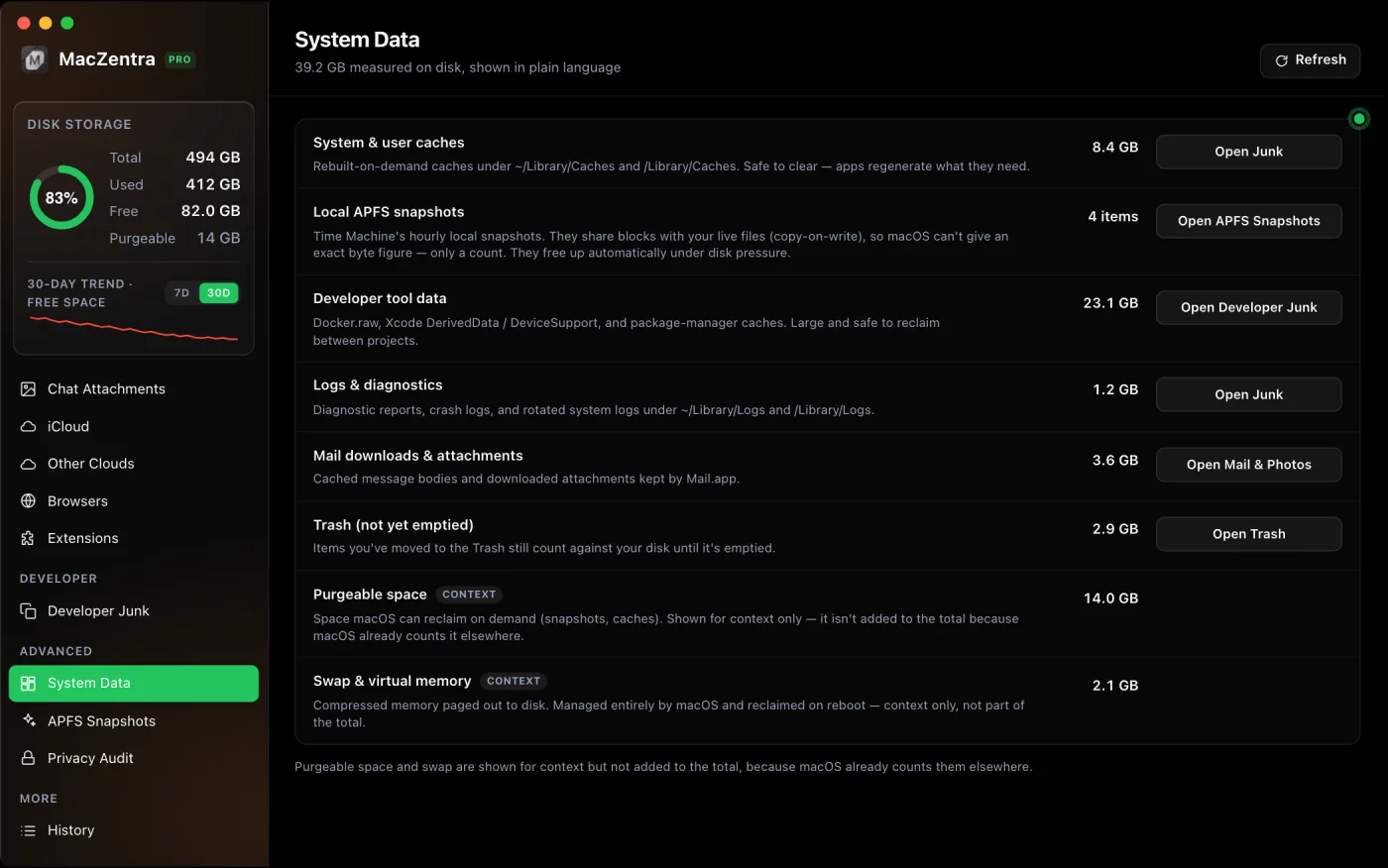
Time Machine keeps hourly snapshots on the startup disk even without a backup drive attached, and any file you delete stays on disk while a snapshot still points at it. That’s the usual reason a Mac looks full after you’ve cleared things out. List them:
tmutil listlocalsnapshots /
Then delete each one by its date stamp:
sudo tmutil deletelocalsnapshots 2026-11-20-101530
Snapshots whose names start with com.apple.os.update belong to macOS, so leave those alone. The full rundown is in APFS local snapshots.
2. Empty the Trash and the other trash folders
The Finder Trash is only one of them. Photos keeps deleted pictures in Recently Deleted for 30 days, and Mail has its own Trash. Empty all three. If the number on the Storage screen doesn’t move, see Mac storage not freeing up after deleting files.
3. Remove old iPhone and iPad backups
Press Cmd+Shift+G in Finder and open ~/Library/Application Support/MobileSync/Backup. Each folder there is a full device backup, and one can be tens of gigabytes. If the phone also backs up to iCloud, an old local copy can go. The steps are in delete iPhone backups on Mac.
4. Move big folders to an external drive
If the first three steps aren’t enough, park something large somewhere else for a day. A Photos library, a Movies folder or an old project archive works well. Copy it to a USB drive or an external SSD, open a few files to confirm the copy is good, and only then delete the original. Use find large files on Mac to spot the heaviest candidates.
What if the update still won’t start?
- Restart in Safe Mode, then restart normally. On a Mac with Apple silicon, shut down, hold the power button until startup options appear, pick your disk, then hold
Shiftand choose Continue in Safe Mode. On an Intel Mac, holdShiftright after the startup chime. Safe Mode clears some system caches. - Download the installer on another Mac and put it on a USB drive if the download itself is what fails. The install still needs working room on your startup disk, so freeing space still applies.
- Check what macOS your Mac can run. Open System Settings → General → Software Update. If nothing newer is offered, your Mac has reached the last version it supports. That isn’t a storage problem, and no amount of deleting will change it.
Questions people ask
Why does my Mac say not enough space when Storage shows free space?
Storage counts purgeable space (snapshots and some caches) as available, but the installer needs space that’s free right now. Check df -h / for the real number, then delete local snapshots to turn purgeable space into free space.
How much storage do I need free to update macOS?
Plan on 20 to 30 GB free, and check the figure Apple lists for the version you want. A few extra gigabytes of headroom avoids a failed install halfway through.
Will updating macOS delete my files?
An update keeps your files and apps in place. Back up anything important first anyway, since a failed update on a nearly full disk is the case where problems happen.
Is it safe to delete local Time Machine snapshots?
Yes, they’re copies kept on the same disk, separate from backups on an external drive. Deleting them only removes the ability to roll back to the last few hours while the backup drive is disconnected.
For a wider look at the grey bar, see what System Data on Mac is and how to shrink it, or work through startup disk full on Mac if the whole disk is tight.
Everything MacZentra can clean
Treemap and Sunburst disk maps, a duplicate finder, Developer Junk, a complete app uninstaller and more, in one native storage cleaner for Mac that’s 15.4 MB.
Explore all features →Related guides
Free up space · 6 min
Delete Photos From iPhone but Not iCloud
Can you delete photos from iPhone but not iCloud? Not while iCloud Photos is on. See what works: Optimize Storage, safe sync-off steps, warnings.
Free up space · 11 min
How Much Storage Does macOS Take Up? | 2026 Guide
Discover exactly how much space macOS Sequoia and Sonoma occupy, why 'System Data' grows, and how to reclaim disk space with native Mac storage cleaners.
Free up space · 6 min
How Much Free Space Does a Mac Need?
How much free space does a Mac need? Targets by drive size, plus a step-by-step plan to recover 100 GB on a 512 GB MacBook with under 20 GB free.
Check storage · 9 min
Best Mac Storage Cleaners 2026: Compared & Ranked
Mac storage cleaners and disk space analyzers compared by price, size, scan speed and licence. One-time, subscription and free options side by side.