
Free up space
How to Get More Storage on a Mac: 6 Options
The MacZentra team · Updated Nov 17, 2026 · 6 min read
The quickest way to get more storage on a Mac is to reclaim what you already have, then move your biggest libraries to an external SSD or let iCloud hold the rest. Network storage works too. You can’t add internal storage to a current Apple silicon MacBook later, so this guide covers six options, in the order most people should try them.
1. Reclaim the space you already have
Before you buy anything, find out what’s using the disk. Open System Settings → General → Storage and look at the bar. Our guide to how to check storage on a Mac covers five ways to read it. Old downloads, caches, unused apps and duplicate files often add up to a surprising amount.
The full routine is in 10 fixes to free up space on a Mac, and Mac storage optimization explains what macOS tidies up by itself. If you’re still short afterwards, you need more capacity, not more cleaning, and that’s what the rest of this post is about. Not sure whether the warning you saw was about storage at all? See memory vs storage on a Mac.
2. An external SSD for files you rarely open
An external SSD is the simplest answer to “how do I add storage to a Mac”. You plug it into a USB-C or Thunderbolt port, and it shows up in the Finder sidebar like another disk. It’s a one-time purchase with no subscription.
Use it for things you want to keep but rarely open: old projects, video footage, installers, disk images and archives. Drag the folders across in Finder, check that they opened properly from the new location, then delete the originals. Format the drive as APFS if it will only be used with Macs. If you also need it on a Windows PC, exFAT works on both.
3. Move the Photos library to an external drive
The Photos library is often the biggest single item on a Mac, so it’s the best candidate for moving. It’s also a package, so don’t drag pieces out of it. Move the whole library:
- Quit Photos, then connect the drive. It needs to be formatted as APFS or Mac OS Extended (Journaled). A network share won’t do.
- In Finder, open your Pictures folder and drag Photos Library onto the drive. Wait for the copy to finish.
- Hold Option while you open Photos, click Other Library and pick the copy on the drive.
- Open Photos → Settings → General and click Use as System Photo Library.
- Once you’ve checked that everything opens, delete the original from the Mac and empty the Trash.
The drive has to be connected whenever you open Photos. If you also use iCloud Photos, read the next section first, because the two interact. Before moving anything, it’s worth clearing out the clutter. Removing duplicate photos shrinks the library before you copy it.
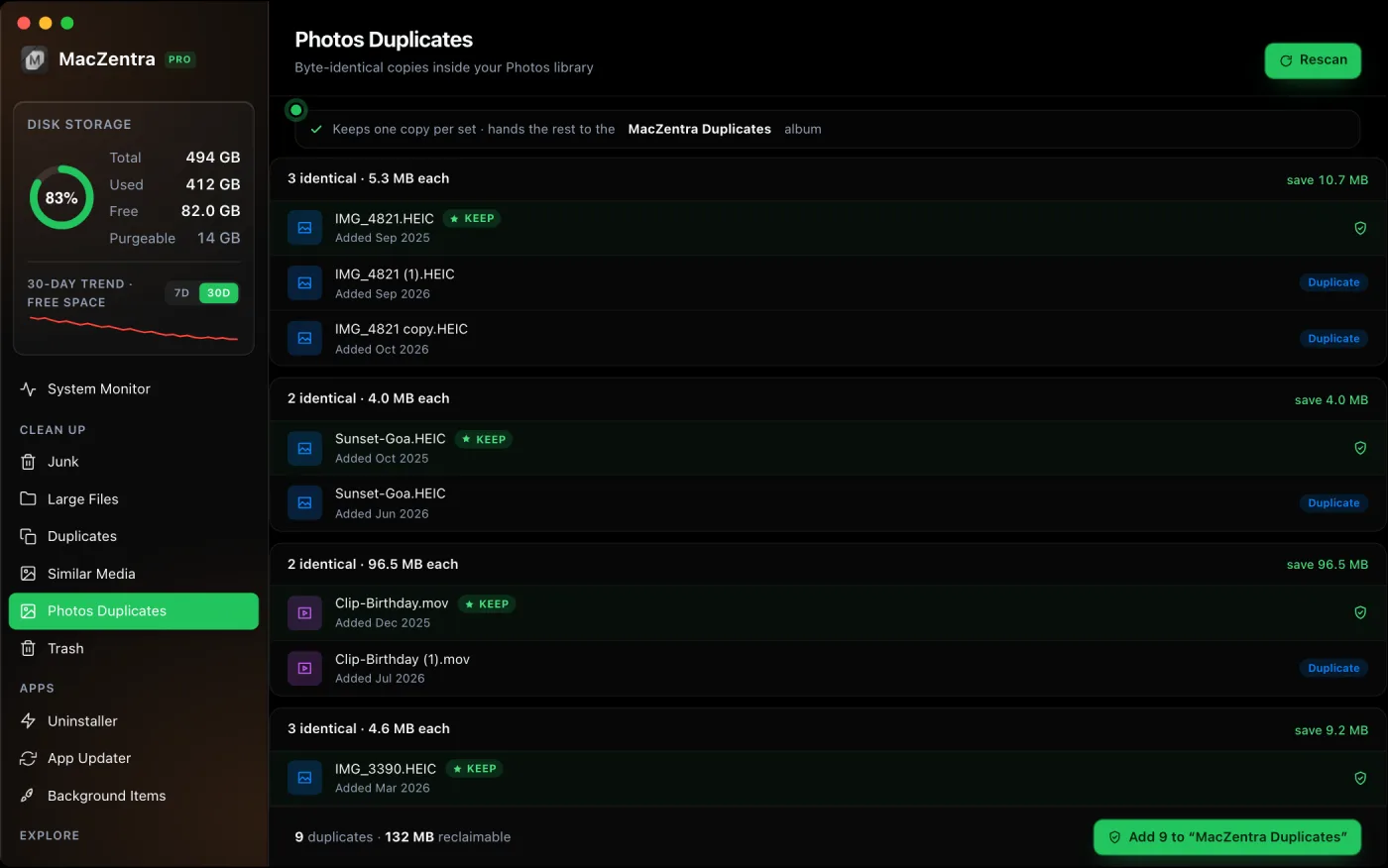
The same idea works for other big libraries. Music, Final Cut and Lightroom libraries can usually be moved by copying them to the drive and then opening them from there. Check each app’s own settings for where it expects the library to live.
4. iCloud with Optimize Mac Storage
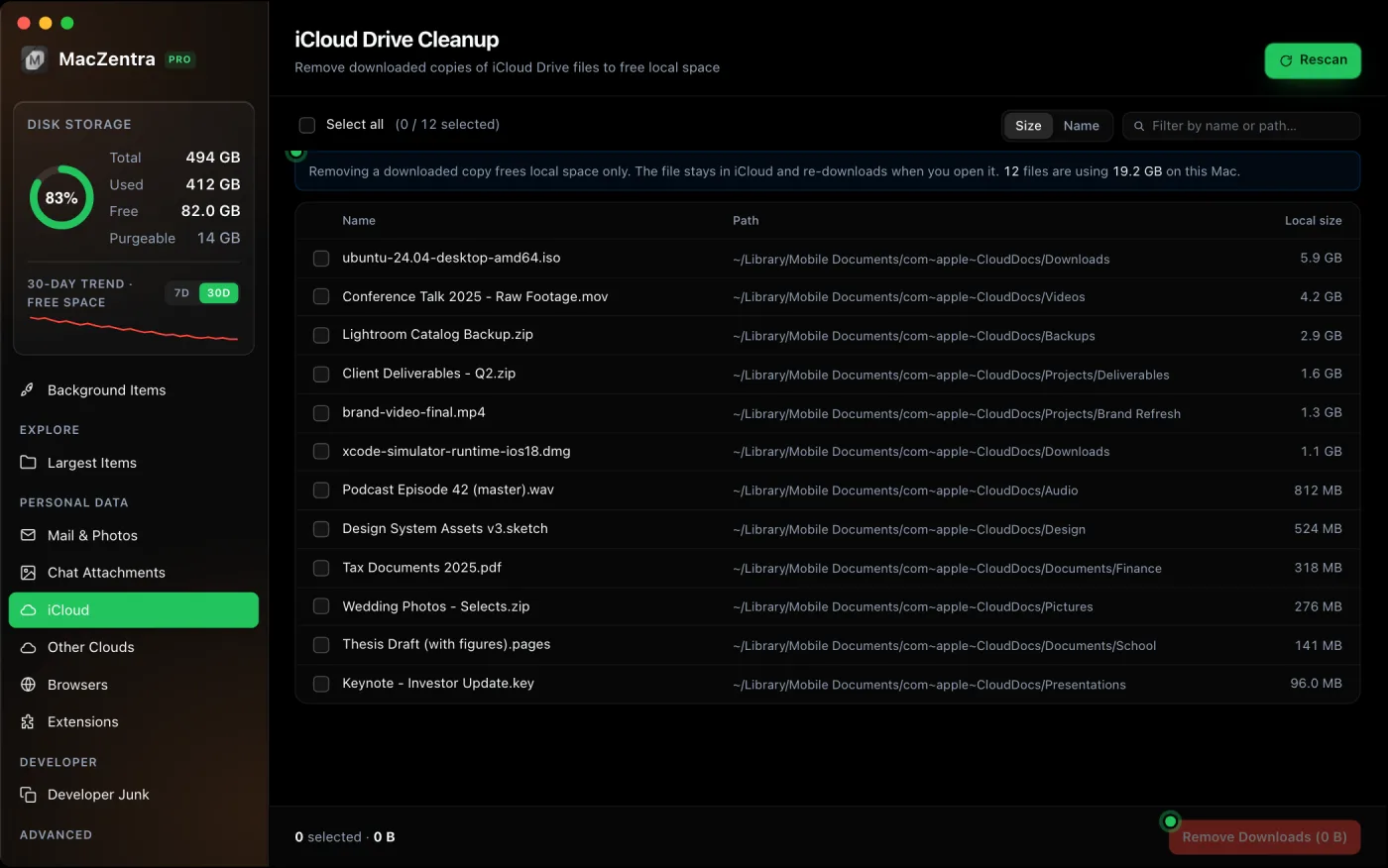
iCloud keeps your files online and lets the Mac hold only what you use. Turn on Optimize Mac Storage for iCloud Drive and iCloud Photos, and macOS swaps older, unused files for small placeholders and downloads them again when you open them. You pay a monthly fee once you outgrow the free allowance.
It works well for people who are online most of the time. It works less well on a long flight or with a weak connection. The details, including what “Optimize” does and doesn’t remove, are in freeing up iCloud Drive space on a Mac.
5. Network storage for archives and backups
A NAS (network attached storage) or a shared folder on another computer gives you capacity over your home network. In Finder, press ⌘K, type the server address, such as smb:// followed by the device name, and connect. The share then appears in the sidebar.
It’s ideal for archives, finished projects and Time Machine backups. It’s a poor home for files you open all day, since speed depends on your network, and it’s the wrong place for a Photos library. It costs the most effort to set up, but there’s no monthly fee, and one box can serve every Mac in the house.
6. Can you upgrade MacBook storage? The honest answer
If you’re asking “can you upgrade MacBook storage”, for current Apple silicon MacBooks the answer is no. The storage is built into the machine and isn’t designed to be swapped or added to later, so the capacity you choose when you buy is the capacity you keep. Some older Intel Macs and some desktop models handled this differently, so check the exact model before assuming either way.
That makes the purchase decision the real upgrade. If you’re buying, pick the capacity you’ll need in three or four years, not today. If you already own the Mac, options 1 to 5 are how you stretch it. Selling or trading in for a bigger machine is a last resort, once reclaiming space and external storage stop being enough.
How the options compare
| Option | Cost | Effort | Suits |
|---|---|---|---|
| Reclaim space | Free | Low to medium | Anyone who hasn’t looked at what fills the disk yet |
| External SSD | One-time | Low | Archives, footage, old projects, one big library |
| Photos library on a drive | One-time | Medium | Large photo collections that live on one Mac |
| iCloud, Optimize Mac Storage | Monthly | Low | People who are online most of the time and use several Apple devices |
| Network storage | One-time | High | Archives and backups shared across several computers |
| Internal upgrade | Part of the purchase | Not possible later on current Apple silicon MacBooks | Choosing a new Mac |
Messages taking up space on a Mac
Photos, videos and files sent in chats are stored by Messages, and years of them can run to several gigabytes. They’re easy to miss because they don’t show up in Photos. If you’re seeing messages taking up space on your Mac, review them in Storage settings:
- Open System Settings → General → Storage.
- Click the ⓘ button next to Messages.
- Look through the categories, such as photos and other attachments, and sort by size.
- Select the biggest items you don’t need and delete them.
The longer version, including what Messages in iCloud changes, is in Messages taking up space on a Mac.
Questions people ask
How do I get more disk space on a Mac without buying anything?
Empty the Trash, delete old downloads, uninstall apps you don’t use and remove duplicate files. If you already pay for iCloud, turn on Optimize Mac Storage as well.
Can you upgrade MacBook storage after you buy it?
Not on current Apple silicon MacBooks. The storage isn’t user-upgradeable, so choose the capacity at purchase. An external drive is the practical way to add room later.
Is an external SSD or iCloud better for more storage?
An external SSD is a one-time cost and works offline. iCloud is a monthly cost and syncs across devices. Many people use both: iCloud for everyday files, a drive for archives.
Can I run my Mac from an external drive?
You can keep files, libraries and backups there, which is what most people need. Installing and running macOS itself from an external drive is a different job, and it isn’t the way to add everyday storage.
How much storage should I get in a new Mac?
Look at what you use now with Storage settings, add what your photo and video library will grow by, and leave 10 to 15 percent free. Past that, buy more if you can’t easily clear space later.
Everything MacZentra can clean
Treemap and Sunburst disk maps, a duplicate finder, Developer Junk, a complete app uninstaller and more, in one native storage cleaner for Mac that’s 15.4 MB.
Explore all features →Related guides
Free up space · 8 min
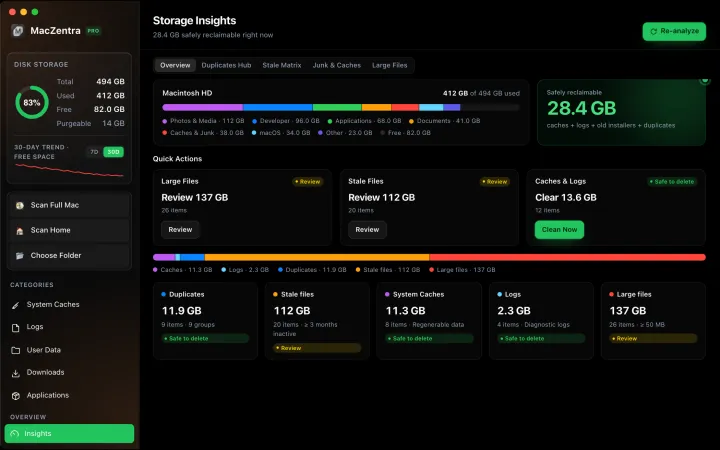
Free Up Space on Mac: 10 Fixes, Biggest First
Ten ways to free up Mac storage ranked by typical space recovered. Covers hidden Library folders and leftovers macOS Storage settings never show.
Free up space · 5 min
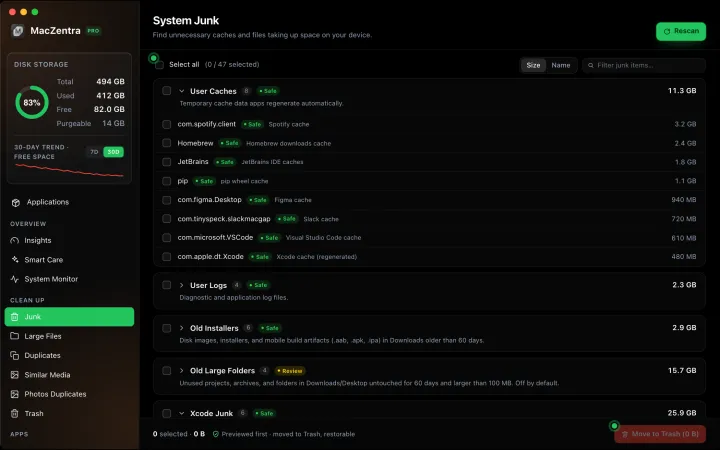
Is It Safe to Delete Library Caches on Mac? What to Keep and Clear
Yes for most apps. See which ~/Library/Caches and /Library/Caches folders are safe to delete, which to leave alone, and how to clear them step by step.
Free up space · 3 min
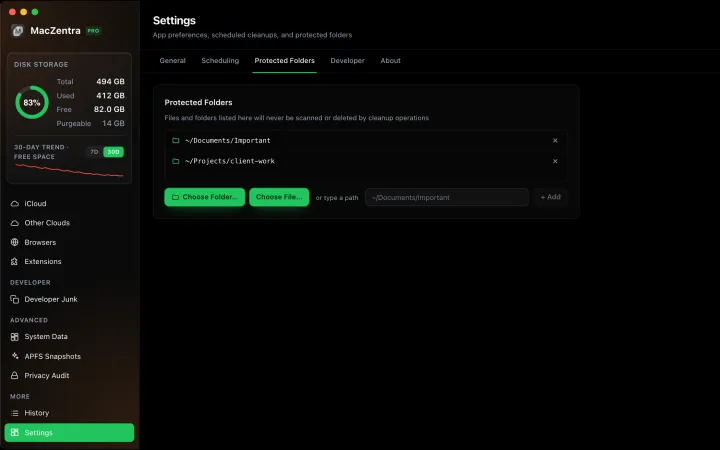
Protected Files & Folders: Keep Items Safe
How the built-in protected paths guard system-critical locations, and how to add your own custom folders to prevent accidental deletion.
Free up space · 4 min
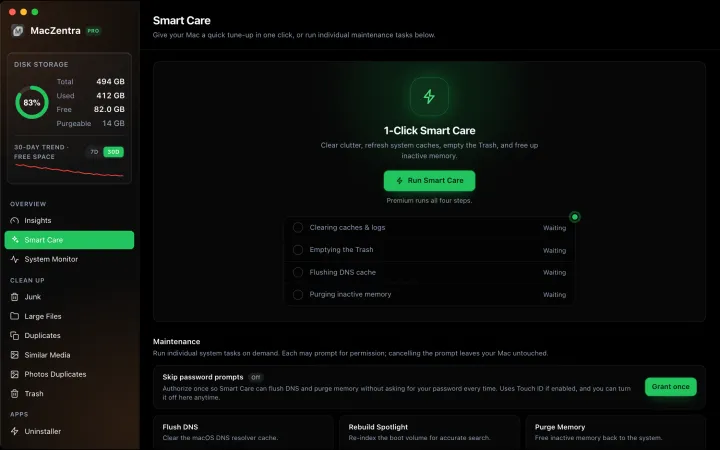
Smart Care for Mac: Automate Cache, Trash and Memory Cleanup
Automate Mac maintenance with Smart Care: clear caches, empty Trash, flush DNS and purge inactive memory in one workflow. Schedule it or run it on demand.