Free up space
Large Files on Mac: What's Safe to Delete
The MacZentra team · Updated Oct 18, 2026 · 8 min read
Finding a 20 GB file is the easy part. The harder question is whether you can delete it. This guide lists the large files on a Mac that are usually safe to delete, the ones you should leave alone, and a quick test for everything in between, so you can free up disk space without breaking an app or losing something you need.
If you haven't located your big files yet, start with four ways to find large files on a Mac and come back with a list. This article starts where that one ends: you have a name and a size, and you need a decision.
The quick test before you delete a large file
Four questions cover almost every case. If you can answer yes to the first three and no to the fourth, the file is a safe bet.
- Do you know what the file is? A name like
Movie_final_v3.movcounts. A name likecom.something.dbdoesn't. - Is it yours, sitting in a folder you control, such as Downloads, Desktop, Movies or Documents?
- Can you get it again, from the internet, a backup or the original source?
- Is any app or service actively using it right now?
Anything inside /System, /usr or /Library fails the second question. Leave those alone. For anything in your own Library folder, the rule is to look up the app that owns it first.
Large files that are usually safe to delete
These are the usual suspects on a Mac that has been around for a few years. Each one is either a download you've already used or a copy of something you can recreate.
| File type | Typical location | Why it's usually safe |
|---|---|---|
| Disk images (.dmg) | Downloads | You already installed the app. The installer is a spare copy. |
| Installer packages (.pkg) and .zip archives | Downloads | Same story. Extracted or installed, the original is redundant. |
| Old iOS and iPadOS backups | ~/Library/Application Support/MobileSync/Backup | Outdated device backups. Keep the newest one. |
| iPhone firmware (.ipsw) | ~/Library/iTunes/iPhone Software Updates | Apple re-downloads it when needed. |
| Screen recordings and exports | Movies, Desktop | Raw captures you've already trimmed or shared. |
| Xcode archives and simulators | Developer folders | Rebuildable. See the DerivedData guide linked below. |
| Virtual machine disks | Parallels, UTM, VMware folders | Safe only if you no longer need that VM. |
Disk images are the most common win. A Downloads folder with fifteen old installers can easily hold 5 to 10 GB. Sort Downloads by size in Finder and the big ones jump to the top.
Old iPhone and iPad backups
A single device backup is often 10 to 50 GB, and Macs keep them quietly after you stop using the old phone. You can review them without opening the folder by hand. In Finder, select your device in the sidebar, then click Manage Backups on the General tab. Delete the ones for phones you no longer own. If you rely on iCloud Backup, the local copy is optional, but keep at least one backup you trust.
Movies and screen recordings
A few minutes of screen recording can run to several gigabytes because many tools save it uncompressed. If you shared the finished clip, the raw capture is often just taking up room. If it's footage you can't recreate, move it to an external drive instead of deleting it.
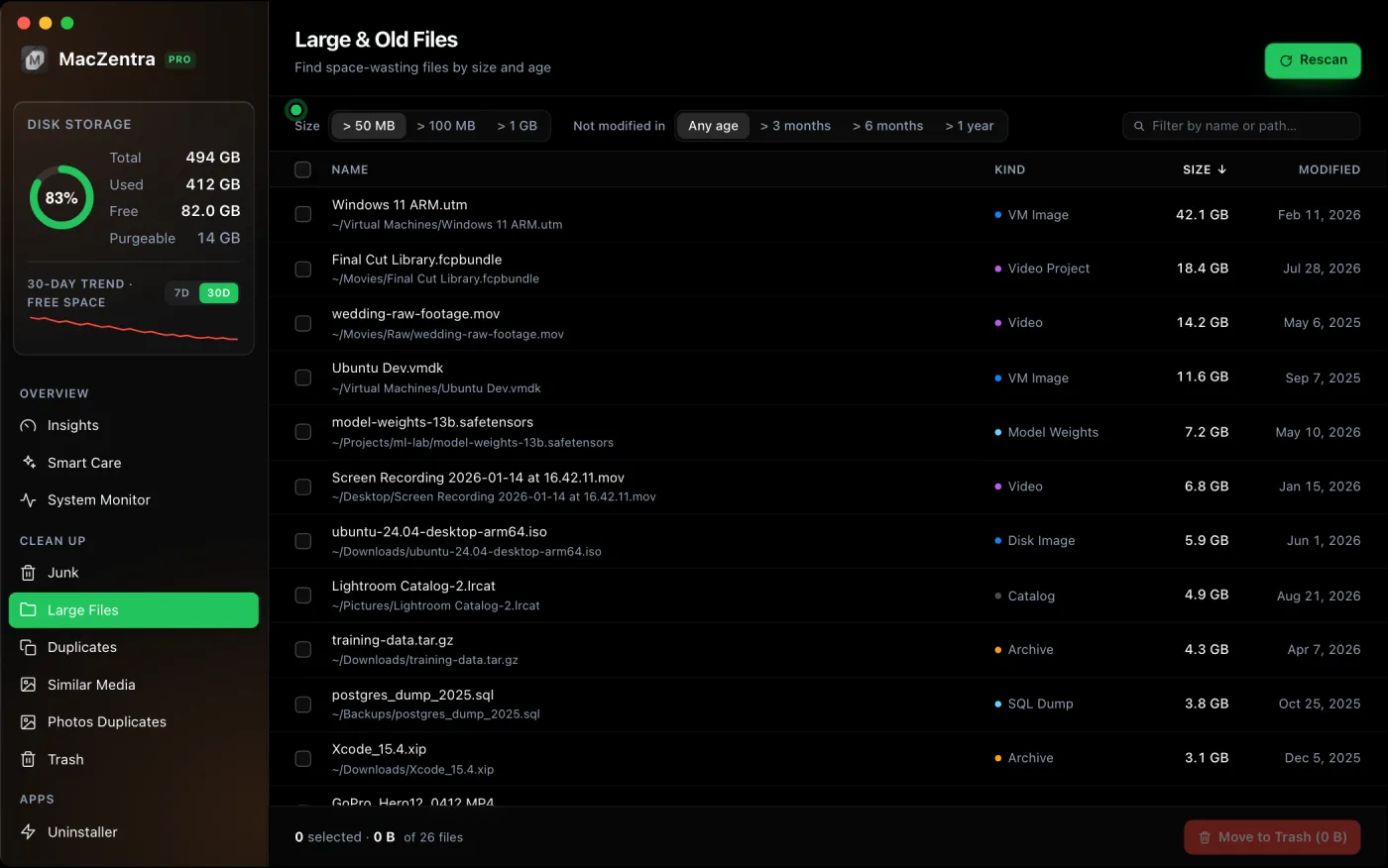
Large files you should leave alone
Some of the biggest items on a Mac look like candidates and aren't. Deleting them can break the system or an app, and the space comes back by itself in many cases.
- Swap and sleep files under /private/var/vm. macOS manages these for memory and sleep, and you can't usefully delete them.
- Anything inside /System, /usr or /bin. The operating system lives there. System Integrity Protection blocks most edits anyway.
- The Photos Library package. It's one large file in Finder, but it holds your whole photo collection. Manage it from inside Photos.
- Mail, Messages and Notes databases. Deleting them loses your data, and some are synced, so the loss can spread to other devices.
- App support folders for apps you use. Files like a Logic Pro sound library or an Adobe cache folder belong to the app. Clear them from inside the app's own settings.
The gray area: files you should check first
A few categories sit in the middle. They're often safe, but a quick check saves you from a bad surprise.
Docker, simulators and developer files
Docker's Docker.raw can grow past 60 GB, but deleting it wipes your containers and images. Shrink it from inside Docker instead, as we explain in the Docker.raw guide. Xcode build data is safer to remove, and the DerivedData guide shows what to keep.
Large files in Library folders
Anything under ~/Library/Caches is generally safe, because apps rebuild their caches. Anything under ~/Library/Application Support is not, because that's where apps keep real data. Our guide to which Library caches are safe to delete goes through the common ones one by one.
Cloud-synced files
If a big file lives in iCloud Drive, Dropbox or a similar folder, deleting it on your Mac usually deletes it everywhere. Check whether the service offers an option to free local space instead of removing the file. For iCloud, we cover the details in freeing iCloud Drive space without losing files.
How to delete large files without regret
Move before you remove. Drag the candidates to the Trash and leave them there for a week. If nothing breaks and you don't miss anything, empty it. The Trash also keeps the files recoverable, which a Terminal rm does not.
# list the 20 biggest files under your home folder, largest firstfind ~ -type f -size +500M -exec du -h {} + 2>/dev/null | sort -hr | head -20
That command lists files over 500 MB. Run it before and after a clean-up to see the difference. It stays read-only, so it never changes anything on your disk.
A simple routine
- Empty or sort Downloads by size. Delete old installers and archives.
- Review device backups in Finder and remove the ones for phones you no longer use.
- Check Movies and Desktop for old recordings and exports.
- Run the
findcommand above and look at anything you don't recognise before touching it. - Leave system folders, databases and active app data alone.
- Wait a week, then empty the Trash.
If space still doesn't come back after you empty the Trash, local snapshots may be holding it. See why Mac storage doesn't free up after deleting files for the fix.
Keep it, but move it off your Mac
Some large files are neither junk nor something you need every day: family videos, old project folders, raw footage, a finished photo shoot. Deleting them is wrong, and keeping them on a small internal drive is wasteful. Move them.
- Copy the files to an external SSD, open the copy to confirm it plays or opens, and only then delete the original.
- For folders you rarely touch, right-click and choose Compress to make a zip. It can shrink documents and project files a lot, though video and photos are already compressed.
- Keep a second copy of anything irreplaceable. One external drive is one failure away from losing everything on it.
The same applies to a Mac with a small drive that is always nearly full. An external disk for archives usually costs less than the next storage tier on a new Mac, and it keeps your internal disk fast.
Where large files come from
Knowing the sources helps you stop the problem coming back. Most large files on a personal Mac arrive through four routes: browser downloads that never get tidied up, phone backups made by Finder, video and screen captures, and apps that store their own libraries in your user folder. Set a recurring reminder to sort Downloads by size once a month. It takes two minutes and prevents most of the build-up.
Questions people ask
Is it safe to delete large files on a Mac?
It's safe when the file is yours and replaceable, such as installers, old backups and finished recordings. It isn't safe for system files, databases and app data. Use the four-question test above when you're unsure.
What is the biggest space waster on most Macs?
It varies, but old disk images in Downloads, device backups and video files are the usual leaders on a personal Mac. On a developer's machine, Docker and Xcode data often take first place.
Can I recover a large file I deleted by mistake?
If it's still in the Trash, yes: drag it back out. After you empty the Trash, only a Time Machine or other backup can restore it, which is why a recent backup matters before any big clean-up.
Do large files slow down my Mac?
Not directly. The slowdown comes from a nearly full disk, because macOS needs free space for swap and updates. Leave yourself a comfortable margin of free space rather than filling the drive to the last gigabyte.
Everything MacZentra can clean
Treemap and Sunburst disk maps, a duplicate finder, Developer Junk, a complete app uninstaller and more, in one native storage cleaner for Mac that’s about 15 MB.
Explore all features →Related guides
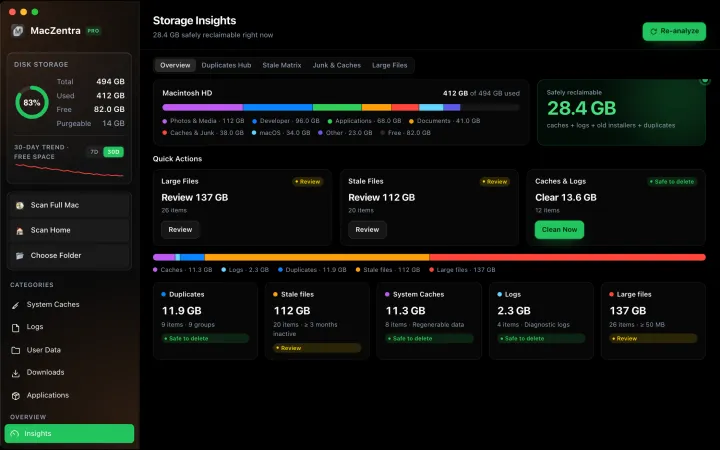
Free up space · 8 min
Free Up Space on Mac: 10 Fixes, Biggest First
Ten ways to free up Mac storage ranked by typical space recovered. Covers hidden Library folders and leftovers macOS Storage settings never show.
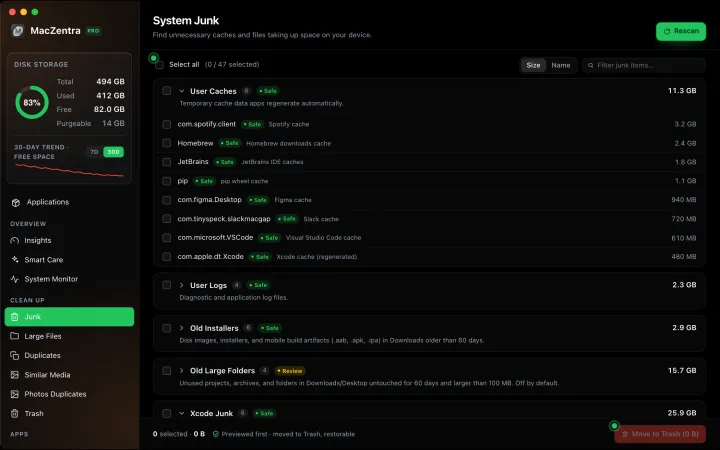
Free up space · 5 min
~/Library/Caches: What's Safe to Delete on Mac
Which ~/Library/Caches folders are safe to delete, which to keep, and how to clear them without breaking apps.
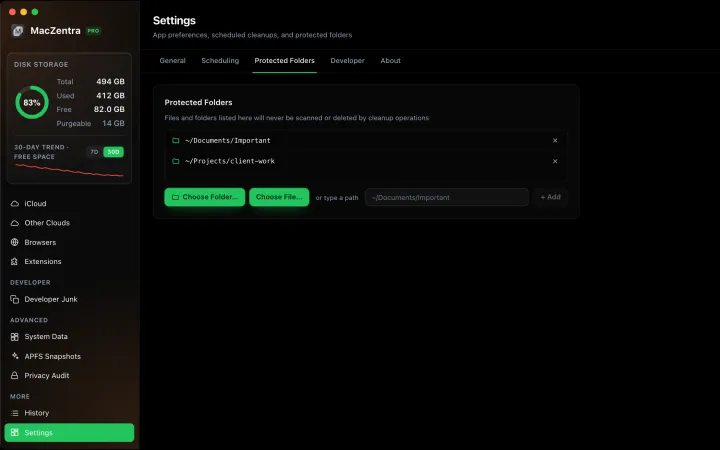
Free up space · 3 min
Protected Files & Folders: Keep Items Safe
How the built-in protected paths guard system-critical locations, and how to add your own custom folders to prevent accidental deletion.

Free up space · 4 min
Smart Care: One-Click Maintenance for Your Mac
Automate daily maintenance with Smart Care: clear caches, empty Trash, flush DNS, and purge inactive memory in a single workflow. Schedule it or run it on demand.