
Free up space
How to Clear Cache on Mac: System, App, Browser
The MacZentra team · Updated Nov 17, 2026 · 6 min read
To clear cache on a Mac, quit the app first, then delete the contents of its folder inside ~/Library/Caches, or use the browser’s own clear-data setting. App and browser caches are safe to remove because they rebuild. This guide shows how to clear cache on your Mac for each type, which caches you can delete, and why the space comes back.
What a cache is, and why clearing it only helps for a while
A cache is a saved copy of something an app already downloaded or worked out: a thumbnail, a web page, a compiled build, a search index. It exists to make the next run faster. Delete it and the app simply creates it again.
That has two consequences. Clearing a cache is low risk, and the first launch afterwards is a little slower. It also means the space is temporary. A browser you use every day will refill its cache within weeks, so treat cache clearing as an occasional tidy-up, not a permanent fix. If the disk is nearly full, the bigger wins are usually elsewhere, which the guide on how to check storage on a Mac helps you pin down.
Which caches can I delete on a Mac?
Here is the short version. Each row links to a deeper guide below.
| Cache type | Where it lives | Safe to clear? |
|---|---|---|
| User app caches | ~/Library/Caches/<app> | Yes, with the app quit. Delete inside the folder, not the folder itself |
| Safari | Managed by Safari | Yes, from Safari’s Develop menu. Leave its folders on disk alone |
| Chrome | ~/Library/Caches/Google/Chrome | Yes, from Chrome’s Delete browsing data window |
| Firefox | ~/Library/Caches/Firefox | Yes, from Firefox’s Clear Data window |
| Shared system caches | /Library/Caches | Usually small. Leave it unless one subfolder is clearly huge |
| macOS system caches | /System/Library/Caches and /private/var/folders | No. macOS manages them, and a restart clears what it can |
| Developer caches | ~/Library/Caches/Homebrew, ~/.gradle/caches and similar | Yes. Tools re-download what they need |
1. Clear user app caches in ~/Library/Caches
This is where most of the clearable space sits. Each app keeps a subfolder here, usually named after its bundle ID, such as com.spotify.client. In Finder, choose Go → Go to Folder (⇧⌘G), type ~/Library/Caches and press Return.
To see which folders are biggest before you touch anything:
du -sh ~/Library/Caches/* 2>/dev/null | sort -h | tail -20
- Quit the app whose cache you want to clear.
- Open its folder and select the files inside. Leave the folder itself in place.
- Move them to the Trash, then empty the Trash. The space only comes back after that.
A few Apple folders in there belong to running system services and are best left alone. The full list is in which Library caches are safe to delete.
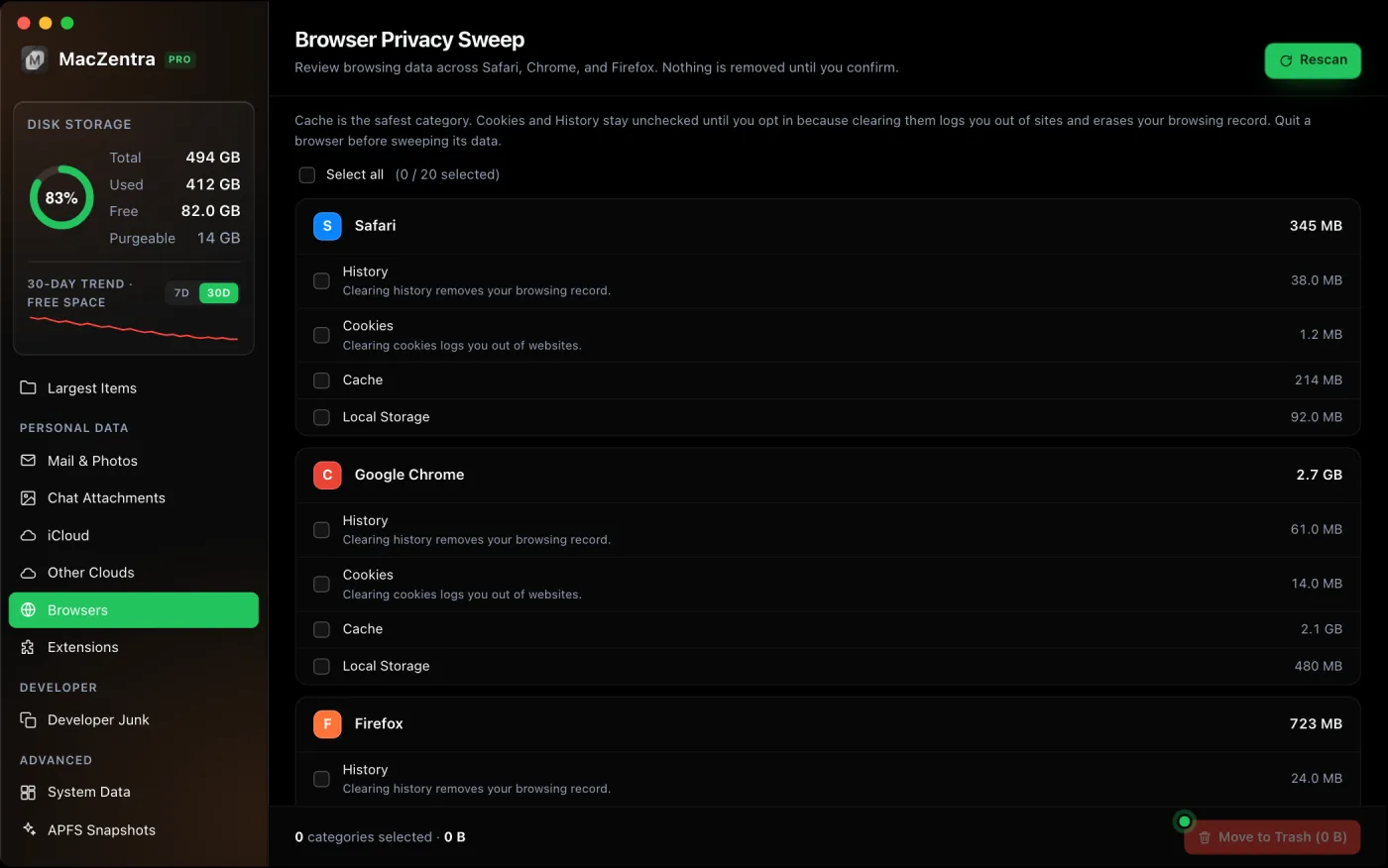
2. Clear browser cache on Mac: Safari, Chrome and Firefox
Browsers are the most common reason people want to clear a cache, and the cleanest route is the browser’s own control. It handles the databases the browser keeps open, which is why the full guide to clearing browser cache on Mac says to avoid deleting files by hand while a browser is running.
Safari clear cache on Mac
Safari hides this behind the Develop menu. Open Safari → Settings → Advanced and turn on the option to show the Develop menu (newer versions word it as “Show features for web developers”). Then choose Develop → Empty Caches. With the menu enabled, the shortcut is ⌥⌘E. To clear history as well, use Safari → Clear History.
Clear cache on Mac in Chrome
Press ⇧⌘⌫ in Chrome to open the Delete browsing data window, or find it under Settings → Privacy and security. Tick Cached images and files and leave cookies and passwords unticked unless you want to be signed out of websites. Pick a time range and confirm.
Firefox
Open Settings → Privacy & Security, scroll to Cookies and Site Data and click Clear Data. Tick only Cached Web Content if you want to keep your logins.
3. System caches: what to leave alone
There are two system-level places people ask about. /Library/Caches is shared by every account on the Mac and is normally small, and our comparison of /Library/Caches and ~/Library/Caches explains why the space is almost always in your own user folder instead. Deleting from it often asks for an administrator password, which is a hint to slow down.
The other is /private/var/folders, where macOS keeps temporary and cache data for running software. Don’t clear it by hand. What /var/folders is covers it in detail. A normal restart lets macOS clean up the parts it no longer needs, and that is the safest “clear system cache” step there is.
If the grey System Data bar in Storage settings is what worries you, read what System Data is and how to shrink it. It is a mix of caches, logs and snapshots, not one folder you can empty.
4. Developer caches: Homebrew, Xcode, Gradle and more
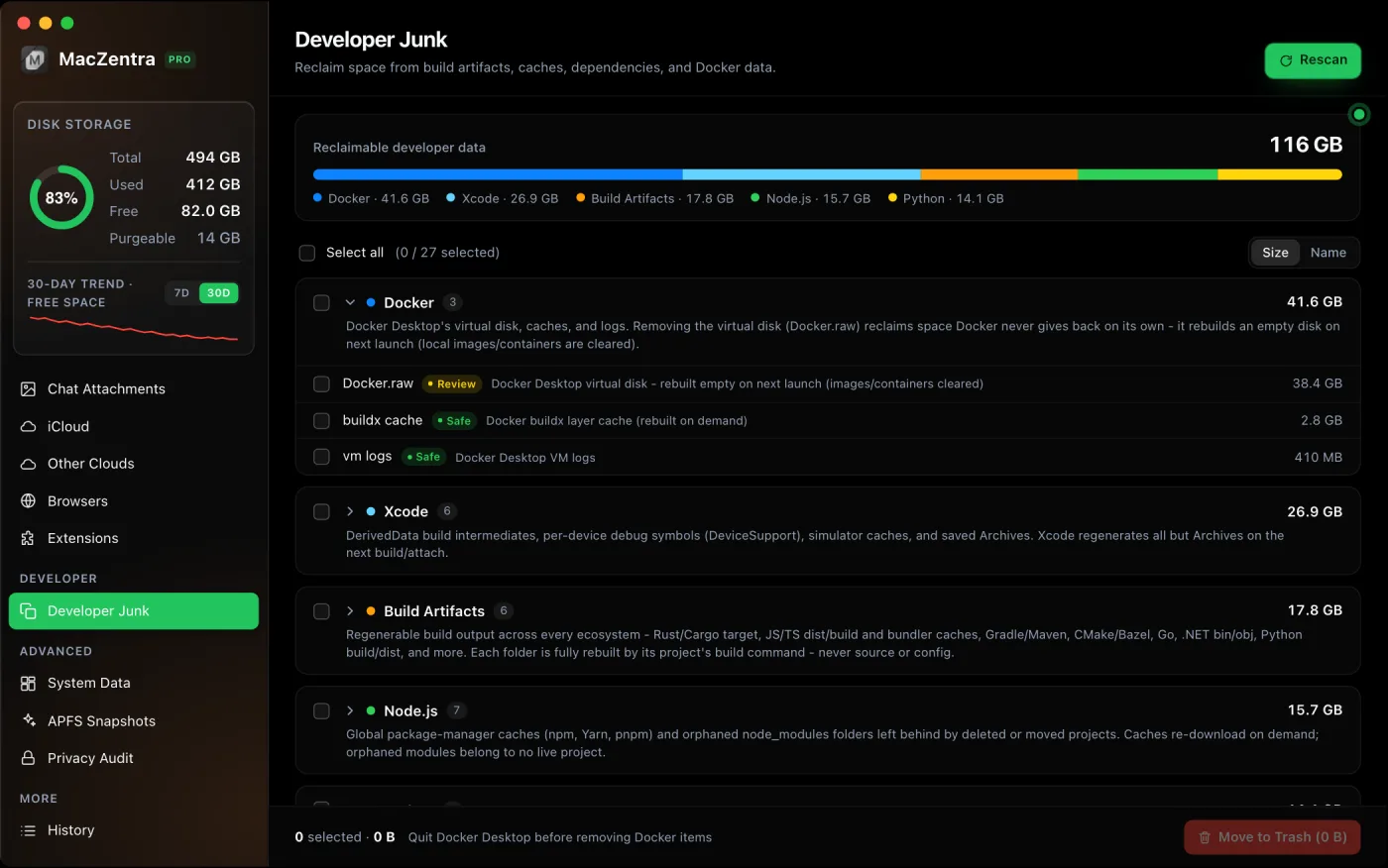
If you write code, this is often the biggest category. Package managers keep every archive they ever fetched, and build tools keep output for every project. Each has its own command, for example brew cleanup -s for Homebrew, and clearing Homebrew, pip and Gradle caches lists the folder and command for each one. Measure first, then delete the largest.
Is there a shortcut to clear cache on a Mac?
There is no single shortcut that clears every cache, and that is deliberate, since each cache belongs to a different app. The useful ones are per app: ⇧⌘⌫ opens Chrome’s clear-data window, ⌥⌘E empties Safari’s caches once the Develop menu is on, and ⇧⌘G opens the Go to Folder box for the Library paths above.
How much will clearing the cache free up?
It varies a lot. A Mac that has never been cleaned can hold many gigabytes across app caches, browsers and developer tools, while a tidy one holds a few hundred megabytes. Run the du command above and you will know in seconds.
Because caches rebuild, the lasting space savings come from other places: large files, duplicates and apps you no longer use. The checklist to free up space on a Mac orders those by how much each returns.
Questions people ask
Is it safe to clear cache on a Mac?
Yes for app, browser and developer caches. They hold copies of data that can be fetched or rebuilt. Quit the app first and delete the contents of its folder, not the parent folder. Leave Apple’s system cache folders to macOS.
Will clearing cache delete my passwords or files?
No. Cached data is separate from your documents and saved passwords. In a browser, only cookies and site data sign you out, so tick the cache option on its own.
Why does my Mac get slower after I clear the cache?
The first launch of an app, or the first visit to a site, has to rebuild what you removed. It evens out within minutes or a day of normal use. If a Mac stays slow, the cause is usually memory or a full disk, not the cache.
How often should I clear cache on my Mac?
Only when you need the space or an app is misbehaving. There is no benefit in clearing caches on a schedule, since they refill and the rebuild costs time.
Does clearing cache free up system data on a Mac?
Partly. User caches count toward System Data, so removing them lowers the number, but local snapshots and logs are part of it too. See the System Data guide linked above for the other pieces.
Everything MacZentra can clean
Treemap and Sunburst disk maps, a duplicate finder, Developer Junk, a complete app uninstaller and more, in one native storage cleaner for Mac that’s 15.4 MB.
Explore all features →Related guides
Free up space · 8 min
Free Up Space on Mac: 10 Fixes, Biggest First
Ten ways to free up Mac storage ranked by typical space recovered. Covers hidden Library folders and leftovers macOS Storage settings never show.
Free up space · 5 min
Is It Safe to Delete Library Caches on Mac? What to Keep and Clear
Yes for most apps. See which ~/Library/Caches and /Library/Caches folders are safe to delete, which to leave alone, and how to clear them step by step.
Free up space · 3 min
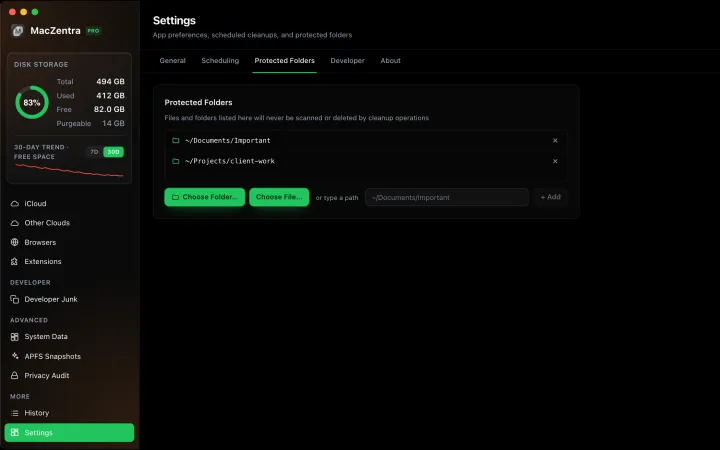
Protected Files & Folders: Keep Items Safe
How the built-in protected paths guard system-critical locations, and how to add your own custom folders to prevent accidental deletion.

Free up space · 4 min
Smart Care for Mac: Automate Cache, Trash and Memory Cleanup
Automate Mac maintenance with Smart Care: clear caches, empty Trash, flush DNS and purge inactive memory in one workflow. Schedule it or run it on demand.