Free up space
Find Unused Apps Taking Space on Your Mac
The MacZentra team · Updated Oct 18, 2026 · 8 min read
Most Macs have a dozen apps nobody has opened in a year. Each one takes disk space, and the big ones, like video editors, game launchers and creative suites, can take several gigabytes. This guide shows how to find unused apps on a Mac, sort them by size and last use, and delete them properly so their leftover files go too.
Deleting the app itself is only half the job, because apps scatter support files across your Library folder. We cover that part in depth in how to completely uninstall apps on a Mac. This article is about the step before it: deciding which apps are worth removing in the first place.
Step 1: List your apps by size
Start with the heaviest apps, because removing five big ones frees more than removing fifty small ones. Open Finder, go to Applications and switch to List view with Command-2. Then show the Size column:
- Choose View, then Show View Options (or press Command-J).
- Tick Size and Date Last Opened if they're not already on.
- Click the Size column header to sort the biggest apps to the top.
Finder often leaves folder sizes blank until it has calculated them. Tick Calculate all sizes in the same options panel and wait a moment.
Prefer Terminal? This prints your ten largest apps:
du -sh /Applications/*.app 2>/dev/null | sort -hr | head -10
Step 2: Check when you last used each one
Size tells you what's expensive. Last-opened date tells you what's idle. In the same Finder view, click Date Last Opened to sort the oldest first. Anything you haven't opened in six months or more is a real candidate.
For a single app, Terminal gives the exact date. Replace the app name with the one you're checking:
mdls -name kMDItemLastUsedDate "/Applications/Keynote.app"
If the result is (null), Spotlight has no record of you opening it, which usually means it hasn't been used since the Mac was set up or migrated.
Step 3: Sort apps into three piles
With size and last use in front of you, put each app into one of three groups. This keeps the decision quick.
| Pile | What it looks like | What to do |
|---|---|---|
| Remove | Big, not opened for 6+ months, you know what it is | Uninstall it, leftovers included |
| Check | Big, but you aren't sure whether something depends on it | Look at Login Items and search before deciding |
| Keep | Small, or used within the last few weeks | Leave it. The gain isn't worth the risk. |
Be strict about the Remove pile and generous about Keep. An app you reinstall next month saves nothing, and a stale license key or lost setting can cost you an afternoon.
The apps that usually hide the most space
You don't need to review every app. These categories are where the gigabytes tend to sit:
- Video and audio editors. The app itself is large, and so are the sound libraries and render caches they leave in your Library.
- Creative suites. A full set of design or photo apps can pass 10 GB before you open a single project.
- Game launchers and games. Games installed through a launcher live in their own folders, and a single title may take 20 GB or more.
- IDEs and developer tools. Old versions of IDEs and Xcode pile up. The Xcode DerivedData guide covers the data these leave behind.
- Apps from a Mac you migrated. Migration Assistant copies everything, including apps you stopped using on the old machine.
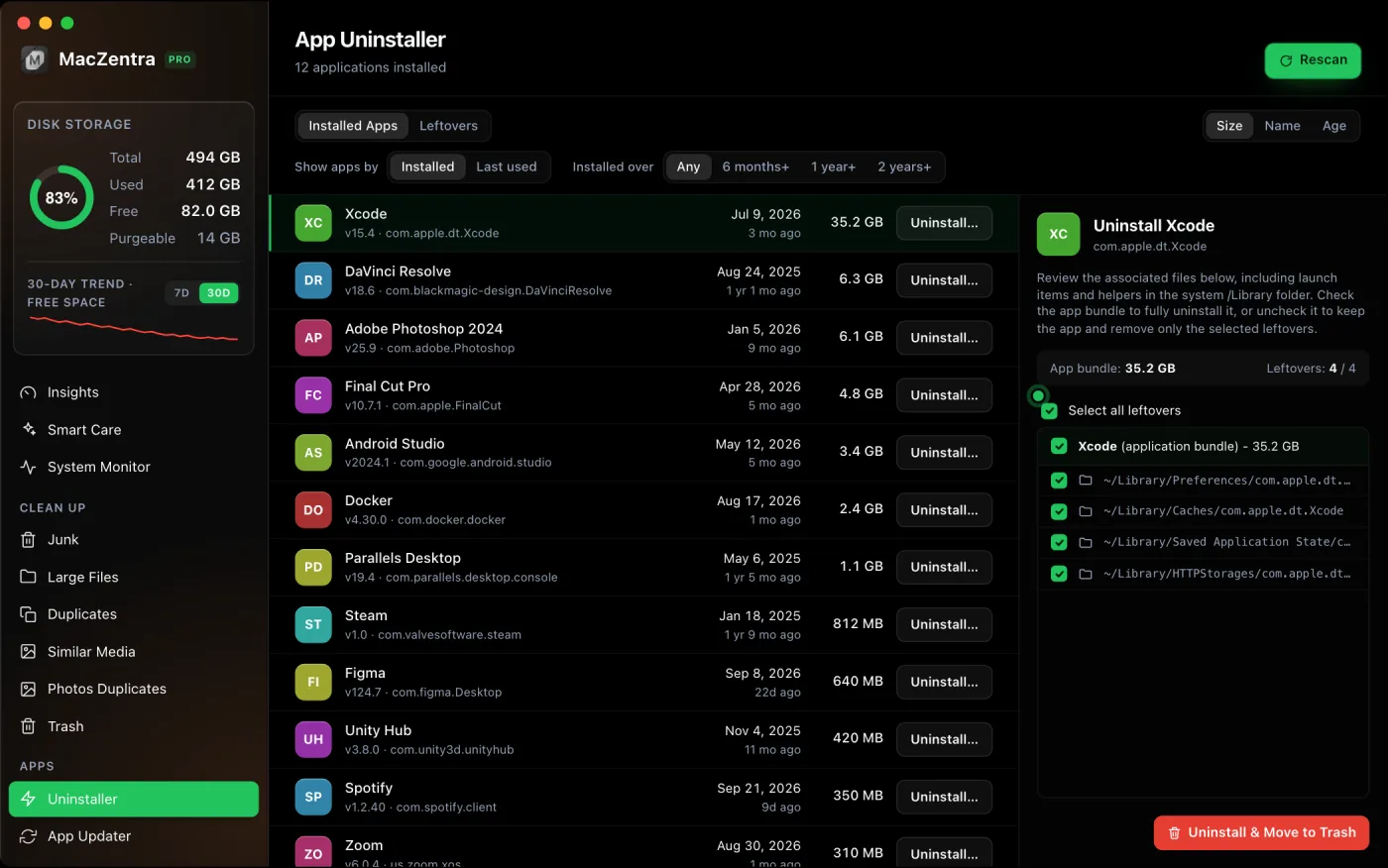
Step 4: Remove the app, and its leftovers
You have two routes. The free one uses Finder and takes a few more steps per app.
- Quit the app, and check Activity Monitor if it won't close.
- Drag it from Applications to the Trash.
- Look in
~/Library/Application Support,~/Library/Cachesand~/Library/Preferencesfor folders named after the app or its developer. - Move those to the Trash too, and empty the Trash when you're sure.
Step three is where people stop, and it's where the hidden space is. A deleted app can leave behind hundreds of megabytes of support files. Our guide on uninstalling apps with leftovers shows how to find them by bundle ID, and the Library caches guide explains which of those folders are safe to clear.
A few apps ship their own uninstaller, often for security software, drivers and some creative suites. If the app's download page mentions one, use that first, because it can remove system-level components that dragging to the Trash won't.
Step 5: Keep the rest up to date
Apps you keep deserve current versions, both for security and because old builds often leave stale caches behind. If you installed some apps with Homebrew and others from the App Store or a developer's site, it's hard to track updates by hand. Our App Updater guide shows how to check them all in one pass.
A 15-minute app clean-up
- Open Applications in List view and sort by Size.
- Add Date Last Opened and note every large app idle for six months or more.
- Check Login Items so you don't remove something that runs quietly.
- Quit and uninstall the apps in your Remove pile.
- Clear their leftovers from the Library folders, or use an uninstaller that finds them.
- Empty the Trash and check System Settings, General, Storage.
Old macOS installers and duplicate app copies
Look for two kinds of leftovers that aren't really apps. The first is a macOS installer. If you ever downloaded an upgrade, a file named something like Install macOS followed by a version name may still sit in Applications, often well over 10 GB. Once the upgrade is done, it is safe to delete, and you can download it again from Apple if you need it.
The second is a duplicate. Names ending in a number, such as an app followed by "2", or both an old and a new version side by side, usually mean an upgrade left the old copy behind. Compare the version numbers in Get Info, keep the newest and remove the other.
Move apps instead of deleting them
For a big app you use a few times a year, there's a middle option. Many apps can run from an external drive, so you can drag the app to an external SSD and launch it from there when you need it. Check the app's support page first, because apps that install system components or rely on Library data may not work from a different location. Games and large creative apps are usually fine, and small utilities are rarely worth the effort.
Whichever route you take, finish with a quick check of Storage in System Settings so you can see what you gained. If it's less than you hoped, the space may be sitting in documents or system categories instead. The 10 ways to free up space on a Mac guide walks through the rest in order of payoff.
What about apps you rarely use but might need?
Keep a short list of apps you use once or twice a year, such as tax software, a scanner utility or an old editor, and decide for each one whether the space is worth it. If an app is small, keep it. If it is large and free to download again, remove it and reinstall it when the need comes back. The only apps worth worrying about are paid ones with a license tied to the installed copy, so find the license key first and store it in your password manager before you delete anything.
Questions people ask
How do I find apps I haven't used on my Mac?
Sort your Applications folder by Date Last Opened in Finder's List view. For a precise date on a single app, use the mdls command shown above.
Is it safe to delete apps I don't recognise?
Not until you've looked them up. Some apps are helper tools for other software, and Apple's own apps are protected from deletion for good reason. Search the app name first, and leave anything that came with macOS.
Does deleting an app free up all its space?
Only the app bundle itself. Preferences, caches and support files stay in your Library folder until you remove them as well, which is why the leftovers step matters.
Can I get a deleted app back?
Yes. If it's still in the Trash, drag it out. App Store apps can be downloaded again from your purchase history, and other apps can be reinstalled from the developer, though you may need your license key.
Everything MacZentra can clean
Treemap and Sunburst disk maps, a duplicate finder, Developer Junk, a complete app uninstaller and more, in one native storage cleaner for Mac that’s about 15 MB.
Explore all features →Related guides
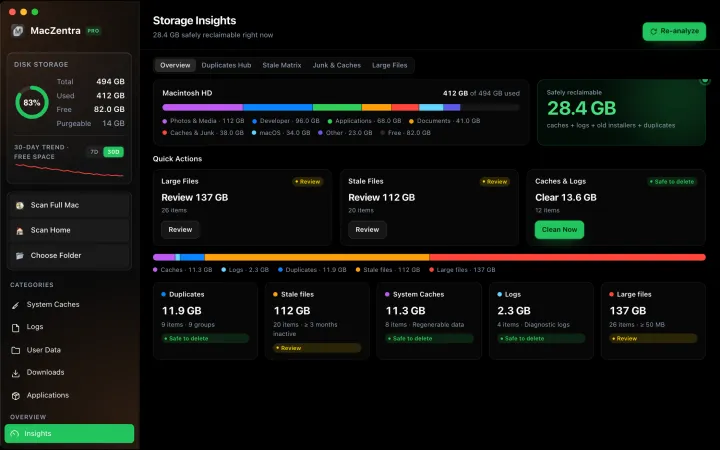
Free up space · 8 min
Free Up Space on Mac: 10 Fixes, Biggest First
Ten ways to free up Mac storage ranked by typical space recovered. Covers hidden Library folders and leftovers macOS Storage settings never show.
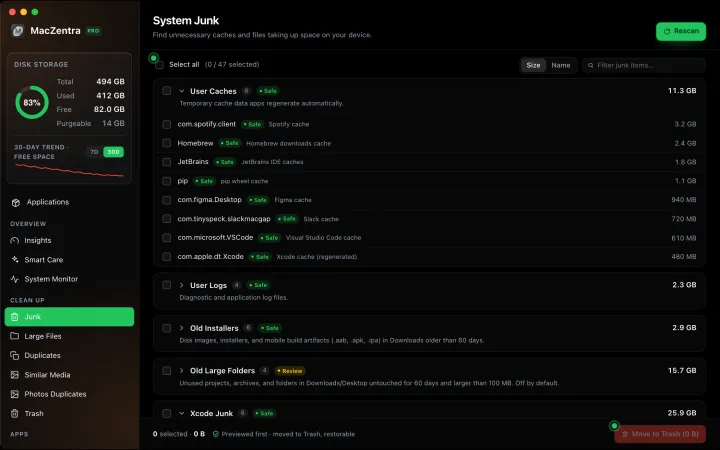
Free up space · 5 min
~/Library/Caches: What's Safe to Delete on Mac
Which ~/Library/Caches folders are safe to delete, which to keep, and how to clear them without breaking apps.
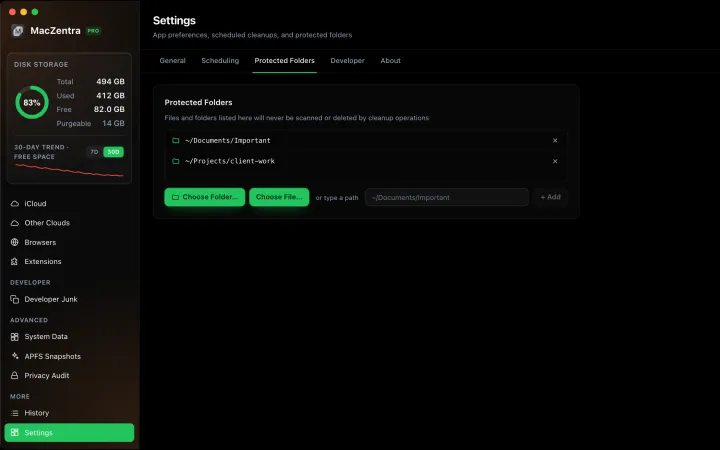
Free up space · 3 min
Protected Files & Folders: Keep Items Safe
How the built-in protected paths guard system-critical locations, and how to add your own custom folders to prevent accidental deletion.

Free up space · 4 min
Smart Care: One-Click Maintenance for Your Mac
Automate daily maintenance with Smart Care: clear caches, empty Trash, flush DNS, and purge inactive memory in a single workflow. Schedule it or run it on demand.