Check storage
Mac Storage Optimization That Actually Works
The MacZentra team · Updated Oct 18, 2026 · 6 min read
Mac storage optimization sounds like a switch you flip and forget. In practice it's a handful of macOS settings that clear the easy stuff, and a handful of folders they never touch. Here's what the built-in tools really do, where they stop, and how to reclaim the rest without paying for a subscription.
What macOS cleans up on its own
Open System Settings, then General, then Storage. You'll see a colour bar and a list of recommendations. Behind it, macOS quietly manages something called purgeable space: files it can remove or re-download when the disk gets tight, such as some caches, local snapshots and iCloud files that already live online. You don't have to do anything for that part.
| Setting | What it does | Where it stops |
|---|---|---|
| Optimize Mac Storage | Keeps full-size iCloud files in the cloud and leaves smaller local copies when space runs low. | Needs iCloud storage and a connection to get files back. Does nothing for files that aren't in iCloud. |
| Empty Trash Automatically | Deletes items that have been in the Trash for 30 days. | Only touches the Trash. |
| Store in iCloud | Moves Desktop, Documents and Photos to iCloud. | Costs iCloud storage and doesn't clean anything, it relocates it. |
How much free space is enough
There's no official number, but a rule of thumb many people follow is to keep 10 to 20 percent of the drive free. Below that, a Mac has less room for swap files, caches and the temporary space a macOS update needs while it installs. Some updates can ask for 15 GB or more during the process, so a drive that's nearly full may refuse to update at all.
What the built-in tools leave alone
This is where most of the missing gigabytes hide.
- System Data. A catch-all bucket of caches, logs and snapshots. Our guide to System Data on Mac explains what's inside.
- Developer leftovers. Xcode DerivedData, Docker images and package caches can reach tens of gigabytes.
- Browser caches. Safari, Chrome and Firefox keep growing until you clear them. See how to clear browser cache on a Mac.
- App leftovers. Dragging an app to the Trash leaves its preferences and support files behind. Here's how to uninstall apps properly.
- Duplicates and old downloads. Installers, disk images and repeated copies of the same file.
Find the big wins by size
Guessing wastes time. Sort by size instead. In Finder, press Command-F, click the Kind menu, choose Other and add File Size. Set it to "is greater than" and try 500 MB, then 1 GB if the list is too long. Videos, disk images, old installers and virtual machines show up fast. Our guide on finding large files on a Mac goes deeper.
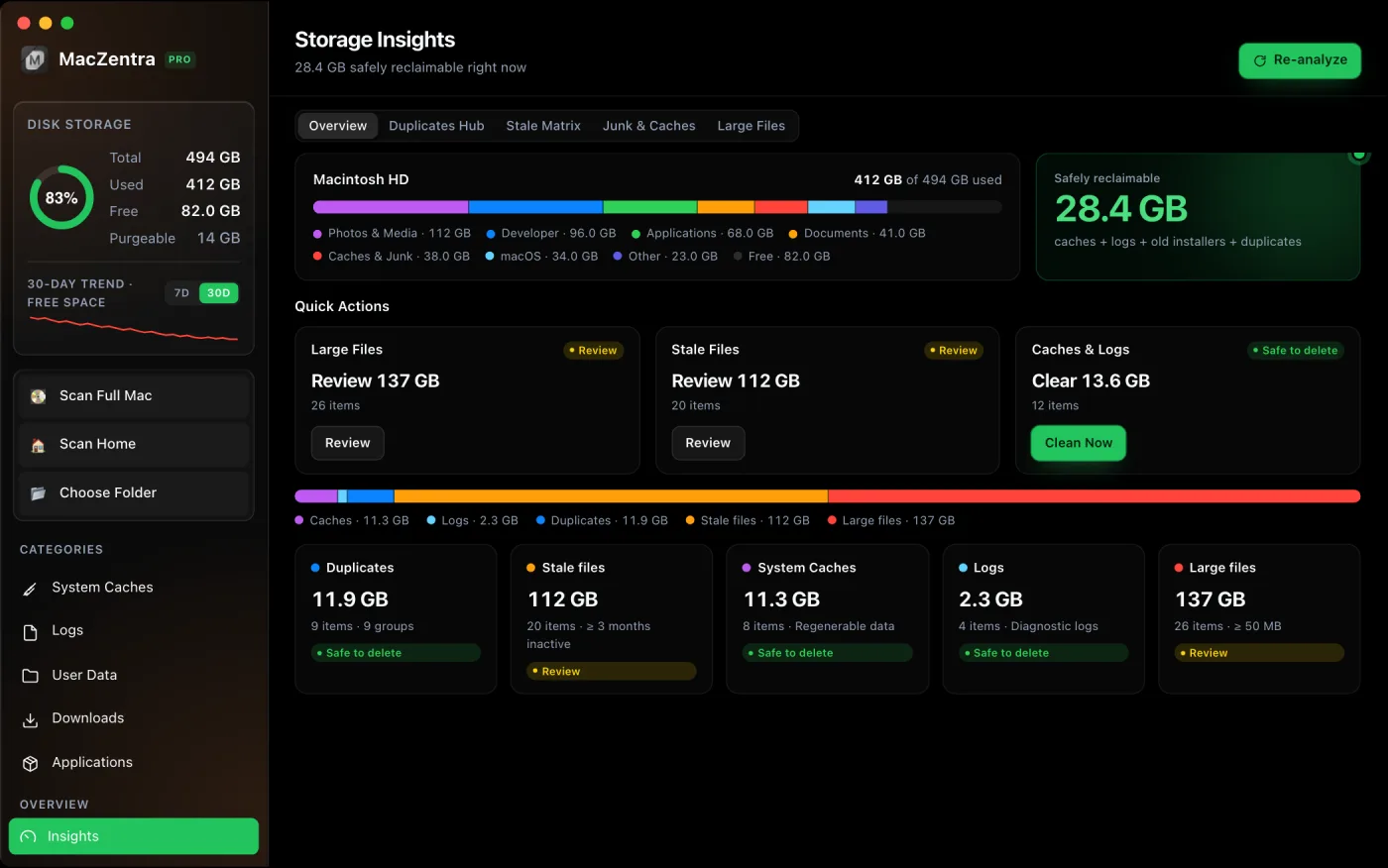
Lists only go so far, because they don't show how folders relate. A visual map does. When a folder you forgot about takes up a quarter of the drive, you see it straight away.
A 15 minute monthly routine
- Check the Storage bar in System Settings and note the free space.
- Turn on Empty Trash Automatically if it's off.
- Sort Downloads by size and delete old installers and disk images.
- Clear browser caches with the browser closed.
- Look at the biggest folders on a visual map, and clean one at a time.
- Write the free-space number down so you can see the trend.
Questions people ask
Should I turn on Optimize Mac Storage?
If you already pay for iCloud and your drive is nearly full, yes. If you often work offline or with huge video files, think twice, because pulling files back needs a connection. The trade-offs are covered in our iCloud guide.
Where do I turn Optimize Mac Storage off?
Open System Settings, click your name, choose iCloud, then iCloud Drive, and switch off Optimize Mac Storage. Make sure the drive has room first, because macOS will start downloading the files that were stored online.
What is the fastest way to free up space?
Empty the Trash, delete old installers and disk images, then look at the largest folders. Those three steps usually recover more than everything else combined. Our list of 10 fixes ranked by size has the full order.
Do I need a cleaning app at all?
Not always. The built-in tools and a Finder search can get you far. An app earns its place when you want a visual map, safer cleanup of developer data and caches, and a way to repeat the job in minutes. If you're comparing options, our Mac cleaner comparison lays out price, size and features.
Everything MacZentra can clean
Treemap and Sunburst disk maps, a duplicate finder, Developer Junk, a complete app uninstaller and more, in one native storage cleaner for Mac that’s about 15 MB.
Explore all features →Related guides
Check storage · 7 min
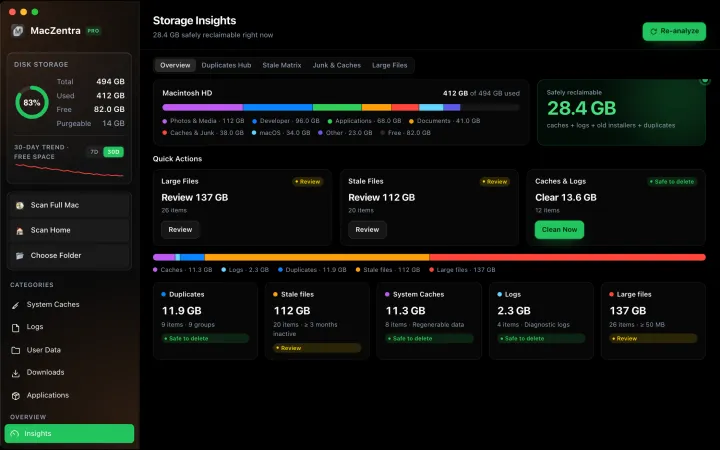
Best Mac Storage Cleaners 2026: Compared & Ranked
Mac cleaners compared by price, size, scan speed and licence type. One-time-purchase, subscription and free options side by side.
Check storage · 5 min
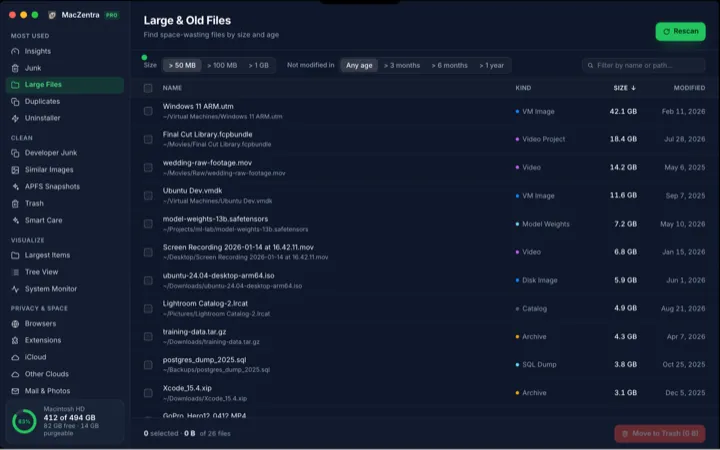
How to Find Large Files on a Mac: 4 Ways, From Built-in to Terminal
Find the biggest files on your Mac using Storage settings, Finder, Terminal or a treemap. Includes how to spot big folders full of small files.
Check storage · 6 min
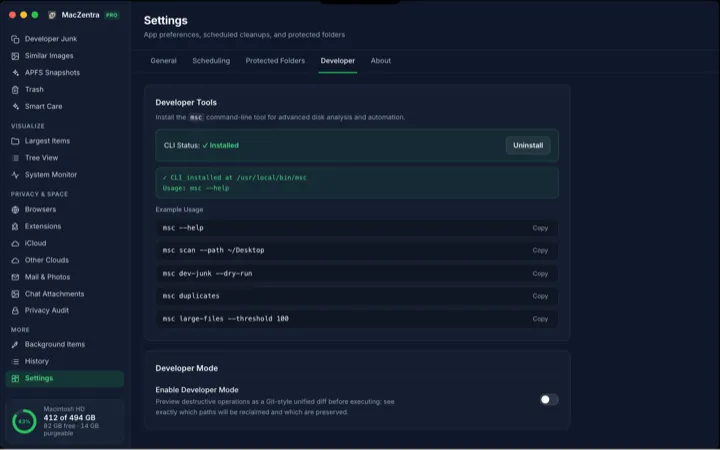
MacZentra CLI: Command Reference and Use Cases
The msc command runs MacZentra from the terminal. Scan paths, find duplicates, check developer junk and preview deletions without opening the app.
Check storage · 3 min
Low-Disk Alerts from Your Mac's Menu Bar
MacZentra watches free space in the background and sends one native alert when it drops below your threshold. Run Smart Care from the tray.