
System Data
Purgeable Space on Mac: What It Is
The MacZentra team · Updated Nov 22, 2026 · 6 min read
Purgeable space on a Mac is storage that macOS is using now but will hand back automatically when something else needs the room. It’s made up of things like local snapshots, cached copies of iCloud files and system caches. That’s why Finder can show more free space than Disk Utility or Terminal: Finder counts purgeable space as available, and the others report it separately.
What purgeable space actually contains
Think of it as space on loan. The data is real and sits on your disk, but macOS can rebuild or re-download it, so the system treats it as free when it plans how much room you have. The usual contents are:
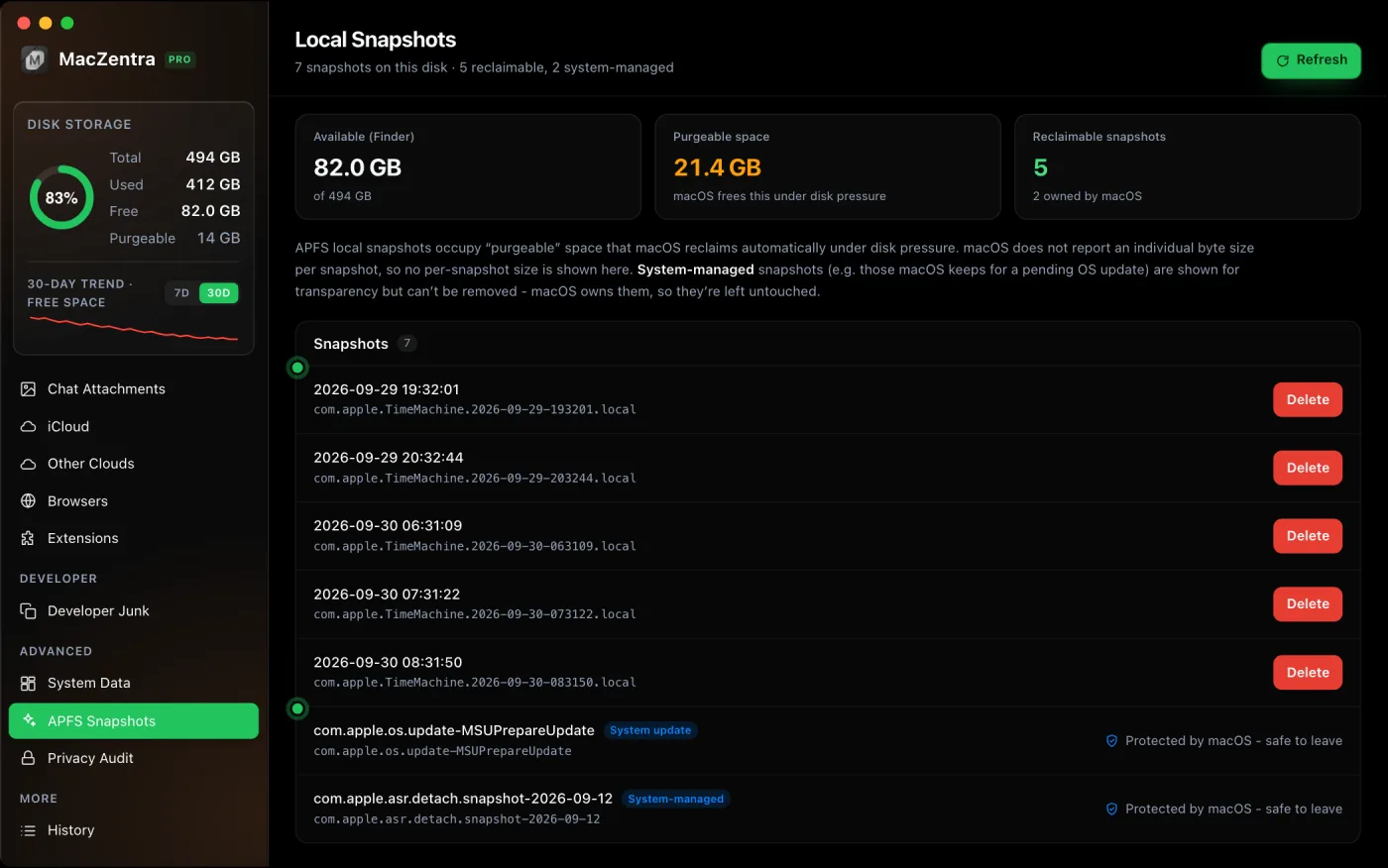
- Local Time Machine snapshots. Short-lived copies of the disk that let you roll back files. See APFS local snapshots for how they’re made.
- iCloud files kept locally. With Optimize Mac Storage on, files that are also in iCloud can be removed from the disk when space runs low and downloaded again later.
- Caches and temporary files. Data the system or an app can regenerate.
- Photos and media the system can re-fetch. Items that are safely stored in iCloud.
The exact mix is chosen by macOS and isn’t listed anywhere as a folder you can open. That’s the point of the label: it’s a bookkeeping category, not a place.
Why Finder and Storage settings show different free space
Each tool answers a slightly different question. Finder, and the Storage screen in System Settings, report space that is available for use if macOS clears purgeable data. Disk Utility shows what is free and what is purgeable on separate lines. Terminal’s df reports the blocks that are free right now, with no purgeable allowance.
| Where you look | What the free figure includes | Why it differs |
|---|---|---|
| Finder, Get Info | Free space plus purgeable | Counts what macOS could reclaim |
| Storage settings | The same idea, shown by category | Categories are worked out in the background and can shift |
| Disk Utility | Free and purgeable on separate lines | Shows the split in one place |
| Terminal, df | Only space free right now | Ignores anything purgeable |
None of them is wrong. If you’re trying to work out whether a download will fit, the Terminal figure is the cautious one, and Finder’s number is what the system expects to have available. Our guide to how to check storage on a Mac shows all of these side by side.
# Space free right now, with no purgeable allowancedf -h /# List local snapshots on the startup disk (read only)tmutil listlocalsnapshots /
Both commands only read information. The second one lists snapshot names with their dates, which is a quick way to see whether snapshots are part of what you’re looking at.
How macOS frees purgeable space
You don’t have to ask. macOS reclaims purgeable data on its own when free space gets low, when an app asks for a large block, or when an update needs room to install. Local snapshots are also removed on a schedule, roughly within a day, and sooner if the disk is under pressure. This is designed behaviour, which means a Mac with a lot of purgeable space is not a Mac with a problem.
It also explains a common confusion. After you delete a big file, free space may not rise right away, because a snapshot taken earlier is still holding those blocks. Storage not freeing up after deleting files covers what to check.
Can you clear purgeable space yourself?
You can reduce some of it, but you rarely need to. Emptying the Trash and removing files you no longer want is the safe route, and it works on real files rather than on bookkeeping. If you want free space to rise quickly, work through 10 fixes to free up space on a Mac, biggest first.
A few things are worth knowing before you try shortcuts. Turning off iCloud features doesn’t help, because it can force full downloads and use more space. And be wary of any trick that claims to purge everything at once: macOS decides what is safe to release, and interfering with that is how files go missing.
A practical example: you want 20 GB for a large download and Finder says it fits, but Terminal says it doesn’t. If macOS has enough purgeable data to release, the download will go ahead and the system will clear what it needs. If the purgeable part is mostly snapshots that are still protected, it may take a little longer. Either way, clearing old files you can see, such as a cluttered Downloads folder, gives you room that doesn’t depend on macOS at all.
How purgeable space relates to System Data
Part of what you see in the System Data category is purgeable, and part is not. Snapshots and caches can sit in both views, which is why the numbers rarely add up neatly. If that grey bar is the real worry, what System Data is and how to shrink it goes deeper, and what “Other” means in Mac storage covers the older name for it.
If iCloud is the main reason your numbers jump around, it helps to know how much you actually store there. See how to work out which iCloud storage plan you need.
Questions people ask
What is purgeable space on a Mac?
It’s storage in use that macOS can free automatically when it needs room, such as local snapshots, optimized iCloud files and caches.
Is purgeable space counted as free space?
In Finder and Storage settings, yes. Disk Utility lists it on a separate line, and Terminal’s df leaves it out.
Should I delete purgeable space on my Mac?
No. macOS clears it when needed. Focus on files you can see and choose to remove, like large downloads and old installers.
Why does my Mac show a lot of purgeable space?
Usually because of local snapshots and files stored in iCloud with Optimize Mac Storage turned on. It’s normal and varies day to day.
Why is my purgeable space not going away?
macOS only releases it when it needs the room, so it can stay large on a disk that isn’t under pressure. That’s expected, not a fault.
Everything MacZentra can clean
Treemap and Sunburst disk maps, a duplicate finder, Developer Junk, a complete app uninstaller and more, in one native storage cleaner for Mac that’s 15.4 MB.
Explore all features →Related guides
System Data · 7 min
What Is System Data on Mac? And How to Shrink It
What is System Data on Mac? The grey bar in macOS Storage. See what it holds, how much is normal, and why it grows after a macOS update.
System Data · 4 min
/Library/Caches vs ~/Library/Caches: What's the Difference?
/Library/Caches is shared by every user; ~/Library/Caches is yours. Real sizes from a Mac we checked, why the sticky bit matters, and which one to clear.
System Data · 5 min
What Is /var/folders on Mac? Why It Uses GBs
What /private/var/folders holds, the 0, C, T and X folders, real sizes from a Mac we checked, and what is safe to clear. Includes the commands to measure it.
Check storage · 9 min
Best Mac Storage Cleaners 2026: Compared & Ranked
Mac storage cleaners and disk space analyzers compared by price, size, scan speed and licence. One-time, subscription and free options side by side.