
Free up space
How Much Free Space Does a Mac Need?
The MacZentra team · Updated Nov 23, 2026 · 6 min read
A Mac needs roughly 10 to 20 percent of its drive free to run well, and more if you install big updates or edit video. On a 512 GB MacBook that is about 50 to 100 GB. If you have under 20 GB free, the fastest way back is to find the few largest folders first, not to clear caches. This guide gives the targets and a plan with checkpoints.
How much free space should a Mac have?
macOS uses free space for temporary files, for virtual memory when RAM fills up, for update downloads and for local snapshots. When it runs short, apps stall, saves fail and an update may refuse to start. Here is a sensible target by drive size.
| Drive size | Minimum to stay healthy | Comfortable target |
|---|---|---|
| 256 GB | 25 GB | 50 GB |
| 512 GB | 50 GB | 100 GB |
| 1 TB | 100 GB | 200 GB |
| 2 TB | 200 GB | 400 GB |
If you edit video, work with large photo libraries or run Docker and Xcode, aim for the comfortable column. Those jobs create big temporary files without warning.
Under 20 GB free on a 512 GB Mac: a plan with checkpoints
At that level you are under 4 percent free. The goal is to reach 75 to 100 GB free, and the order below puts the biggest wins first. Check System Settings, then General, then Storage after each step, and stop when you hit the target.
- Read the storage bar. Note which category is biggest: Applications, Documents, Photos, Messages or System Data. That tells you where to look first. Our guide to checking storage on a Mac shows the options.
- Empty the Trash and clear Downloads. Old disk images and installers often add up to several GB. Sort Downloads by size and delete what you have already used.
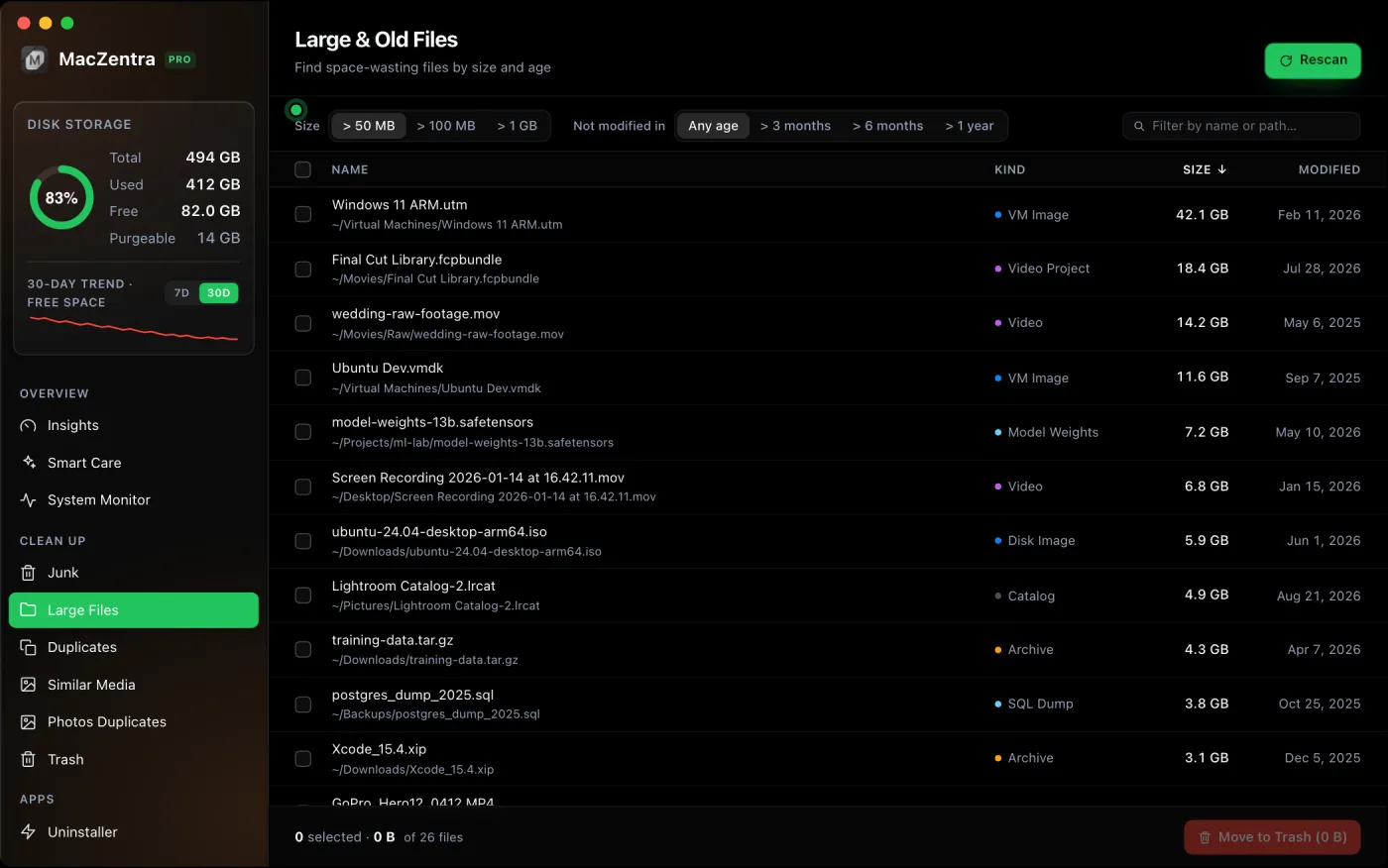
- Find the largest files and folders. A handful usually holds most of the space. See how to find large files on a Mac, and check which large files are safe to delete before removing anything.
- Remove old iPhone and iPad backups. One backup can be tens of GB. Keep the latest and read how to delete iPhone backups on a Mac first.
- Uninstall apps you don’t use. Do it properly so the leftovers go too, as in uninstalling apps on a Mac completely.
- Look at System Data. If it is over 50 GB, see what System Data is and local snapshots.
- Clear caches last. They help, but apps rebuild them, so the gain often fades. Our cache guide says which ones are safe.
Why caches come last when space is tight
Caches are easy to clear and easy to explain, so cleaners lead with them. With a nearly full 512 GB drive, the space is usually in a few big places: a photo library, an old backup, a video project, a virtual machine or a build folder. Removing those recovers tens of GB. Removing caches often recovers a few, and macOS can clear some automatically when it needs room. See purgeable space for how that works.
Checkpoints
| Free space | What it means | What to do |
|---|---|---|
| Under 10 GB | Updates and some apps will fail | Steps 1 to 4 now |
| 10 to 30 GB | Works, but fragile | Finish steps 1 to 6 |
| 50 to 100 GB | Healthy for a 512 GB Mac | Stop, then keep it there |
Once you are back in range, check once a month. A short routine beats a yearly rescue. If your disk is already full and the Mac is struggling, startup disk full: what to delete first has the fast version. For a longer-term routine, Mac storage optimization that actually works covers the settings worth changing. For the size of macOS itself, see how much storage macOS takes up.
Questions people ask
How much free space does a Mac need to update macOS?
It depends on the version, and the installer tells you if it needs more. As a safe margin, keep tens of GB free before you start, since the update downloads and unpacks files first.
Does a nearly full Mac run slower?
It can. With little free space macOS has less room for virtual memory and temporary files, so apps can stall. If space isn’t the issue, read why your Mac is running slow.
Should I keep 20 percent of my SSD free?
It is a comfortable target, not a hard rule. Anywhere from 10 to 20 percent works for most people, and heavy users should lean higher.
Is clearing caches enough to free 100 GB?
Rarely. Caches are usually a few GB. The big recoveries come from large files, backups, unused apps and System Data.
Everything MacZentra can clean
Treemap and Sunburst disk maps, a duplicate finder, Developer Junk, a complete app uninstaller and more, in one native storage cleaner for Mac that’s 15.4 MB.
Explore all features →Related guides
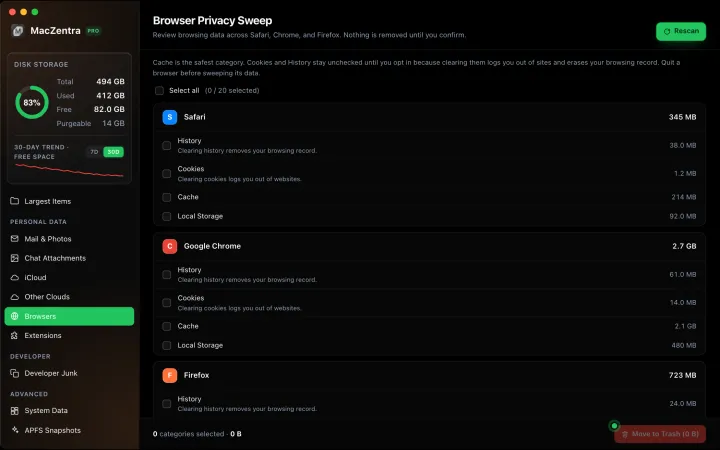
Free up space · 5 min
Clear Browser Cache on a Mac, Safely
Safari, Chrome and Firefox caches hold gigabytes. Where each browser stores cache, history and cookies, how much to clear, and one rule to avoid corruption.
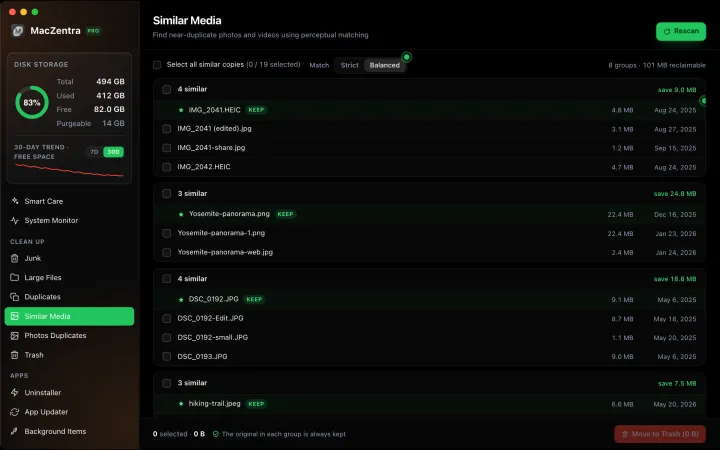
Free up space · 8 min
Find and Delete Duplicate Photos on a Mac
Delete duplicate photos on a Mac: the free Photos Duplicates album, a Finder Smart Folder for loose images, and a near-duplicate scan.
Free up space · 6 min
Chrome Browser Cleanup on Mac: Clear the Right Data
There's no Chrome Cleanup Tool for Mac. See where Chrome keeps its cache and profile data, what's safe to clear, and the best ways to reclaim space safely.
Check storage · 9 min
Best Mac Storage Cleaners 2026: Compared & Ranked
Mac storage cleaners and disk space analyzers compared by price, size, scan speed and licence. One-time, subscription and free options side by side.