
Check storage
Memory vs Storage on Mac: What’s the Difference?
The MacZentra team · Updated Nov 17, 2026 · 6 min read
The difference in memory vs storage on Mac comes down to this: memory (RAM) holds what your apps are doing right now and is cleared when you restart, while storage (the SSD) holds your files, apps and macOS for good. “Out of application memory” is a memory problem. “Your disk is almost full” is a storage problem. The two are linked, though, because a full disk makes memory trouble worse.
Memory vs storage on Mac, side by side
People use the two words as if they meant the same thing. A Mac listed with “16 GB” and “512 GB” has both: 16 GB of memory and 512 GB of storage. They do different jobs, and fixing the wrong one changes nothing.
| Memory (RAM) | Storage (SSD) | |
|---|---|---|
| What it holds | Open apps, tabs and the data they are working on | Your files, photos, apps and macOS |
| When it empties | When you quit an app, or restart the Mac | Only when you delete something |
| Typical size | Single digits to a few dozen GB | Hundreds of GB to a few TB |
| Where you see it | Activity Monitor, Memory tab | System Settings, General, Storage |
| Warning you get | “Your system has run out of application memory” | “Your disk is almost full” |
| Real fix | Quit apps, close tabs, restart | Remove files you no longer need |
A quick way to remember it: memory is the desk you are working at, storage is the filing cabinet. A bigger cabinet doesn’t give you a bigger desk. On Apple silicon Macs the memory is part of the chip and can’t be upgraded later, which is why the amount you buy matters.
How to check Mac memory usage
The tool for this is Activity Monitor. It’s built in, free, and shows live numbers rather than a snapshot.
- Open Activity Monitor from Applications → Utilities, or search for it with Spotlight.
- Click the Memory tab at the top of the window.
- Click the Memory column header to sort apps by how much they use. The busiest one is at the top.
- Look at the bottom panel. It shows Physical Memory, Memory Used, Cached Files and Swap Used, with the Memory Pressure graph beside them.
Ignore the “Memory Used” number on its own. A Mac that uses nearly all its memory is not in trouble, because macOS deliberately keeps spare memory busy with cached files and gives it back the moment an app asks. The graph is the better guide.
How to read the memory pressure graph
- Green: memory is being used efficiently. Nothing to do, even if the used figure looks high.
- Yellow: macOS is working harder to find room, for example by compressing memory. Quitting a heavy app helps.
- Red: the Mac is short of memory and relying heavily on the disk. This is the state that goes with slowdowns and the “out of application memory” message.
Pressure that sits in the green is a healthy Mac, whatever the other numbers say. If it keeps climbing into yellow or red during normal work, you are asking for more memory than the machine has. If your Mac feels slow and the graph is green, memory is not the cause, and why your Mac is running slow covers the other suspects.
How to check storage on a Mac
Storage has its own screen. Open the Apple menu, choose System Settings, click General, then Storage. The bar at the top shows used and free space, and the list below splits it into Applications, Documents, Photos, System Data and other categories.
That is the short version. The full set of methods, including Finder, Disk Utility and Terminal, is in how to check storage on a Mac. For a one-line answer from Terminal, this prints the free space on the startup disk:
df -h /
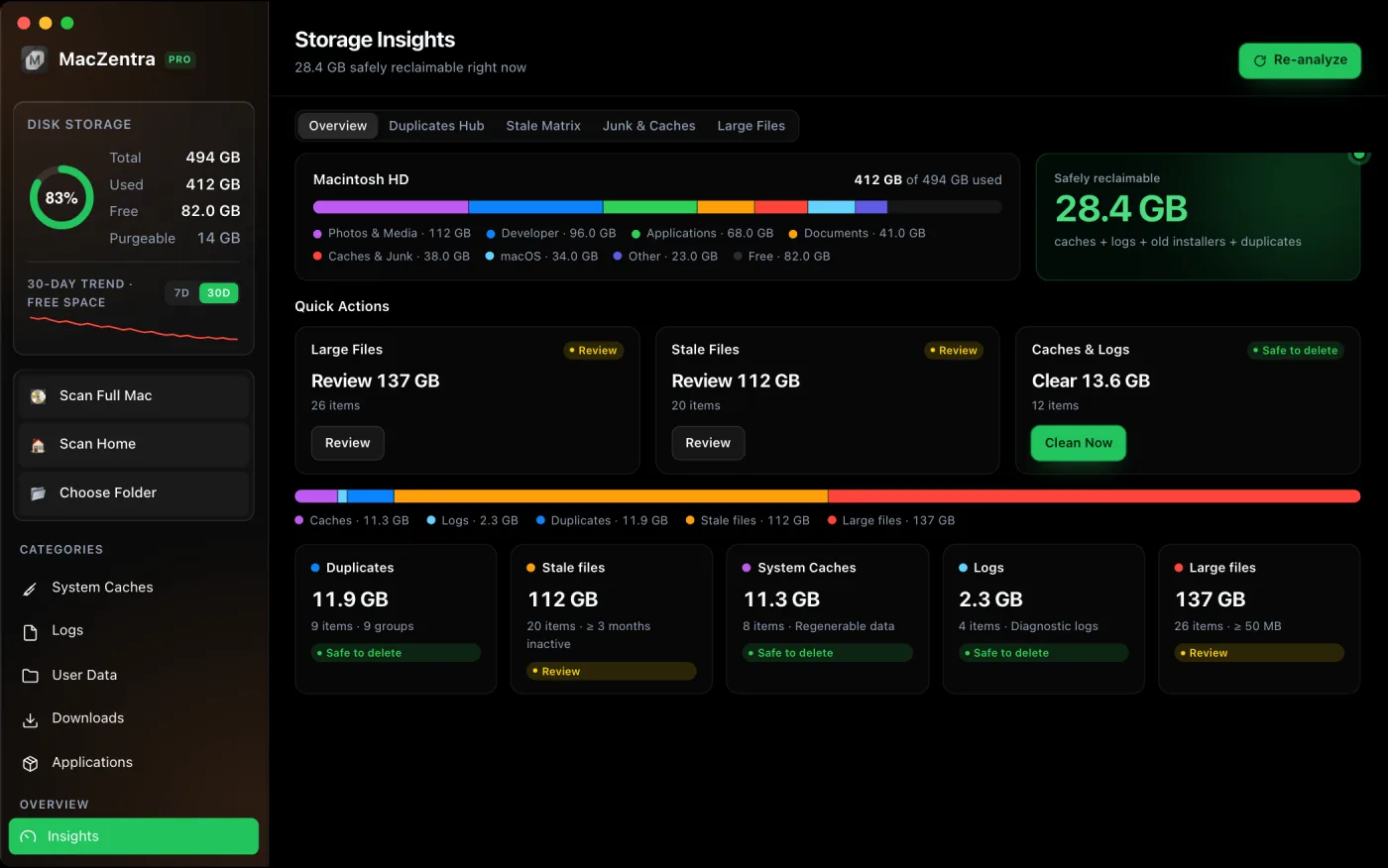
The Avail column is what you have left. If the number is small, a picture of where it went is more useful than a list. A Mac storage analyzer draws the whole disk to scale, and finding large files on a Mac shows the manual route.
Which error message means which problem?
The wording of the alert tells you which side to look at.
| Message | Which problem | What to do |
|---|---|---|
| “Your system has run out of application memory” | Memory | Force quit the app you are asked about, close tabs, restart |
| “Your disk is almost full” | Storage | Free space. Start with 10 fixes to free up space on a Mac |
| Spinning beachball while many apps are open | Usually memory | Check the pressure graph, then quit heavy apps |
| Update or download fails for lack of room | Storage | Free space before you retry |
When the memory message appears, macOS usually shows a Force Quit window listing the apps using the most. Pick the one that’s obviously oversized, often a browser with dozens of tabs, and quit it. A disk-full alert has no such shortcut. You have to decide what goes.
How memory and storage affect each other
The two are separate, but they meet in one place. When your apps need more memory than the Mac has, macOS moves less-used data out of memory and onto the startup disk. That area is called swap, and you can see how much is in use as Swap Used in Activity Monitor.
Swap is slower than real memory, so a Mac that leans on it feels sluggish. It also needs free room on the disk to grow. With plenty of free space that is fine. On a nearly full disk there is little room for swap, the system has less to work with, and memory problems arrive sooner and hurt more. It’s also one reason the usual advice is to keep roughly 10 to 15 percent of the disk free.
Is there a Mac memory cleaner that works?
Mostly, no, and you don’t need one. macOS manages memory by itself: it compresses inactive data, caches files in spare memory and releases it on demand. Apps that promise to “free up RAM” generally force that cache out, which makes the next app launch slower, and the Mac refills the space within minutes.
The things that really lower memory use are plain:
- Quit apps you aren’t using. Closing the window is not always quitting, so check for the dot under the Dock icon.
- Close browser tabs, or use the browser’s own tab-sleeping option if it has one.
- Restart the Mac now and then. It clears memory completely, and it’s the only true reset.
- If the graph is regularly red, the real fix is more memory on your next Mac.
MacZentra works on the storage side only. It doesn’t free memory and it isn’t meant to. Where it helps is the disk: finding what is using space, so there is room for swap, updates and your own files. That also stops the disk-full alert and the slowdowns that come with it.
To hear about it before the disk fills up, MacZentra can warn you from the menu bar when free space runs low. Large System Data is a frequent cause of a full disk, and what System Data is and how to shrink it explains where it comes from.
Questions people ask
What is the difference between memory and storage on a Mac?
Memory is the fast, temporary space your apps use while they run, and it empties on restart. Storage is the SSD that keeps your files, apps and macOS until you delete them.
How do I check Mac memory usage?
Open Activity Monitor, click the Memory tab and look at the Memory Pressure graph. Green is fine, yellow means the Mac is working to find room, and red means it is short of memory.
Does a full disk make my Mac run out of memory?
Not directly, but it makes things worse. When memory runs short macOS uses swap on the startup disk, and a nearly full disk leaves it little room to do that.
Do I need a Mac memory cleaner?
Usually not. macOS handles memory itself. Quitting apps, closing tabs and restarting do more than any cleaner, and they cost nothing.
Will deleting files give me more memory?
No. Deleting files frees storage, not memory. It can help indirectly by leaving more room for swap, but the amount of RAM stays the same.
Everything MacZentra can clean
Treemap and Sunburst disk maps, a duplicate finder, Developer Junk, a complete app uninstaller and more, in one native storage cleaner for Mac that’s 15.4 MB.
Explore all features →Related guides
Check storage · 4 min
Mole Mac Cleaner: What It Is and How It Compares
Mole is a free, open-source Mac cleaner you run from Terminal. See what it does, how it installs and how it compares with MacZentra.
Check storage · 9 min
Best Mac Storage Cleaners 2026: Compared & Ranked
Mac storage cleaners and disk space analyzers compared by price, size, scan speed and licence. One-time, subscription and free options side by side.
Check storage · 5 min
Mac Disk Usage Analyzer: Read a Treemap and Sunburst
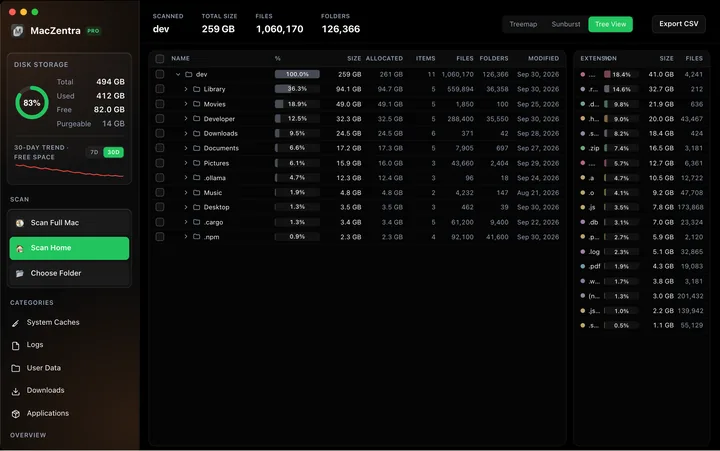
How to read a Mac disk usage analyzer: Treemap, Sunburst and Tree View explained, what to check first, and a Terminal command to find big folders.
Check storage · 7 min
How to Check Storage on Mac: 5 Ways
Check storage on any Mac in under a minute: five built-in ways, what each colour in the storage bar means, and how to find what is using the space.