
Check storage
Why Is My Mac Running Slow? 9 Causes
The MacZentra team · Updated Nov 17, 2026 · 7 min read
Why is my Mac running slow? Usually one of nine things: a nearly full startup disk, memory pressure, a runaway process, too many login items, Spotlight reindexing, heavy browser tabs, outdated software, heat, or aging hardware. Activity Monitor and Storage settings tell you which one in a few minutes, and every fix below is free.
Start here: two minutes of diagnosis
Don’t guess. Press ⌘Space, type “Activity Monitor” and press Return. Click the CPU tab and sort by % CPU, then switch to the Memory tab and look at the Memory Pressure graph at the bottom. Then open Apple menu → System Settings → General → Storage to see how full the disk is. Those three views cover most slow Macs, and the sections below say what to look for in each.
1. The startup disk is nearly full
How to confirm: in Storage settings, check the free space. A rough rule is to keep 10 to 15 percent of the disk free. macOS uses free space for virtual memory, caches and installing updates, so a full disk slows everything, apps launching included. Our guide to checking storage on a Mac has five ways to read the numbers.
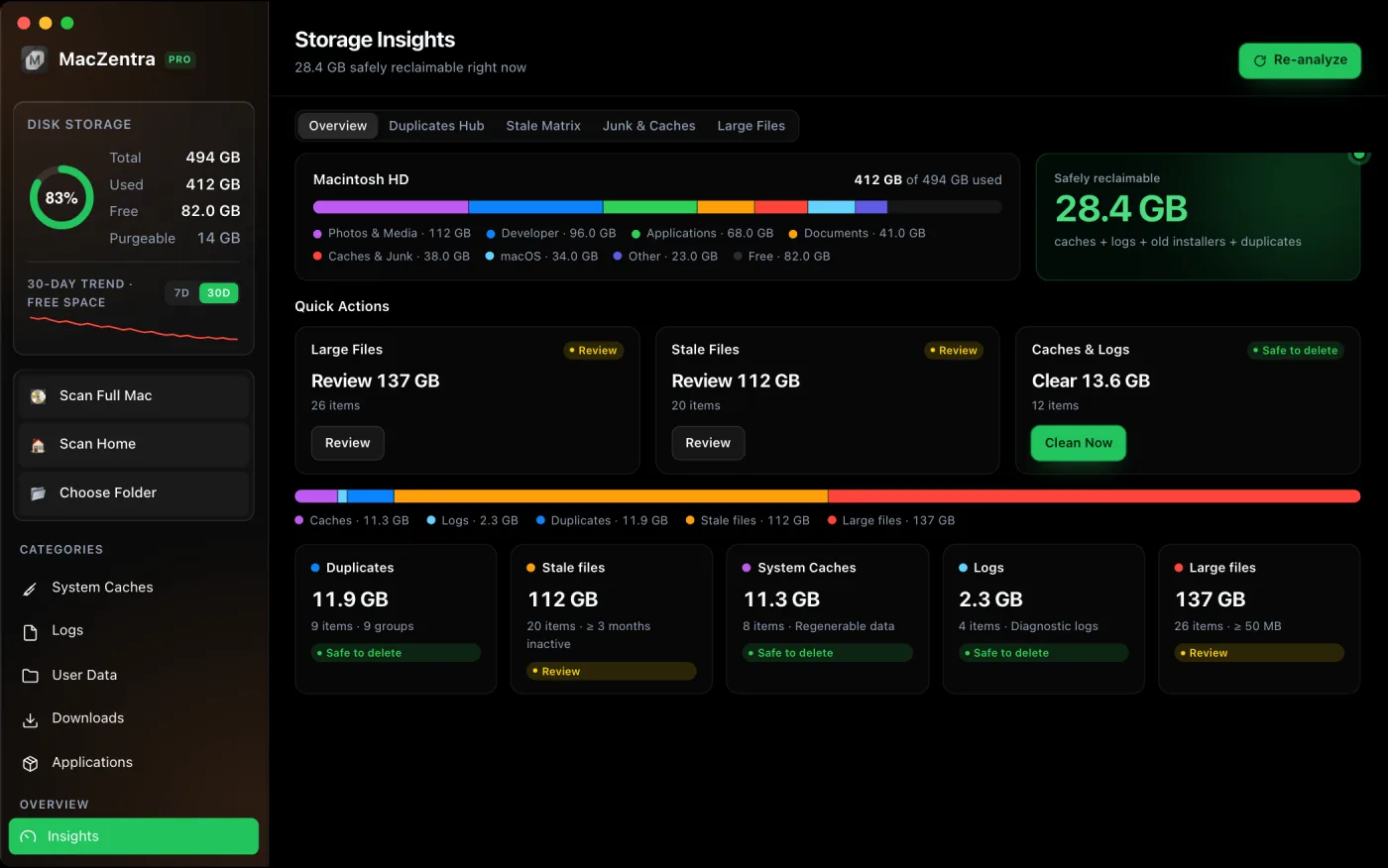
Fix: find the biggest items and remove what you don’t need. Finding large files is the quickest start, and what to do when the startup disk is full covers the harder cases. This is the one cause where a storage tool helps.
2. Memory pressure and swap
How to confirm: in the Memory tab, the Memory Pressure graph should be green. Yellow means macOS is working to make room, and red means it’s short of memory. Also check Swap Used in the stats at the bottom. A few gigabytes of swap with a yellow or red graph means the Mac is leaning on the disk as overflow memory, which is slow. If memory and storage still blur together for you, read memory vs storage on a Mac.
Fix: quit apps you aren’t using, then restart the Mac to clear swap. If the graph goes yellow again during normal work, you simply need more memory than you have, and no cleanup changes that.
3. A runaway process causes the spinning wheel
If your Mac is running slow and shows the spinning wheel (the beachball), a single app or background process is often stuck. How to confirm: in the CPU tab, sort by % CPU. One process sitting far above the rest for minutes is the suspect. Apps that macOS has flagged as not responding show in red.
Fix: select the process and click the X button in the toolbar, then choose Quit, or Force Quit if it won’t close. Only stop apps you recognise. If a system process stays high, restart rather than force-quitting it.
4. Too many login items and background items
How to confirm: open System Settings → General → Login Items (newer versions call it Login Items & Extensions). The list under “Open at Login” starts with every restart, and the “Allow in the Background” list shows helpers that run all day. A long list means a slow first few minutes after startup.
Fix: select an entry in “Open at Login” and click the minus button, or switch off background items you don’t need. Nothing is uninstalled, and you can turn any of them back on.
5. Spotlight is reindexing, often after an update
Is your Mac running slow after an update? Spotlight rebuilds its search index after a major macOS update, and it can keep the fans busy for hours. How to confirm: in Activity Monitor, search for “mds”. Processes named mds_stores or mdworker near the top of the CPU list mean indexing is running. The Spotlight search window may also say it’s indexing.
Fix: wait. Leave the Mac plugged in, and it usually settles within a day. Our guide to mds_stores and the Spotlight index explains when to rebuild the index instead. Updates also add files, which is covered in why System Data grows after a macOS update.
6. Browser tabs and extensions
How to confirm: in Activity Monitor, sort by % CPU and then by memory, and look for your browser or its helper processes. In Chrome, Window → Task Manager lists each tab and extension separately. Dozens of open tabs, video tabs and extensions that run on every page are the usual culprits.
Fix: close tabs you don’t need, remove extensions you don’t use (in Safari, Safari → Settings → Extensions), and restart the browser. Clearing stored site data can also help, see how to clear the browser cache on a Mac.
7. Outdated macOS or apps
How to confirm: open System Settings → General → Software Update. An old app built for an earlier macOS can also drag, and it shows up as the top CPU process when you use it.
Fix: install pending updates, but make sure you have the free space first, since a major upgrade needs a large block of it. Keep apps current as well. MacZentra’s App Updater can list what’s out of date. If the Mac turned slow right after an update, work through causes 1, 2 and 5 first.
8. Heat and thermal throttling
How to confirm: a Mac that is hot to the touch, with loud fans, and that slows down under load is protecting itself by lowering its speed. Check the CPU tab for a process pinning the processor, and check that the vents aren’t blocked. A laptop on a blanket or a bed runs hotter than one on a desk.
Fix: clear the vents, use the Mac on a hard surface, close heavy apps, and keep it out of direct sun. If it overheats while idle with nothing heavy running, that points to cause 9.
9. Failing or very old hardware
How to confirm: run Apple Diagnostics. On an Apple silicon Mac, shut down, then press and hold the power button until the startup options appear, and press ⌘D. It checks for hardware faults and reports a reference code. On a laptop, System Settings → Battery shows battery health.
Fix: a worn battery can be replaced. If the Mac is many years old and running a current macOS, it may simply be out of headroom. Back up with Time Machine, and check your model’s support status on Apple’s site.
Symptom and likely cause
| Symptom | Likely cause | Where to check |
|---|---|---|
| Everything is slow, free space is low | Nearly full startup disk (1) | Storage settings |
| Slow with many apps open, graph yellow or red | Memory pressure and swap (2) | Activity Monitor, Memory |
| Spinning wheel in one app | Runaway process (3) | Activity Monitor, CPU |
| Slow for minutes after you log in | Login and background items (4) | General → Login Items |
| Slow and fans loud after an update | Spotlight reindexing (5) | Search “mds” in Activity Monitor |
| Slow only in the browser | Tabs and extensions (6) | Browser task manager |
| Slow, crashes, odd behaviour | Outdated macOS or apps (7) | General → Software Update |
| Hot, fans loud, slows under load | Heat and throttling (8) | Activity Monitor, vents |
| Slow on a fresh install, or the battery is worn | Failing or old hardware (9) | Apple Diagnostics |
Fix the slow Mac in order
A quick order that clears most cases without spending anything:
- Restart the Mac. It clears swap and stuck processes.
- Check the CPU and Memory tabs for the cause.
- Free up disk space until 10 to 15 percent is free.
- Trim login items and browser extensions.
- Install pending updates, then give Spotlight time.
For step 3, 10 fixes to free up space on a Mac goes biggest first. Local Time Machine snapshots can also hold space after you delete things, see APFS local snapshots. To see what’s holding the space from Terminal, this read-only command lists the biggest folders in your home folder:
du -sh ~/* 2>/dev/null | sort -hr | head -10
Questions people ask
Why is my Mac running slow all of a sudden?
Something changed. The usual triggers are a recent update (Spotlight reindexing), a full disk, a runaway app, or heat. Check the CPU tab first, then Storage settings.
Why is my Mac so slow after an update?
Indexing and background tasks run after a major update, and the update may have used up free space. Plug the Mac in, leave it for a day, and check free space.
What does the spinning wheel on a Mac mean?
The app isn’t responding to the system right now. Wait a minute. If it doesn’t clear, force quit the app from Activity Monitor or with ⌥⌘Esc.
Will deleting files make my Mac faster?
Only if the disk was nearly full. With plenty of free space, deleting files changes nothing about speed.
Is it time to replace a slow Mac?
If Apple Diagnostics is clean, memory pressure is red during normal work and the software is current, the hardware may be at its limit. Try the fixes above first.
Everything MacZentra can clean
Treemap and Sunburst disk maps, a duplicate finder, Developer Junk, a complete app uninstaller and more, in one native storage cleaner for Mac that’s 15.4 MB.
Explore all features →Related guides
Check storage · 4 min
Mole Mac Cleaner: What It Is and How It Compares
Mole is a free, open-source Mac cleaner you run from Terminal. See what it does, how it installs and how it compares with MacZentra.
Check storage · 9 min
Best Mac Storage Cleaners 2026: Compared & Ranked
Mac storage cleaners and disk space analyzers compared by price, size, scan speed and licence. One-time, subscription and free options side by side.
Check storage · 5 min
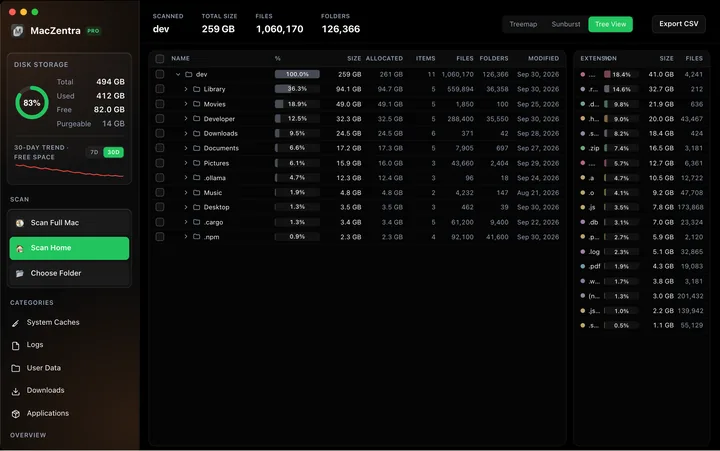
Mac Disk Usage Analyzer: Read a Treemap and Sunburst
How to read a Mac disk usage analyzer: Treemap, Sunburst and Tree View explained, what to check first, and a Terminal command to find big folders.
Check storage · 7 min
How to Check Storage on Mac: 5 Ways
Check storage on any Mac in under a minute: five built-in ways, what each colour in the storage bar means, and how to find what is using the space.