
Free up space
How to Free Up Space on iPhone: Checklist
The MacZentra team · Updated Nov 22, 2026 · 6 min read
To free up space on iPhone, open Settings → General → iPhone Storage, read the recommendations at the top, then work down the list of apps from the biggest. The usual wins are Photos, Messages attachments, apps you no longer use and offline downloads. This is the routine version you can run once a month. If your phone is already refusing to take photos, start with the emergency guide for a full iPhone instead.
1. Read iPhone Storage before you delete anything
Open Settings → General → iPhone Storage and wait a few seconds while the list fills in. The bar at the top splits your usage into categories, and the apps below are sorted by size, largest first. The first few rows tell you where to spend your time.
Tap any app to see two numbers: the size of the app itself and the size of its documents and data. A messaging app that is small but has a huge data figure needs a different fix from a big game. If you haven’t looked at this screen before, our guide to how to check iPhone storage explains each row.
2. Take the recommendations that fit you
Under the bar, iOS may list suggestions such as offloading unused apps, reviewing large attachments or emptying Recently Deleted. They change from phone to phone and from one iOS version to the next. Tap one to see what it would do, and accept only the ones you understand. Each is also available as a normal setting, covered below.
3. Photos and videos: the biggest routine clean-up
For most people, Photos is the largest line on the list. Three habits keep it under control.
- Empty Recently Deleted. Photos you delete stay in Albums → Utilities → Recently Deleted and keep using space until they’re removed. Open the album, tap Select, then Delete All. Check first that you don’t need any of them back.
- Turn on Optimize iPhone Storage. If you use iCloud Photos, go to Settings → Photos and choose Optimize iPhone Storage. Full-size originals stay in iCloud and the phone keeps lighter copies.
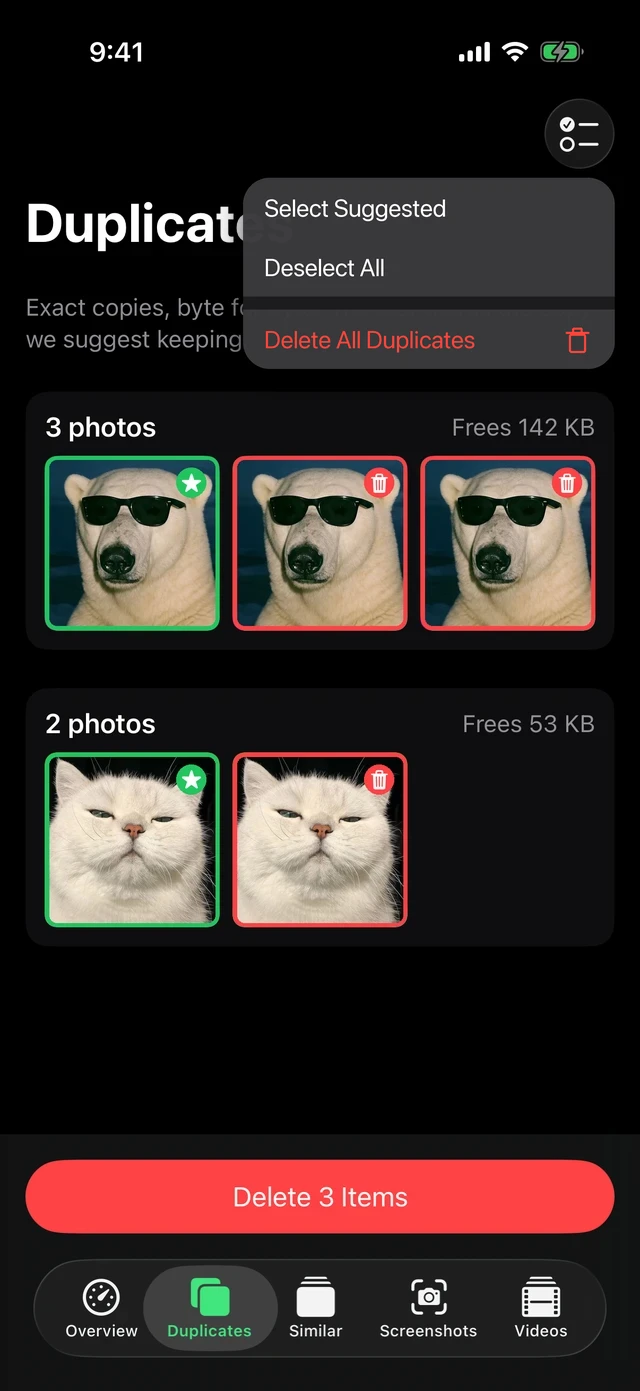
- Merge duplicates. In the Photos app, Albums → Utilities → Duplicates groups copies of the same picture so you can merge them. There’s a full walkthrough in how to delete duplicate photos on iPhone.
Long videos weigh far more than photos. Sort them by size and decide which to keep, trim or move off the phone. If you want to keep a clip but shrink it, see how to compress video on iPhone and Mac. Old screenshots are another easy target, and finding and deleting screenshots on iPhone shows the quickest way to clear them.
4. Messages: attachments, not text
The words in your chats take almost no room. Photos, videos and GIFs sent in conversations are what grow. In iPhone Storage, tap Messages and look for Review Large Attachments or the sorted lists of photos, videos and GIFs. Delete the big ones you don’t need.
To stop the build-up, open Settings → Messages, find Keep Messages and pick 30 Days or 1 Year instead of Forever. Older messages and their attachments are then removed from the phone automatically, so choose this only if you’re happy to lose them.
5. Apps: offload the ones you rarely open
Offloading removes an app but keeps its documents and data, so reinstalling it later puts you back where you were. You can switch it on for every app you haven’t used in a while: go to Settings → App Store and turn on Offload Unused Apps. On iOS 18 and later, the same switch sits under Settings → Apps → App Store.
For a single app, tap it in iPhone Storage and choose Offload App. Choose Delete App instead if you want its data gone too. Games with large downloaded levels are the most common big wins here.
6. Safari, downloads and app data
Browsing data adds up slowly. Clear it from Settings → Apps → Safari on iOS 18 and later (Settings → Safari on earlier versions), then tap Clear History and Website Data. This signs you out of sites, so do it when you have a moment to log back in.
Offline downloads are the other quiet one. Music, podcasts, shows and films you saved for a trip often stay on the phone for months. Open iPhone Storage, tap the app, and remove what you’ve finished with. Cached data inside other apps is a separate topic, covered in how to clear app cache on iPhone.
A monthly checklist
| Step | Where | What to do |
|---|---|---|
| Check the top apps | Settings → General → iPhone Storage | Note anything that grew since last month |
| Empty Recently Deleted | Photos → Albums → Utilities | Delete All, after a quick look |
| Review large videos | Photos → Albums → Media Types → Videos | Delete or compress the biggest |
| Check Messages | iPhone Storage → Messages | Remove large attachments |
| Offload unused apps | Settings → App Store | Switch on Offload Unused Apps |
| Remove finished downloads | iPhone Storage → the app | Delete watched or played offline items |
If a line in the checklist is already large and stubborn, the System Data row may be the cause. That one behaves differently, and why iPhone System Data is huge covers it. When cleaning isn’t enough and the phone is simply too small for what you keep on it, see how to get more storage on iPhone.
Questions people ask
How do I free up space on my iPhone without deleting photos?
Offload unused apps, clear Safari website data, remove finished downloads and shorten how long Messages keeps attachments. Turning on Optimize iPhone Storage in Settings → Photos also helps if you use iCloud Photos, because originals live in iCloud.
Why is my iPhone storage full when I have few apps?
Photos, videos, Messages attachments and System Data are usually the cause, not the apps. Open iPhone Storage and look at the largest rows before you remove anything.
Does clearing Safari history free up space on iPhone?
A little. Website data and cache can grow over time, but the saving is rarely large compared with Photos or Messages. It’s still a cheap step to include in a monthly routine.
Does deleting a photo free up space straight away?
No. The photo moves to Recently Deleted and keeps using space until you empty that album or its retention time runs out.
How often should I clean up my iPhone?
Once a month is plenty for most people. Do it sooner before a big update, a trip with lots of photos, or any time iPhone Storage is nearly full.
Everything MacZentra can clean
Treemap and Sunburst disk maps, a duplicate finder, Developer Junk, a complete app uninstaller and more, in one native storage cleaner for Mac that’s 15.4 MB.
Explore all features →Related guides
Free up space · 9 min
Best Mac Cleaner to Download in 2027 (Free and Paid)
The best Mac cleaner to download in 2027, compared on price, safety and what each one deletes. Five free and paid picks, checked on vendor sites in November 2026.
Free up space · 7 min
Free Up Space on Mac in 2027: A 30-Minute Plan
Free up space on your Mac in 2027 with a 30-minute plan: ordered steps from Trash to caches, for macOS Tahoe and Golden Gate, plus what to skip.
Free up space · 6 min
Reduce Photos Library Size on Mac: 5 Ways
Shrink a huge Photos library on your Mac: Optimize Mac Storage, Recently Deleted, large videos, duplicates, or moving the library to an external drive.
Check storage · 9 min
Best Mac Storage Cleaners 2026: Compared & Ranked
Mac storage cleaners and disk space analyzers compared by price, size, scan speed and licence. One-time, subscription and free options side by side.