
Free up space
Free Up Space on Mac in 2027: A 30-Minute Plan
The MacZentra team · Updated Nov 22, 2026 · 7 min read
To free up space on a Mac in 2027, work through one ordered list: empty the Trash and Downloads, delete the few largest files, remove old iPhone backups, trim Photos and Mail, uninstall apps you don’t use, then clear caches and developer files. Done in that order it takes about 30 minutes, and it starts with the steps that usually give the most space back.
This guide is the short, timed version. It works on macOS Ventura 13 and later, including macOS Tahoe 26 and macOS Golden Gate 27. For the longer explanation of each fix, see our 10 ways to free up space on a Mac.
Whether you want to know how to free up space on a Mac, how to free up disk space on a MacBook, or how to clean up Mac storage when the warning says it is full, the steps are the same. Free disk space on a Mac comes back fastest from a few large items, not from hundreds of small ones.
Before you start: see where the space went (2 minutes)
Open System Settings, then General, then Storage. Wait for the coloured bar to finish calculating, then note the three biggest categories. That tells you which steps below matter on your Mac, and which you can skip. Our guide to checking storage on a Mac explains what each colour means.
For a quick read-only look from Terminal, these two commands list sizes and delete nothing:
df -h /du -sh ~/Library/Caches ~/Downloads ~/Movies 2>/dev/null
The 30-minute plan
| Minutes | Task | Guide |
|---|---|---|
| 0 to 5 | Empty the Trash, clear Downloads and old installers | Empty the Trash on Mac |
| 5 to 10 | Find and delete the five largest files | Find large files on Mac |
| 10 to 15 | Remove old iPhone and iPad backups | Delete iPhone backups on Mac |
| 15 to 20 | Trim Photos, Mail and Messages | Reduce Photos library size |
| 20 to 25 | Uninstall unused apps, delete duplicates | Uninstall apps on Mac |
| 25 to 30 | Clear caches, snapshots and developer files | Clear System Data on Mac |
Minutes 0 to 5: Trash and Downloads
A file in the Trash still uses its space until you empty it. Empty it, then sort your Downloads folder by size and delete old installers and disk images. This is the cheapest win, and it needs no judgement about what is safe. If the warning reads startup disk full, start here, then see what to delete first when the startup disk is full. If the Trash won’t empty, the Trash guide covers the forced route.
Minutes 5 to 10: the largest files
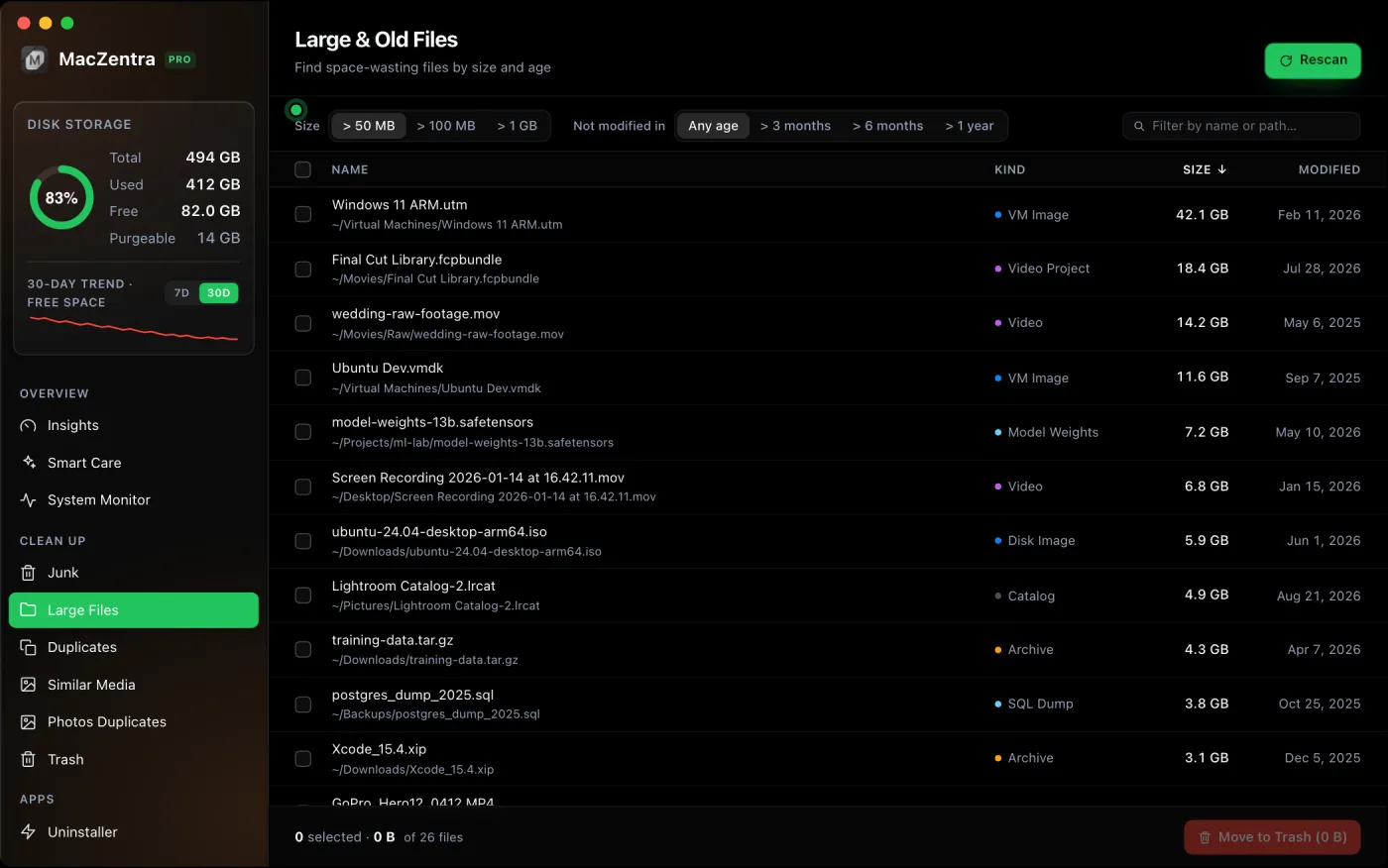
A handful of files, usually videos, disk images and old archives, often account for more space than hundreds of small ones. Sort by size and decide about each item on its own. Which large files are safe to delete gives a four-question test.
Minutes 10 to 15: old device backups
Backups of phones you no longer own are never removed automatically, and each one can be tens of gigabytes. In Finder, select your iPhone, click General, then Manage Backups. The full steps are in deleting iPhone backups on a Mac.
Minutes 15 to 20: Photos, Mail and Messages
These three libraries grow quietly. Photos is often the biggest, and Optimize Mac Storage, Recently Deleted and large videos are the main levers, covered in reducing the Photos library. Mail keeps a local copy of messages and attachments, see clearing Mail storage. For chat attachments, read Messages taking up space on Mac.
Minutes 20 to 25: apps and duplicates
Dragging an app to the Trash leaves its preferences, caches and support files behind. Remove apps along with their leftovers using this uninstall guide, and find apps you haven’t opened in months with size and last-opened sorting. Then look for true duplicates, which are files with identical contents, in how to find duplicate files on a Mac.
Minutes 25 to 30: caches, snapshots and developer files
This is the step with the most judgement, so go slowly. To clear cache on a Mac, remove caches you recognise, not whole folders. Which Library caches are safe to delete sorts them. Local snapshots can hide space in System Data, see APFS local snapshots.
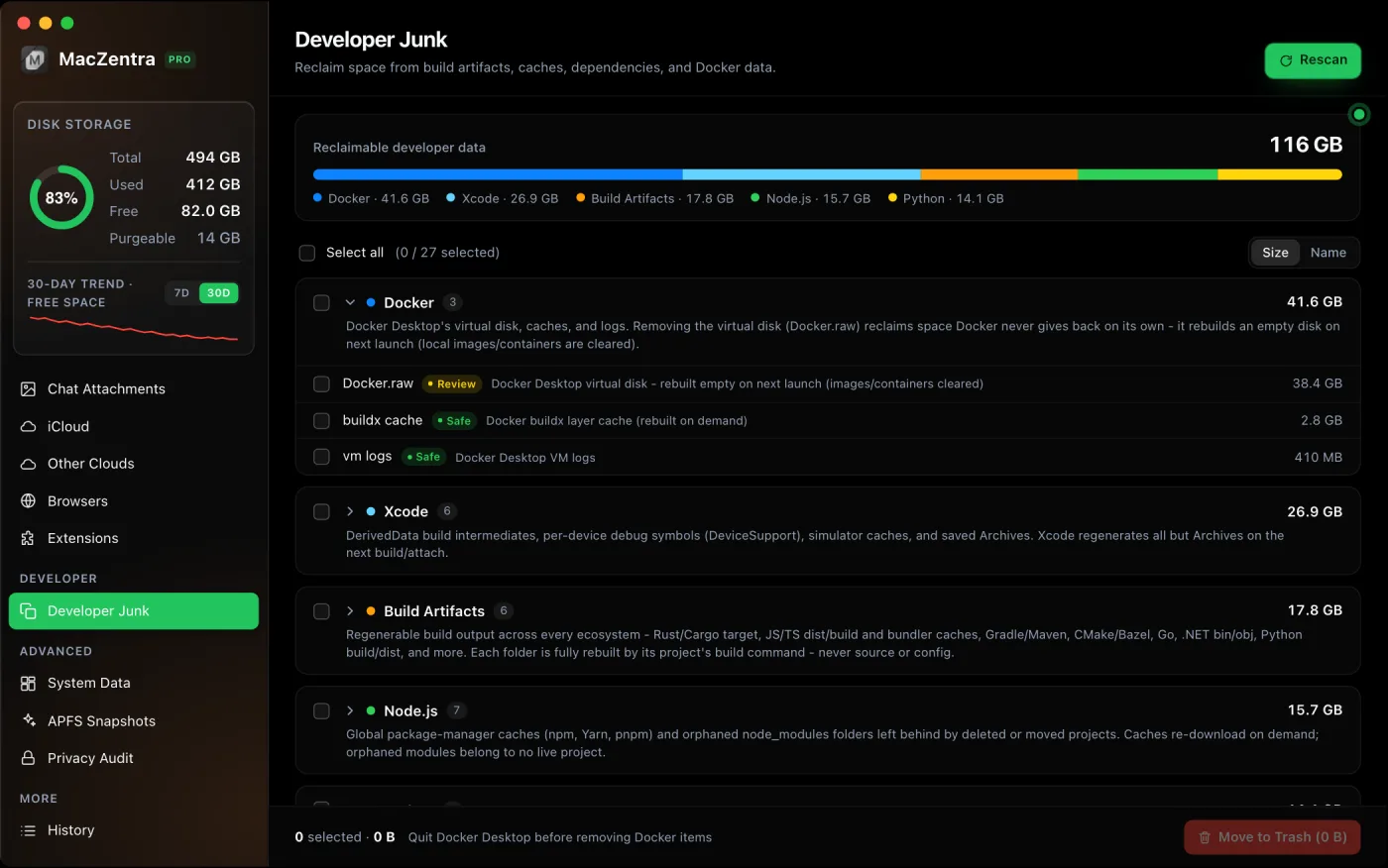
If you write code, this is where the biggest numbers usually are:
| Folder | Why it grows | Guide |
|---|---|---|
| Xcode DerivedData | Build output for every project | Clean Xcode DerivedData |
| Docker.raw | Images and volumes in one file | Shrink Docker disk |
| node_modules | One copy per project | node_modules cleanup |
| Homebrew, pip, Gradle | Package download caches | Clear developer caches |
What to skip in 2027
| Skip this | Why |
|---|---|
| Weekly “one-click” cleaning | Most of what it removes is cache that apps rebuild, so the space comes back |
| RAM or memory cleaners | macOS uses spare memory on purpose, and storage and memory are different things. See memory versus storage |
| Deleting from /System or the whole Library folder | It can break apps or macOS, and a reinstall is the fix |
| Permanent delete without a preview | Send items to the Trash first so a mistake is a two-second fix |
If you have freed space and the number didn’t move, storage not freeing up after deleting files explains why, and whether deleting files frees up space right away. And if you decide a tool would save time, our best Mac cleaner to download in 2027 compares the options.
Questions people ask
How do I free up space on my Mac for free?
Use Storage settings, empty the Trash, clear Downloads, delete the largest files and remove old iPhone backups. None of that needs an app. The plan above is built from those free steps.
How much free space should a Mac keep?
As a rule of thumb, trouble often starts below about 10 percent free, and macOS updates need room to install. There is no exact number, so leave a margin and check Storage before a big update.
Is it safe to delete System Data on a Mac?
Not as a single action, since you can’t select the category. You can safely remove specific items inside it, such as old backups and caches you recognise. See what System Data is first.
Will freeing up space make my Mac faster?
If the disk is nearly full, yes, it can help. On a Mac with plenty of room it changes little. For other causes of slowness, read why a Mac runs slow.
How often should I clean up my Mac?
Only when free space gets low, plus a check before major updates. A fixed weekly routine mostly deletes files that come straight back.
Everything MacZentra can clean
Treemap and Sunburst disk maps, a duplicate finder, Developer Junk, a complete app uninstaller and more, in one native storage cleaner for Mac that’s 15.4 MB.
Explore all features →Related guides
Free up space · 5 min
Free Up Space on a MacBook Air (128 or 256 GB)
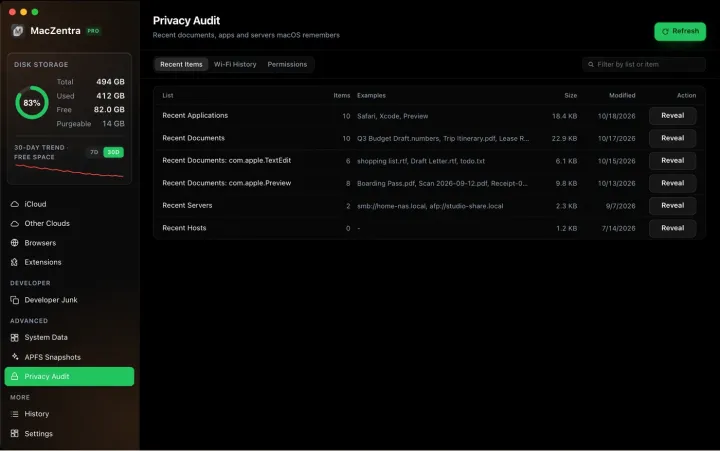
MacBook Air with a 128 or 256 GB drive full? Clear the biggest space hogs first, then keep Photos, Messages and backups from filling it again.
Free up space · 3 min
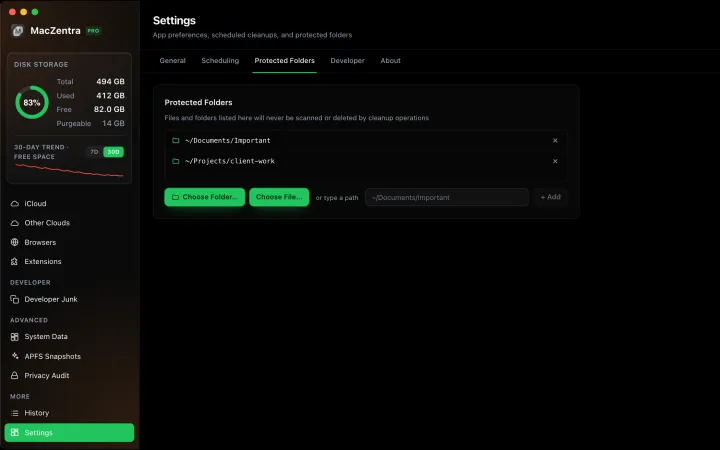
Protected Files & Folders: Keep Items Safe
How the built-in protected paths guard system-critical locations, and how to add your own custom folders to prevent accidental deletion.

Free up space · 4 min
Smart Care for Mac: Automate Cache, Trash and Memory Cleanup
Automate Mac maintenance with Smart Care: clear caches, empty Trash, flush DNS and purge inactive memory in one workflow. Schedule it or run it on demand.
Check storage · 9 min
Best Mac Storage Cleaners 2026: Compared & Ranked
Mac storage cleaners and disk space analyzers compared by price, size, scan speed and licence. One-time, subscription and free options side by side.