
Free up space
iCloud Storage Plans: Which Size Do You Need?
The MacZentra team · Updated Nov 22, 2026 · 6 min read
The right iCloud storage plan is the smallest one that holds what you already store in iCloud, plus a margin for growth. To find that number, open iCloud in your settings, read the breakdown by category, and add up Photos, Backups, iCloud Drive and Messages. This guide shows where to look, how to turn the figures into a choice, and how to trim usage before you pay for more.
What counts toward your iCloud storage
Every plan is one shared pool per Apple Account. Everything below draws from it, so a plan that looks generous can fill up fast if one category takes most of the room.
- Photos. With iCloud Photos on, your whole library lives in iCloud. For most people this is the largest item.
- Device backups. Each iPhone or iPad you back up to iCloud keeps its own backup, and old devices can leave old backups behind.
- iCloud Drive. Files you saved there, plus the Desktop and Documents folders if you sync them from a Mac.
- Messages. Conversations and attachments, when Messages in iCloud is on.
- App data and Mail. Some apps store documents in iCloud, and iCloud Mail counts against the same pool.
Step 1: see what you use today
You need the real numbers, not a guess. Open the breakdown on whichever device is closest.
- On iPhone or iPad: open Settings, tap your name, then iCloud. The bar at the top shows total use and the list below splits it by category.
- On a Mac: open System Settings, click your name, then iCloud. Click Manage to see apps and backups sorted by size. If you’re new to that window, how to check storage on a Mac covers the local disk side.
- Write down the used figure and the top three categories. That’s all the data you need.
Labels differ a little between iOS and macOS versions, and Apple has renamed menus before. If a row has moved, look for Manage Account Storage or Manage beside the storage bar.
Step 2: match your usage to a plan
Apple sets the tiers and changes them, so check the current list on your own device rather than trusting a number in an article. What you can do reliably is work out your own figure. Add what you use now, then add room for the next year or two.
| If your top category is | Plan for | Watch out for |
|---|---|---|
| Photos | Your library size plus a year of new photos and video | 4K video fills a library much faster than photos |
| Backups | One backup per device you keep backing up | Old devices still holding backups you no longer need |
| iCloud Drive | Current files plus anything you plan to move there | A synced Desktop and Documents folder from a Mac |
| Messages | Current size with a modest margin | Videos and large attachments in busy group chats |
| A mix of all | The total, with a margin | Several family members on one plan |
A margin matters because a plan that is exactly full stops backups and new uploads, and you’ll get the warning at the worst moment. The walkthrough in what to do when iCloud storage is full covers that situation if you’re already there.
Step 3: trim before you upgrade
A smaller plan costs less than a larger one, so it’s worth spending ten minutes on cleanup first. The categories that usually pay off:
- Delete backups of devices you no longer own. In the iCloud breakdown, open Backups and remove old ones. On a current phone, you can also stop backing up apps you don’t need.
- Remove duplicate and junk photos. Duplicates and old screenshots sit in iCloud Photos too, and deleting them frees real account space. See how to delete duplicate photos on iPhone.
- Empty Recently Deleted. Deleted photos keep counting until that album is emptied or their time runs out.
- Review iCloud Drive. Large files you forgot about are easy wins.
Remember that deleting a photo from an iPhone with iCloud Photos on deletes it everywhere. If you only want to free the phone, use Optimize iPhone Storage in Settings → Photos instead. There’s more on this split in iPhone storage full with iCloud.
Changing or leaving a plan
To change plans on iPhone or iPad, go to Settings, tap your name, iCloud, then Manage Account Storage and Change Storage Plan. On a Mac the path is System Settings, your name, iCloud, Manage, then Change Storage Plan. You can move up or down.
A plan can also be shared through Family Sharing, so one pool covers several people. Each person’s files stay private, but the total they use counts against the same plan, so add everyone’s usage together before choosing. Needing more space on the device rather than in the cloud is a different problem, covered in how to get more storage on iPhone, and the monthly routine in how to free up space on iPhone keeps the phone itself tidy. On the Mac side, see how to get more storage on a Mac.
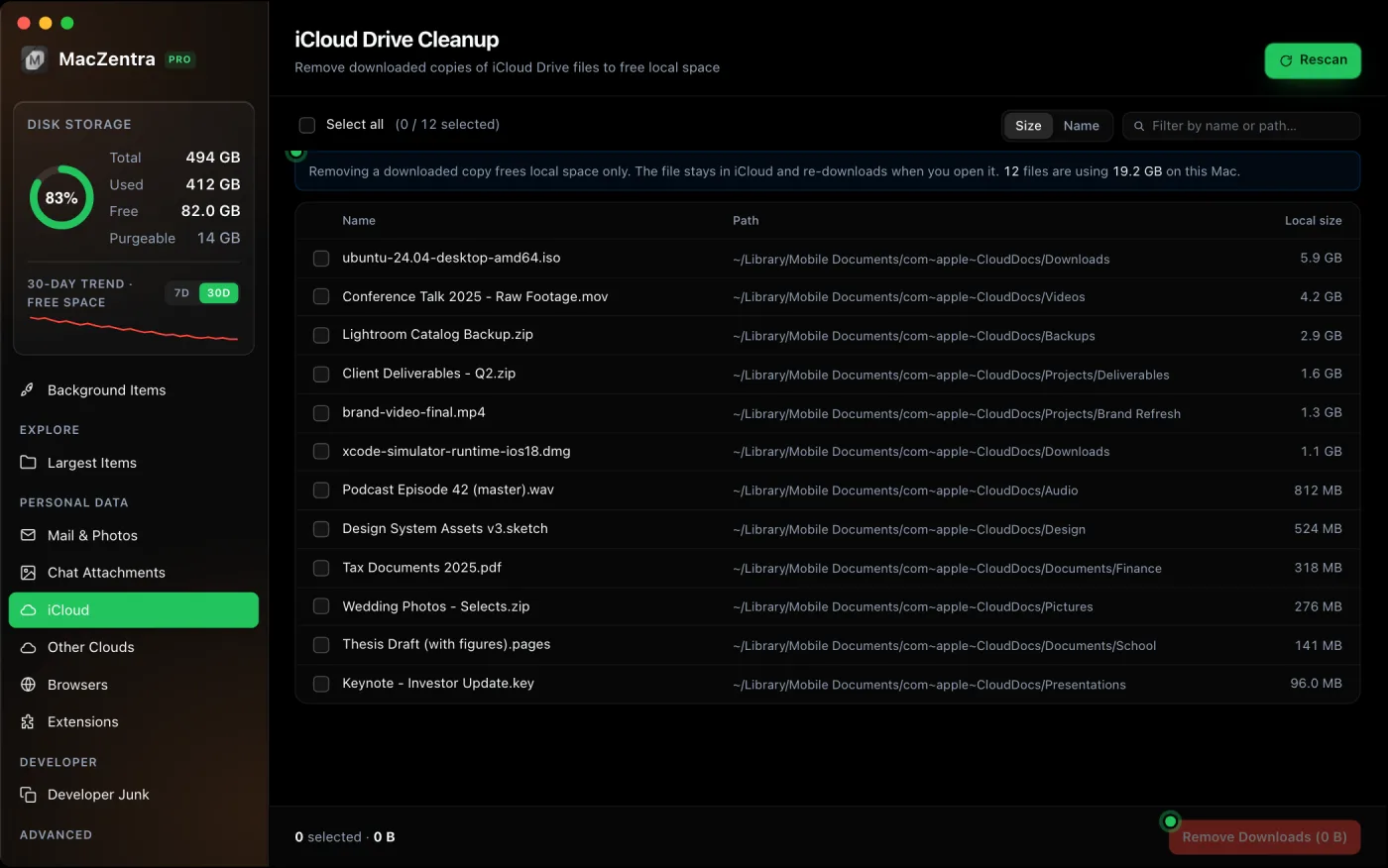
On a Mac, the local copy of your cloud files matters too. How Optimize Mac Storage works with iCloud Drive explains how files are kept as placeholders so the disk isn’t full of them.
Questions people ask
How do I know how much iCloud storage I need?
Open iCloud in Settings and read the used figure and the category breakdown. Pick the smallest plan that holds your current use with room for a year of growth.
What happens if I run out of iCloud storage?
Backups and uploads can stop, and new photos and files may not sync. Email can also be affected. Free up space or move to a larger plan to resume.
Can I share an iCloud storage plan with my family?
Yes, through Family Sharing. Everyone in the group draws from the same pool, so add up their usage before you choose a size.
Do iCloud backups count toward storage?
Yes. Every device you back up to iCloud has its own backup in your pool, and old backups of devices you no longer use can be deleted.
Is it worth paying for more iCloud storage instead of cleaning up?
Sometimes. If your photo library is very large and you want it on every device, a bigger plan is the honest answer. If the space is full of duplicates and old backups, clean those first, then check whether the smaller plan now fits.
Everything MacZentra can clean
Treemap and Sunburst disk maps, a duplicate finder, Developer Junk, a complete app uninstaller and more, in one native storage cleaner for Mac that’s 15.4 MB.
Explore all features →Related guides
Free up space · 8 min
Free Up Space on Mac: 10 Fixes, Biggest First
Ten ways to free up Mac storage ranked by typical space recovered. Covers hidden Library folders and leftovers macOS Storage settings never show.
Free up space · 5 min
Is It Safe to Delete Library Caches on Mac? What to Clear
Yes for most apps. See which ~/Library/Caches and /Library/Caches folders are safe to delete, which to leave alone, and how to clear them step by step.
Free up space · 6 min
Not Enough Space to Update macOS: How to Fix It
Mac says not enough space to update macOS? See how much free room the installer needs and free it fast with snapshots, backups and an external drive.
Check storage · 9 min
Best Mac Storage Cleaners 2026: Compared & Ranked
Mac storage cleaners and disk space analyzers compared by price, size, scan speed and licence. One-time, subscription and free options side by side.