
Free up space
Messages Taking Up Space on Mac? How to Fix It
The MacZentra team · Updated Nov 17, 2026 · 6 min read
If Messages is taking up space on your Mac, the cause is almost never the text. It’s the attachments: photos, videos, voice messages and files from years of chats. Open System Settings → General → Storage, click the ⓘ button next to Messages, and delete the largest attachments. Your conversations can stay.
Why Messages storage on a Mac gets so big
A message made of words takes a few kilobytes. A single photo takes a few megabytes, and a video clip can take many times that. Every attachment you’ve ever received is kept next to the conversation, so a long chat history adds up to a large figure even if most of it is small talk.
Messages also stores these files in its own place, so they don’t appear in Photos. That’s why a Mac can show a big Messages number while your photo library looks modest. The sections below go further than the short version in how to get more storage on a Mac.
How to delete Messages attachments on a Mac from Storage settings
This is the quickest way to see what is large, and it works on macOS 13 Ventura and later.
- Open the Apple menu, choose System Settings, click General, then Storage.
- Wait a few seconds while the categories finish calculating.
- Click the ⓘ button next to Messages.
- Look at the categories listed there, for example photos and other attachments, and sort or review them by size.
- Select the biggest items you don’t need, then choose Delete and confirm.
Start with the largest few. Ten big videos usually free more room than a thousand small images. If you’re not sure how Storage settings works in general, how to check storage on a Mac covers the whole screen.
Clear Messages storage one conversation at a time
Sometimes one chat is the problem: a family group where everyone shares videos, for example. You can review that thread on its own.
- Open the Messages app and select the conversation.
- Click the ⓘ button (Details) at the top right of the conversation.
- Scroll to the photos and files shared in that thread.
- Control-click an item you no longer need and choose Delete.
Deleting a whole conversation removes its attachments with it. Do that only for threads you’re finished with, because the text goes too.
Keep Messages: what shortening it deletes
Open Messages → Settings → General and look at Keep messages. The options are Forever, 1 Year and 30 Days. Forever is the default.
Choosing a shorter period tells Messages to delete older messages and their attachments from this Mac. Apple asks you to confirm first, and it can’t be undone, so treat it as a permanent cut-off. It’s a good fit if you only ever use recent chats. It’s a poor fit if you scroll back through old threads for addresses, receipts or photos.
Messages in iCloud: what changes when you delete
If you turned on Messages in iCloud (in Messages → Settings → iMessage), your conversations are shared across your devices through your Apple account. That has two effects.
- Deletions are shared. Delete an attachment or a conversation on the Mac and it’s removed from your other signed-in devices too.
- Attachments count against iCloud. They use your iCloud storage as well as local space, so cleaning them can ease both limits. If your iCloud plan is the real problem, see what to do when iCloud storage is full.
That means “only on this Mac” is not an option while Messages in iCloud is on. Decide what you want gone everywhere before you press Delete.
What each attachment type costs you
| Attachment type | Where to review it | What deleting it loses |
|---|---|---|
| Photos | Storage settings → Messages ⓘ, or a chat’s Details panel | A picture that may exist nowhere else |
| Videos | The same two places, usually the largest items | The clip itself. Often the biggest saving |
| Voice messages | Within the conversation | The recording. The text around it stays |
| Stickers and GIFs | Storage settings → Messages ⓘ | Little of value. They’re small too |
| Files and documents | Storage settings → Messages ⓘ, or the Details panel | A PDF or document you may not have saved elsewhere |
| A whole conversation | The Messages sidebar | The text and every attachment in it |
Messages taking up space on iPhone: the short route
The same attachments pile up on a phone, and the iPhone has a tidy tool for them. Names vary slightly between iOS versions, but the path below is the same on current releases.
- Open Settings → General → iPhone Storage.
- Tap Messages.
- Choose Review Large Attachments (or a category such as Photos or Videos) and swipe to delete what you don’t need.
You can also set Settings → Messages → Keep Messages to a shorter period, with the same permanent effect as on the Mac. For the full picture of an iPhone, read how to check iPhone storage and what to do when iPhone storage is full. Photos you sent yourself are a separate job, covered in cleaning iPhone photos, duplicates and screenshots.
Don’t delete inside the Messages folder by hand
The files live in a hidden folder at ~/Library/Messages, which is why they’re hard to find in Finder. Don’t delete anything inside it manually. The conversation database sits there too, and removing files behind the app’s back can leave chats with broken or missing attachments. Use the Messages app or Storage settings, which keep the two in step.
After the cleanup
Empty the Trash if you moved saved files around, as covered in how to empty the Trash on a Mac. If the disk still feels tight, 10 fixes to free up space on a Mac goes through the next biggest wins, and how to find large files on a Mac shows where the rest is hiding. When the disk is nearly full right now, start with what to delete first when the startup disk is full.
Questions people ask
Why is Messages taking up so much space on my Mac?
Attachments. Years of photos, videos, voice messages and files stay stored with your chats. The text itself is tiny by comparison.
Will I lose my conversations if I delete Messages attachments?
No. Deleting an attachment removes the file, and the conversation stays. Deleting a whole conversation is what removes the text.
How do I clear Messages storage without deleting everything?
Use the ⓘ button next to Messages in Storage settings and delete only the largest attachments, after saving any you want to keep to Photos.
Does deleting Messages on my Mac delete them on my iPhone?
If Messages in iCloud is on, yes, the deletion is shared with your other signed-in devices. If it’s off, each device keeps its own copy.
Is it safe to delete the Messages folder in Library?
No. Leave ~/Library/Messages alone and clean up through the Messages app or Storage settings instead.
Everything MacZentra can clean
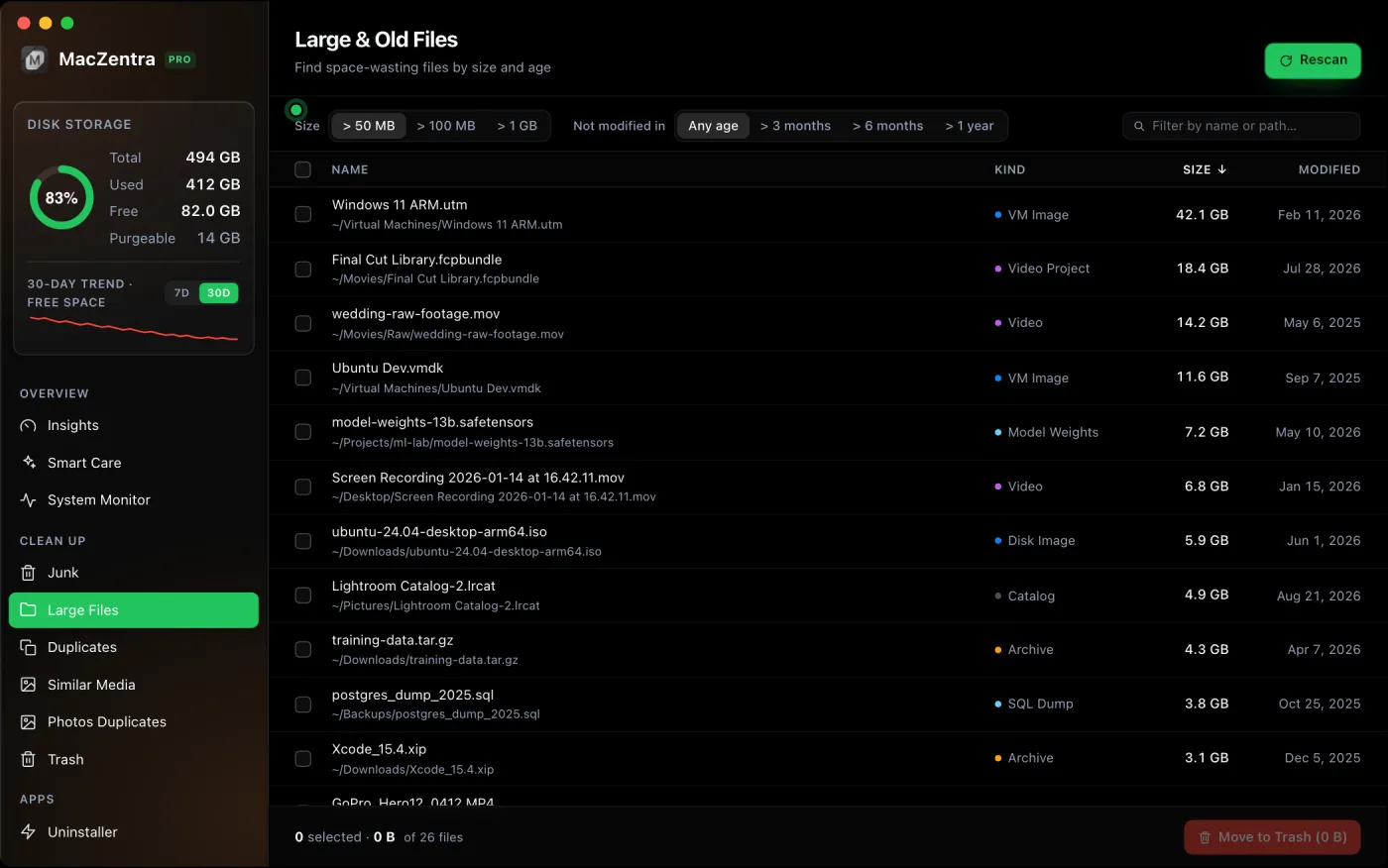
Treemap and Sunburst disk maps, a duplicate finder, Developer Junk, a complete app uninstaller and more, in one native storage cleaner for Mac that’s 15.4 MB.
Explore all features →Related guides
Free up space · 8 min
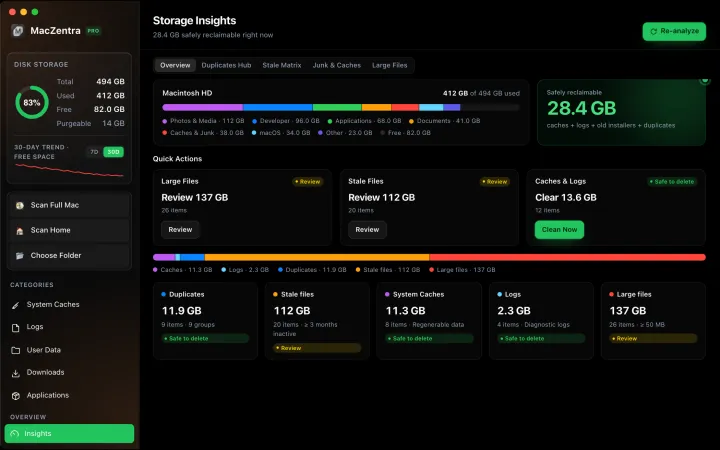
Free Up Space on Mac: 10 Fixes, Biggest First
Ten ways to free up Mac storage ranked by typical space recovered. Covers hidden Library folders and leftovers macOS Storage settings never show.
Free up space · 5 min
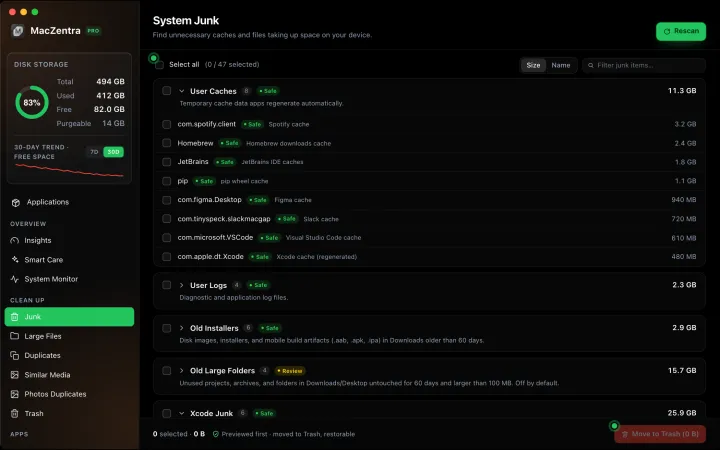
Is It Safe to Delete Library Caches on Mac? What to Keep and Clear
Yes for most apps. See which ~/Library/Caches and /Library/Caches folders are safe to delete, which to leave alone, and how to clear them step by step.
Free up space · 3 min
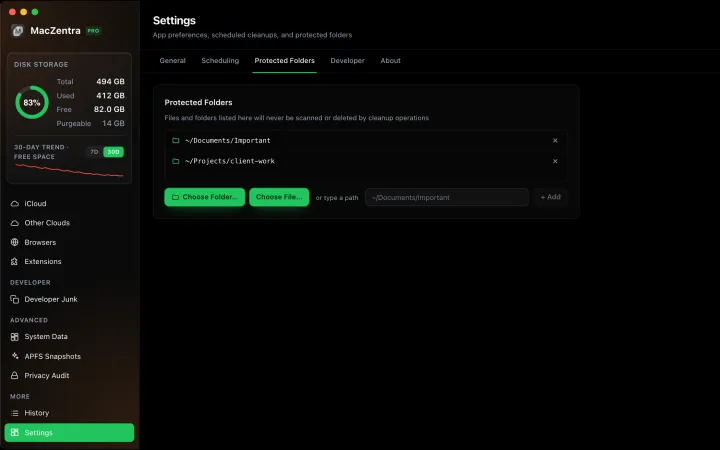
Protected Files & Folders: Keep Items Safe
How the built-in protected paths guard system-critical locations, and how to add your own custom folders to prevent accidental deletion.

Free up space · 4 min
Smart Care for Mac: Automate Cache, Trash and Memory Cleanup
Automate Mac maintenance with Smart Care: clear caches, empty Trash, flush DNS and purge inactive memory in one workflow. Schedule it or run it on demand.