
Free up space
Clean Downloads Folder on Mac: 10-Minute Guide
The MacZentra team · Updated Nov 22, 2026 · 6 min read
To clean your Downloads folder on a Mac, open it in Finder, switch to list view, sort by Size, and move the biggest files you no longer need to the Trash. Then sort by Date Added and clear anything old. Installers and disk images are usually the fastest wins. Ten minutes is enough for most people to reclaim several gigabytes.
1. Open Downloads and switch to list view
In Finder, choose Go → Downloads or press ⌥⌘L. Press ⌘2 to switch to list view, which shows a column for each detail. If a column you want is missing, right-click the header row and tick it.
Pick Date Added and Size from that menu if they aren’t visible. Before deleting anything, check how much space you’re dealing with: how to check storage on a Mac shows the quickest ways.
2. Sort by size to find the heavy files first
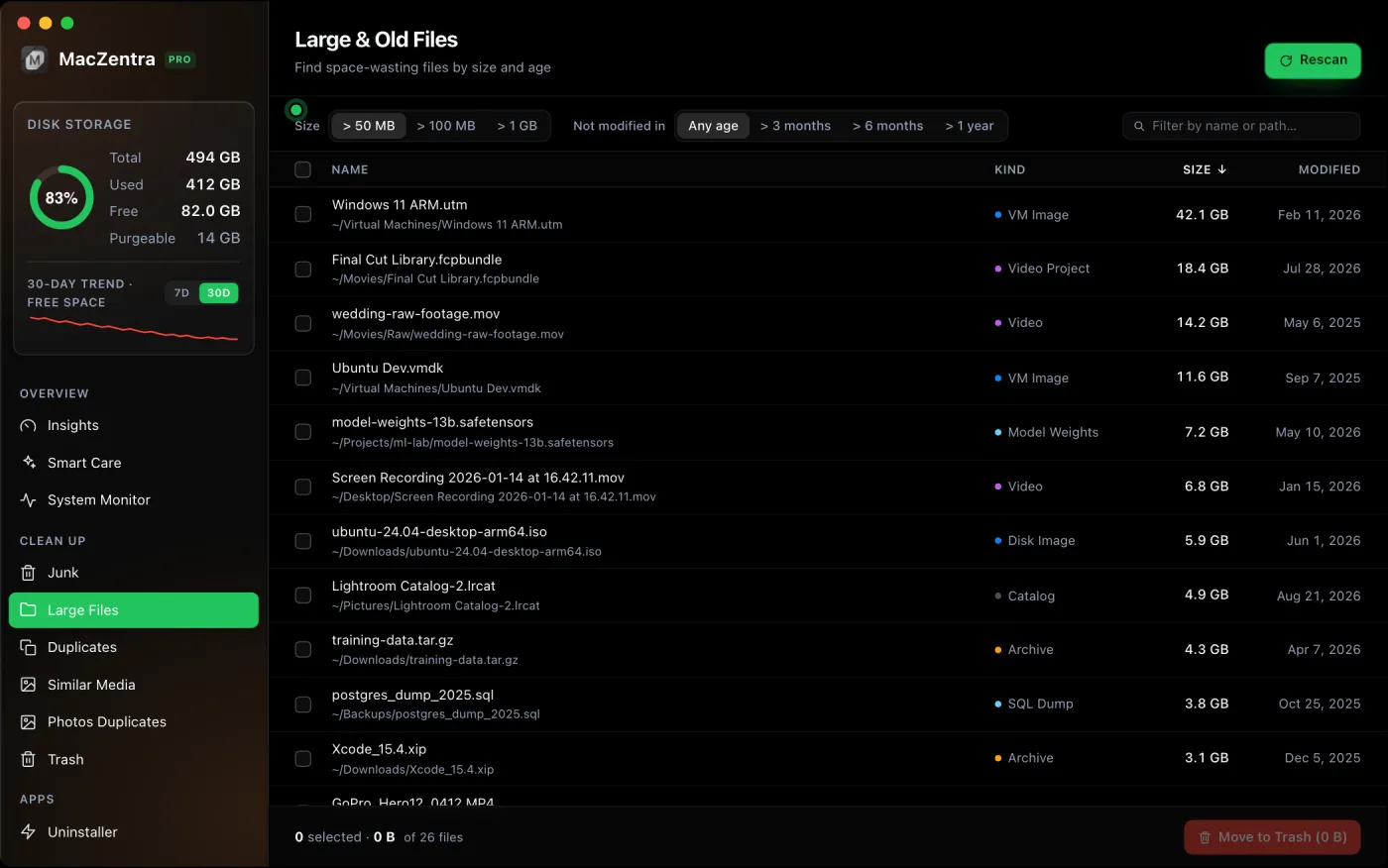
Click the Size column header once to sort largest first, and again to reverse. A handful of files at the top will usually account for most of the space. Videos, archives, old disk images and large PDFs tend to lead the list.
Select a file and press Space to preview it, which is faster than opening it. Drag what you don’t need to the Trash, or press ⌘Delete.
3. Sort by date to clear what has gone stale
Click Date Added and scroll to the oldest items. Files you grabbed a year ago and never opened rarely come back. Two exceptions are worth a second look: tax and receipt PDFs, and anything you downloaded only once and can’t easily get again.
Right-click the empty space in the window and choose Show View Options to set Group By to Kind or Date Added. Grouping puts every disk image together, every archive together and so on.
4. Installers and disk images: the quickest wins
An app installer has done its job the moment the app is installed. Look for these file types and clear the ones for apps you’ve already set up.
| File type | What it is | Safe to remove? |
|---|---|---|
| .dmg | Disk image, usually an app installer | Yes, once the app is installed. Eject it first if it’s mounted |
| .pkg | Installer package | Yes, after you’ve run it successfully |
| .zip | Compressed archive | Yes if you’ve already extracted it, but check the contents first |
| Videos and recordings | Large media files | If you have a copy elsewhere or no longer need it |
| Old PDFs and documents | Statements, forms, manuals | Keep anything you might need for records |
A mounted disk image shows up in the Finder sidebar under Locations. Click the eject button next to it before you trash the file. If the app is still in the Applications folder, you don’t need the original installer. For apps you’re done with entirely, see how to uninstall apps on a Mac, which also removes the leftovers.
5. A read-only check from Terminal
If Finder is slow on a big folder, Terminal can list candidates without changing anything. These commands only print information.
# The 20 largest items in Downloadsdu -sh ~/Downloads/* 2>/dev/null | sort -hr | head -20# Files over 100 MB in Downloads, listed with sizesfind ~/Downloads -type f -size +100M -exec ls -lh {} +# Disk images and installers that are still therefind ~/Downloads -type f \( -name "*.dmg" -o -name "*.pkg" \)
Nothing is removed by any of these, so you decide what goes. For a wider hunt, how to find large files on a Mac shows how to search the whole disk, and which large files are safe to delete helps with the judgement calls.
6. Empty the Trash, or let macOS do it
Moving a file to the Trash doesn’t free the space. You also have to empty it, which is covered step by step in how to empty the Trash on a Mac. If you forget to do it, there’s a setting that does it for you.
- Switch to Finder and choose Finder → Settings.
- Open the Advanced tab.
- Tick Remove items from the Trash after 30 days.
That setting applies to the Trash only. macOS has no built-in switch to delete old items from Downloads on a timer, so the habit has to be yours: a quick sort by date once a month does the job. The same option also appears under System Settings → General → Storage as “Empty Trash Automatically”.
Stop it filling up again
- Move files you keep. When a download is something you want, put it in Documents or a project folder straight away.
- Trash installers as you go. Delete the disk image once the app is installed.
- Look for duplicates. Downloading the same file twice is common. Finding duplicate files on a Mac shows how to catch them.
If space is still tight after Downloads, read 10 fixes to free up space on a Mac. If the numbers in Finder and Storage settings still disagree after clearing files, purgeable space on a Mac explains why.
Questions people ask
Is it safe to delete everything in my Downloads folder?
It’s safe for the system, because macOS doesn’t keep anything it needs there. Check first for files you may still want, such as receipts, documents and one-off downloads.
How do I see which files in Downloads take the most space?
Open Downloads in list view and click the Size column. The largest files will be at the top.
Can I make my Mac clear the Downloads folder automatically?
Not with a built-in setting. The Finder option under Advanced removes Trash items after 30 days, so move old downloads to the Trash and let that setting finish the job. You can also use find in Terminal to list old files, then remove them yourself.
Why is my Mac storage still full after I cleaned Downloads?
The Trash may not be empty, or a snapshot may still be holding the space. See storage not freeing up after deleting files.
Do I need to keep .dmg files after installing an app?
No. Once the app is in your Applications folder, the disk image can go. Keep it only if you want an offline copy to install again.
Everything MacZentra can clean
Treemap and Sunburst disk maps, a duplicate finder, Developer Junk, a complete app uninstaller and more, in one native storage cleaner for Mac that’s 15.4 MB.
Explore all features →Related guides
Free up space · 5 min
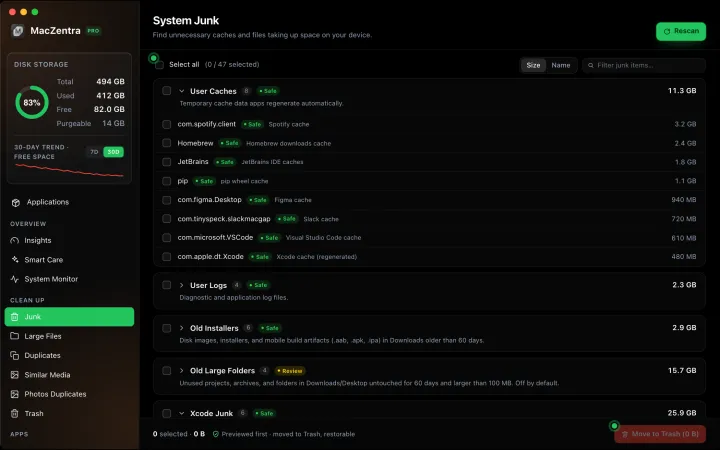
Is It Safe to Delete Library Caches on Mac? What to Clear
Yes for most apps. See which ~/Library/Caches and /Library/Caches folders are safe to delete, which to leave alone, and how to clear them step by step.
Free up space · 6 min
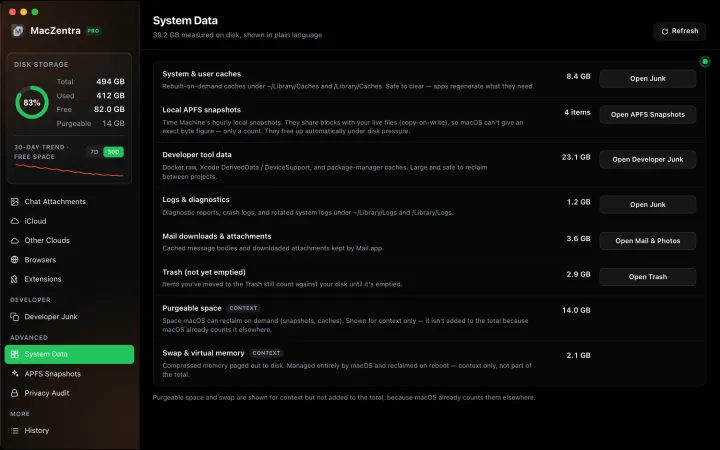
Not Enough Space to Update macOS: How to Fix It
Mac says not enough space to update macOS? See how much free room the installer needs and free it fast with snapshots, backups and an external drive.
Free up space · 5 min
Free Up Space on a MacBook Air (128 or 256 GB)
MacBook Air with a 128 or 256 GB drive full? Clear the biggest space hogs first, then keep Photos, Messages and backups from filling it again.
Check storage · 9 min
Best Mac Storage Cleaners 2026: Compared & Ranked
Mac storage cleaners and disk space analyzers compared by price, size, scan speed and licence. One-time, subscription and free options side by side.