
System Data
What Is Other in Mac Storage? (Now System Data)
The MacZentra team · Updated Nov 17, 2026 · 6 min read
What is Other in Mac storage? It was the catch-all category in the storage bar on older versions of macOS, covering every file that fit no named category. Newer versions call that same leftover category System Data. If you can’t find “Other” on a recent Mac, it hasn’t gone anywhere: it was renamed.
What “Other” was on older Macs
Open About This Mac then Storage on an older Mac and the colour bar had segments for Apps, Documents, Photos, Mail and so on, plus a grey one named Other. It was whatever macOS couldn’t file under a specific heading, so the size depended on how you used the machine, and it was often the biggest surprise on the screen.
That grey bucket usually held:
- App and browser caches, logs and temporary files.
- Plug-ins, extensions, fonts and other support files for apps.
- Archives and disk images, such as old
.zipand.dmgfiles. - System files and local Time Machine snapshots.
- Documents of types macOS didn’t recognise well enough to count as Documents.
The label was vague on purpose, and Apple eventually changed it. The exact release where it happened is easy to misremember, so check your own Mac: on current versions the same bar says System Data, with the same kind of contents.
What is Other on a newer Mac? It’s System Data
On macOS 13 Ventura and later, open the Apple menu, choose System Settings, click General, then Storage. The grey segment at the end of the bar is System Data. Everything above about “Other” applies to it. If you need the full tour, our guide to how to check storage on a Mac covers the screen category by category.
One thing did change. Newer macOS sorts more files into named categories than the old one did, and it separates the operating system itself into a macOS category. So an old “Other” figure and a new System Data figure on the same Mac won’t match exactly, even though they play the same role.
The labels people confuse with Other
Three names look alike and mean different things. Mixing them up is why advice about “deleting Other” sends people to the wrong place.
| Label | Where you see it | What it means | Can you reduce it? |
|---|---|---|---|
| Other | Older macOS, Storage bar | The old name for the leftover category | Yes, partly. Same steps as System Data |
| System Data | Newer macOS, System Settings → General → Storage | The current name: caches, logs, snapshots, support files and anything uncategorised | Partly. See what System Data is |
| Other Users and Shared | Newer macOS, Storage bar, on Macs with more than one account | Data from other accounts plus the shared folder | Only as an administrator. See this guide |
| Other Volumes in Container | Disk Utility, volume information | Space used by the other APFS volumes that share your disk’s container | No. It isn’t files to delete |
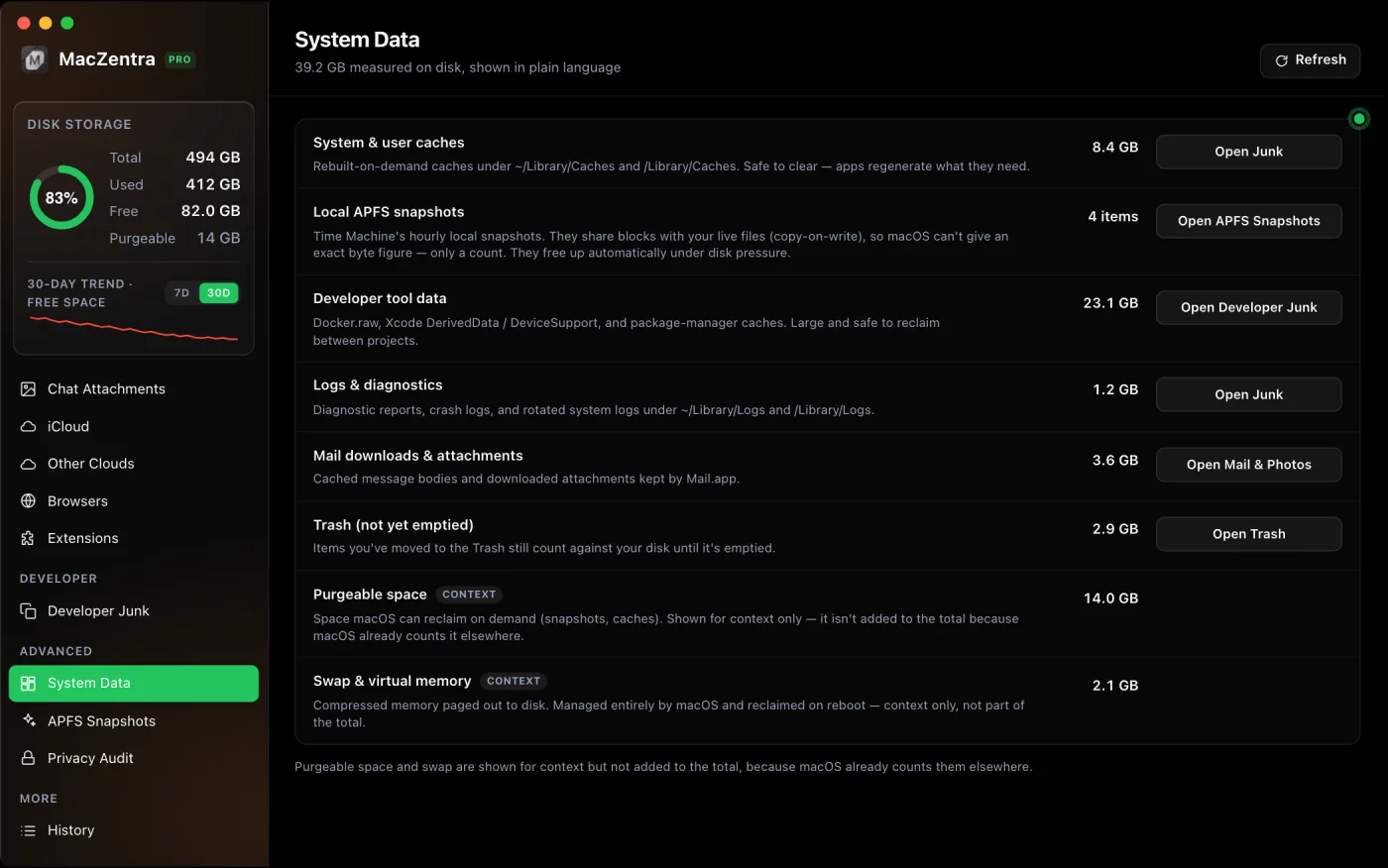
What “other volumes in container” means in Disk Utility
This one trips people up because the word “other” appears again. Open Disk Utility from Applications → Utilities and select your startup volume. The information panel shows a usage bar with Used, Other Volumes and Free.
A modern Mac’s disk is formatted as APFS, and a single APFS container holds several volumes that all draw on the same pool of space. Your everyday files live on one of them. The system, Preboot, Recovery and VM volumes, plus any extra volumes you’ve added, sit alongside it. “Other Volumes” is the combined size of the others, seen from the volume you selected. It’s a map of how the container is shared, not a pile of junk.
Both the Free figure and the Used figure here can differ from Finder and System Settings. Purgeable space and snapshots explain most of the gap, and APFS local snapshots shows how to see them.
How to delete Other storage on a Mac (the short version)
Since Other is now System Data, shrinking it means the same handful of jobs, in roughly this order of payoff. This post stays on the naming question, so each step points to the guide that has the detail.
- Work out what is big first. How to clear System Data on a Mac goes through snapshots, caches, old device backups and developer data.
- Clear only caches you recognise. Which Library caches are safe to delete sorts the safe ones from the risky ones.
- If it jumped after an upgrade, check for a left-over installer. System Data after a macOS update covers it.
- Look for large single items. How to find large files on a Mac shows how to list them by size.
If the disk is nearly full right now, what to delete first when the startup disk is full gives the order to work in. Free space can also take a while to reappear, which storage not freeing up after deleting files explains.
Questions people ask
What is Other on Mac storage now?
It’s System Data. Newer macOS versions replaced the old Other category with that name. The contents are the same kind of thing: caches, logs, snapshots and files that fit no other category.
What is Other in MacBook storage, and is it the same on a MacBook Air?
Yes. The category follows the macOS version, not the model. A MacBook Air, MacBook Pro, iMac and Mac mini all show the same label for the same macOS release.
Is it safe to delete Other storage on a Mac?
Not as a single action, because you can’t select the category. You can safely remove specific things inside it, such as old snapshots or caches you recognise. Never delete system folders to make the bar smaller.
Why is my Mac startup disk full when Other looks small?
Check the other segments first: Documents, Photos and Applications are usually larger. Disk Utility’s “Other Volumes” figure is also not the culprit, since it counts the system volumes that share your container. Start with 10 ways to free up space on a Mac.
What is “Other Volumes in Container” in Disk Utility?
It’s the space used by the other APFS volumes in the same container, such as system, Preboot, Recovery and VM. It’s part of how macOS is laid out on disk and isn’t something you can or should delete. For how big the operating system itself is, see how much storage macOS takes up.
Everything MacZentra can clean
Treemap and Sunburst disk maps, a duplicate finder, Developer Junk, a complete app uninstaller and more, in one native storage cleaner for Mac that’s 15.4 MB.
Explore all features →Related guides
System Data · 8 min
How to Clear System Data on Mac: What Is Safe to Delete
How to clear System Data on Mac safely: delete local snapshots, caches, old iPhone backups and developer files, with exact steps and a safe-to-delete table.
System Data · 6 min
How Much Storage Does macOS Take Up?
How much storage macOS takes up on your Mac, how to measure each volume, why System Data looks so big, and how to reclaim space safely.
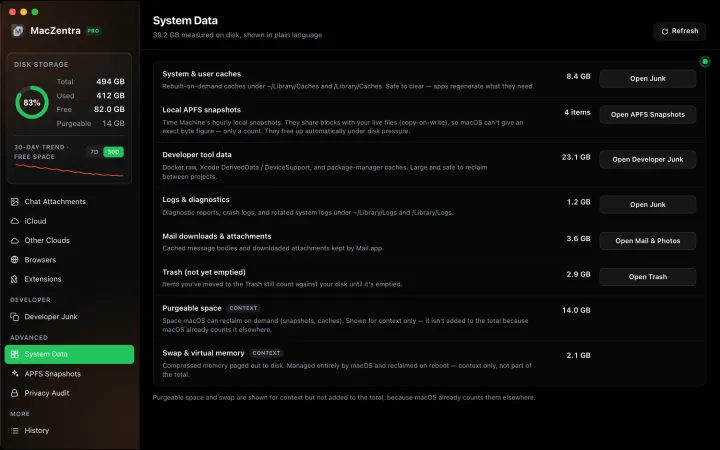
System Data · 7 min
What Is System Data on Mac? And How to Shrink It
What is System Data on Mac? The grey bar in macOS Storage. See what it holds, how much is normal, and why it grows after a macOS update.
System Data · 4 min
/Library/Caches vs ~/Library/Caches: What's the Difference?
/Library/Caches is shared by every user; ~/Library/Caches is yours. Real sizes from a Mac we checked, why the sticky bit matters, and which one to clear.