
Free up space
Free Up Space on a MacBook Air (128 or 256 GB)
The MacZentra team · Updated Nov 23, 2026 · 5 min read
To free up space on a MacBook Air with a 128 GB or 256 GB drive, start with the four things that grow the most: the Photos library, Messages attachments, old iPhone backups and Downloads. A small SSD can’t be upgraded later, so the goal isn’t one big cleanup. It’s keeping the big items out of the way so the disk never fills again.
Why a small MacBook Air fills up so fast
macOS, its caches and your apps take a fixed slice of the drive before you save a single file. On a 128 GB disk that slice is a large share, and what’s left gets eaten by photos, messages and backups that build up in the background. Our guide to how much storage macOS takes up shows what’s normal.
Open System Settings → General → Storage and wait for the bar to finish loading. The largest category tells you where to start. If the grey System Data bar is the problem, go to what System Data is and how to shrink it instead.
The biggest wins, in order
| What to check | Why it grows | Where to read more |
|---|---|---|
| Photos library | Full-size originals and videos | Reduce Photos library size |
| Messages | Years of attachments and videos | Messages taking up space |
| iPhone backups | One full backup per device | Delete iPhone backups |
| Downloads | Disk images and installers you never cleared | Clean the Downloads folder |
| Unused apps | Apps installed once and forgotten | Find unused apps |
| Attachments cached locally | Clear Mail storage |
Photos first
If you use iCloud Photos, open Photos → Settings → iCloud and choose Optimize Mac Storage. The Mac then keeps smaller versions locally and the full-size originals stay in iCloud. Make sure the upload has finished before you delete anything from the Mac. The wider trade-offs are in iCloud Optimize Mac Storage without losing files.
Then the files you can see
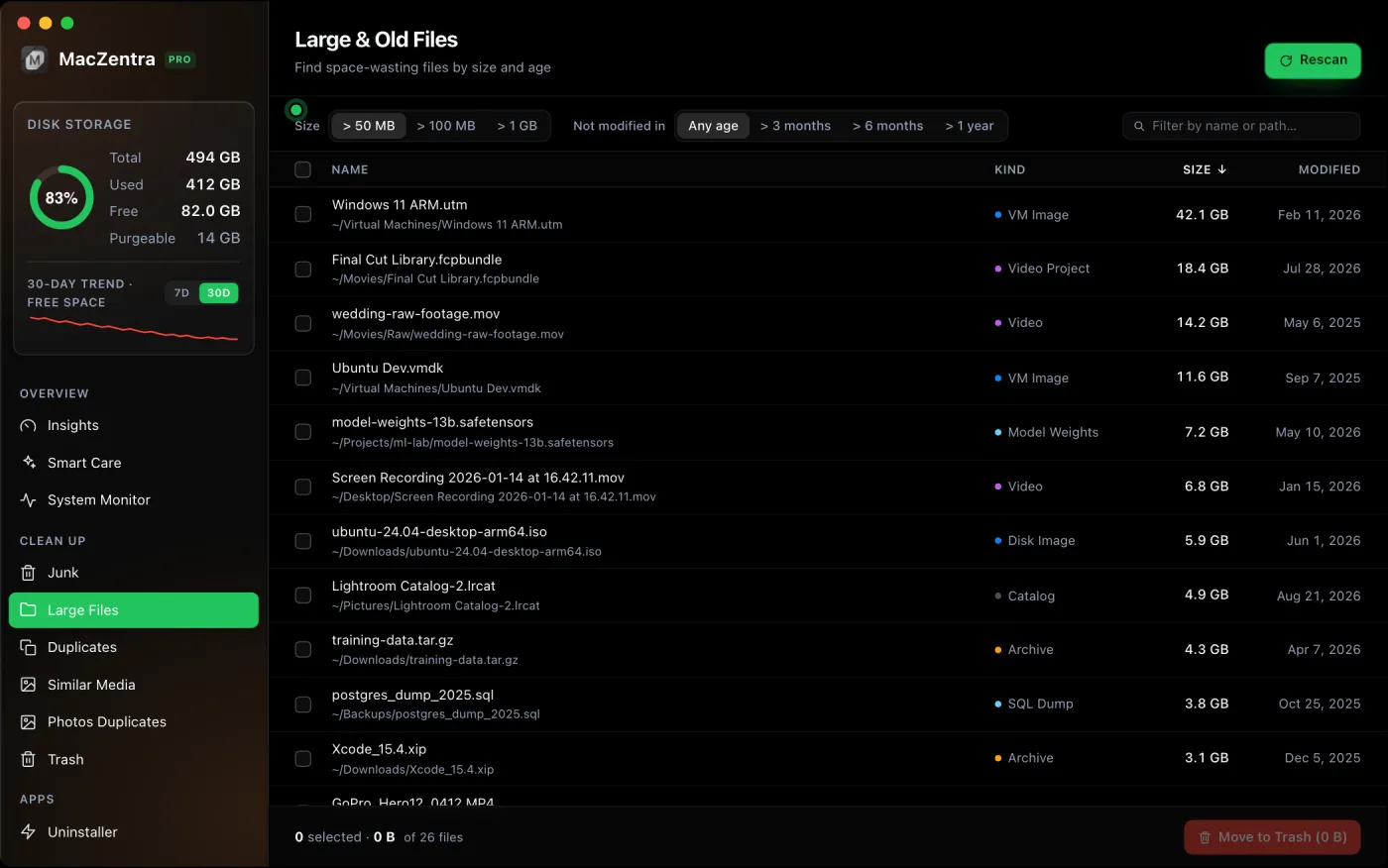
Sort Downloads by size and clear what you’ve already installed. After that, look for single large files, such as screen recordings and old video exports, with four ways to find large files on a Mac.
Stop it filling up again
- Turn on Empty Trash automatically. It’s in System Settings → General → Storage, under Recommendations, and it erases items that have sat in the Trash for more than 30 days.
- Keep the big libraries on an external drive. A Photos library, a Movies folder or a video project archive can live on a USB or Thunderbolt SSD and come back only when you need them.
- Move Desktop and Documents to iCloud Drive if you have the plan for it. Recent files stay on the Mac and older ones are stored in iCloud.
- Delete old iPhone backups every time you buy a new phone, not once a year.
Questions people ask
How much free space should I keep on a 256 GB MacBook Air?
Aim for at least 10 to 15 percent of the disk, which is 25 to 40 GB on a 256 GB drive. macOS needs working room for updates, swap and caches, and a nearly full disk slows down and can fail to install updates.
Can I upgrade the storage on a MacBook Air?
Not after you buy it. The drive is part of the Mac, so the choices are cleaning up, moving files to an external drive or using iCloud.
Is it safe to delete files to free up space?
It’s safe for items you recognise, such as old downloads, finished installers and old backups. Don’t delete anything inside system folders by hand. When you’re unsure about a folder, look it up first, for example is it safe to delete Library caches.
Why is my MacBook Air still full after deleting files?
The usual reasons are the Trash, Photos’ Recently Deleted folder or local snapshots. Work through Mac storage not freeing up after deleting files.
For the full routine, see free up space on Mac: 10 fixes, biggest first.
Everything MacZentra can clean
Treemap and Sunburst disk maps, a duplicate finder, Developer Junk, a complete app uninstaller and more, in one native storage cleaner for Mac that’s 15.4 MB.
Explore all features →Related guides
Free up space · 6 min
Best Mac Cleaner Without a Subscription (2027)
The best Mac cleaner without a subscription: one-time and free options ranked, with prices checked on vendor pages in November 2026.
Free up space · 9 min
Best Mac Cleaner to Download in 2027 (Free and Paid)
The best Mac cleaner to download in 2027, compared on price, safety and what each one deletes. Five free and paid picks, checked on vendor sites in November 2026.
Free up space · 7 min
Free Up Space on Mac in 2027: A 30-Minute Plan
Free up space on your Mac in 2027 with a 30-minute plan: ordered steps from Trash to caches, for macOS Tahoe and Golden Gate, plus what to skip.
Check storage · 9 min
Best Mac Storage Cleaners 2026: Compared & Ranked
Mac storage cleaners and disk space analyzers compared by price, size, scan speed and licence. One-time, subscription and free options side by side.