
System Data
How to Clear System Data on Mac: What Is Safe to Delete
The MacZentra team · Updated Nov 17, 2026 · 8 min read
To clear System Data on a Mac, find out what is filling it, then remove the safe parts: local Time Machine snapshots, caches, old iPhone backups, developer files and large attachments. Do not delete anything inside /System or folders you do not recognise. Most Macs recover tens of gigabytes this way without touching a single personal file.
What counts as System Data
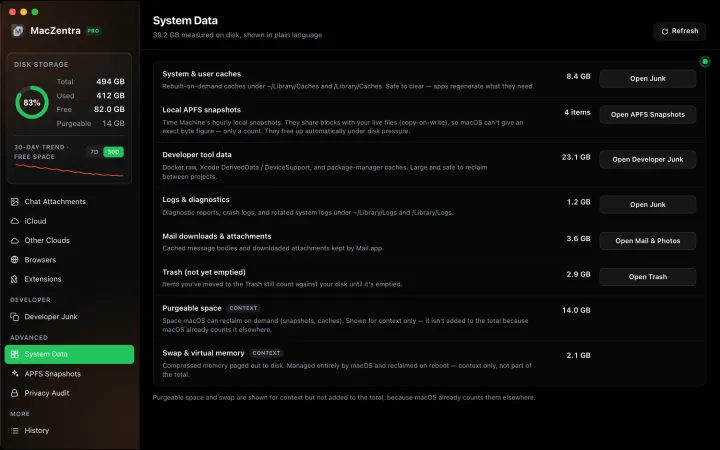
System Data is the catch-all part of the bar in Apple menu → System Settings → General → Storage: caches, logs, snapshots, device backups, temporary files and app leftovers. This guide is about clearing it. For what each part is and why it grows, read what System Data is on a Mac.
How to check what System Data holds
macOS will not break System Data down for you, so you have to look at the usual suspects. Back up first. Time Machine is fine, but check that the backup finished before you delete anything.
Then work through the list below from the biggest likely wins to the smallest. After each step, reopen the Storage screen to see the change. It can take a few minutes to update, which we cover in step 6.
1. Delete local Time Machine snapshots
If Time Machine is on, macOS keeps local snapshots on your startup disk so it can restore files when the backup drive is not connected. They normally clear themselves when space runs low, but they can grow large and linger. Our explainer on APFS local snapshots covers how they work.
To list them, open Terminal and run:
tmutil listlocalsnapshots /
Each line shows a date. To remove one, run:
sudo tmutil deletelocalsnapshots 2026-11-01-120000
Replace the date with one from your list. Repeat for each snapshot you want gone. Do this only if your last real backup completed.
2. Clear caches in Library folders
Caches are copies of data apps expect to need again: thumbnails, web assets, build output. They are safe to remove because apps rebuild them, but they can reach many gigabytes.
- Quit every app you can.
- In Finder choose Go → Go to Folder and enter
~/Library/Caches. - Open the folders for apps you want to clean and delete their contents, not the folders themselves.
- Repeat for
/Library/Cachesif you want to go further.
Skip any folder you do not recognise. Our guides on whether Library caches are safe to delete and the difference between system and user Library caches show which ones matter. If you see odd folders under /private/var, read what the var/folders directory is before you touch it.
3. Remove old iPhone and iPad backups
Local device backups are often the single largest item in System Data. Each one can take 10 to 50 GB. They live in:
~/Library/Application Support/MobileSync/Backup
The easier route is System Settings → General → Storage, where backups are listed under iOS Files on Macs that have them, ready to review and delete. Keep the newest backup of any device you still use, and delete the rest.
4. Clear developer data
If you build apps, developer files can dwarf everything else. The big ones are:
- Xcode DerivedData, Simulators and Archives. Build output is rebuilt on demand. See how to clean Xcode DerivedData safely.
- Docker. Images, volumes and the disk image file grow quietly. Here is how to shrink Docker disk usage on a Mac.
- node_modules. Every project keeps its own copy. See how to clean up node_modules folders.
Non-developers can skip this step. Developers will often find it recovers the most space.
5. Check mail, messages, logs and leftovers
A few smaller sources add up:
- Mail downloads. Mail stores attachments locally. In Mail, you can remove downloads from within a message, or delete old mail from large accounts.
- Messages attachments. Photos and videos sent in Messages can fill several gigabytes. Review them from the Storage screen.
- Old installers.
.dmgand.pkgfiles in Downloads are safe to delete once the app is installed. - Spotlight index. If a process like
mds_storesis huge, read about the Spotlight index files before deciding to rebuild it.
To find big files quickly, see how to find large files on a Mac.
6. Restart and wait for System Data to update
Here is the step people miss. After you delete files, macOS does not always update the Storage bar straight away. It can take a few minutes, and sometimes until after a restart, before the number drops. If space still does not come back, our troubleshooting guide on storage not freeing up after deleting files covers the usual reasons, such as snapshots holding the space.
If System Data jumped after a macOS upgrade, the cause is often temporary files from the update. Read why System Data grows after a macOS update before deleting anything. It often shrinks on its own within a few days.
How much System Data is normal?
As a rough guide, anything under 30 GB is ordinary. Between 30 and 80 GB is worth a look if you are short on space. Above 100 GB almost always means one large culprit, usually snapshots, device backups or developer files, so start with steps 1, 3 and 4.
Safe to delete or review first?
| Item | Where | Verdict |
|---|---|---|
| Local Time Machine snapshots | tmutil | Safe if your backup is complete |
| App caches | ~/Library/Caches | Safe: apps rebuild them |
| Old iPhone/iPad backups | MobileSync/Backup | Safe if you no longer need them |
| Xcode DerivedData | ~/Library/Developer/Xcode | Safe: rebuilt on build |
| Old installers (.dmg, .pkg) | Downloads | Safe once installed |
| Mail and Messages attachments | Mail, Messages | Review first: may be your only copy |
| Unknown folders in ~/Library | Library | Review first |
| Anything in /System, /usr, Keychains, Recovery | System | Never delete |
What not to delete
Never remove anything inside /System or /usr. Do not delete Keychain files, the Recovery volume or folders belonging to apps you rely on. Avoid “System Data cleaner” tools that promise a single click for everything: if a tool cannot show you what it will delete first, do not use it. Move items to the Trash and keep them there for a day or two before emptying it, so you can restore anything that breaks.
A faster way: see System Data as a map
Doing all of this by hand works, but it means a lot of Finder digging. A disk analyzer shows where the space is in one picture. MacZentra is a small native Mac app (15.4 MB) that scans your disk locally, so your files are never uploaded, and shows what is using the space in a treemap with the Mac storage analyzer. Developers can use the developer cleaner for DerivedData, Docker and package caches.
Frequently asked questions
Is it safe to delete System Data on Mac?
You cannot delete System Data as one item. You can safely remove parts of it, such as caches, snapshots and old backups. Do not delete anything in system folders or files you do not recognise.
Why is my System Data so big?
The usual causes are local Time Machine snapshots, large caches, old device backups and developer files. After a macOS upgrade, temporary update files can also inflate it for a few days.
How long does System Data take to update?
Usually a few minutes after you delete files, sometimes only after a restart. If the number stays high, check for local snapshots still holding space.
Will clearing caches slow my Mac down?
Slightly, at first. Apps rebuild their caches the next time you use them, so the first launch can be a little slower. Performance returns to normal after that.
Can I clear System Data without Terminal?
Yes. Most steps, such as deleting iPhone backups, clearing caches in Finder and reviewing Mail and Messages attachments, use only Finder and System Settings. Snapshots are the one step that needs Terminal, or a cleaner app that handles them for you. For more general ideas, see our guide to freeing up space on a Mac.
Everything MacZentra can clean
Treemap and Sunburst disk maps, a duplicate finder, Developer Junk, a complete app uninstaller and more, in one native storage cleaner for Mac that’s 15.4 MB.
Explore all features →Related guides
System Data · 6 min
How Much Storage Does macOS Take Up?
How much storage macOS takes up on your Mac, how to measure each volume, why System Data looks so big, and how to reclaim space safely.
System Data · 7 min
What Is System Data on Mac? And How to Shrink It
What is System Data on Mac? The grey bar in macOS Storage. See what it holds, how much is normal, and why it grows after a macOS update.
System Data · 4 min
/Library/Caches vs ~/Library/Caches: What's the Difference?
/Library/Caches is shared by every user; ~/Library/Caches is yours. Real sizes from a Mac we checked, why the sticky bit matters, and which one to clear.
System Data · 5 min
What Is /var/folders on Mac? Why It Uses GBs
What /private/var/folders holds, the 0, C, T and X folders, real sizes from a Mac we checked, and what is safe to clear. Includes the commands to measure it.